Toggle Overlays
When images are displayed in the RamSoft software, there are several annotation overlays composed of patient and study data. These annotations are useful when navigating through or working with the images. Users can toggle annotations on and off by using the Toggle Overlays icon  found in the Viewing Tools toolbar.
Clicking the Toggle Overlays button will turn off all overlays currently being displayed over the image. Clicking it again will turn the overlays back on. On top of toggling the overlays on and off, certain types of annotations can be turned off individually. Clicking the Overlays dropdown arrow will open a list of the sections that can be enabled/disabled.

The Show Patient Annotations option controls the visibility of the patient specific tags that are found on the top left corner of the image. The Show Image Annotations option controls the visibility of the image specific annotations that are found in the bottom left and top right corner. For a calibrated image, the Show Calibration Ruler option controls the visibility of the calibration ruler on the right side of the image. The Show User Annotations option controls the visibility of user-created annotations on an image.
An example of various overlays with different annotation types is shown below.

Support for DICOM 6000 Image Overlays
DICOM 6000 image overlays are supported by RamSoft software. These overlays are displayed during DICOM printing, and are also visible in the RamSoft RapidResults.
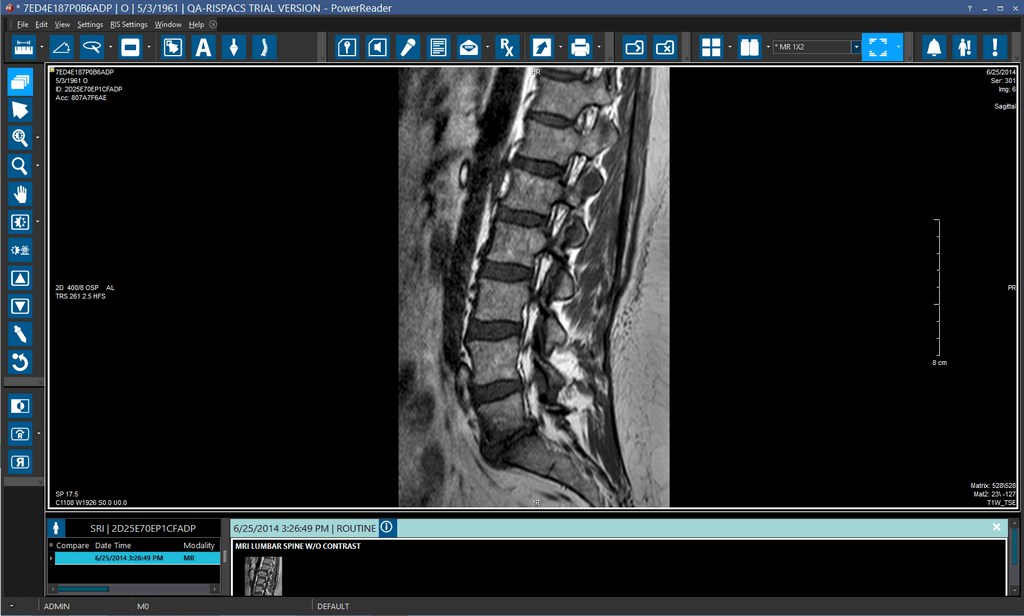
The users can toggle the overlays on and off by selecting the Show User Annotations option under the Toggle Overlays button.

Displaying Date and Time Overlay Annotations
When displaying Study Date and Time annotations, the following algorithm is used:
Acquisition Datetime (008,002A), if present, else Acquisition Date (0008, 0022) and Acquisition Time (0008, 0032), if present, else Content Date (0008, 0023) and Content Time (0008,0033), if present, else Series Date (0008,0021) and Series Time (0008,0031), if present, else Study Date (0008, 0020) AND Study Time (0008, 0030).
Displaying Calculated Slice Position and Calculated Spacing Between Slices Annotation Information
We may have the problem of trying to sort a set of slices into anatomical order. For this we want to use the orientation information to tell us where the slices are in space, and therefore, what order they should have.
The following algorithm is used to display slice positions:
Slice Location (0020,1041), if present, else Table Position (0018,9327), else Calculated Slice Location.
The following algorithm is used to display Calculated Spacing Between Slices:
Spacing Between Slices (0018,0088), if present, else Calculated Spacing Between Slices