How Do I Create a New Patient?
In order to create a new patient from the Worklist or Search screen, go to the top toolbar and click on the New Patient  icon. This can also be done by going to File > New Patient or by pressing the F2 key. The Patient Registration screen appears as shown below:
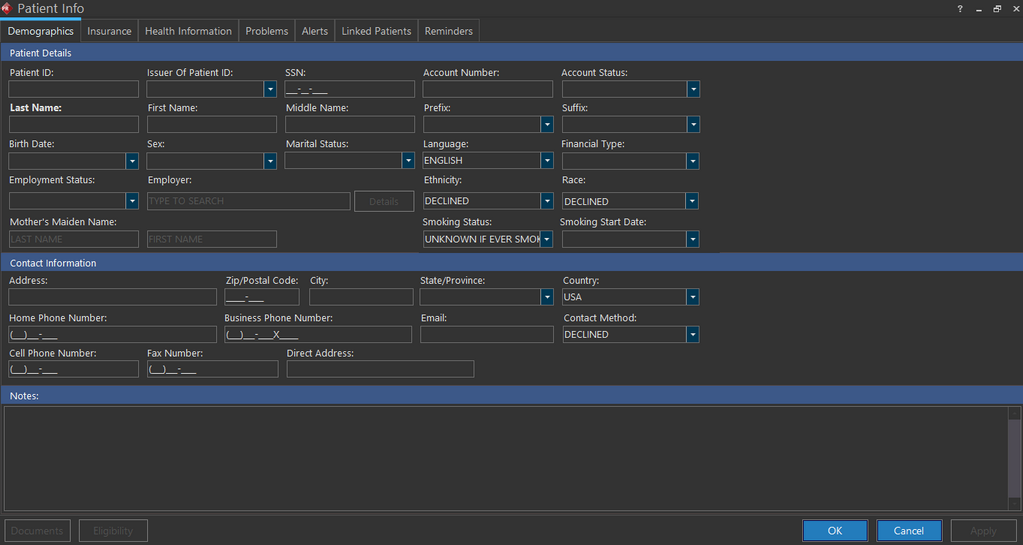
Enter the patient's information. Only the Last Name field is required. All other information is optional, although it is recommended to complete as many fields as possible. A patient's date of birth can be entered as far back as 1/1/1800. Any birth date older than 1/1/1800 is not allowed.
Click OK to save when finished. If the information entered is identical to a previously registered patient at the facility, a notification will appear saying that the newly created patient and the previous patient will be merged together.
If you click OK without entering any Insurance information, the system displays the following message:

This is a configurable message and users with Admin privileges can control it by enabling or disabling the Configuration Entry "Check Patient's Insurance on Order Placement/Scheduling".
For information on the RIS features available for the Patient Registration form, see the topic Patient Info (RIS).