How Do I Sign Preliminary Reports?
Radiologists are able to sign Preliminary Reports in the Document Viewer while leaving the report status as Preliminary. In this instance, the report will be called a Diagnostic Preliminary Report ( the report stays as a Preliminary report, even if it is signed). This way one can distinguish between a Signed Preliminary Report and a Final Diagnostic Report if both are signed.
To sign a preliminary report, open the Document Viewer of any study. In the Document Viewer, select a diagnostic report template from the Template tab.
The diagnostic report template will be Diagnostic Preliminary in the "Type" column.
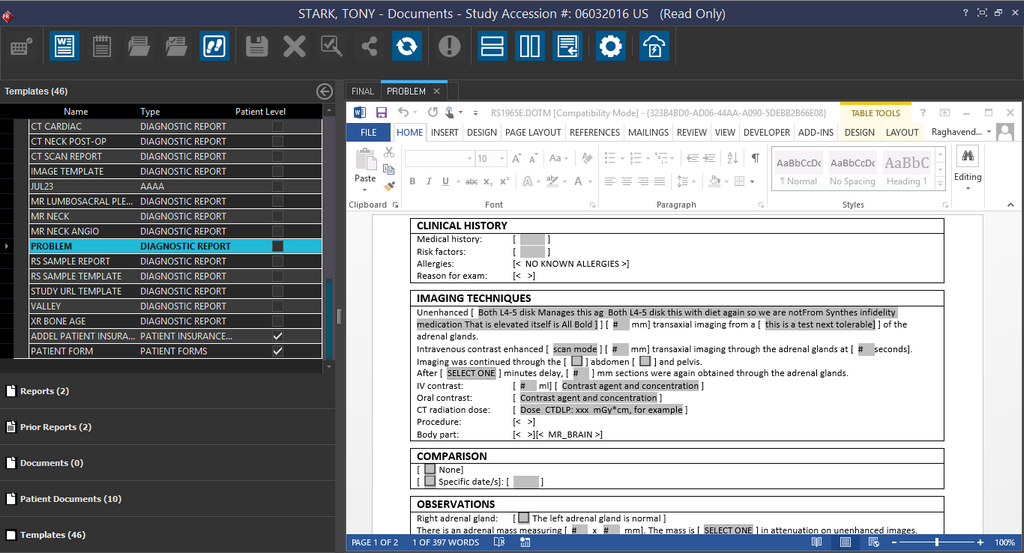
Select a template by double-clicking it. Once the template opens in the document editor, you will be able to edit the contents of the Template. Notice the Name and Type of the template on the left side of the divider. If you do not have the Diagnostic Preliminary Report Type template set up by default, you can click on the Type column. A drop-down will occur. Here, choose DIAGNOSTIC PRELIMINARY as Type.
If the default report type is set to Diagnostic Preliminary Report in Template Manager, then automatically the Name will be stated as PRELIMINARY and The Type will be stated as DIAGNOSTIC PRELIMINARY.
Make any changes necessary to the the template. Fill in the required fields.
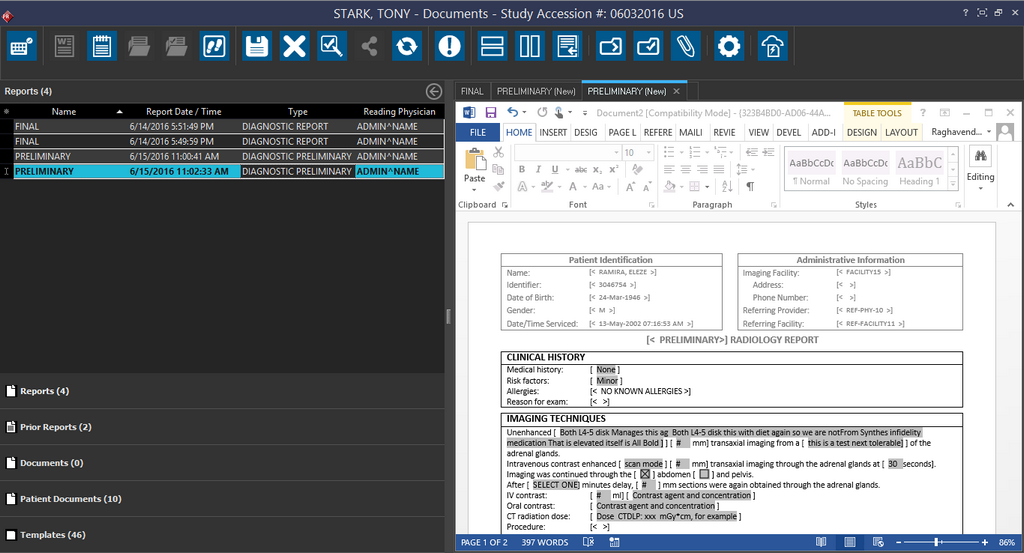
After you are done filling the details, look at the Document Viewer to access the Report Module toolbar.

Click Save  . Clicking this button enables the user to save any changes made to the Report.
After clicking Save, you will notice a new button which is available now. This is the Update button. Clicking the Update button allows the user to modify fields within the template if they forgot something.

However, if no changes need to be made, click the Sign Report  icon.
icon.
Rules for the "Sign Report" button to appear
The following conditions must be met in order for the Sign Report button to appear:
| Condition |
|---|
| 1. The report is not verified. |
| 2. The report is a diagnostic report or preliminary diagnostic report. |
| 3. The report is not a prior report. |
| 4. There should be an assigned reading physician. |
| 5. The current user has sign any report privileges or the current user is assigned the reading physician role. |
Sign Report Confirmation
There can be occasions when you have multiple un-signed reports while you are trying to sign the current report you are viewing. In this case if you click the Finish Reviewing the Study  button, the system will display the Sign Report Confirmation message "There are multiple reports to be signed. You have the options to either sign the current report or sign all the un-signed reports or to cancel this process.
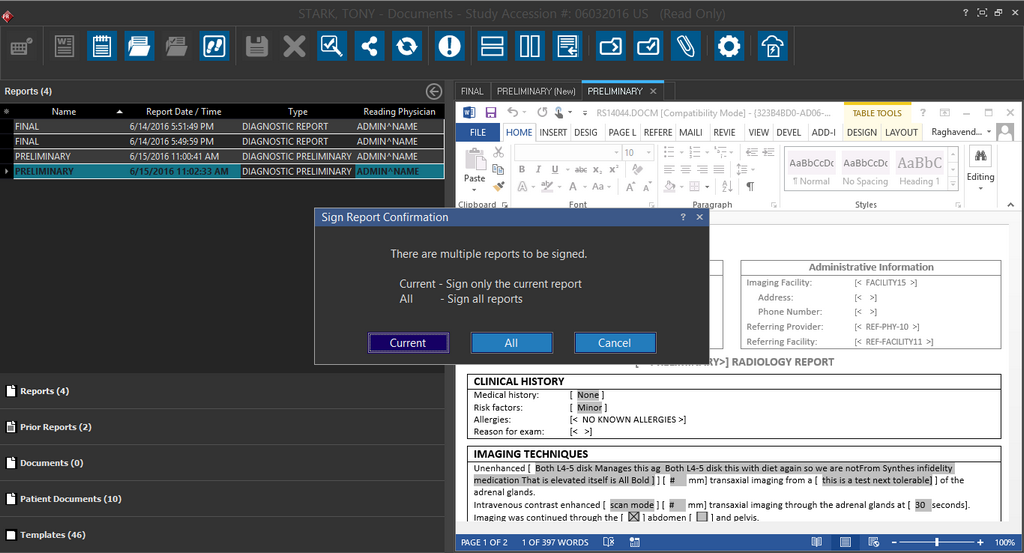
Clicking the Current button lets you sign only the current report. Clicking the All button lets you sign all the un-signed reports.
Signing a Report when Document Viewer is Split
Sometimes, a Reading Physician might split the Document Viewer screen so as to keep switching between a diagnostic report and other related documents for the study. This is the case when the Reading Physician is editing/updating the report (Active Document Editor) while viewing other related documents (Document Viewer) and keeps navigating between the Reports and other tabs (Documents/Patient Documents/Prior Reports).
In such a scenario, Document Viewer allows the physician to sign the report (active Document Editor) even when the focus is on the other documents that are open along with the active Document Editor. As long as the Document Editor is open, the Sign Report button is enabled for Signing the report.
Updating a report after the Sign process is initiated
There might be situations wherein you realize that you have missed certain information on a report after you have clicked the Sign Report button. RamSoft PowerReader helps you make edits to a report by delaying the time it takes for the system to sign the report. This lets you revisit the report and make important changes that you have missed.
You can set up the Sign time delay in the System Configuration settings using the "Sign Report Delay Interval (min)" configuration entry. If the value in this configuration entry is set to "0", the report will be signed immediately.
To update a Diagnostic Preliminary report once you have clicked the Sign Report button, click the Update button  while you see an asterisk mark besides the report name in the Navigator pane. This would cancel the Signing process.
Note that you can update a report before the time delay interval elapses only if you have the privileges, Create a Diagnostic Report and Amend a Diagnostic Report.

Let us understand this with an example.
In this instance, a user opens a Diagnostic Preliminary report in the report viewer and clicks the Sign Report button to sign the report.
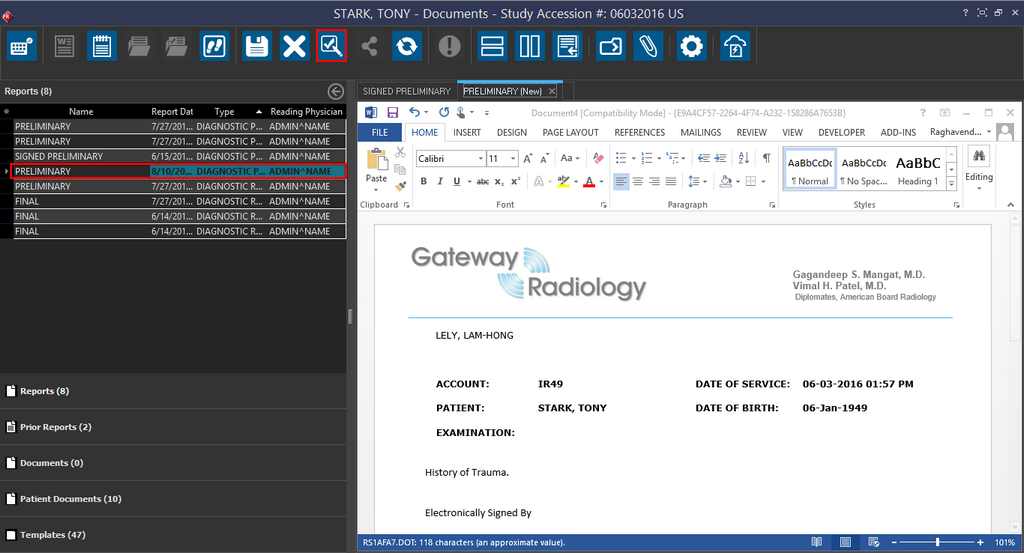
You can see that now that there is an asterisk mark on the report name in the Navigator pane indicating that there is a time interval provided to the user to click the Update button and make any changes to the report.
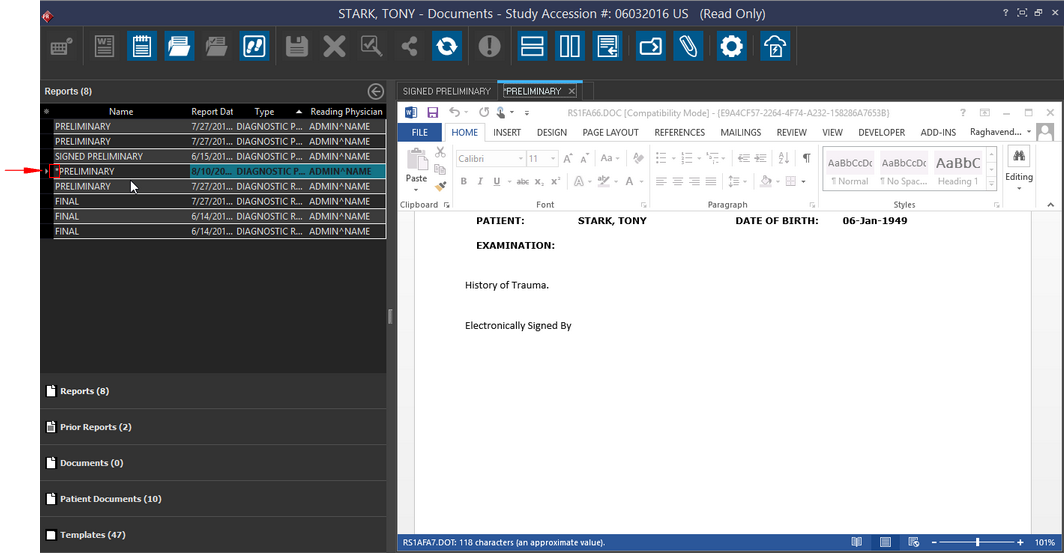
The user clicks the Update button to make any updates/edits to the report and then signs the report by clicking the Sign Report button.
After the time interval that is set up to delay the report from being signed is elapsed, the user can see that the report is signed and the report name is now changed to Signed Preliminary report.
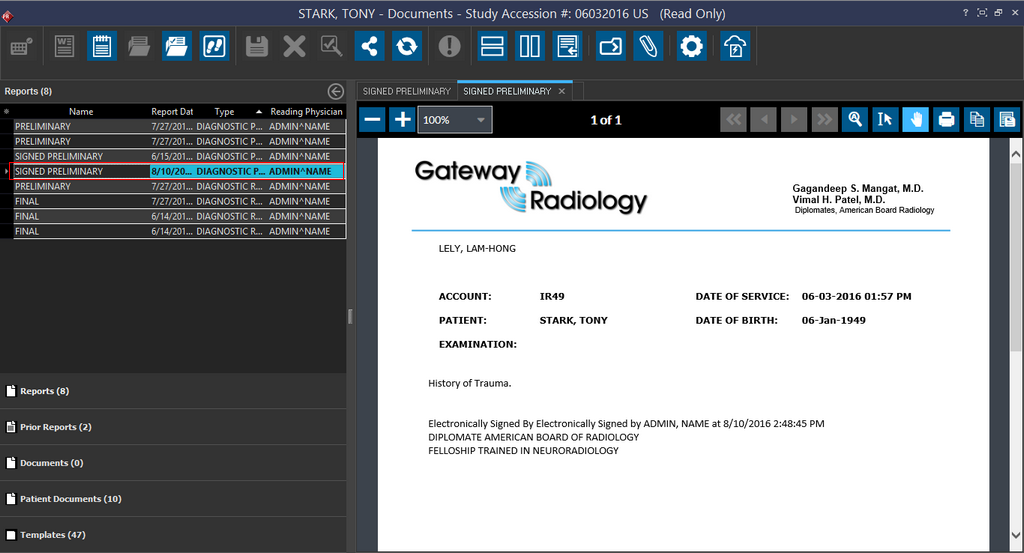
Clicking the Sign Report button electronically signs the report. The signature on the report could be that of the physician or the current user. The Signature will consist of the name of the physician who signed the report, followed by the date and time at which it was signed.
The System Configuration entry "Report Use Study UTC Time" when enabled includes the UTC time zone information in the Signature when signing preliminary/addendum signatures. This configuration entry is enabled by default.
The System Configuration entry "Report Signature DateTime Include Time Biased String" can be used to control if a signature needs to have time zone information or not when the configuration entry "Report Use Study UTC Time" is not enabled. The feature when toggled on/off takes into effect when the user restarts all services in Maintenance.
The signature is only visible when the signature bookmark is available in the template.
Also, the Type of the Report remains DIAGNOSTIC PRELIMINARY while the name of the document automatically changes to Signed Preliminary.
Note that for study (with status greater than or equal to SIGNED) that has a report being saved, the message "Do you wish to sign the updated report?" with Yes and No options appears. Clicking Yes saves the report and initiates the timer on the sign report delay. After the time interval that is set up to delay the report from being signed is elapsed, the user can see that the report is signed. Clicking No saves the report and reverts the study status to a PRIOR status (the status the study was in before advancing past the SIGNED status).
Acceptable electronic signature formats
RamSoft PowerServer complies with CMS (Centers for Medicare and Medicaid Services) regarding digital signatures. The following is a list of acceptable electronic signature formats:
- Chart "accepted by" with the provider's name
- "electronically signed by" with the provider's name,
- "verified by" with the provider's name,
- "reviewed by" with the provider's name,
- "released by" with the provider's name,
- "signed before import by" with the provider's name,
- Digitized signature handwritten and scanned into the computer,
- "this is an electronically verified report by John Smith, MD,"
- "authenticated by John Smith, MD,"
- "authorized by John Smith, MD,"
- "digital signature: John Smith, MD,"
- "confirmed by" with the provider's name,
- "closed by" with the provider's name,
- "finalized by" with the provider's name, and
- "electronically approved by" with the provider's name.
- Users should not share their passwords with others as the password is used for authentication. Users with the Sign Report privilege are permitted to digitally sign reports, once they login to the system.
- Changing of the Report Signature Format requires a restart of the RamSoft Task Service (in PowerServer) before the new changes taking effect
For further information, please refer to the CMS website : https://www.cms.gov/Medicare/Medicare-Contracting/ContractorLearningResources/downloads/JA6698.pdf
For more information on Signature Formats when amending a report, please refer to the section Customizing Signature Formats in the topic How Do I Add an Addendum to a Report?.
Note: when a study contains unsigned reports, and the user has the Sign Any Report privilege: if the Study Status is advanced past 190 (i.e. set to 191, Amended Unsigned) via Study Information, the reports will be automatically signed.
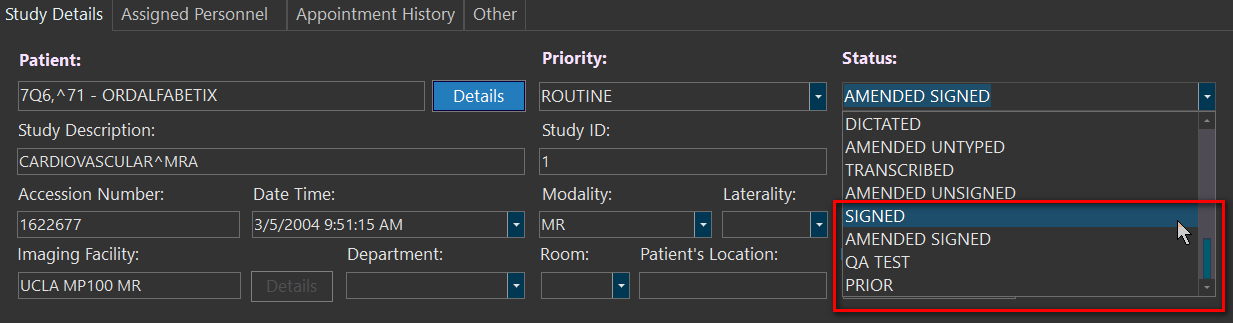
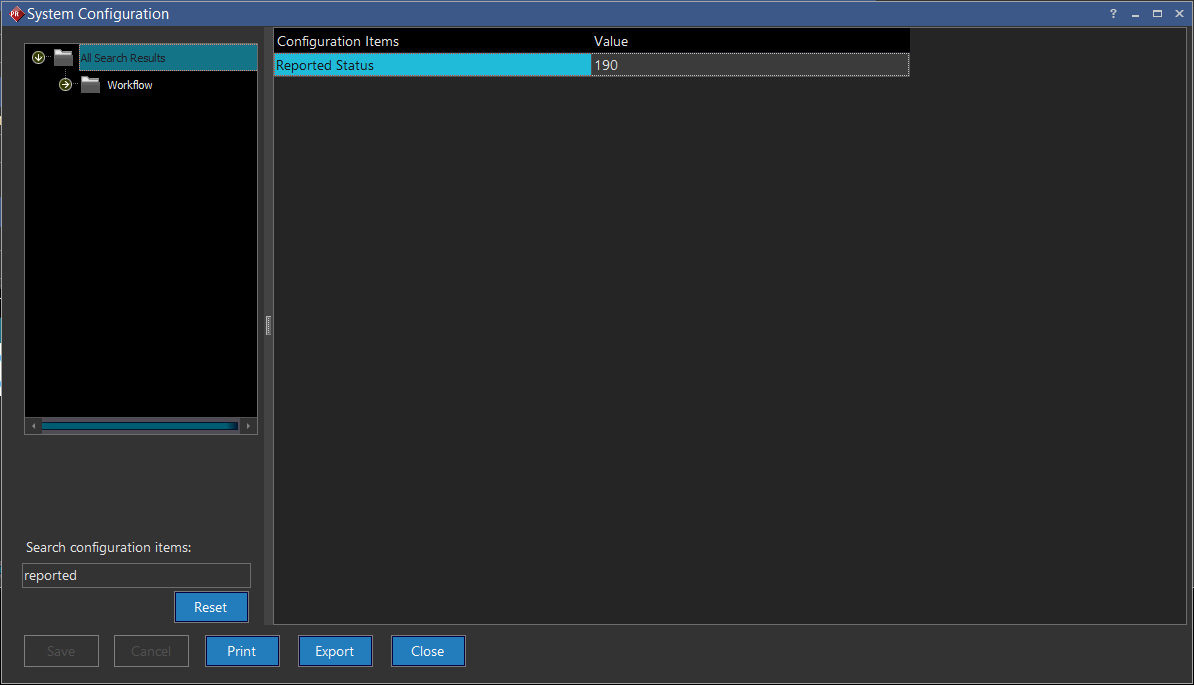
By default, the Reported Status is configured to be 190. This can be changed in the System Configuration setting below: