How Do I Add an Addendum to a Report?
You can amend a report and add an addendum to a report that has been already signed.
The Amend report option will attach an addendum to the final report and once the amendment has been saved, you can see that a Addendum report is generated with the Addendum section displaying the amendment.
To add an addendum to a report, perform the following:
Amending Reports
(users who don't have the "Amend Diagnostic Reports" should request an amendment)
-
Select the FINAL signed report you want to amend and click the Amend Report button
 .
.The Amend Requests dialog box appears.
Note: Microsoft Word 2010 must be installed and licensed in order for the Amend button to appear. If Word is not installed or licensed, the following message is displayed when the button is clicked, "Microsoft Word needs to be licensed in order to create, view or edit documents."

- Click the Add button to Add a Amendment request.
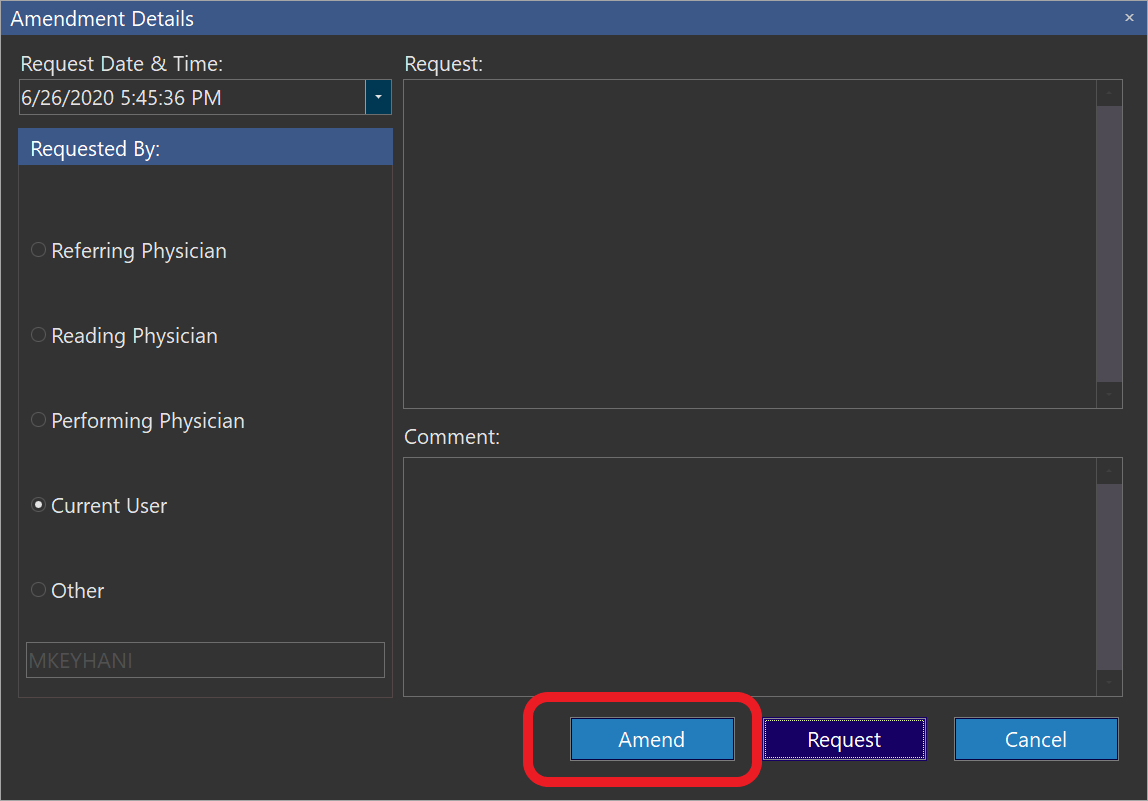
- The Amendment Details dialog box appears. Here the role of the user who is requesting the amendment is provided (current user selected by default), along with the amendment request (optional) & any comments (optional) that is required:
-
Click Amend
-
The ADDENDUM report is generated, displaying the Addendum section for you to add the addendum
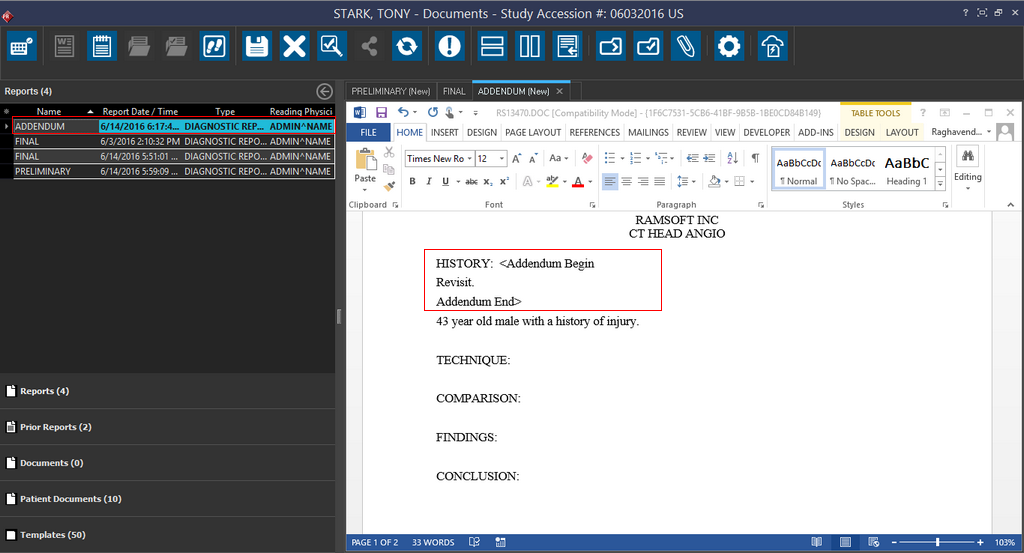
- Once you make any amendments, you can save or sign the report.
Requesting an amendment (to be processed by other users)
-
Select the FINAL signed report you want to request and amendment for and click the Amend Report button
.The Amend Requests dialog box appears.
Note: Microsoft Word 2010 must be installed and licensed in order for the Amend button to appear. If Word is not installed or licensed, the following message is displayed when the button is clicked, "Microsoft Word needs to be licensed in order to create, view or edit documents."
- Click the Add button to Add a Amendment request.
- The Amendment Details dialog box appears. Here the role of the user who is requesting the amendment is provided along with the amendment request (mandatory) & any comments (optional) that is required:

(Note: Amend button would be disabled if the user don't have the "Amend Diagnostic Reports" privilege.
- Click Request to submit the request. This will change the status of the study from SIGNED to TO BE AMENDED.
How to Process Amendment Requests
Only users who have the "Amend Diagnostic Reports" privilege can amend reports.
- To review the amendment requests for a study, you need to first open document viewer for that study. Select the FINAL signed report you want to amend and click the Amend Report button .
- The Amendment Requests dialog box appears displaying the amendment request notes. Note that request field could be expanded by clicking on the drop-down arrow (marked by a red circle on the following screenshot):
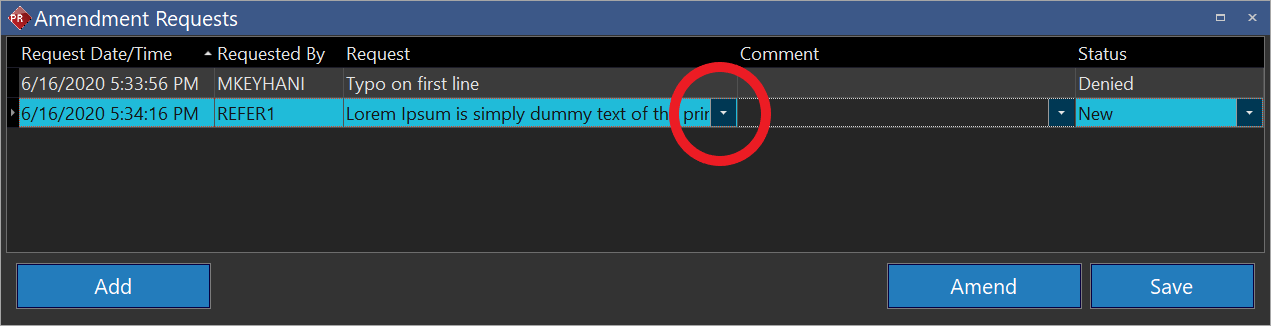
You can also resize the request field by holding left mouse button:

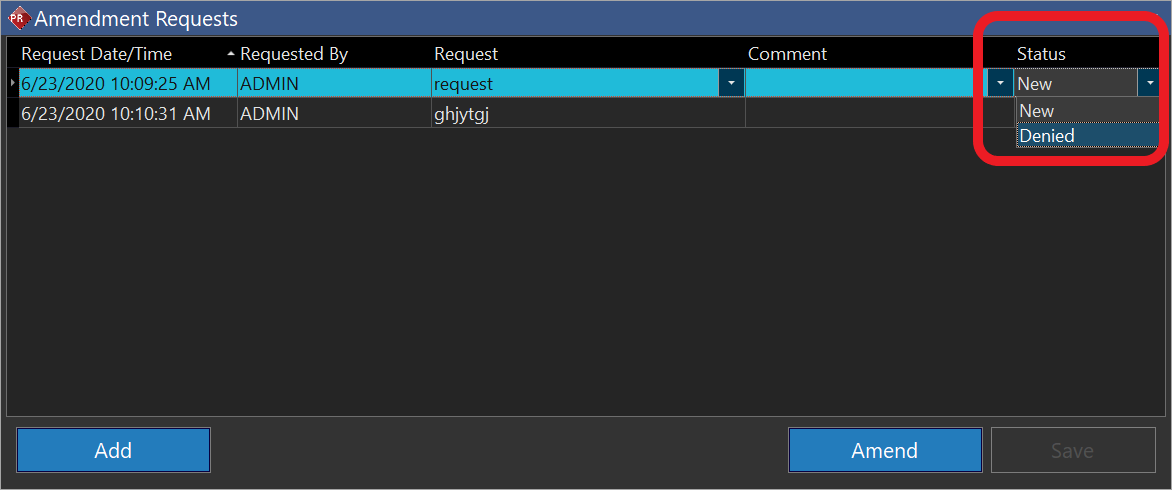
- If you want to deny the request click on the drop down icon under status and change it to denied:
- If you want to make the requested amendment click on Amend button.
- The ADDENDUM report is generated displaying the Addendum section for you to add the addendum
- Once you make any amendments, you can save or sign the report.
Customizing Signature Formats
For a signature to display, a report template needs to have one of the following bookmarks:
| Signature Type | Required Bookmarks |
|---|---|
| Signature for Diagnostic Report | Signature |
| Amendment Signature | AmendSignature |
| Addendum Block Signature | AmendSignature |
For the Addendum Block Signature, you need to have values entered for the System Configuration entries "Report Addendum Block Begin Format" and "Report Addendum Block End Format". If these configuration entries are blank, then the addendum signature is displayed at the bottom of the report based on the display rules for the signatures.
Display Rules for Signatures
When you make an amendment (add an Addendum), you can choose to:
- add signature right at the Addendum Block Begin section or
- at the bottom of the report or
- at both the places in the report
- not have any signatures displayed for the Amendments/Addendums.
The following System Configuration entries control the way you want to display the Addendum signatures:
| Configuration Items | Status | Signature Display |
|---|---|---|
| Report Addendum Block Begin Signed Format, Report Amend Signature Format | Valid values are provided | Both Addendum Block and Amendment signatures are displayed on the report |
| Report Addendum Block Begin Signed Format is not Blank and Report Amend Signature Format is Blank | Only Addendum Signature is displayed at the Addendum Block Begin section on the report | |
| Report Addendum Block Begin Signed Format is Blank and Report Amend Signature Format is not Blank | Only Amendment Signature is displayed at the bottom of the report | |
| Both Configuration Items do not have any values | No signature is displayed for the Amendment/Addendum |
Note: Whenever you make these configuration entry changes, you need to restart the Task Services.
The Signature formats determine how to display a signature when a physician signs the report. You can customize the signature format for an amendment or for the Addendum signature using the System Configuration entries "Report Amend Signature Format" and "Report Addendum Block Begin Signed Format" according to your requirements. By default, the signature formats for these configuration entries are as follows:
| Configuration Item | Values |
|---|---|
| Report Addendum Block Begin Signed Format | Addendum Signed by %s at %s |
| Report Amend Signature Format | Amended by %s at %s |