Visit Tab
The Visit tab is used to document specific patient demographics. The Patient Info is reserved for RIS-enabled servers.
- Click View Study Information
 icon in the toolbar. The application opens Study Info Detailed screen as shown below.
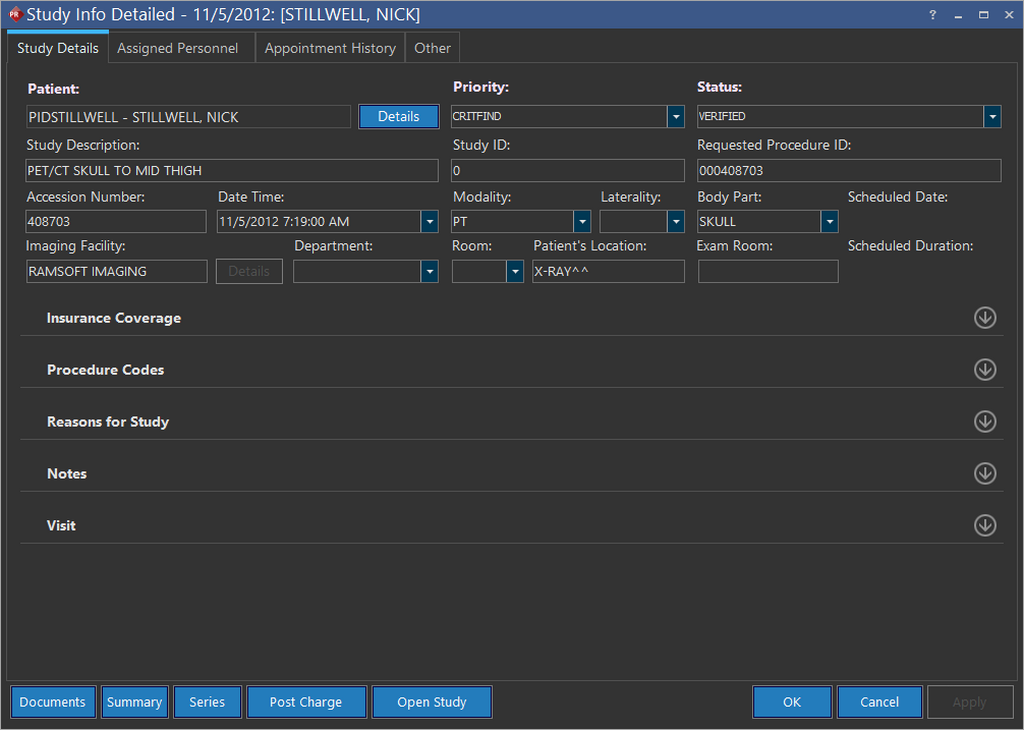
- Scroll down and click Visit group at the bottom.

- Click New. The application auto generates a new Visit Number for each patient. The generated visit number is unique.
- Enter a detailed note of the patient in the Description text field.
- Click the Patient Class drop-down menu to select the appropriate status based on the illness of the patient.
- Click the Ambulatory Status drop-down menu to select medical fitness level of the patient while entering the facility.
- Enter the height of the patient either in centimeters/inches.
- Enter the weight of the patient either in kilograms/pounds. Upon entry, the application displays the body mass index. If the information is available in the DICOM header of the image in the study, it may be auto-populated in the fields here. For example, the patient's weight may be auto-filled in this form if it is included in the DICOM header of the study.
- Enter the denominator value in the Blood Pressure Diastolic (mmHg) text field.
- Enter the numerator value in the Blood Pressure Systolic (mmHg) text field.
- Click OK.
The Documents button will open up the Document Viewer. See the section Creating and Viewing Reports for more information.
The Series button will open the form that displays the series information for the study. The section Viewing & Editing Details about a Series for more information.
The Post Charge button posts the appropriate charges for the study. These are viewable in the management reports, which are accessible by going to the RamSoft Essence site.
Ensure that the procedure code(s) in the study are classified as Billable before clicking the Post Charge button. If the study has no billable procedure code(s), the charge will not be posted. To configure billable and non-billable procedure codes, please see the section Procedure Codes.