Creating a New Document
In RapidResults, you can create a new document/report by clicking the New Document  tool on the Reports/Documents/Patient Docs screen.
Note: the New Document button is not available on mobile phones.
Clicking the New Document tool opens a new document/report.
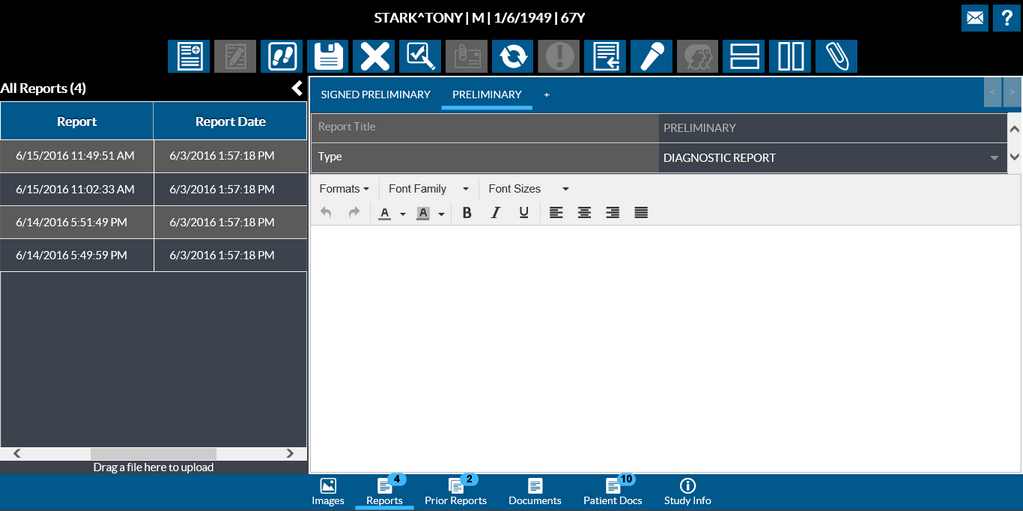
On the new report/document, dictate/type the report content. Once a report has been dictated/typed, the user can save the report. Once a report is saved, it can be updated by clicking the Update Selected Document  icon on the toolbar.
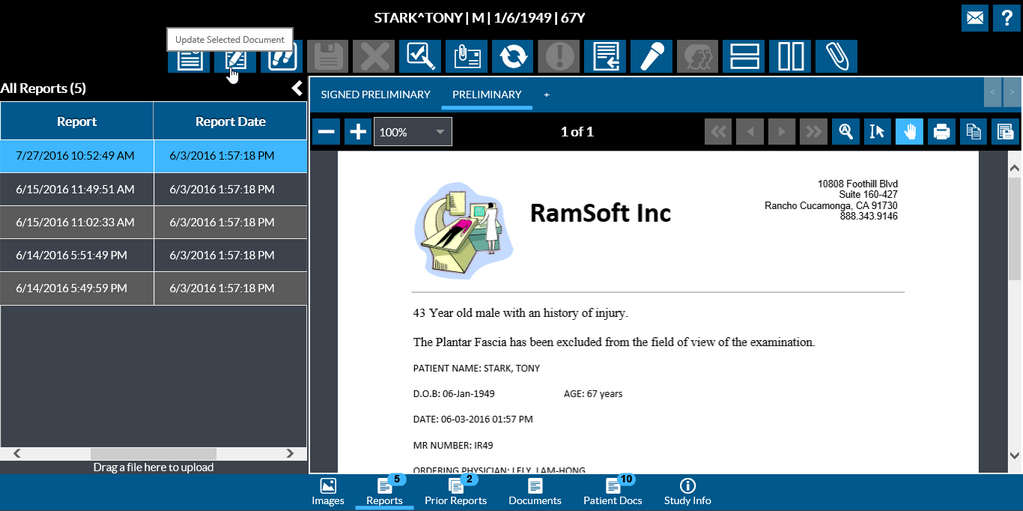
The final step after saving a report is signing the report. You can sign a report by clicking the Sign Report  icon. Once the report is signed, the report will be displayed in PDF format.
Note that any new document/report created in RapidResults is a html document. When you edit this document/report, it is displayed in an HTML editor.
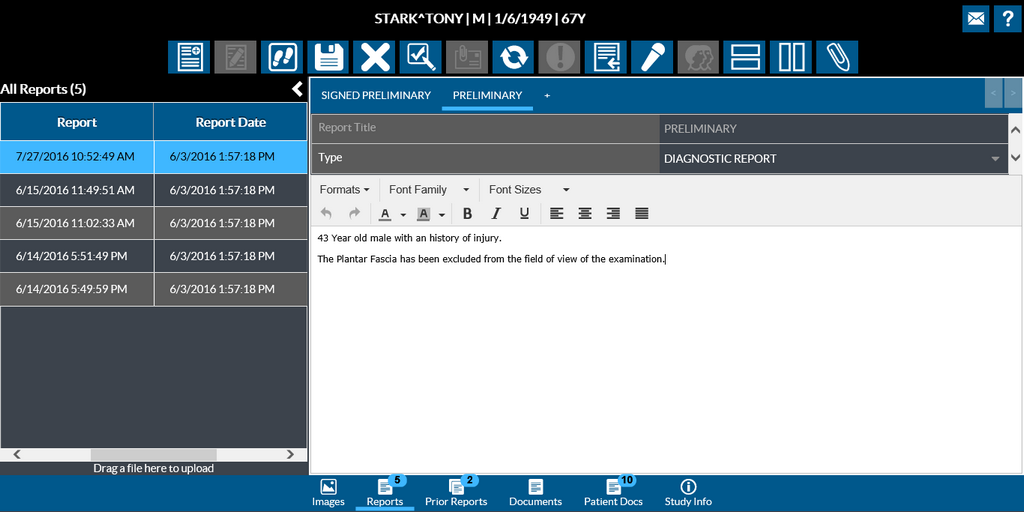
Once you save your edits and save the changes, the updated report is displayed as a PDF.
Whenever a user creates more than one diagnostic report, the system alerts the user with the confirmation message "Are you sure you wish to create an additional diagnostic report?".
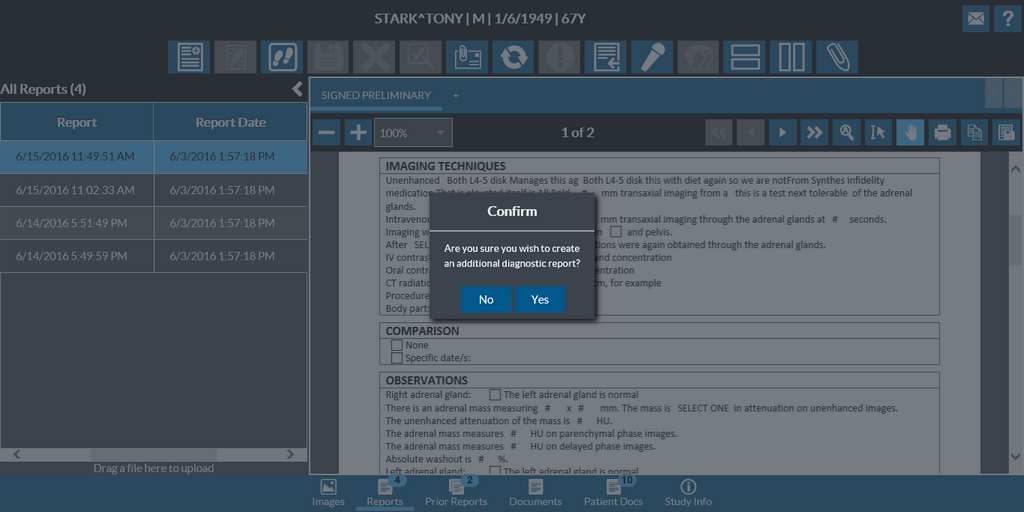
Selecting Yes would open a new report/document.
Note that the New Document tool is available only if you have the Create New Diagnostic Report privilege enabled and if the study is not past the prevent modification status.