How Do I Copy and Use a Published / Default Protocol?
When you have created a protocol in My Protocol that you believe other users will find useful, you can publish it. Once you have published a protocol, other users can use it as their own. To publish a protocol you need to open the Viewing Protocol Setup dialog. This can be done by clicking View > Viewing Protocols.
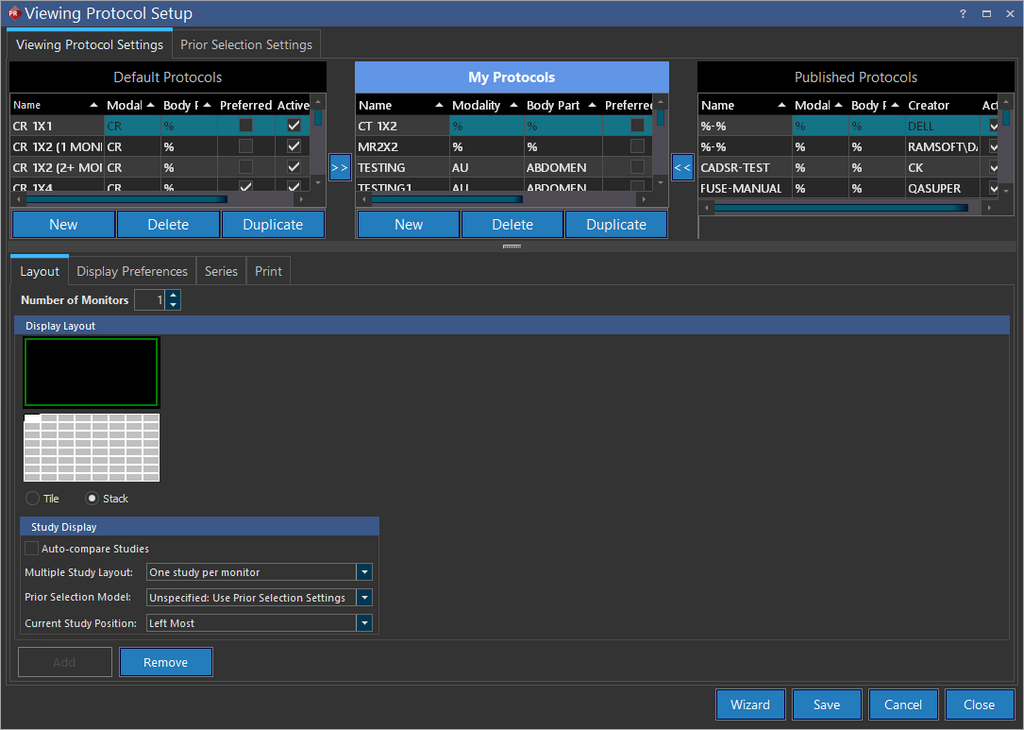
The Published Protocols appear in the rightmost list. The details of each protocol can be viewed by clicking on the protocol and browsing through the four tabs in the Settings for currently selected protocol section. However, these details of a published protocol cannot be edited. Once you find a protocol that you will like to use, highlight it and click the  button. This will copy the protocol into My Protocols and allow you to use it. Once it is in My Protocols, you can also modify it.
The same method can be used to copy and modify a Default Protocol. Highlight the desired protocol in the Default Protocols list and click the  button to copy it into My Protocols. Once it is in My Protocols, it can be modified.