Save Current Layout as a Viewing Protocol
If there are modifications to the layout of the screen and the user wish to save the new layout and make it a viewing protocol, the current layout can be saved as a protocol. To do this, click Viewing Protocol Settings icon > Save Current Layout as Protocol. This will launch the viewing protocol wizard.
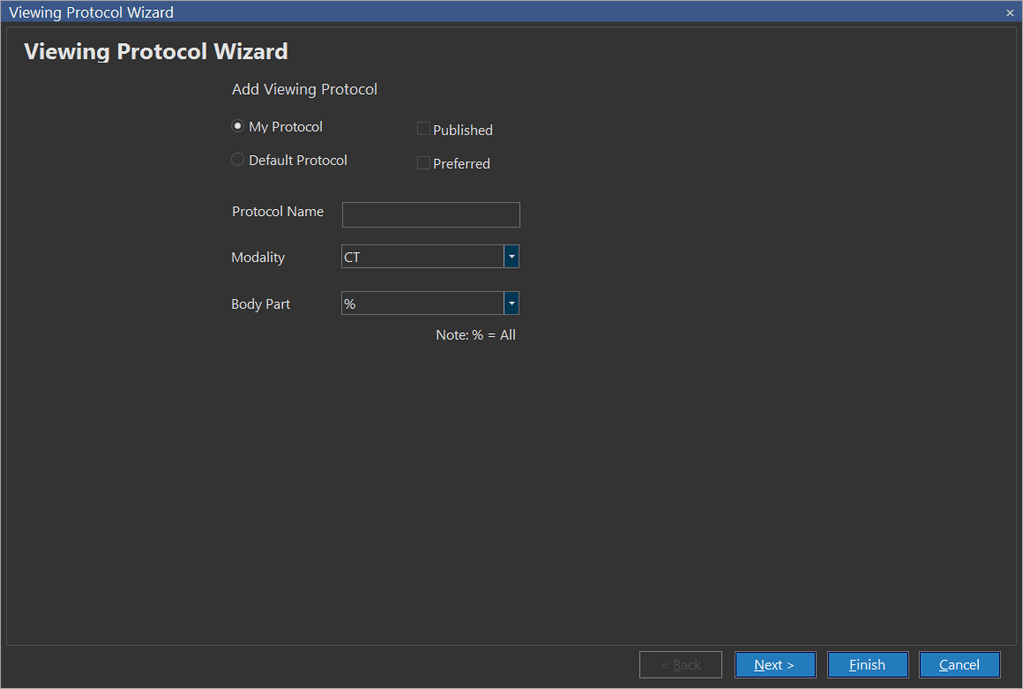
Here you will need to decide whether this protocol will be a My Protocol or a Default (system wide). The Default option is only available to a user with Administrator privileges. If the protocol is a My Protocol, you need to decide whether it should be Published. If the protocol is to be used as the default for the Modality & Body Part visible below, check the Preferred option. Click Next to continue.
Verify that the Monitor Layout. For more information on layout options for viewports and within a viewport, please refer to the topics How Do I Set Up a Layout With Multiple Viewports? and How Do I Setup a Layout Within a Viewport?
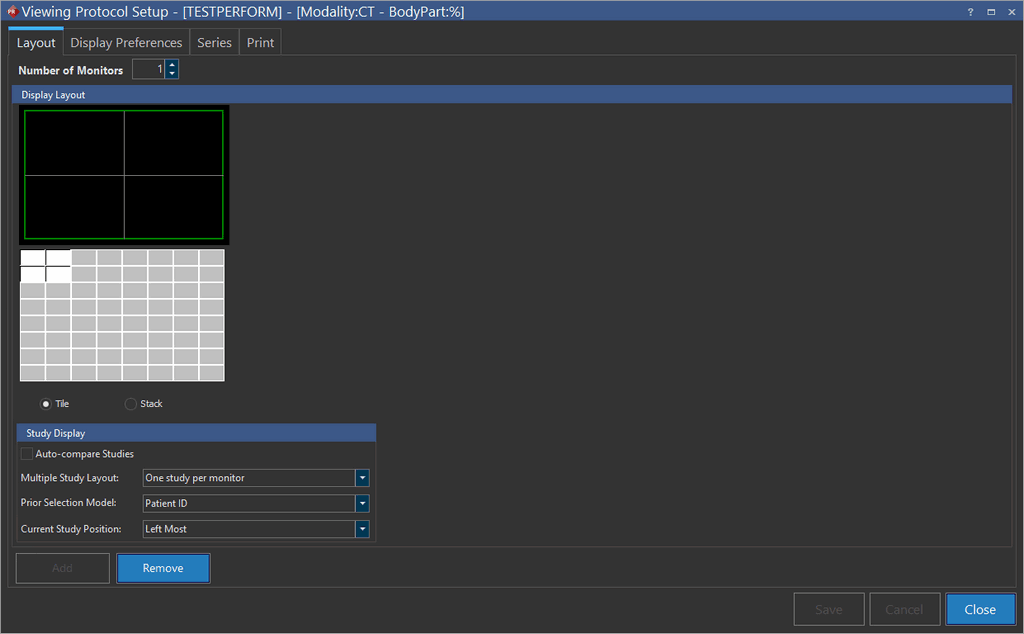
Clicking the Display Preferences tab opens the following section.
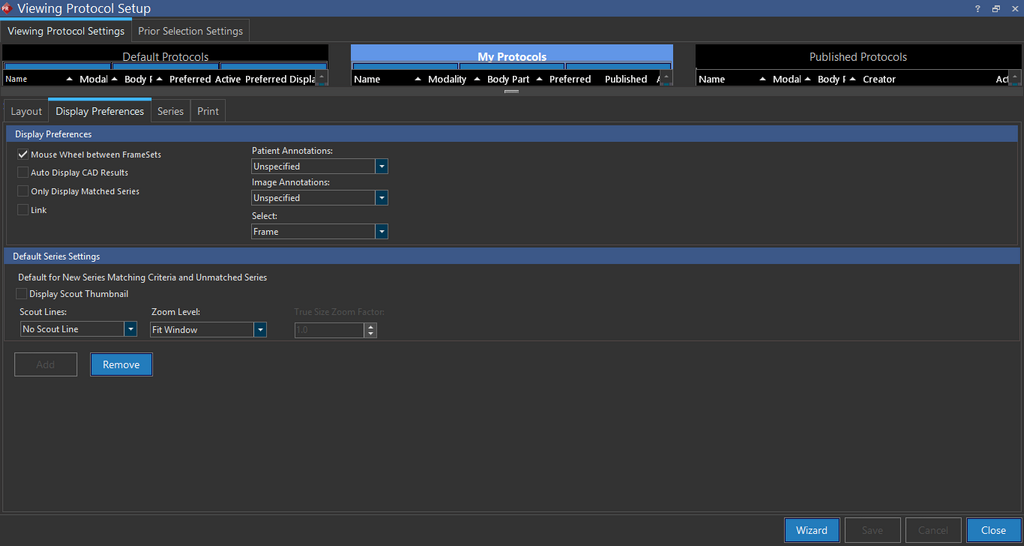
The interaction properties defined here correspond to the behavior that was used on the currently opened study. If you were unhappy with any of the functionality, modify these settings. A detailed explanation of these options can be found in the How Do I Create a Viewing Protocol? section. Clicking the Series tab opens the following section.
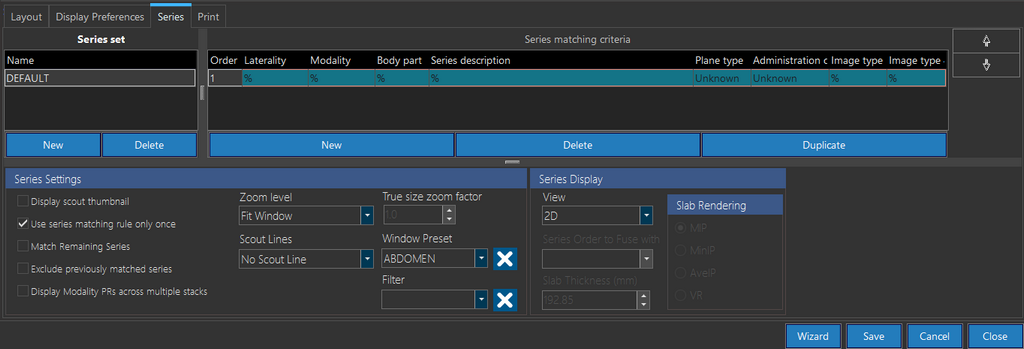
This screen shows the order the study series are currently displayed in. If you will like to swap any of the existing series locations, highlight the desired series, and use the up and down arrows on the right to change its order. If you will like to edit this screen in more detail, refer to the How Do I Create a Viewing Protocol? section. Clicking the Print tab will open the following section.
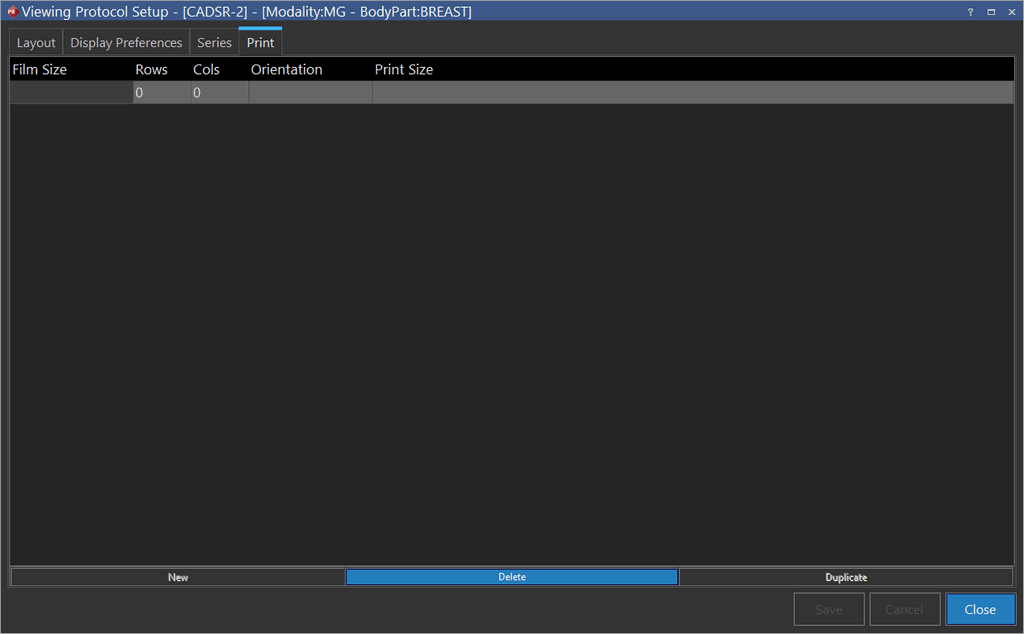
Here you will see how the current study will print if this viewing protocol is used. If you will like to learn how to modify these settings refer to the How Do I Create a Viewing Protocol? section. Otherwise, click Finish. The layout is now available as a protocol. It is accessible from the Active Viewing Protocols drop-down menu.
The following outlines how viewing protocols will operate with reference to studies and priors, multiple-monitor setups and comparison mode:
| Scenario | Action |
|---|---|
| Study has no Priors and both Protocols with Comparison mode and without Comparison mode exist | Choose the viewing protocol with no comparison mode |
| Study has no Priors and only Protocols with Comparison mode exist | Use the protocol with comparison mode |
| Study has Priors and both Protocols with Comparison mode and without Comparison mode exist | Use the protocol with comparison mode |
| Study has Priors and only Protocols without Comparison mode exists | Use protocols with no comparison mode |