Advanced Send Settings
You will be able to configure options that are used by the RamSoft station when it is sending studies to a remote destination. Any settings you configure will apply only to the currently highlighted station in the list.
- Click Settings > Server Settings > Station List. Station List screen appears as shown below.
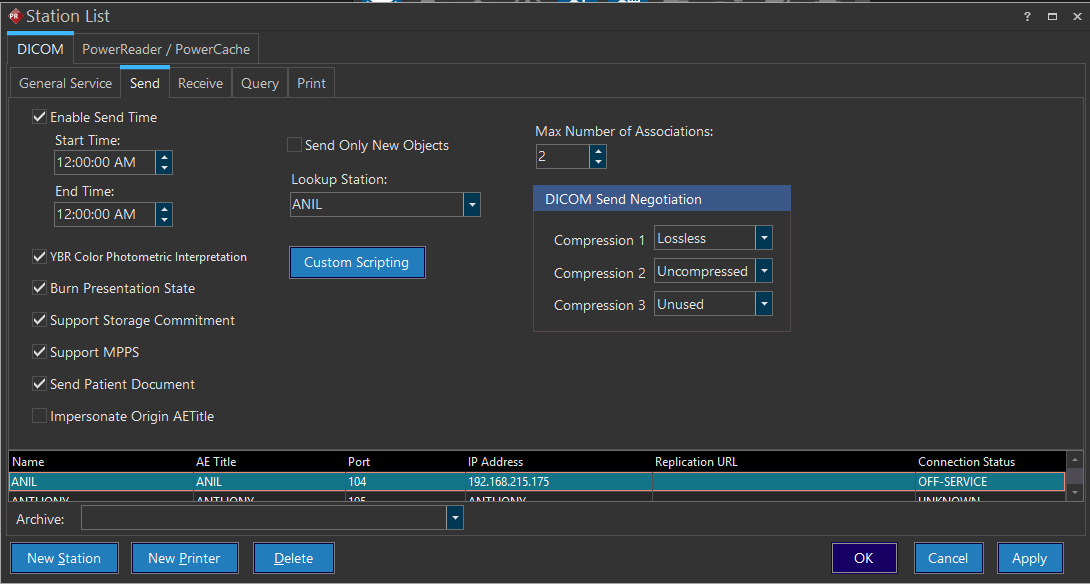
- Click Send tab. The Send tab screen appears as shown below.
| Field Name | Description |
|---|---|
| Enable Send Time | The Enable Send Time option will create a time window during which studies will be sent. Any studies that are queued up for sending outside of that time window, will not go out until the Start Time is reached unless the priority of sending the study is MED or HIGH. Only studies with LOW priority that the Enable Send Time will be effective. Studies with MED or HIGH priority will still be sent outside the time window. This is useful for moving large amounts of data, to a destination such as an archive, during off hours. |
| YBR Color Photometric Interpretation | YBR Color Photometric Interpretation is a fairly new method for transferring Lossless compressed color images. If you have a device that does not support this transfer method, you will not be able to send the images by using this method. Unchecking the checkbox will allow Lossless color images to be sent to such a device using the older RGB method. |
| Burn Presentation State | Toggling the Burn Presentation State option on will modify the original image. This option is meant for sending images to a station that does not support presentation states. Through this option, on such a station you can view any changes that were applied to the image. Note: The Remote station will not be able to see the original image without the modifications made on the RamSoft station. Any annotations associated with the image will appear normal in size when the image is zoomed to pixel size. Annotation font size for burning when DICOM sending can be adjusted in the registry key HKEY_USERS.DEFAULT\Software\RamSoft\PACS\Server. The value to adjust is Font Size. |
| Support Storage Commitment | The Support Storage Commitment option informs the sending station about the receiving status of the studies on the receiving station. The sending station can view the status of Storage Commitment in the Communication Log if support storage commitment is selected in the Send tab. |
| Support MPPS | MPPS is a method that allow stations to receive the most up-to-date status of the study. It is a method that enables the modality to send a report about a performed examination including dates about the images acquired, beginning time, end time, and duration of study etc. The MPPS service allows a modality to better coordinate with image storage servers by giving the server a list of objects to send before or while actually sending these objects. By selecting Support MPPS, MPPS can be sent to the receiving station when studies are being transferred. |
| Send Patient Document | Send Patient Document is an option which allows patient level documents to be sent to the specified station. This option is selected by default. When this option has been selected, all patient level documents will be queried and sent. If the DICOM object does not belong to the current study, it will be sent from the study it belongs to. For example, if the patient level documents are available in some other study of the patient, these patient level documents will be sent along with the current study. The Transmit log will log this event. If the patient level documents belong to a study which is different from the current study, the log will display two studies as being sent (one entry for the current study and the other entry for the patient level documents). |
| Send Only New Objects | The sending station can choose to send only certain objects of the study. When the Send Only New Objects checkbox is checked, the sending station will compare the objects in the study being sent to the objects of the same study on the lookup station. If there are more objects in the study of the sending station, only those objects will be sent. If there are no new objects being sent, the transmit will not be logged in the Completed section of the Communication log. |
| Custom Scripting | The Custom Scripting button is used to modify DICOM objects before they are sent out. Upon click, the Custom Scripting Editor window will appear. For more information regarding to Custom Scripting, refer to the Custom Scripting for Advanced Receive Settings. |
| Maximum Number of Associations | The Maximum Number of Associations option allows higher efficiency and faster file transfers. Through the use of multi-threading concept, it allows you send studies through a number of threads, instead of only one thread. This increases the throughput of the system, ultimately decreasing the amount of time it takes for studies to be received by remote stations. |
| DICOM Send Negotiation | The DICOM Send Negotiation section is used for negotiating transfer syntax. Before two stations begin exchanging DICOM data, they have to identify the best method for the transfer. This is done by each side presenting its possible choices until a match is made. The order that the RamSoft station will identify is based on this section. Compression 1 will be proposed first. If that is not accepted, Compression 2 and later Compression 3 will be proposed. |
| Archive | The Archive drop-down menu is used to choose which station studies be received from when using Open from Server feature. |
| Impersonate Origin AE Title | Selecting this option helps you save this in the DICOM object upon receipt and then to impersonate the source AE title when creating a association for sending. |
The Station List (send tab) screen displays a list of all station names, its parameter such as AE Titles, Port numbers, IP Addresses, Replication URLs, and its Connection Statuses at the bottom of the screen.
- Do the necessary modifications in the fields explained above as per the requirement and click OK.