How Do I View a Study Level Audit Log?
-
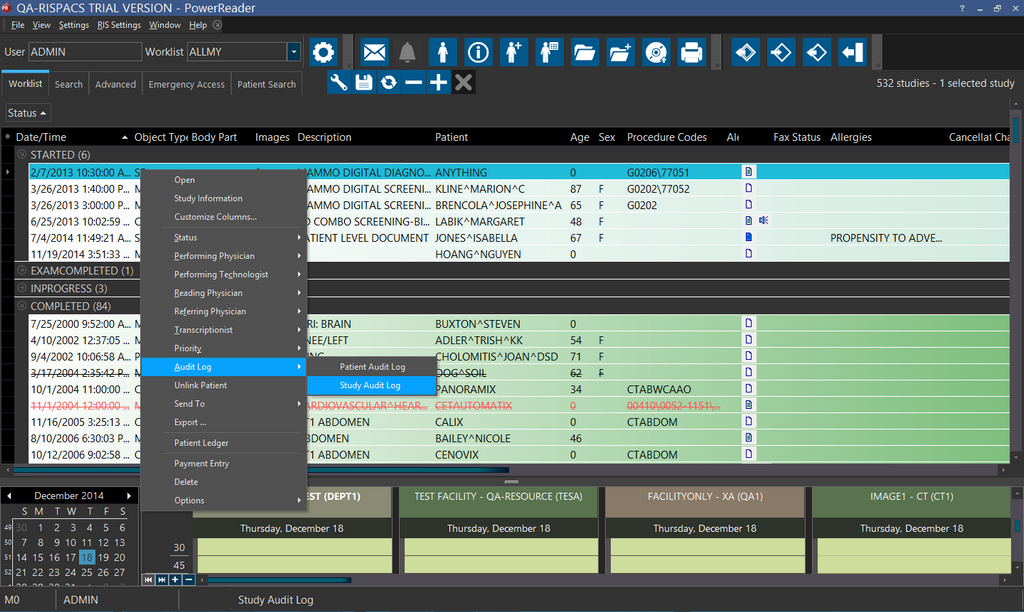
Locate the desired patient in the Worklist screen. Upon click, the application displays a small triangle beside the patient name.
-
Right click on the triangle and choose Audit Log > Study Audit Log as shown below.
Study Audit Log screen appears as shown below.
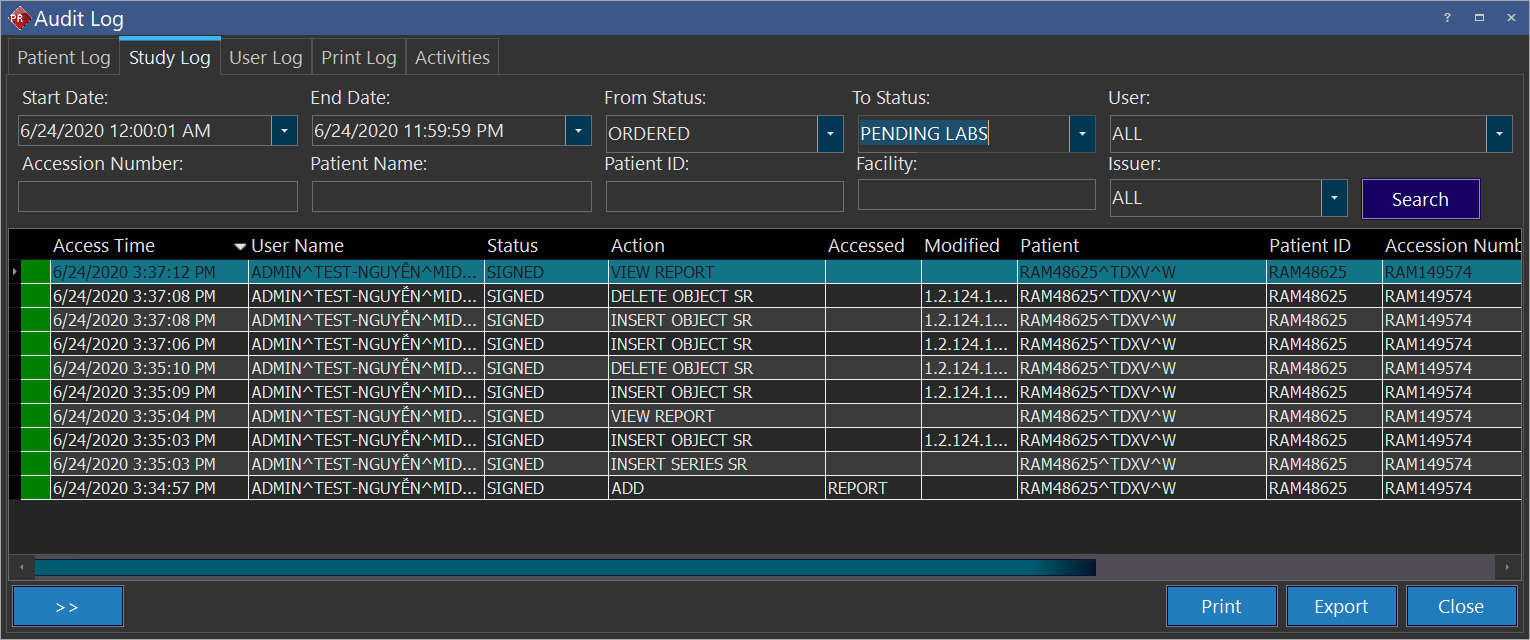
- Several criteria are available to search for all the actions performed by various users on a particular study.
| FIELD | DESCRIPTION |
|---|---|
| Access Time | The Access Time is the exact time when that action was performed on the study. |
| username | The username column displays the name of the various users who have performed actions on the patient. If more than one username is available, then you can select a particular user to filter out the other users. |
| Status | The status of the study when a particular action was performed. You can short list the log by selecting a particular status. |
| Action | The Action column displays the actions performed on a particular study. You can short list the log by selecting a particular action. |
| Accessed | The Accessed column displays the name of the item that was accessed. It might be an image/report etc. |
| Modified | Displays when was the study was modified. |
| Patient | The Patient column has the name of the particular patient. |
| Patient ID | The Patient ID column displays the ID of the patient. |
| Accession Number | The Accession Number of the study. |
| Study Date | The Study Date column displays the date and time of the Study. |
| Facility | The Facility to which the study belongs. |
| Issuer of Patient ID | Displays the name of the referral resource from where the patient has been referred. |
 | The Retrieve Next Set of Records button can be used to display the next set of records. |
 | This green color indicates that this record has not tampered. If this green color turns into red, it means the patient record has tampered illegally. For example, modifying the entries directly from the database can cause this to turn red. However, if the patient record has been modified by an authorized user of this application, the patient record show green which means it is not tampered with outside the application and it is been changed by a legitimate personnel/application. (Note: this feature requires a PRU10 update to work) |
| The Print button can be used to used to print the report. | |
| Export | The Export button can be used to export this report. The file can be exported in MS Excel, HTML, Text or XML format. |
| Close | The Close button will close the Study Level Audit Log form. |
note
Note: When an event takes place on a particular study, the event time is logged in the audit log. If the workstation has an incorrect clock, it is corrected by the server before being logged in the audit log. This time can be within +/- 10 seconds of the actual event