How Do I View a Users' Print Log?
-
Open the User List by clicking Settings > Users and Facilities > Providers.
-
Click on the desired username. Upon click, the application displays a small triangle beside the username.
-
Right click on the triangle and choose Print Log as shown below.
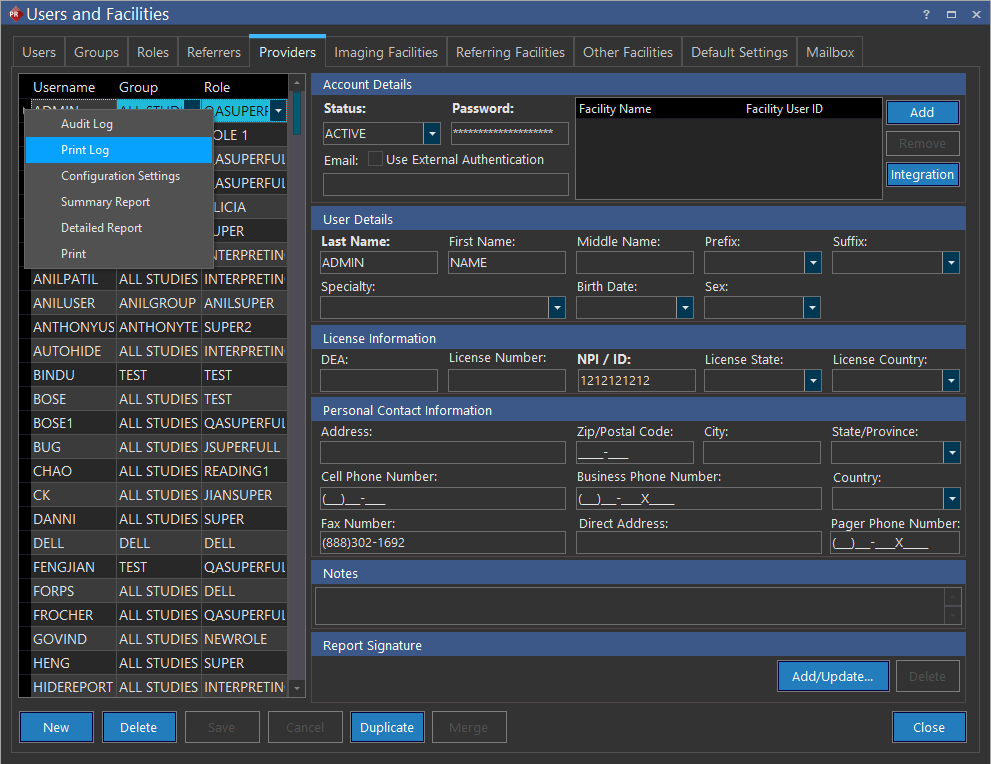
- Click Print Log found on the right click menu. Print Audit Log screen appears as shown below.
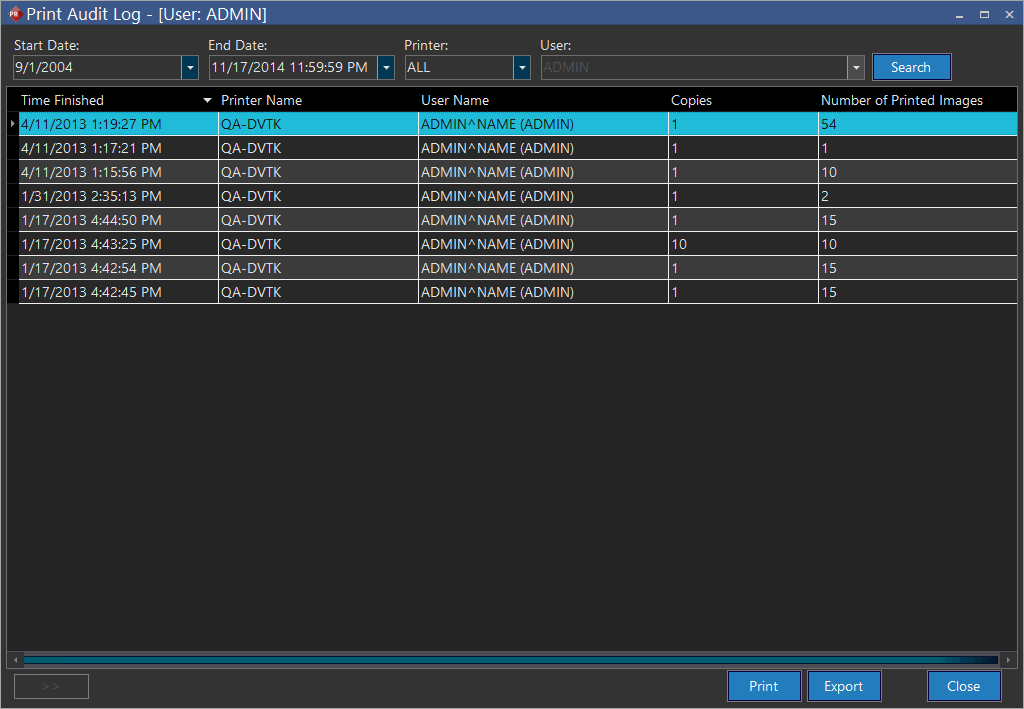
Several criteria are available to search for a particular DICOM print.
| FIELD | DESCRIPTION |
|---|---|
| Start Date | The Start Date for the print log. By default, this values is set as a month from today's date. |
| End Date | The End Date for the print log. By default, this value is set as today's date. |
| Printer | The specific DICOM Printer where the DICOM object was printed. |
| User | The specific user who performed the DICOM printing. This option is grayed out by default. |
| Search | The Search button used to search for specific print logs of users. |
The users can also Print or export the log in the form of MS Excel, HTML, Text or XML. When the user is finished, they can select the Close button to close the form.