How Do I View a User level Audit Log?
-
Open the Users menu by clicking Settings > Users and Facilities > Providers.
-
Click on the desired username. The application displays a small triangle beside the username.
-
Right click on the triangle and choose Audit Log as shown below.
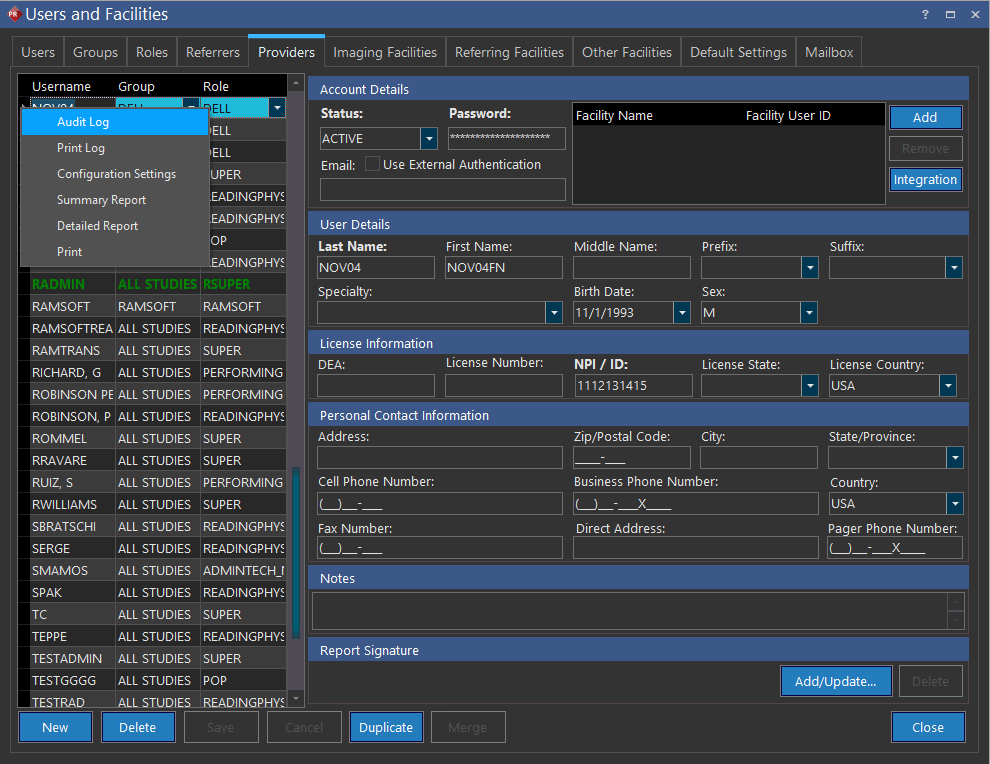
- Click Audit Log found on the right click menu. User Audit Log screen appears as shown below.
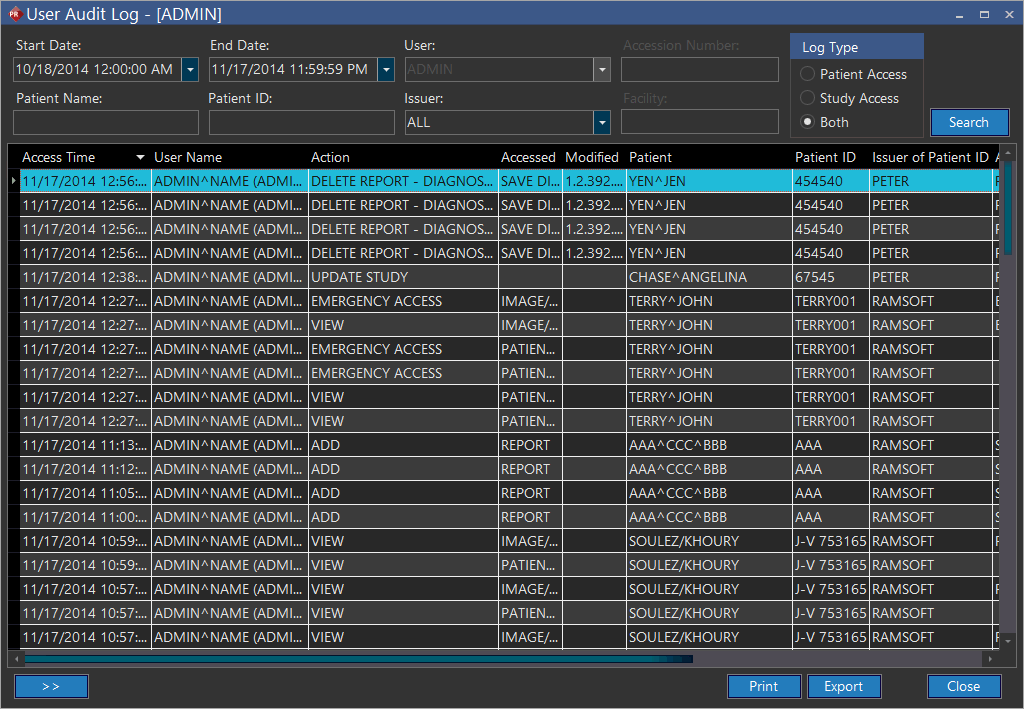
Several criteria are available to search for a particular user action.
| FIELD | DESCRIPTION |
|---|---|
| Patient Name | The user's actions can be short listed according to a specific patient. A Patient Name can be entered for a specific patient. |
| Start Date | The Start Date for the Audit log. By default, it is auto-filled to one year ago from today's date. |
| Patient ID | The user's actions can be short listed according to a specific patient. A Patient ID can be entered for a specific patient. |
| End Date | The End Date for the Audit log. By default it is auto-filled to to today's date. |
| Issuer | The user's actions can be short listed according to a specific Issuer of Patient ID. The name of one of the Issuers can be entered in this field. |
| User | The User field specifies the specific user whose actions are being displayed in the audit log. This field is grayed out by default. |
| Facility | The specific Facility where the actions were performed. This option is only available when the Study Access option has been selected in the Log Type. |
| Log Type | The type of Log you wish to view. A Patient Access log can be run to view a list of all the users that have performed actions pertaining to a particular patient. The audit log will display the actions performed by a user and the time when they were performed. The Facility and Accession Number options are not available for a Patient Access Log. A Study Access log can be run to view a list of all the users that have performed actions pertaining to a particular study. The Facility and Accession Number options are available for a Study Access Log. A Both option will display results from both the logs. However, the Facility and Accession Number options are not available in this case. |
| Accession Number | The specific Accession Number on which the actions were performed. This option is only available when the Study Access option has been selected in the Log Type. |
| Search | The Search button has to be pressed to get the specific results in the audit log. |
 | The Retrieve Next Set of Records button can be used to display the next set of records. |
| The Print button can be used to used to print the report. | |
| Export | The Export button can be used to export this report. The file can be exported in MS Excel, HTML, Text or XML format. |
| Close | The Close button will close the User Audit Log form. |
note
Note: When an event takes place on PowerReader, the event time is logged in the audit log. If the workstation has an incorrect clock, it is corrected by the server before being logged in the audit log. This time can be within +/- 10 seconds of the actual event.