What is an Audit Log?
In this location, it is possible to see the Patient Log, Study Log, User Level Audit Log or a User's Print Log and Activities in one location.
The Audit Log feature has been added in PowerServer 6.0. The Audit Log is available through Settings > Logs > Audit Log section (For Administrative Users). Selecting the Audit Log option will open the Audit log with the Patient Log tab selected. There are four tabs in the Audit log i.e. Patient Log (default), Study Log, User Log and Print Log.
Patient Log
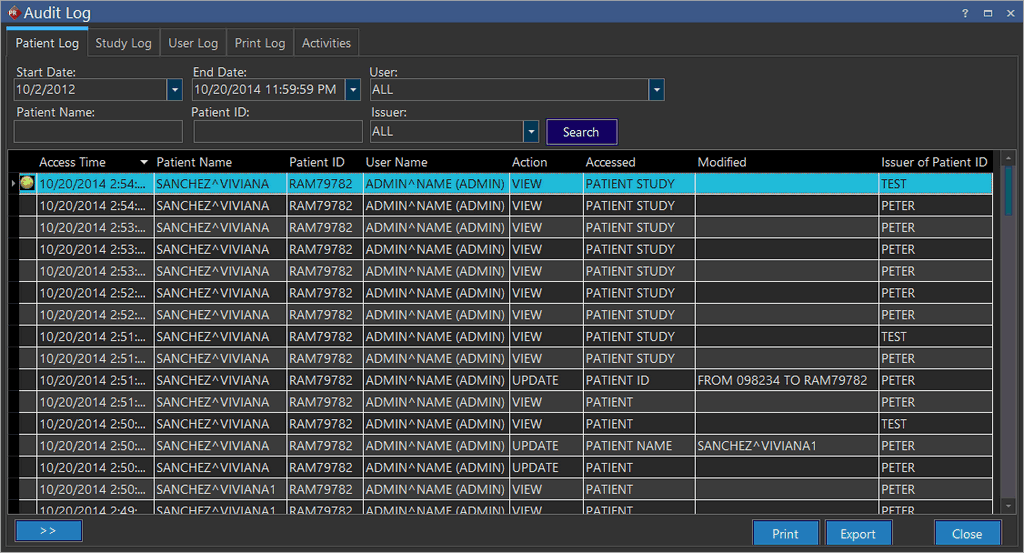
The Patient Log will display all the patients where any action has been performed on them. The time period in which the search will be performed is determined by the Start Date and End Date. The User field can be used to filter the results according to a particular user. The results will display all the patients who have any action performed on them by the selected user. If the option ALL is selected, the results will be filtered according to any actions that have been performed on the patients by all the users of the system.
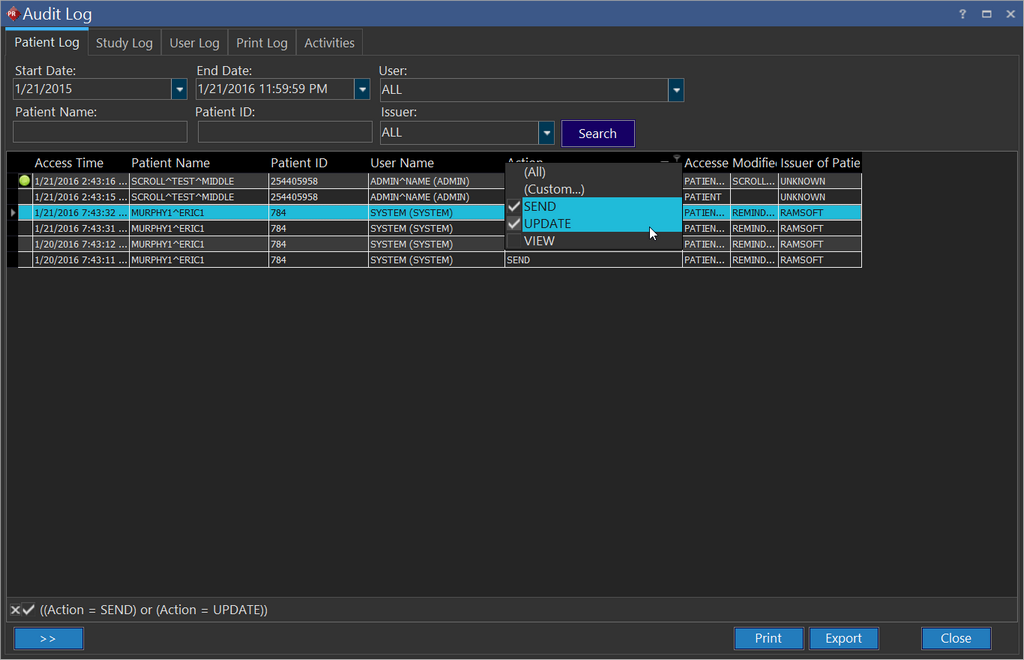
The other fields such as Patient Name, Patient ID or Issuer of Patient ID can be used to narrow the search results according to these particular fields. Once the list of patients has been displayed, the results can be sorted according to the columns in the list. For example, the results can be sorted according to the Action performed on the patients. Note that you can select multiple Action options.
Note: When an event takes place on a particular study, the event time is logged in the audit log. If the workstation has an incorrect clock, it is corrected by the server before being logged in the audit log. This time can be within +/- 10 seconds of the actual event.
The results can be exported, by clicking the Export button. The Print button can be used to print the results. If a lot of results are displayed, the  button can be used to move to the next set of records.
Study Log
The Study Log will display all the studies where any action has been performed on them.
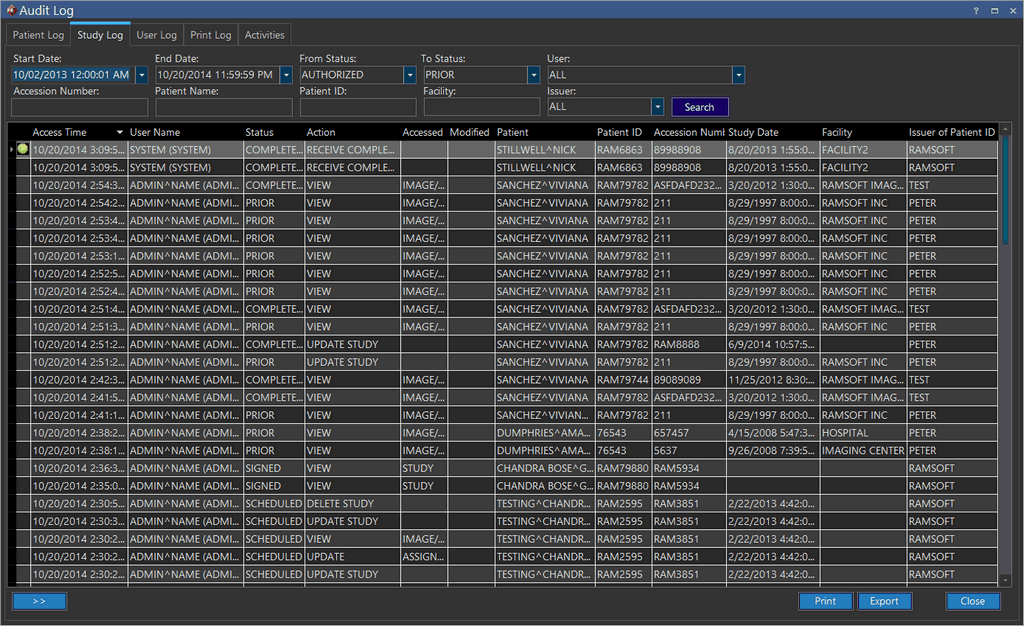
The Start Date and End Date is used to determine the time frame in which the studies will be searched. The From Status and To Status is used to filter the results between these two study statuses. The User field is used to list actions performed on studies by a particular user. All the fields can be used to search studies according to the Accession Number, Patient Name, Patient ID, Facility or the Issuer of Patient ID.
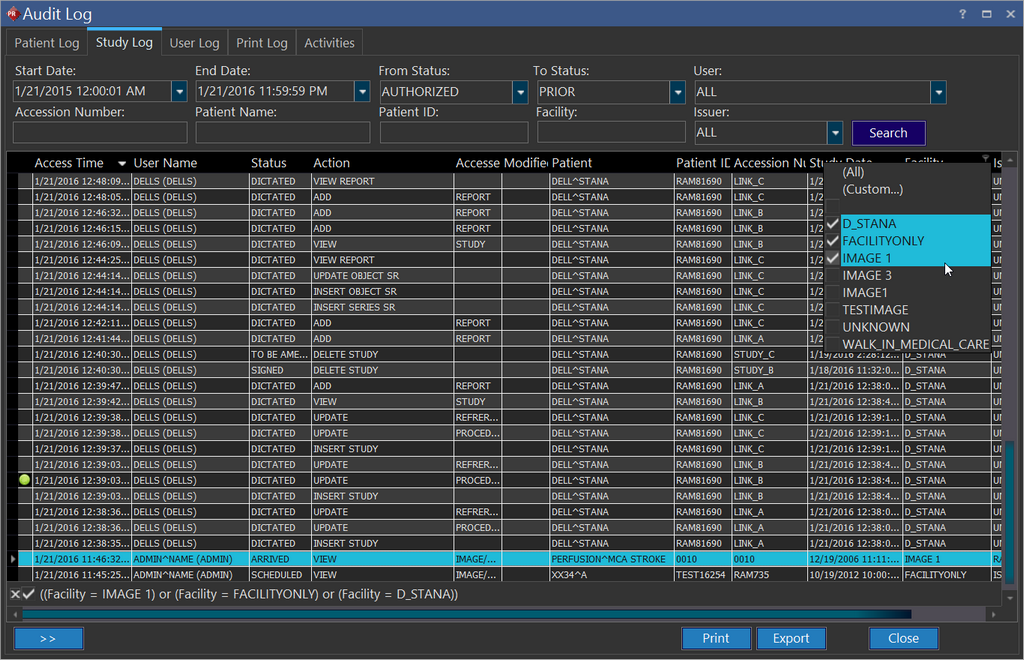
Once the list of studies has been displayed, the results can be sorted according to the columns in the list. For example, the results can be sorted according to the Facility in the Facility column. Note that you can select multiple Facility options.
Note: When an event takes place on a particular study, the event time is logged in the audit log. If the workstation has an incorrect clock, it is corrected by the server before being logged in the audit log. This time can be within +/- 10 seconds of the actual event.
The results can be exported, by clicking the Export button. The Print button can be used to print the results. If a lot of results are displayed, the button can be used to move to the next set of records.
User Log
A User Log will return a report on all the actions that have been performed by various users on different studies.
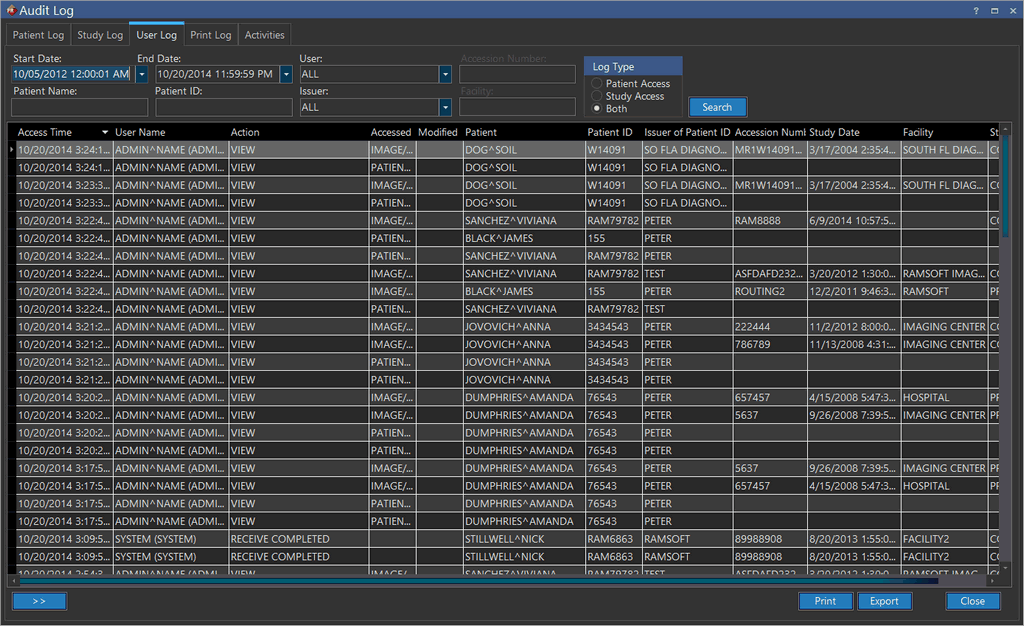
The time period in which the search will be performed is determined by the Start Date and End Date. The User field can be used to filter the results according to the a particular user. The results will display all the patients who have any action performed on them by the selected user. If the option ALL is selected, the results will be filtered according to any actions that have been performed on the patients by all the users of the system.
The other fields such as Patient Name, Patient ID or Issuer of Patient ID can be used to narrow the search results according to these particular fields. Once the list of patients has been displayed, the results can be sorted according to the columns in the list. For example, the results can be sorted according to the Issuer of Patient ID. Note that you can select multiple Issuer of Patient ID options.

Note: When an event takes place on PowerReader, the event time is logged in the audit log. If the workstation has an incorrect clock, it is corrected by the server before being logged in the audit log. This time can be within +/- 10 seconds of the actual event.
For further information, please refer to the section How Do I View a User level Audit Log?. The results can be exported, by clicking the Export button. The Print button can be used to print the results. If a lot of results are displayed, the button can be used to move to the next set of records.
Print Log
The Print Log contains a listing of all the studies that the audited user has printed to the DICOM printer over a given date range.
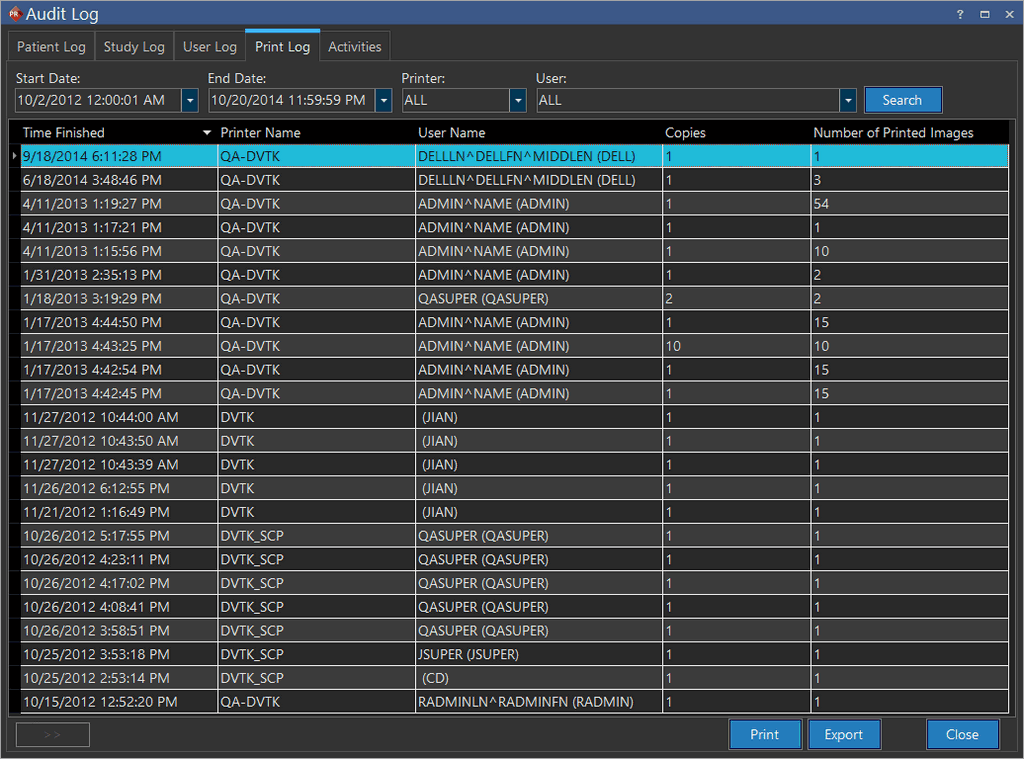
The time period in which the search will be performed is determined by the Start Date and End Date. The User field can be used to filter the results according to the a particular user. The results will display all the patients who have any action performed on them by the selected user. If the option ALL is selected, the results will be filtered according to any actions that have been performed on the patients by all the users of the system.
Once the list of patients has been displayed, the results can be sorted according to the columns in the list. For example, the results can be sorted according to the username. Note that you can select multiple username options.
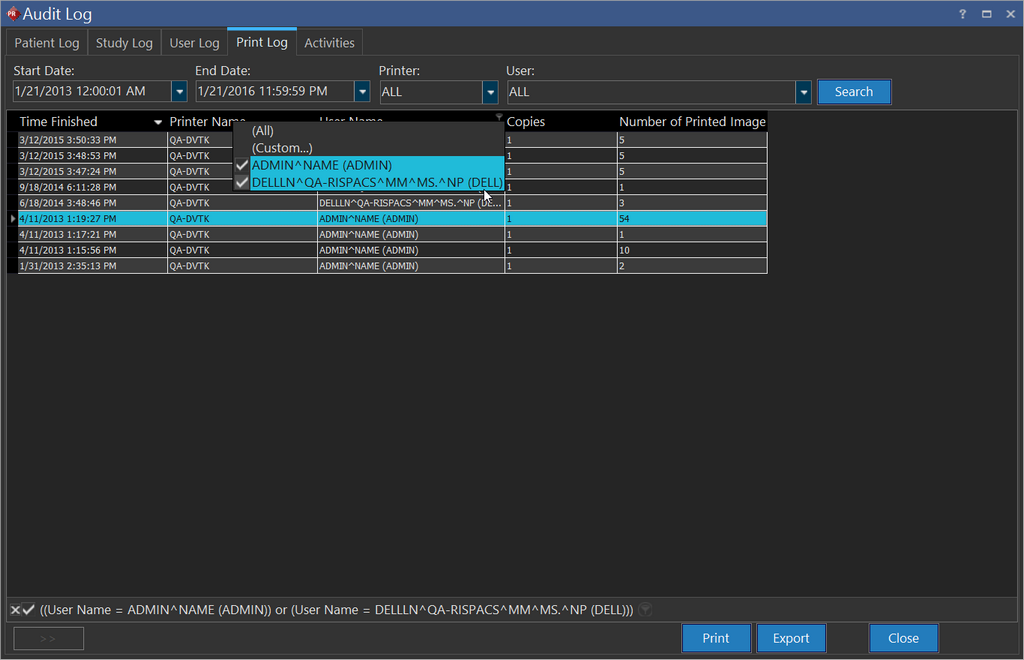
For further information, please refer to the section How Do I View a User's Print Log?. The results can be exported, by clicking the Export button. The Print button can be used to print the results. If a lot of results are displayed, the button can be used to move to the next set of records.
Activities
The Activities tab shows a list of any activity history on the Clinical Decision Support rules that have been performed by various users at different time intervals based on a search defined by the following filters:
Start Date : Enter the Start Date for the Date Range
End Date : Enter the End Date for the Date Range
User : The User role name by which you want to view the Activity log
Type : You can select one of the following 3 options: Add CDS, Update CDS and Delete CDS. Generally if you want to see the activity log of recent Clinical Decision Support(CDS) rules added by a specific user, selecting ADD CDS Type lists all the CDSs that have been activated during the selected time period.
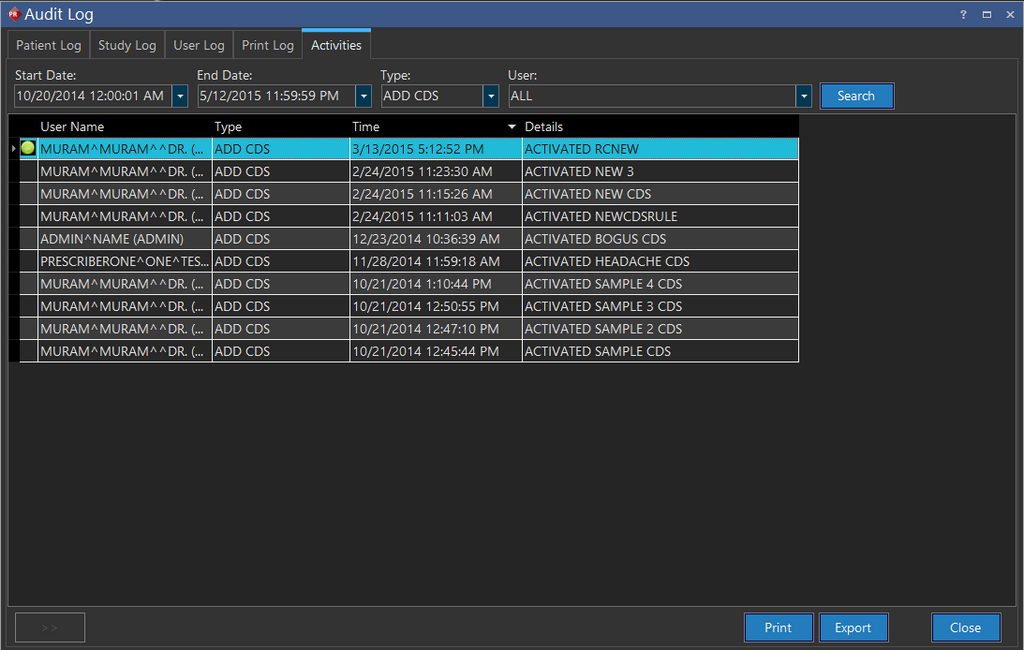
The results can be exported, by clicking the Export button. The Print button can be used to print the results. If a lot of results are displayed, the button can be used to move to the next set of records.