How Do I Move An Image from One Series into Another?
Sometimes an image is inserted into the wrong series. This can occur as a result of human error, or as a result of improper DICOM information in the files received by the RamSoft software, which in turn causes the system to place the image into the wrong series. Such images can be moved into the appropriate series by following this procedure.
-
Open the study containing the image that needs to be moved to a new location.
-
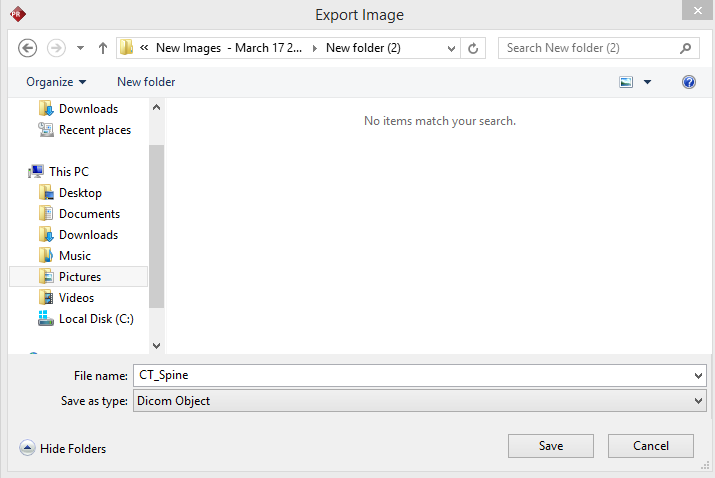
Go to the main menu and select File > Export... Note down the folder that the file will be exported to.
-
Input a File name.
-
Make sure the Save as Type value is set to DICOM Object.
-
Click Save.
-
Highlight the series of images into which the image will be inserted.
-
Click the Acquire button.
-
Click Import Image.

-
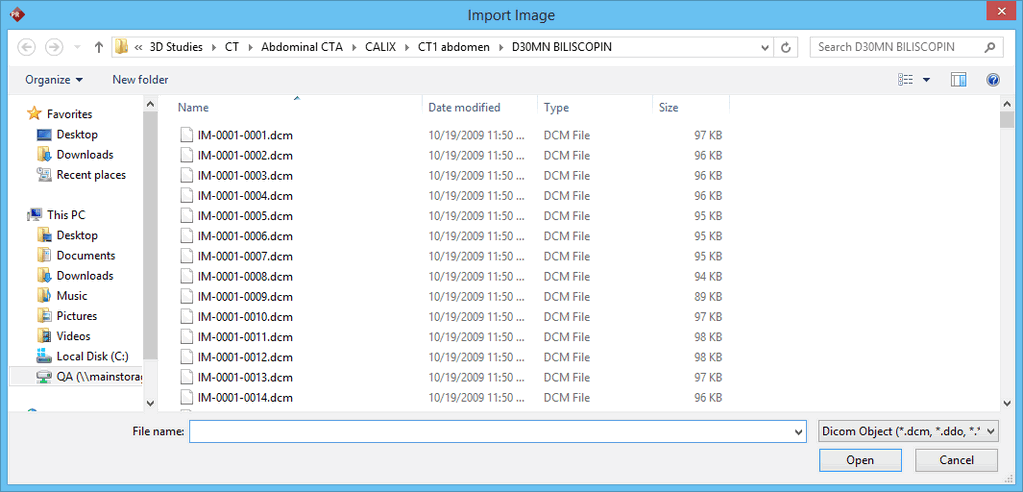
In the Import Image dialog, navigate to the folder into which the file was exported to.
-
Within the Image folder, navigate to the folder that was noted down in step 4.
-
Highlight the file and click Open. (If you have multiple images that need to be inserted you can highlight them all at once.)
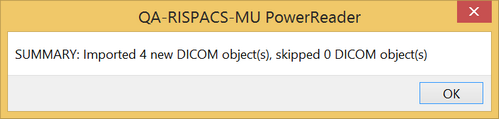
- Click OK on the information dialog that appears.
-
Verify that the destination series now contains the image.
-
Right click the image in the original series and click Delete.