Cached Studies
When using the RamSoft software with the exception of the CD Viewer and Gateway, study images are located on the server and are accessed through PowerReader clients. PowerReader clients can access the server across a network or across the internet. Accessing the server across the internet can result in lengthy downloads of images. When Workflow is set up properly, studies are auto routed to all clients and users that need to view them. Once a study is routed or downloaded to a client it is stored in its cache.
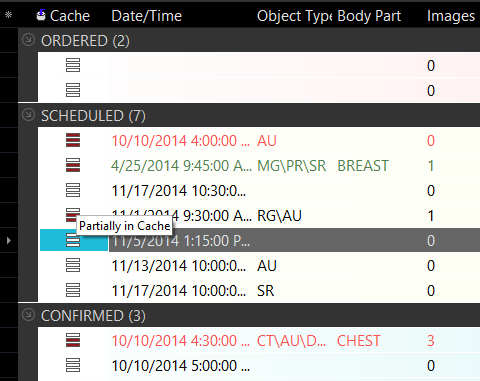
The PowerWorklist has a graphical icon to indicate whether a study is locally cached, at the left of the row.
| STATUS INDICATOR | DESCRIPTION |
|---|---|
 | The study is stored in cache. |
 | The study is partially in cache. A study partially present indicates that some of the objects have been downloaded. When it is opened, the remaining objects will have to be pulled from the server. |
 | The study is not in cache. When the study is opened it will have to be fully downloaded from the server. |
The time it takes for all objects to appear in the Patient Explorer after a study is opened is affected by whether the study is present locally. A study that is locally present takes the least amount of time to load. A study can be downloaded from the server with a click of the mouse on the Cache icon or by selecting the study and clicking on the Pull the selected studies to Local station command icon  on the PowerReader toolbar. These two methods will place a gray arrow
  on the three bars indicating that is downloading. Once it is fully downloaded, the bars will fill with a solid maroon color . Users can stop a download by clicking the Cache icon again. It is also possible to push studies into other user's caches. This is done by selecting a study and then clicking on the Send the study to another station icon
  on the PowerReader toolbar. In the Push Details window select Client for Target so that the study is pushed into the cache.

To open the Local Cache Contents tab, double-click on the PowerReader Cache icon on the desktop.
The Cache can be controlled by the administrator and by other users on the client system. The Administrator user controls the Cache Log through Settings > Server Settings > Station List > PowerReader/PowerCache tab.
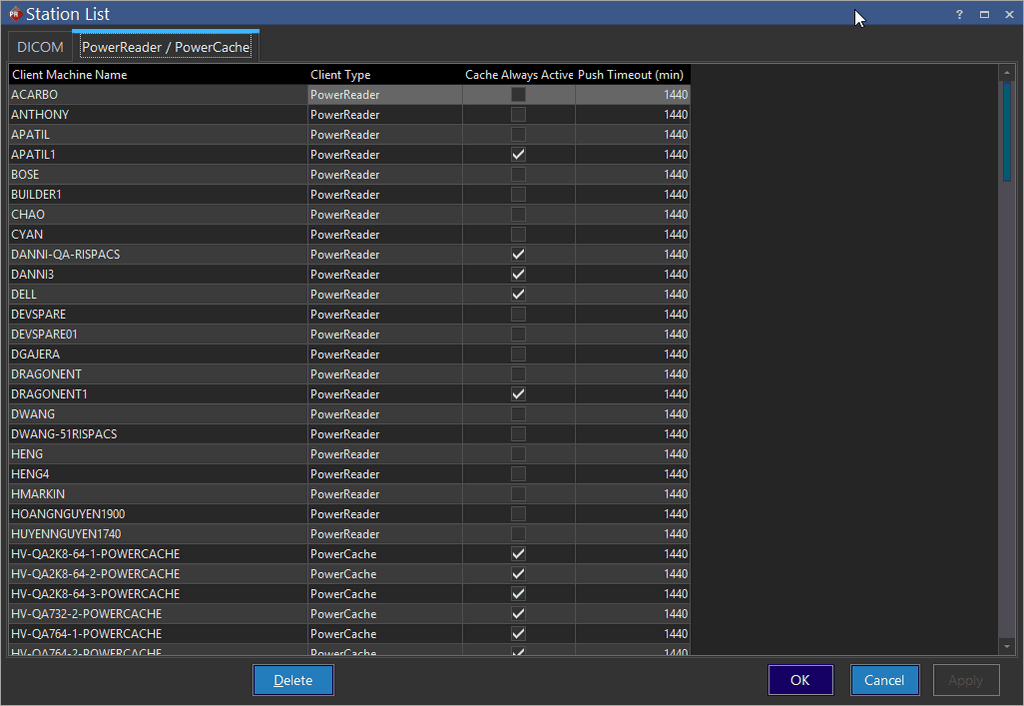
The Administrator can select or unselect the Cache Always Active checkbox for each specific client in the Client Machine Name column. If Cache Always Active is unchecked, the cache will go into idle state when the client disconnects from the server, and studies will be not be pushed/ pulled from the cache.
Non-administrator users can control the Cache Log through Settings > Local Setup > PowerReader tab.
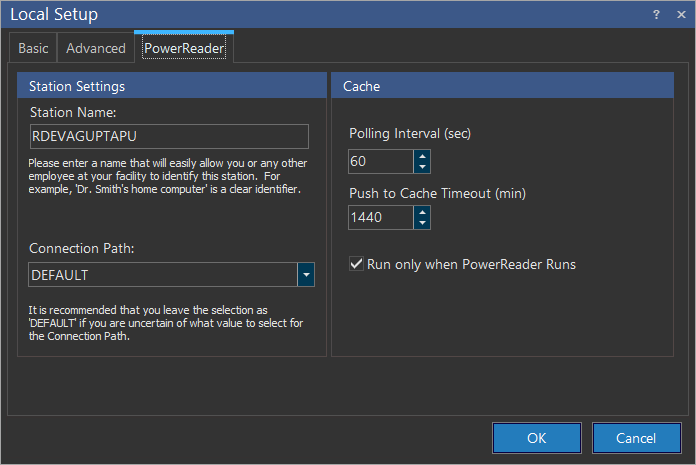
If the Run only when PowerReader runs option is selected, studies cannot be pulled from the server when the client disconnects from the PowerServer. This causes the Cache to go into an Idle Status. The Run only when PowerReader runs option is mutually exclusive to the Cache Always Active option described above. If the Run only when PowerReader runs option is chosen, it de-selects the Cache Always Active option.