The PowerCache User Interface
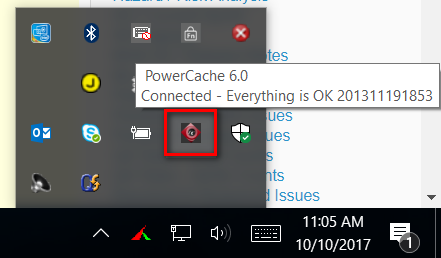
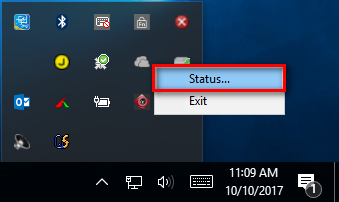
Clicking the PowerCache icon at the Windows taskbar and selecting "Status" opens up the PowerCache user interface.
Search Tab
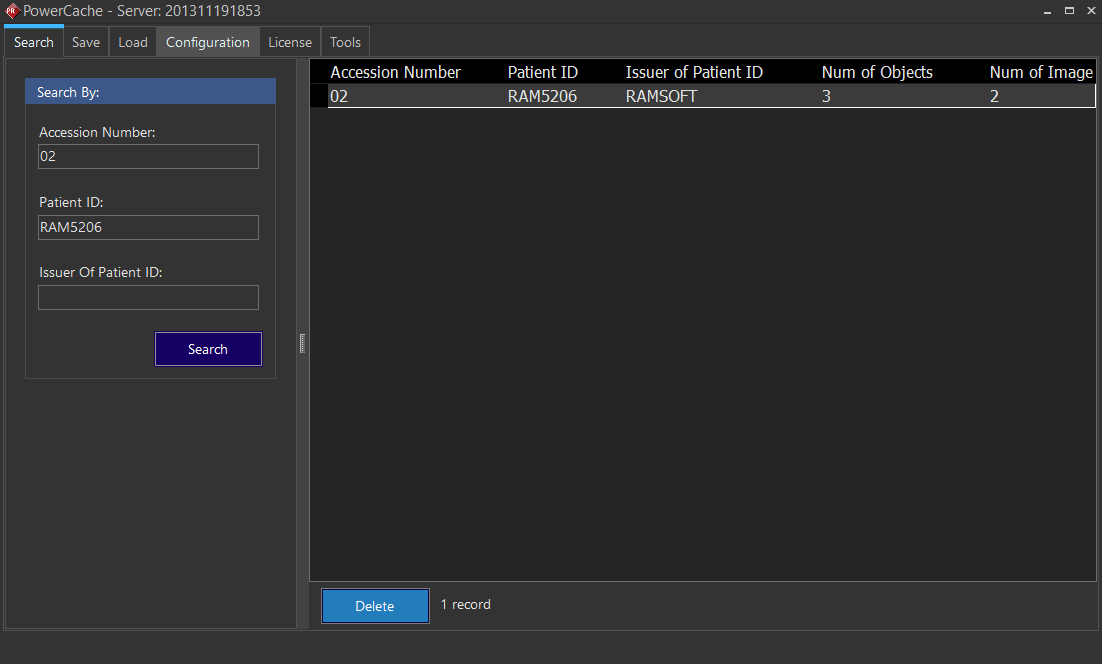
The Search tab is used to search for any studies currently in the Local Cache. Studies are cached when they are opened.
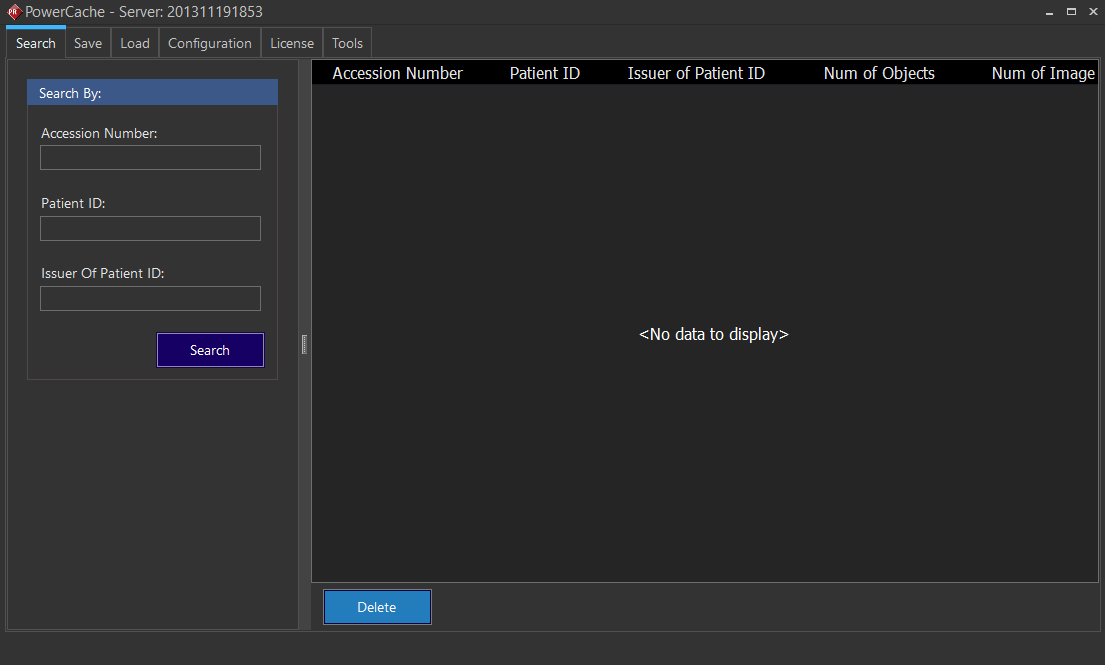
Type in the Accession Number, Patient ID and/or Issuer of Patient ID boxes to search for a particular cached study.
Save Tab
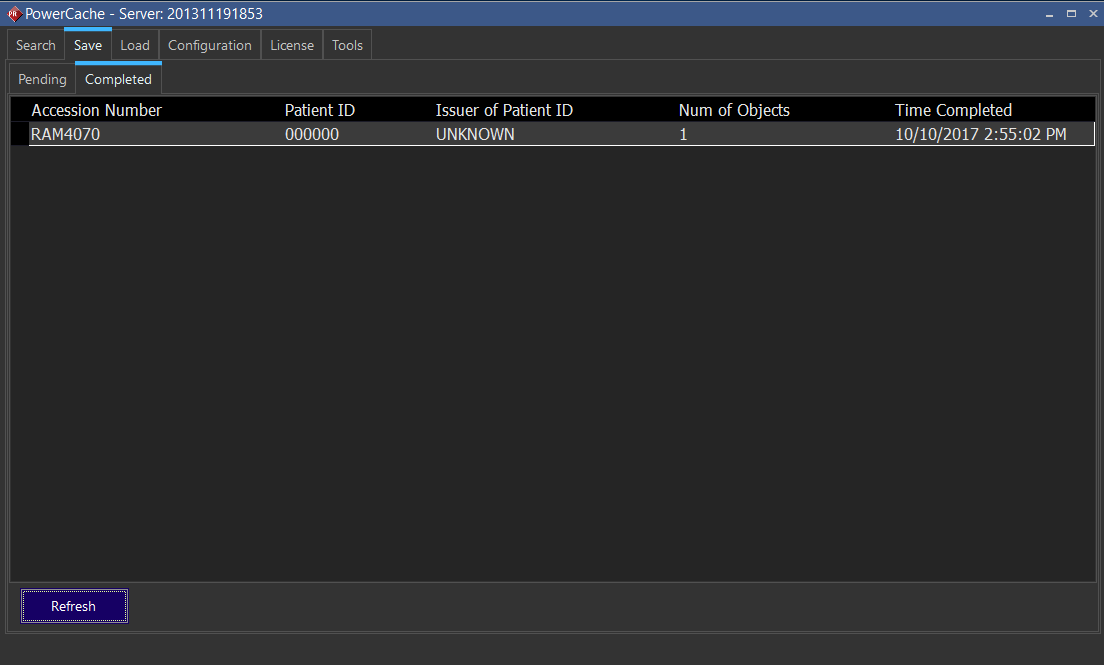
The Save tab lists all studies that have been saved to the Local Cache, as well as those that are pending to be saved. Studies that are opened, modified and closed will be in the "Completed" list once they have been loaded to the Local Cache.
Load Tab
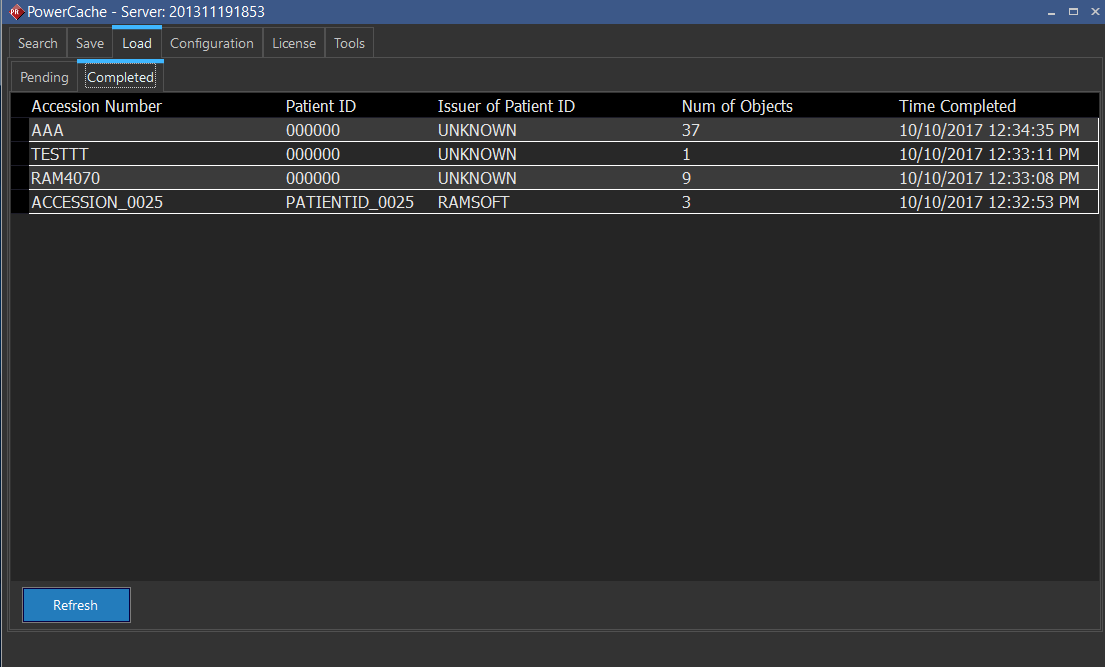
The Load tab displays studies that have been pulled to the Local Cache (via the  button in the PowerReader). The "Completed" tab lists the the studies that have finished loading, while the "Pending" tab lists studies that are pending to be pulled.
Configuration Tab
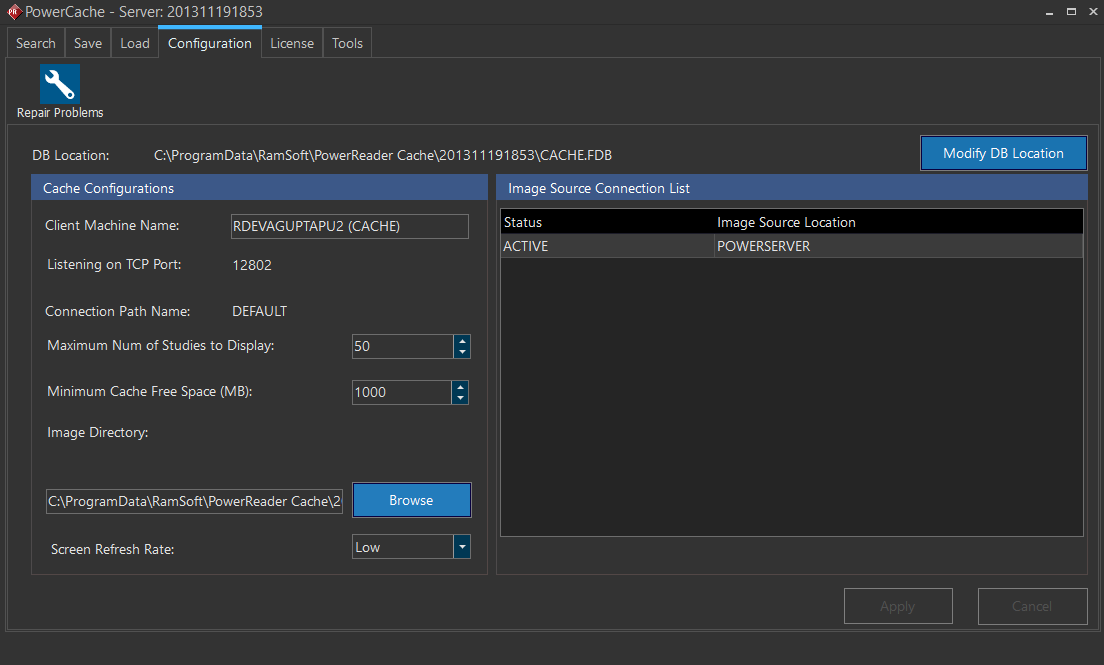
The configuration tab contain options for modifying the cache database location along with other configuration options. The "Repair Problems" icon is used to clear the PowerReader cache and perform an auto repair of the cache. See How Do I Clear the PowerReader Cache for more details on clearing the PowerReader cache.
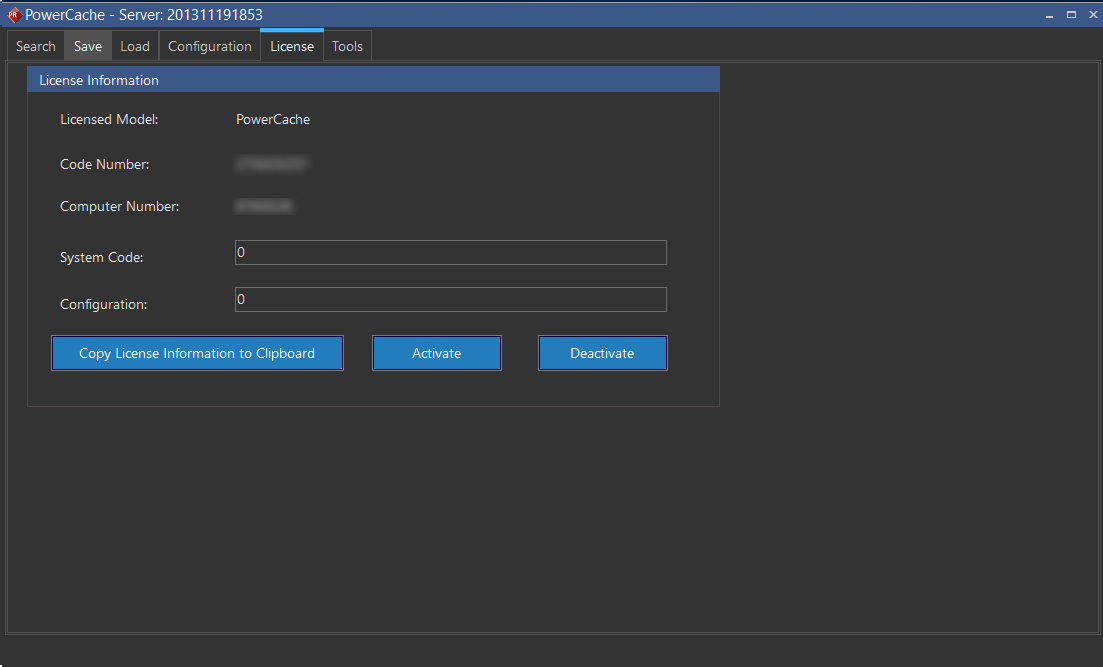
License Tab
The License tab is used to enter licensing information for activating the PowerCache product.
Tools Tab
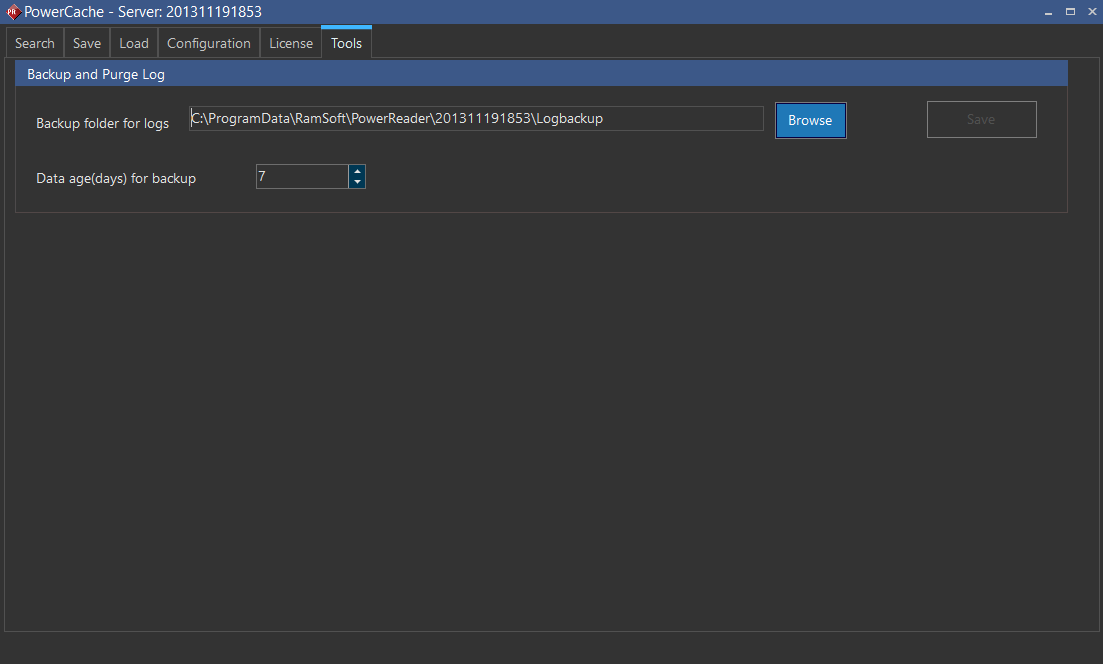
The Tools tab is used to specify the backup folder for the cache logs and the days of data to keep the backups.