Transcription Tools
The Documents tool is used to create reports in different formats. It can be used to create Text Reports, Microsoft Word Reports from templates or to Attach Reports.
Click the Documents  button to create desired reports.
PDF, DOC, html, txt or RTF files can be used to create DICOM SR Reports. These reports are valid DICOM compliant SR reports allowing all DICOM workstations and servers to receive, store and send these reports. However, only Text Reports can be viewed outside of the RamSoft software.
The Documents tool interface is displayed below. The top panel consists of a customizable ribbon with commonly used tools (#1 to #22 below). Below that, the left-hand panel (#23) consists of a list of Reports, Prior Reports, Documents, Patient Documents and Templates. The right-hand portion (#24) contains the report/document editor.
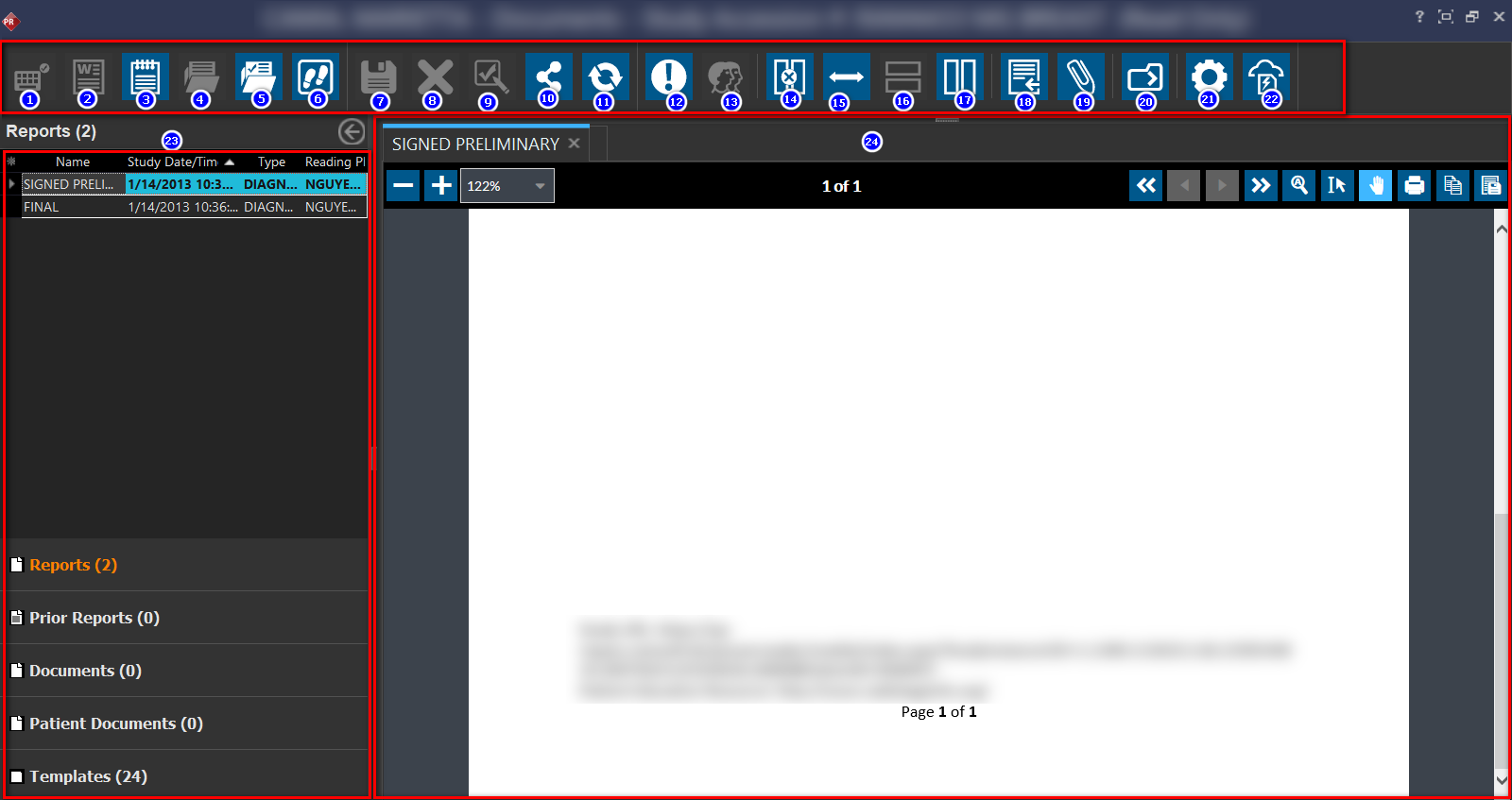
The following functionality are enabled by default on the ribbon:
- Enables capturing of keyboard input into the report
- Create new word report from template. See: How Do I Create and View Reports?
- Create new text document. See: How Do I Create and View Reports?
- Update the report (before it has been signed)
- Amend report (after it has been signed). See: How Do I Add an Addendum to a Report?
- Amendment History (history of amendments added to report)
- Save the report
- Cancel changes made
- Sign Report
- Send To
- Refresh
- Critical Finding. See: How Do I Flag Critical Findings?
- Peer Review. See: Peer Review
- Do not split document viewer
- Flip Editor Position
- Horizontal Split
- Vertical Split
- Document Importer
- Attach to Report
- Go to Next Study
- Configure Document Options
- Launch RapidResults
See Customizing the Document Ribbon to customize the visibility and layout of buttons on the Document ribbon.