Creating a Preferred Protocol
Often, users prefer to view studies of a particular modality, body part in a certain layout and will like it to be their Preferred layout for viewing images. RamSoft PowerReader allows the creation of Preferred Protocols which will be automatically applied if the Modality/ Body Part matches the viewing protocol.
Creation of a Preferred Protocol is very simple. Open the Viewing Protocol Setup in View > Viewing Protocols and then choose the wizard. When the Preferred option in the Wizard is checked and user defines all aspects of the protocol, clicking Finish button will launch the Preferred Protocol Layout for Admin screen.

The Preferred Protocol layout is also displayed when the user clicks the Preferred checkbox in either the Default Protocols grid or My Protocols grid. The Preferred Protocol Layout will display all the possible combinations of Numbers of Monitors and Comparison Modes based on the Modality and Body Part of the Viewing protocol selected.
The Protocol Name is a drop-down menu which is populated by the protocols which have the Number of Monitors and Comparison Mode indicated. It is also possible that a protocol will appear in multiple rows due to the layout it contains. When the user is trying to create a preferred layout with a specific body part, the Protocol Name drop-down menu will display protocols with said Body part and Protocols with Undefined Body Part value (%). However when trying to create a preferred protocol with generic body parts, the Protocol Name drop-down menu will only contain protocols with generic body parts.
Any user can activate the Preferred Protocol layout in My Protocols. Once a user has selected a preferred protocol for a certain Modality/ Body Part/ Number of Monitors combination, it will be used every time a study with the said combination is opened. If the user creates a preferred protocol that is identical to an existing preferred protocol, the user will be prompted about the conflict.
You can chose to add more layout features or remove the existing ones by clicking the Click here to Show/Hide/move columns icon  on the Preferred Protocol Layouts table.

This conflict resolution is explained in detail below.
The Protocol Name drop-down menu from My Protocols will have the names of protocols found in the Default Protocols and My Protocols list. Protocols from My Protocols will have the User's name in parentheses to distinguish it from the default protocols.
If the Preferred protocol is being created out of a list of Default protocols, the user must have Administrative privileges to create the protocol.
Creating a Preferred Protocol from Default Protocols will actually create system wide preferred protocols. Default preferred protocols are used when there are no user specific protocols to over ride it. The Protocol Name drop-down menu will only contain a list of protocols which are found in the Default Protocols list.
Select a particular Protocol Name and click OK to select that protocol as preferred.
Once a protocol has been selected, the "Preferred Display" column in the My Protocols section will display which layout is preferred for the Preferred Protocol. If the user place the mouse cursor over the a selected viewing protocol, a hint will be displayed listing all the layouts that are preferred for that viewing protocol (Number of Monitors, Comparison Mode and Modality etc).
Changing the modality or the body part of a preferred protocol is considered a fundamental change of the protocol. Thus, changing either the body part or modality will remove the preferred status of a protocol. No notification is provided to the user if a protocol ceases to remain as preferred.
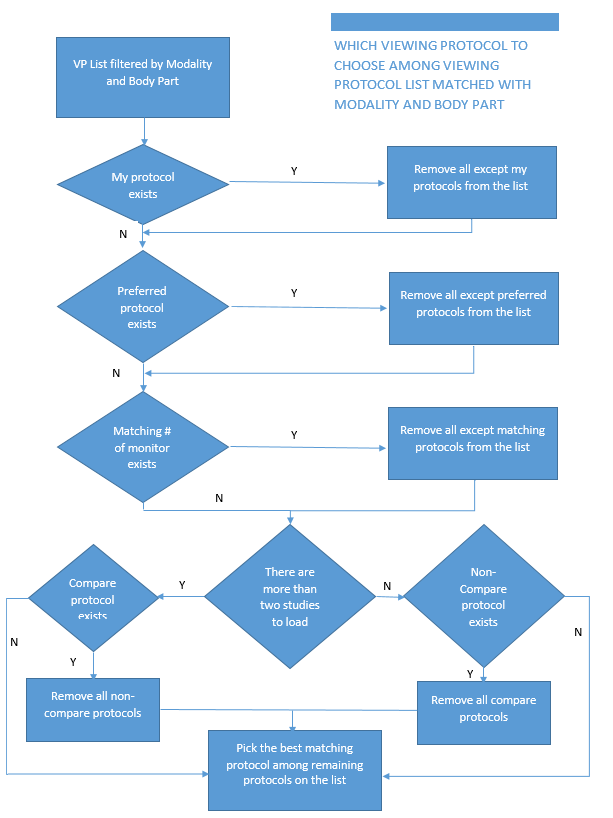
The following logic describes how a viewing protocol is selected from a viewing protocols list with matching modality and body parts:
Once the Viewing Protocol list is filtered by Modality and Body part, the system performs a series of checks in the following sequence:
| Logical Flow | Criteria | If yes | If no |
|---|---|---|---|
| Step 1 | System checks if My protocol list exists | all the other protocols are removed and only the My protocols list is retained and system would perform step 2 | system performs step 2 |
| Step 2 | System would now check if any Preferred protocol list exists | all the other protocols are removed and only the Preferred protocols on the list are retained and system would perform step 3 | system performs step 3 |
| Step 3 | System now checks if number of matching monitors exist | all the other protocols are removed and only the Protocols matching the criteria are retained on the list and system would perform step 4 | system performs step 4 |
| Step 4 | System checks if there are more than two studies to load | system performs step 4a | system performs 4b |
| Step 4a | System checks if Compare protocols exists | all the Non-Compare protocols are removed and system performs step 5 | system performs step 5 |
| Step 4b | System checks if Non-Compare protocols exists | all the Compare protocols are removed and system performs step 5 | system performs step 5 |
| Step 5 | System picks the best matching protocol among the remaining protocols on the list |