Image Type Setting
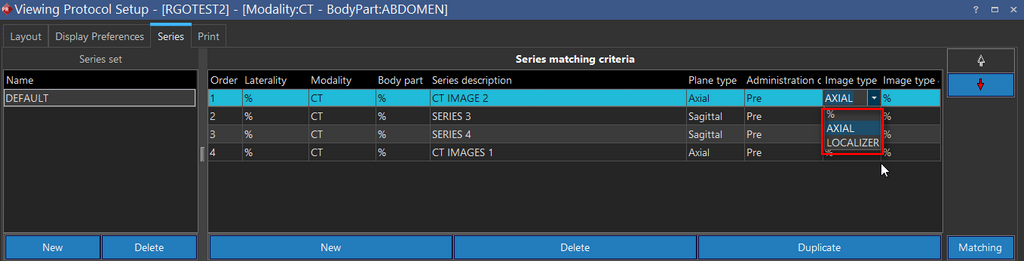
While defining the Series Matching Criteria for the Viewing Protocol, user can select the option from the drop-down under Image Type 3 and Image Type 4 columns. The availability of the different options under Image Type 3 and Image Type 4 columns for the selected Modality can be configured on Settings > Descriptions > Image Type.
Image Type Settings interface has two options, 'Image Type 3' and 'Image Type 4'. Each option has two columns, Modality and Name. User can select the modality from the drop-down and associate it with the names. The names could be any tag in the DICOM header of the image or anything that user wants.

If user associates 'AXIAL' and 'LOCALIZER' options with CT modality for 'Image Type 3', only '%', 'AXIAL' and 'LOCALIZER' options would be available for Image Type 3 column as a Series Matching Criteria. This way the list of the drop-down options for Image Type 3 and Image Type 4 columns is narrowed down.
For studies based on the MG modality, the Image Type:3 and Image Type:4 matching rules can be assigned from the Display Layout grid. In the Display Grid, you can right-click on a Image View and select the Image Type:3 and Image Type:4 rules.
When you setup either the Image Type: 3 or Image Type:4 matching rules as blank, the Image Type values show either "None" or no value at all (empty).
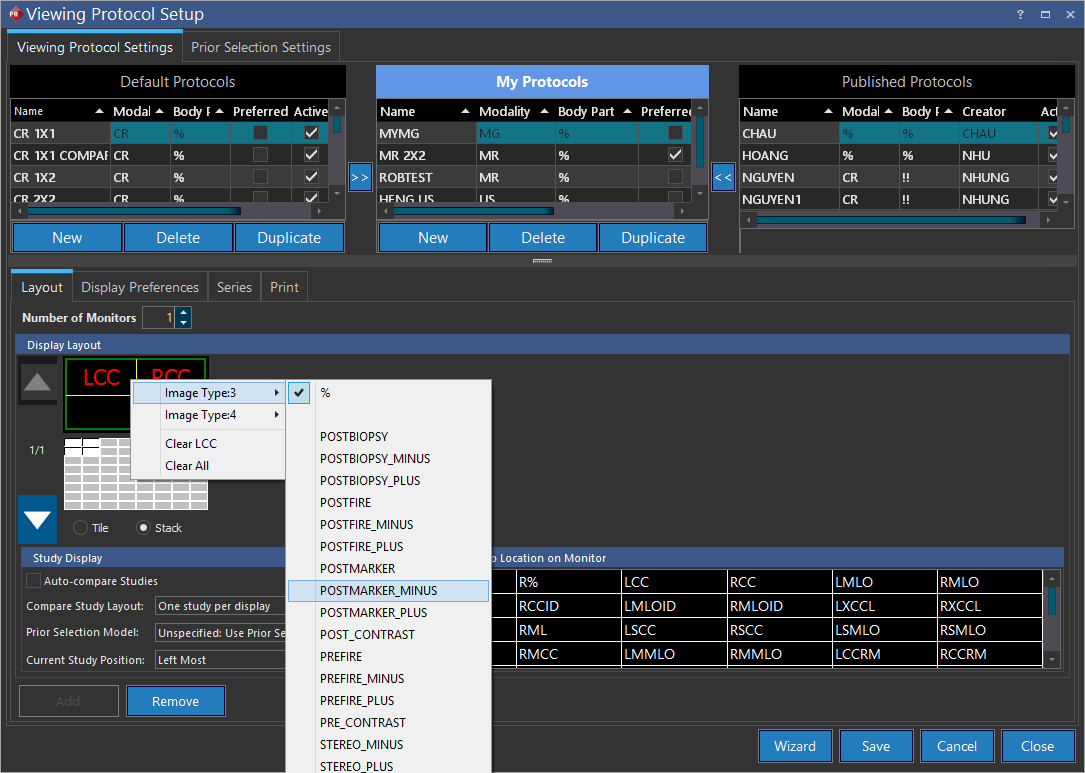
For the Image Type Settings options to be visible, you to need to have the MG Image Views selected on the Display Layout.