Assigning Multiple Studies to a User in One Step
Often times, it is desired to assign multiple studies to a user in one go. While it is possible to assign the studies individually, a much easier way is to simple select the desired studies at once and then assign them via the right click menu. To assign the user (e.g. Reading physicians) to both the studies at the same time, select the two studies.
In the right click menu, select the field to assign (e.g. reading physician) and enter a few letters from the name of the person you want to assign. A shortlist of reading physicians will be available. Select the desired physician.
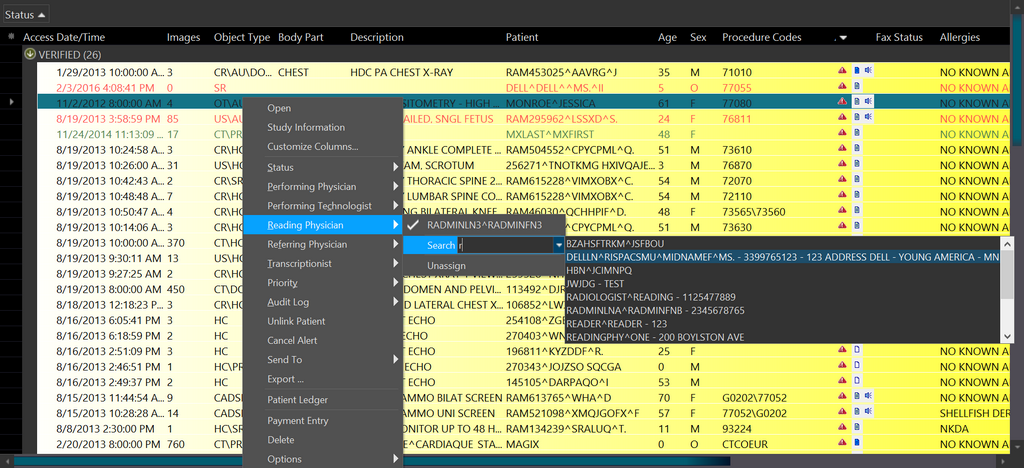
If two selected studies belong to different imaging facilities, the names that are populated in the meta-search are for those physicians who belong to both the facilities. The meta-search is sorted by:
a. Issuer of Patient ID.
b. Imaging Facility
With the right-click menu, the user can perform the following actions:
- Open both the study
- Get study information (of the study selected last)
- Assign a single study status to both the studies
- Assign the same Performing Physician, Performing Technologist, Reading Physician, Referring Physician and Transcriptionist to all the selected studies.
- Assign the same priority to all the selected studies
- The user can choose to merge the patients
- Merge Studies
- Link Patient
- Unlink Patient.
- Export the Worklist
