Worklist Column Definitions
The visible columns on the Worklist can be customized. To add or remove columns, click the icon at the left of the column display (top left) and select or unselect the columns to be included or excluded.
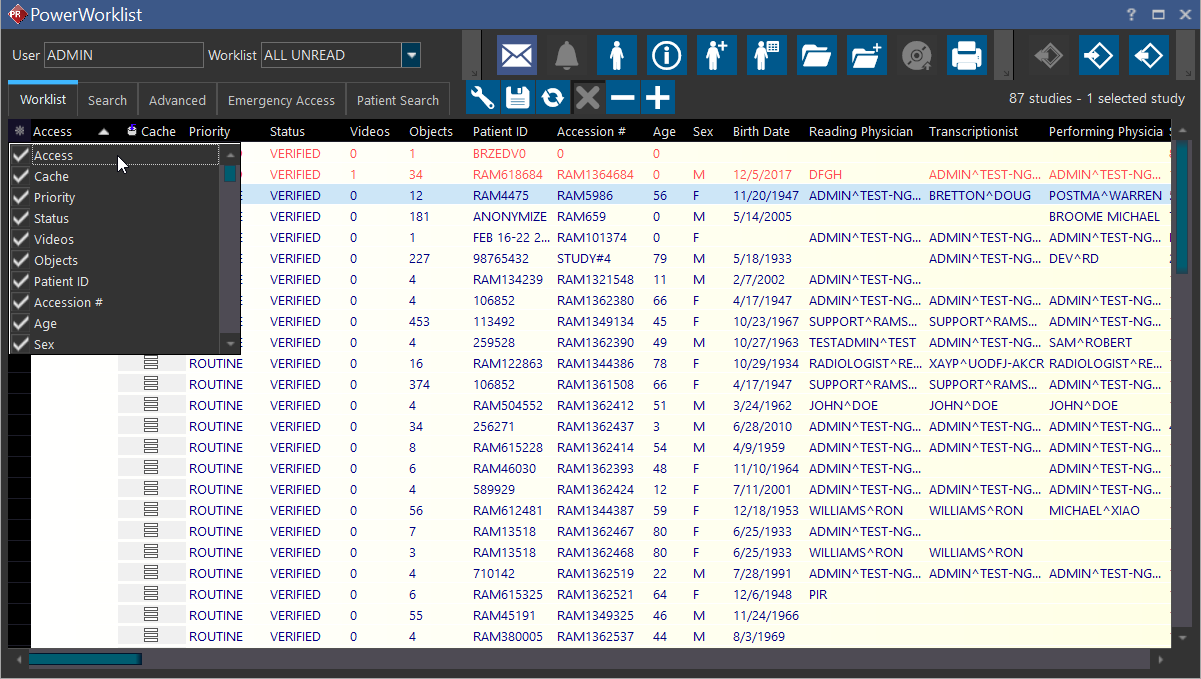
The following is a list of all possible columns that can be displayed on the Worklist view.
- Access: provides an access alert on the Worklist with which users can hover over to see who is viewing the study
- Cache: cache indicator to indicate whether or not a study is locally cached. See How Can I Tell If a Study is Cached?
- Priority: the priority of the study, e.g. STAT, NORMAL
- Status: the current status of the study in the Workflow. See Setting up Study Statuses
- Videos: the number of videos in the study (including DICOM videos)
- Objects: the number of objects in the study. See: Objects vs Images
- Patient ID: the patient ID of the patient to which the study is assigned
- Accession #: the accession number of the study
- Age: the age of the patient
- Sex: the gender of the patient
- Birth Date: the birth date of patient
- Reading Physician: the reading physician assigned to the study
- Transcriptionist: the transcriptionist assigned to the study
- Performing Physician: the performing physician assigned to the study
- Study ID: the study's ID
- File Set ID: File Set Identification for Basic Directory Information Object in DICOM (e.g. a Study Record, Series Record, etc).
- Issuer: the issuer of the patient ID (the original institution from where the Patient ID was generated for the patient)
- Modality: the modality of the study (the specific machine that acquires images or class of machines that use the same basic technology)
- Scheduled Body Part: the body part scheduled for examination in the study
- Scheduled Laterality: the scheduled laterality of the study (the laterality indicates patient position relative to the imaging beam. Where applicable, may take any of the following values: RIGHT, LEFT, BILATERAL, UNILATERAL)
- Room: the room in which the examination took place
- Location: the location in which the study is performed, e.g. E.R., ward
- Procedure Codes: the procedure codes utilized for the study
- Scheduled Exam Room: the scheduled exam room of the study
- Date/Time Read: the date and time the study is read by the reading physician
- UTC Offset: the timezone offset between Universal Time Constant and local time
- Duration: the duration of the study in minutes
- Delivery: the method of report delivery, i.e. Film, Courier, CD
- Scheduled Resource: the scheduled resource for the study
- Account Status: the status of the account, e.g. Active, Inactive, Normal
- Language: the language the study is in
- Financial Type: financial type used for study. See Financial Types
- State: the geographical state of the patient, denoted with a two-letter acronym (i.e. CA for California)
- Insurance Payers: the payer of insurance
- Insurance Expiries: the date in which the insurance coverage for the patient expires
- Insurance Copays: the amount the patient is responsible for paying, either in % or $
- Documents (Document Icon and Dictation Icon): indicates the presence of reports and/or dictations. Studies with diagnostic reports is represented by a light green icon
 . Studies with only non-diagnostic reports (e.g. Patient Documents) is represented by a dark blue icon
  . A white icon
  represents the absence of any reports. A speaker icon
  represents the presence of dictations
 - Alert: denotes the presence of patient alert(s) for the study
- Date/Time: study date/time
- Patient: the patient the study is assigned to
- Object Type: all types of objects in the study, including modalities and types of documents, e.g. CR, AU, DOC, HC, PR, SR
- Body Part: body part the study is responsible for examining
- Description: a succinct description of study
- Images: number of images in the study. This number does not include videos. See Objects vs Images
- Referring Physician: the referring physician assigned to the study (physician who sends a patient to another doctor for specialty care or services)
- Facility: the facility in which the study is performed
- Performing Technologist: performing technologist assigned to the study
- Comments: helpful comments inserted for study
- Fax Status: status of faxed document(s) (if applicable)
- Allergies: allergies of the patient
- Cancellation Reason: reason study was canceled
- Charge Posting: charge posting status, i.e. Charge Posted, Pending
- Home Phone: home phone of patient associated with study
- Cell Phone: cell phone of patient associated with study
- Authorization #: authorization number used to authenticate insurance coverage payments
- Authorization Start: authorization start date
- Authorization End: authorization end date
- Insurance Status: status of insurance, e.g. AUTHPAL REQUEST, NOT ELIGIBLE, UNKNOWN, VERIFIED
- Patient Balance: the current patient balance. A value of 0 indicates that the patient does not owe any money. A positive value greater than 0 indicates how much the patient owes and is displayed in bold red
- Date/Time Received: date or time the study was received
- Referring Facility: referring facility assigned to the study
- Reading Facility: reading facility assigned to the study
- Transcription Facility: transcriptionist's facility assigned to the study
- Date/Time (UTC): date and time of study creation in UTC time
- Date/Time (Local): date and time of study creation in Local time
- Date/Time Read (UTC): date and time the study was read in UTC time
- Date/Time Read (Local): date and time the study was read in Local time
- Date/Time Received (UTC): date and time the study was received in UTC time
- Date/Time Received (Local): date and time the study was received in Local time
- Date/Time Ordered: date and time the order was created
- Date/Time Ordered (UTC): date and time the order was created in UTC time
- Date/Time Ordered (Local): date and time the study was ordered in Local time
- Date/Time Verified: date and time the study was verified
- Date/Time Verified (UTC): date and time the study was verified in UTC time
- Date/Time Verified (Local): date and time the study was verified in local time
- Date/Time Transcribed: date and time the study was transcribed
- Date/Time Transcribed (UTC): date and time the study was transcribed in UTC time
- Date/Time Transcribed (Local): date and time the study was transcribed in local time
- Date/Time Signed: date and time the study was moved to Signed status
- Date/Time Signed (UTC): date and time the study was moved to Signed status in UTC time
- Date/Time Signed (Local): date and time the study was moved to Signed status in Local time
- Date/Time Addendum: date and time the last addendum was added
- Date/Time Addendum (UTC): date and time the last addendum was added in UTC format
- Date/Time Addendum (Local): date and time the last addendum was added in local time
- Date/Time Last Updated: date and time the study was last updated
- Date/Time Last Updated (UTC): date and time the study was last updated in UTC time
- Date/Time Last Updated (Local): date and time the study was last updated in local time
- Visit Number: unique number identifying the Visit associated with the order
- Referring Physician Address: address of referring physician
- History (Symptom): brief description of history of symptom
- Clinical Notes: clinical notes associated to the study
- Custom Field 1: custom field of study as entered in Study Info Detailed > Other > Custom Field 1
- Custom Field 2: custom field of study as entered in Study Info Detailed > Other > Custom Field 2
- Custom Field 3: custom field of study as entered in Study Info Detailed > Other > Custom Field 3
- Custom Field 4: custom field of study as entered in Study Info Detailed > Other > Custom Field 4
- Custom Field 5: custom field of study as entered in Study Info Detailed > Other > Custom Field 5
- Custom Field 6: custom field of study as entered in Study Info Detailed > Other > Custom Field 6