Stana Reporting using Document Viewer
Breast cancer tracking can start when a patient is scheduled for a Mammo exam. At this stage, the Scheduler creates an appointment and sets the Study status to SCHEDULED.
From this stage onwards, the Stana enabled facility can collect Patient Demographics, generate Patient Reminders, send Reminder print letters and generate results. Users can create diagnostic reports using Document Viewer in PowerReader.
Document Viewer access to breast cancer tracking requires the access Stana privilege. Based on your role and privileges, the respective Stana tabs/sheets would be available in the Stana tab. If the role is not that of a Reading Physician, Performing Physician, Performing Technologist or a Transcriptionist, you can only have access to Patient Questionnaire in the Document Viewer.
To generate or view reports for a Breast Imaging study, open the Document Viewer for the Breast Imaging Study by clicking the Create/View Documents tool on the Study desktop.
Note: Based on the settings in User Options > Document Options, the Document Viewer can launch automatically when the Study is opened.
Alternatively, open Document Viewer for a Breast Imaging study by clicking the Documents icon on the Worklist. The Document Viewer opens up, displaying existing reports (if any). If there are no existing reports or documents, the Stana tab opens up displaying the Radiology Data Sheet by default.
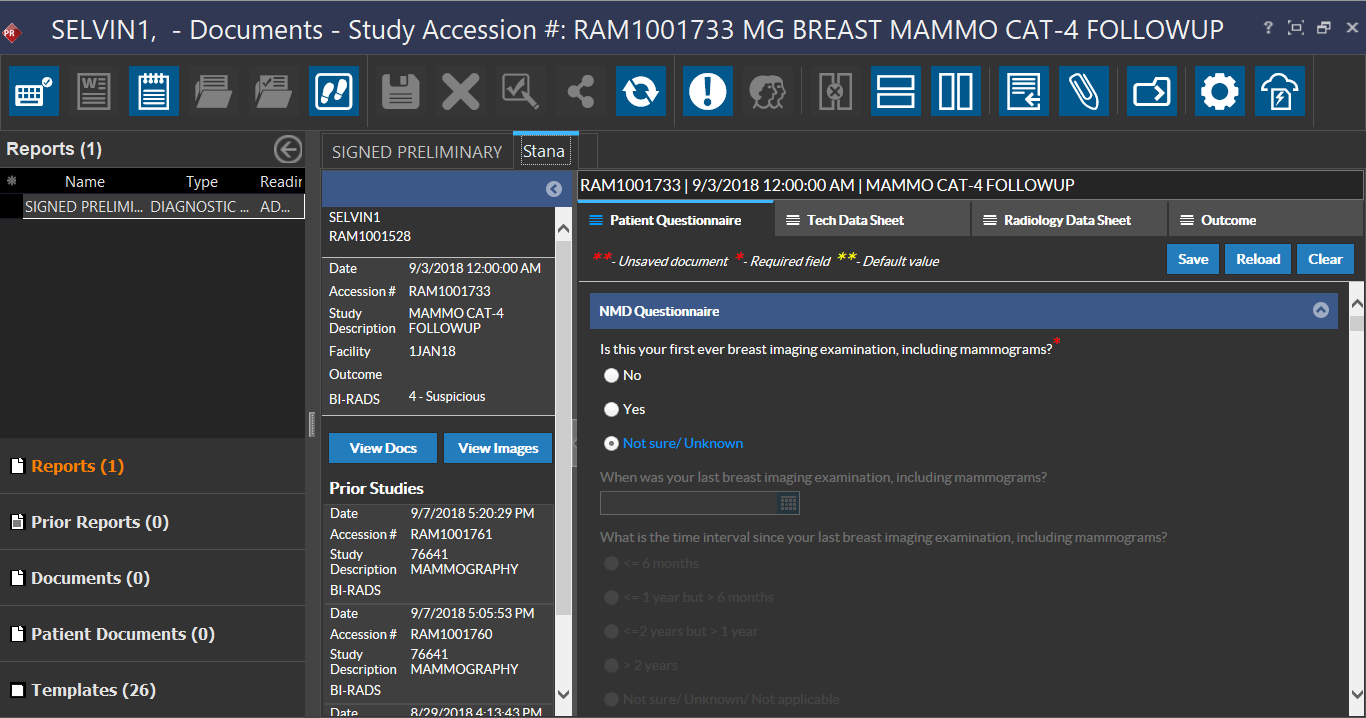
The Stana tab has four sheets with customizable templates that can be used by different users based on their roles to provide information on the Study and generate an outcome report based on the collective findings. Enter the relevant information in the Patient Questionnaire, Tech Data Sheet, Radiology Data Sheet and Outcome. For more information on steps to provide in each Data Sheet, click the appropriate links as follows:
In every data sheet, each data element (typically a pre-defined question or a field) used in a template is configurable and a user with Admin Stana privilege can configure these settings in Stana Web.
Information in the Data Sheets cannot be saved and diagnostics reports cannot be created if the Create Diagnostic Reports and Create Documents privileges are disabled.
On the left panel of the Stana tab in Document Viewer, the patient demographics and Study information can be viewed along with links to any Prior Studies. Click the Collapse  or Expand
  buttons to view or hide information. Whenever the Document Viewer is opened, the panel retains the last saved position.
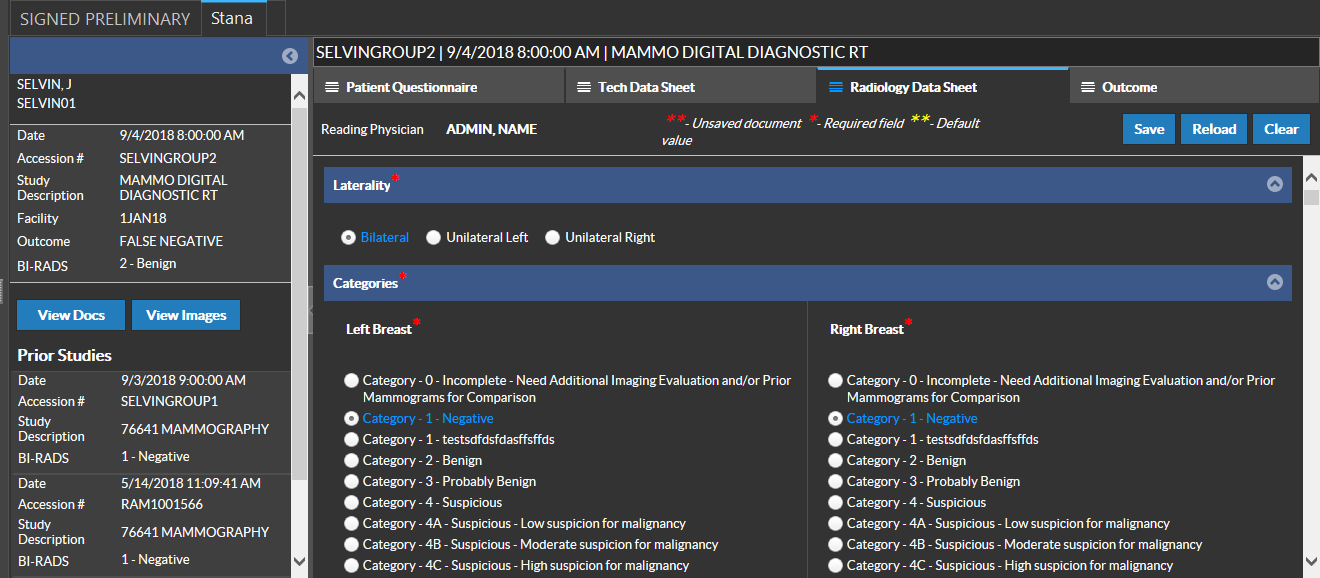
Once relevant information is entered in the Radiology Data Sheet, click Save.
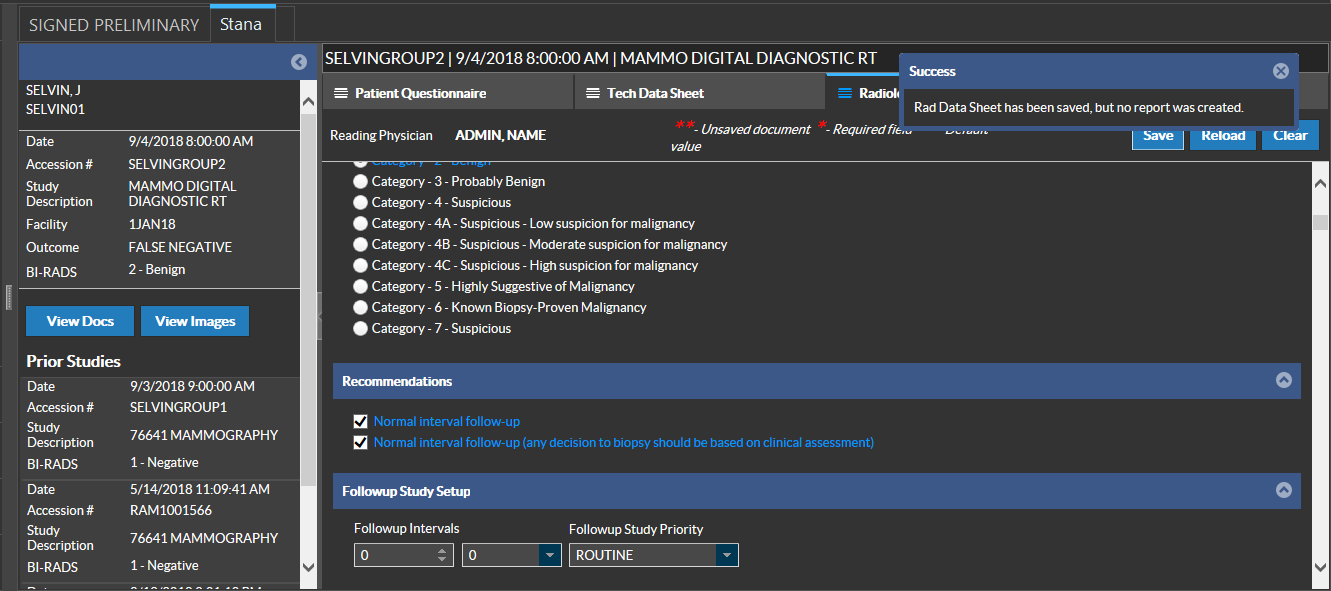
Note: A default Global Template in Settings > Users and Facilities > Default Settings in PowerReader can be defined to use a template that satisfies every criteria.
The Stana diagnostic report for a Breast Imaging Study is like any diagnostic report that gets generated in the Document Viewer. Create, update, sign and amend this report like any other document in the Document Viewer.
Creating Reports for a Stana Study
To create a report for a Stana study, perform the following steps:
-
Login to PowerReader Login portal and launch PowerReader.
-
Open a Stana Study.
-
Open the Stana Document Viewer. You can see that the document viewer opens up displaying the Stana tab.
-
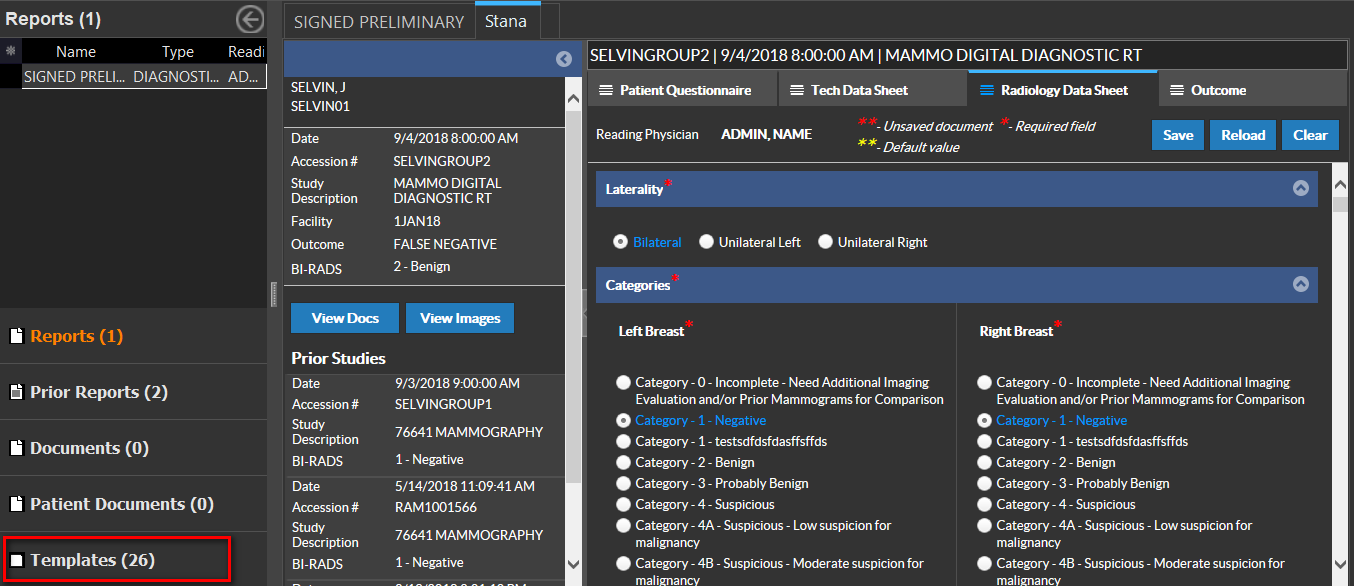
Navigate to the Templates Tab and create a diagnostic report by selecting the relevant template.
For more information on Document Viewer, please refer to the topics How Do I Create and View Reports? and How Do I Sign Preliminary Reports?
RELATED TOPICS: