Adjusting Window Level
Window Level 
This tool is used to enhance visibility of the image. A sample of normal view and enhanced view are displayed below for your reference.
| Normal View | Enhanced View |
|---|---|
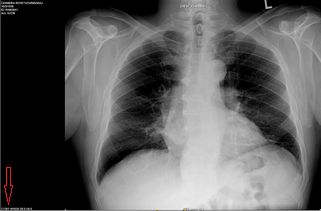 | 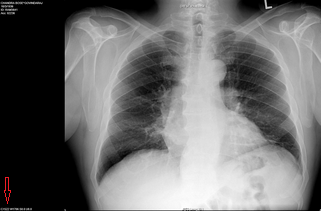 |


Moving the mouse vertically changes the window center (Level) value. Moving the mouse horizontally will adjust the window width (window) value. The actual window and level values that are currently being applied to the image are visible in the image annotations found on the bottom left corner of the image.
The level value is denoted by the C value, while the window value is denoted by the W value. These values update in real time when the mouse is moved up or down.
Mouse and Touchpad Users
Activate the Window Level tool, then click and drag your mouse over the image. Doing so will alter the brightness and contrast of the selected image.
Note: Moving the mouse vertically will change the window center (Level) value. Moving the mouse horizontally will adjust the window width (window) value.
Stylus/Touch screen Users
Touch the Window Level tool and place your finger over the image and move in any one of the direction.
Note: Moving the finger vertically will change the window center (Level) value. Moving the finger horizontally will adjust the window width (window) value.
