Using the Zoom Tool
Zoom 
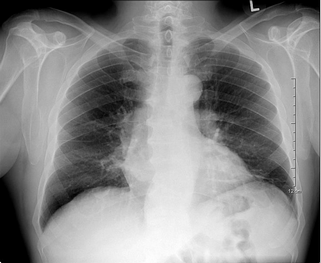
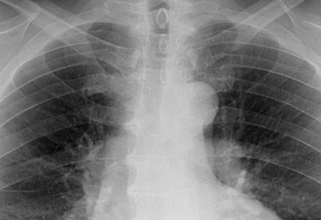
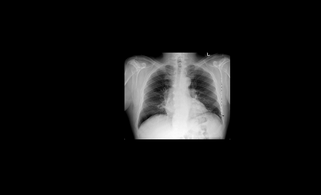
Zooming in and out of images is essential while searching for details in images. The Zoom tool can be used to zoom in/out the image. A sample of normal view, zoom in view and zoom out view are displayed below for your reference.
| Normal View | Zoom In | Zoom Out |
|---|---|---|
 |  |  |
Zoom In
Mouse and Touchpad Users
- Click the Zoom tool and move the mouse to an area you wish to zoom in.
- Click and hold the left button of the mouse and move down till you have a clear vision of the image.
Stylus/Touch screen Users
Touch the Zoom tool and pinch to zoom in (slide your fingers apart till you have a clear vision of the image).

Zoom Out
Mouse and Touchpad Users
- Click the Zoom tool and move the mouse to an area you wish to zoom out.
- Click and hold the left button of the mouse and move down.
Stylus/Touch screen Users
Touch the Zoom tool and pinch to zoom out the image (touch the screen with two fingers and drag your fingers together).

Related Topics:
- Scrolling Through The Images
- Adjusting Window Level
- Moving an Image in a Frame
- Using Measuring Tools
- Flip and Rotate Images
- Inverting Grayscale Values of an Image
- Linking Images in Different Series
- Toggling the Annotations on/off
- Viewing Localizer Lines Over Images
- Adjusting Window Settings using Clamp Mode
- Resetting Manipulated Images
- Working with Images and Series