Using Measuring Tools
When important details are found in an image, it is useful to mark that information for future viewing. Furthermore, it can be very helpful in outlining a diagnosis described in a physician's report.
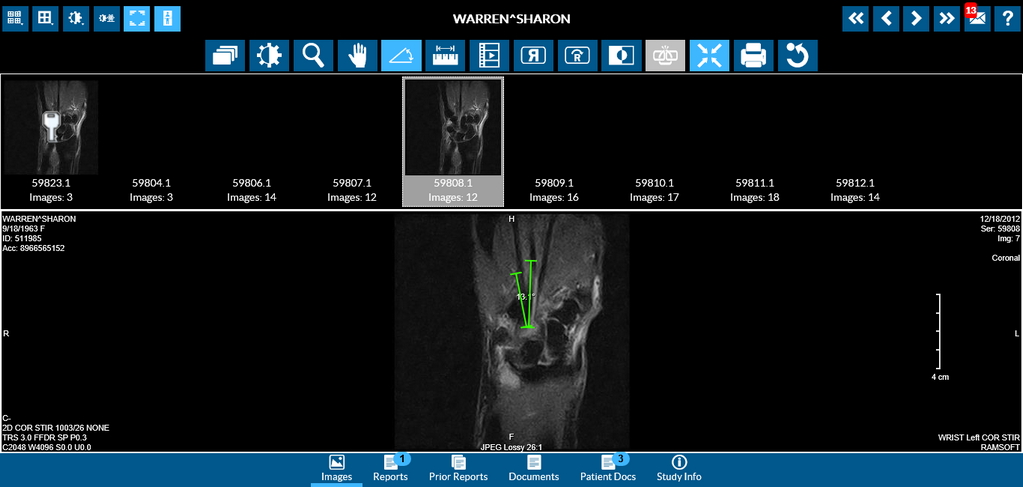
Measuring tools help you mark important information. The Angle tool  allows you to measure an angle between any two artifacts on an image.
It is used by placing three points on the image. The first point is the apex of the angle. The next two are the end points.
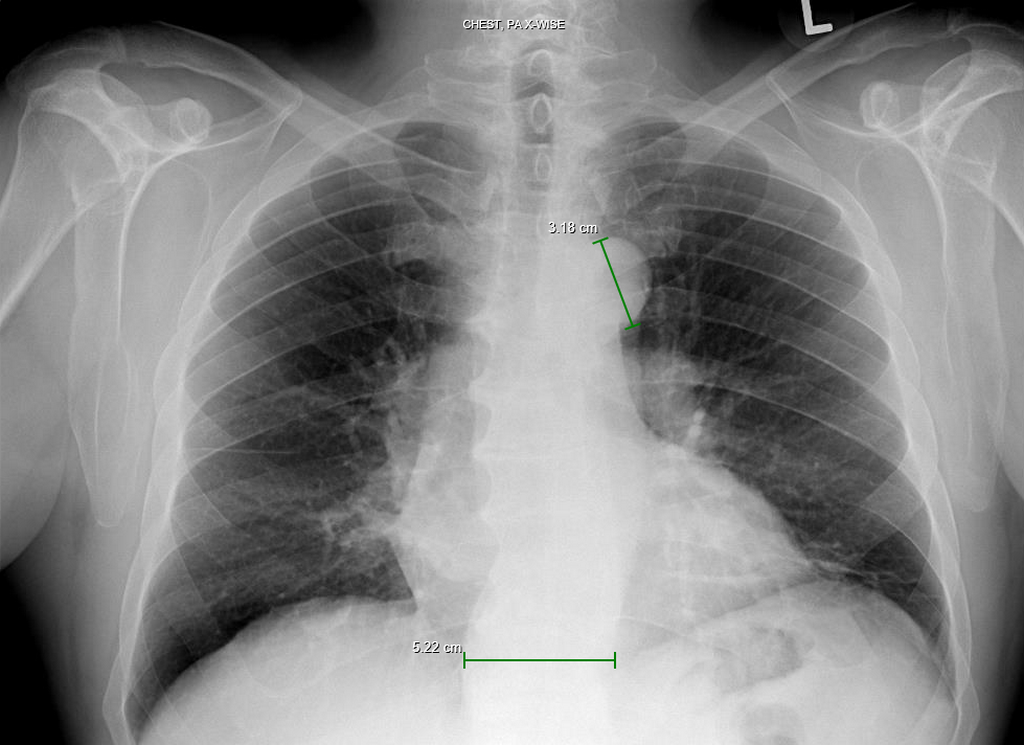
The Measure Distance  tool is used to measure the distance between any two points on the image. A sample image with the measurement is shown below.
Mouse and Touchpad Users
- Click on the Measure tool to activate this feature and move the mouse to the starting point of the image you wish to measure.
- Click the starting point, move the mouse to the end point and release the mouse button. The resulting line remain on the image along with the measurement of the length of the line.
To delete a Measuring Tool object:
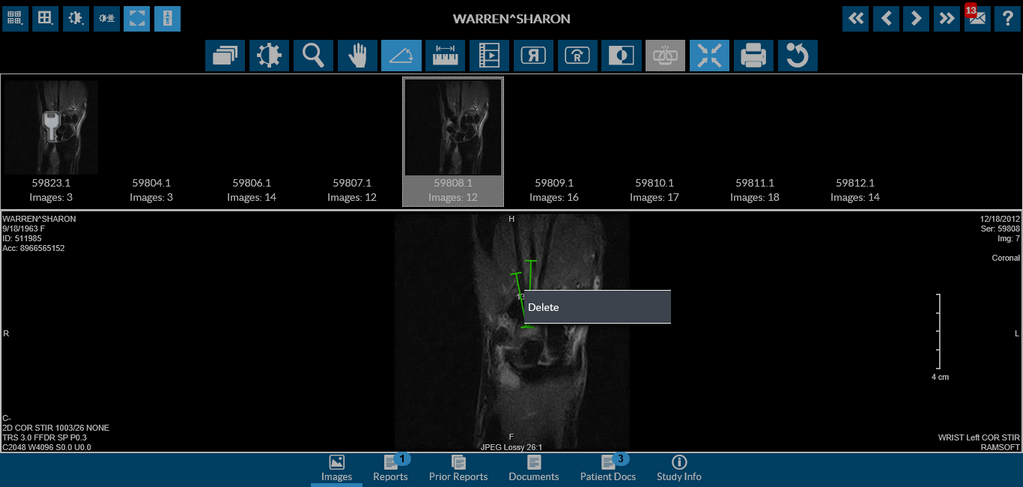
- The Measure Tool right-click menu has the Delete option. The Delete option can be used to delete the entire object if desired.
- Alternatively, you can select an object and press the Delete key on the keyboard on a desktop or mobile device.
Stylus/Touch screen Users
- Touch the Measure tool and place your finger on a point from where you wish to start measuring.
- Move your finger till the point where you would need to end measuring.
To delete a Measuring Tool object:
- Select and hold your finger on the object to view the Delete option. The Delete option can be used to delete the entire object if desired.
Note: If an image already has Presentation states applied to it, RapidResults always displays an image with the latest Presentation State.
Related Topics:
- Scrolling Through The Images
- Adjusting Window Level
- Using the Zoom Tool
- Moving an Image in a Frame
- Flip and Rotate Images
- Inverting Grayscale Values of an Image
- Linking Images in Different Series
- Toggling the Annotations on/off
- Viewing Localizer Lines Over Images
- Adjusting Window Settings using Clamp Mode
- Resetting Manipulated Images
- Working with Images and Series