Using the Thumbnails Window
The Thumbnails window displays a thumbnail series for a study along with any priors. You can display multiple thumbnails for all the studies without loading the actual images on the Image Viewer.
The Thumbnails window in RapidResults by default appears vertically on the left side of the Image Viewer. You can scroll to the desired thumbnail series in the thumbnail window by dragging the scroll bar or by scrolling with the Mouse wheel.
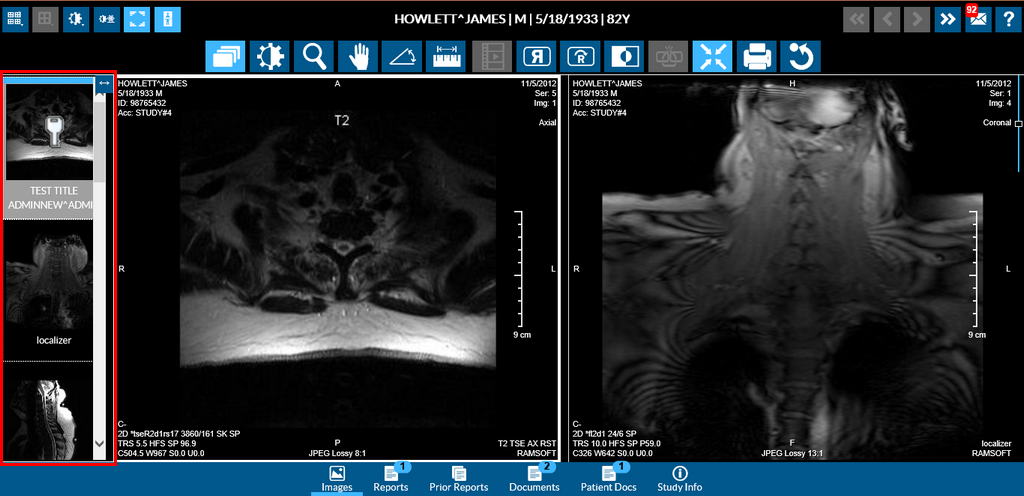
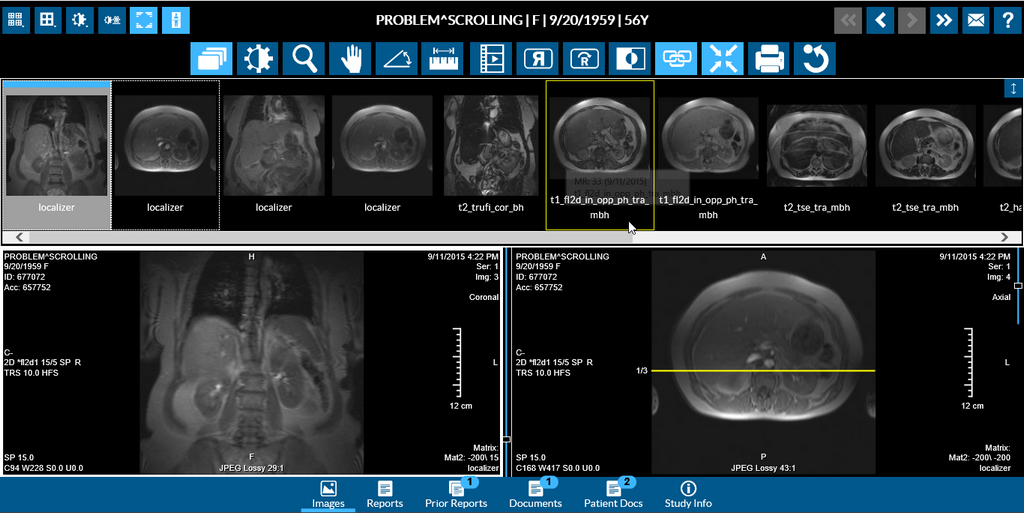
When you hover your mouse over a thumbnail, it is highlighted with a yellow border.
You can switch between vertical thumbnail windows layout and horizontal thumbnails window layout. If you click on the Switch to horizontal thumbnails  icon on the top right corner of the thumbnails window, you can switch from a vertical thumbnails window to a horizontal window. The horizontal thumbnails window is located on top of the image viewer.
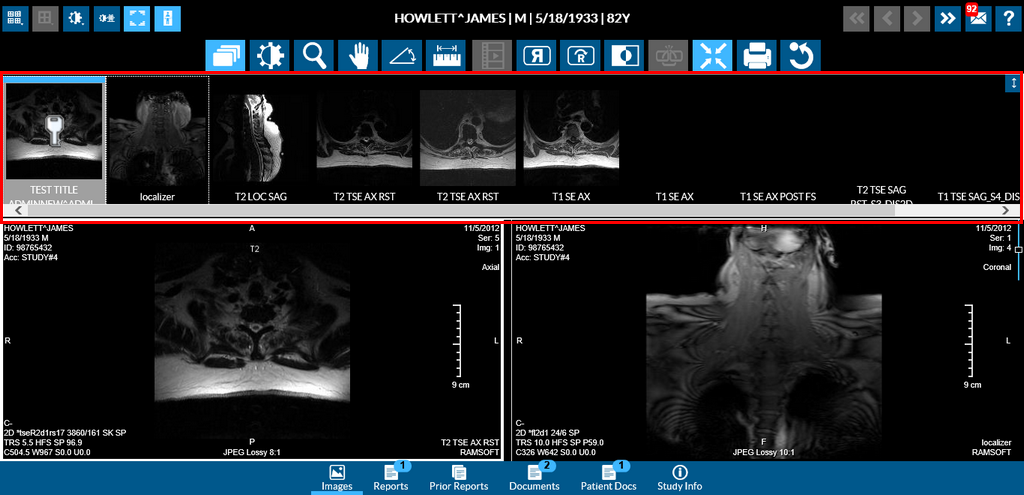
Clicking on the Switch to vertical thumbnails  icon on the top right corner of the thumbnails widow now switches it back to the vertical layout.
For all thumbnails, the series description is displayed below the corresponding thumbnails. The series description displays two lines of text below the thumbnails instead of frameset numbers. In the event that the series description exceeds the amount of space available under the thumbnail, you can see that a "..." is appended at the end of the text that indicates that there is more information regarding the series description which is not visible.
For MG images, the image thumbnails display the Display View Code with a modifier followed by the Image Type 3 value below the thumbnail image.
Clicking on any of the series in the thumbnail window will load that series into the current viewport. You can also drag a thumbnail series into the desired viewport to be displayed.
Clicking on a thumbnail in the thumbnails window highlights the relevant image viewport in the Image viewer, provided the image is already displayed in the current image layout. Once highlighted, this viewport becomes the active viewport.
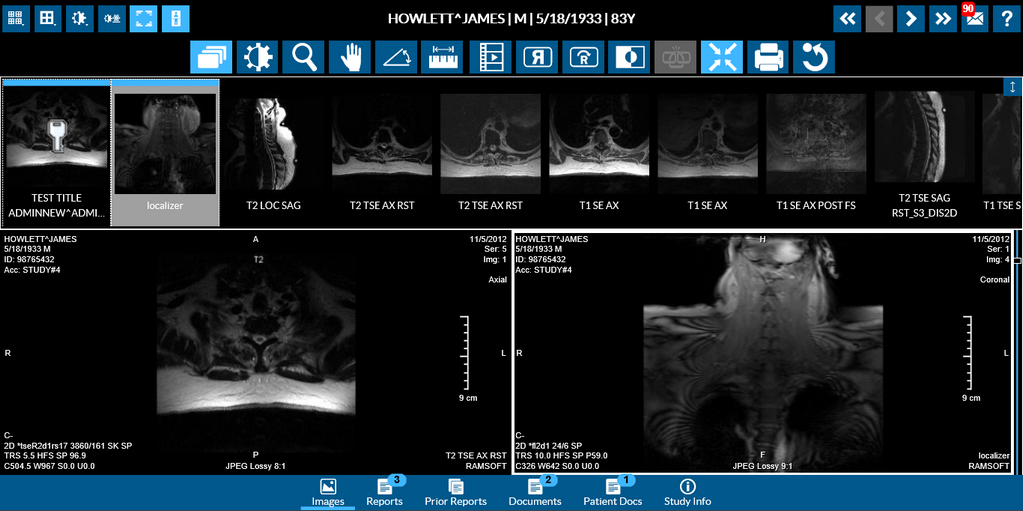
Also, when you scroll or hover over an unselected viewport, this viewport would then become the active viewport and is highlighted with a white border.