Scrolling Through The Images
Scroll 
On a viewport, you can scroll through the images by moving the scroll wheel of the mouse in the direction that you want to scroll. This can be very useful for scrolling through large number of images.
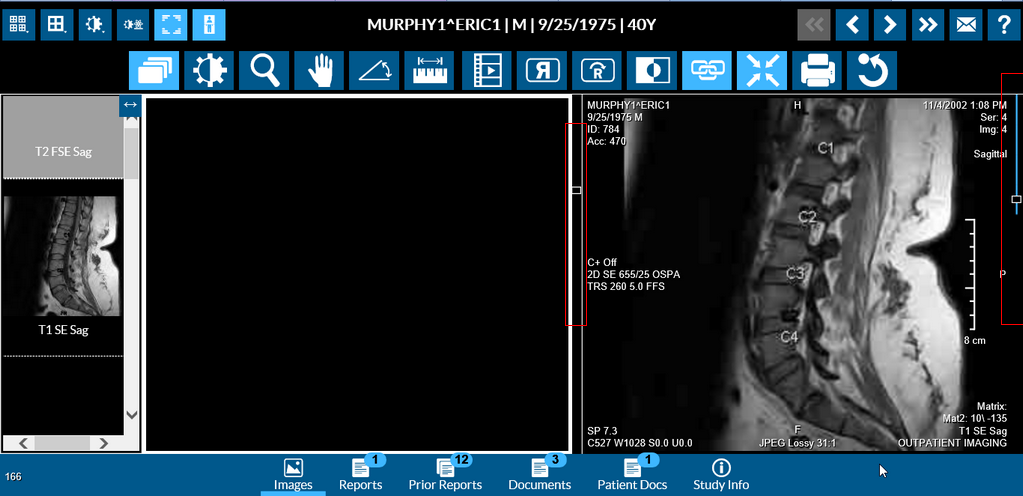
You can at any point of time track and identify the frames that have been viewed and the frames that are pending to be viewed. The frames that have already been viewed would have the scroll bar displayed in light blue color.
The frames that do not have the scroll bar with a light blue color are the ones that still need to be viewed.
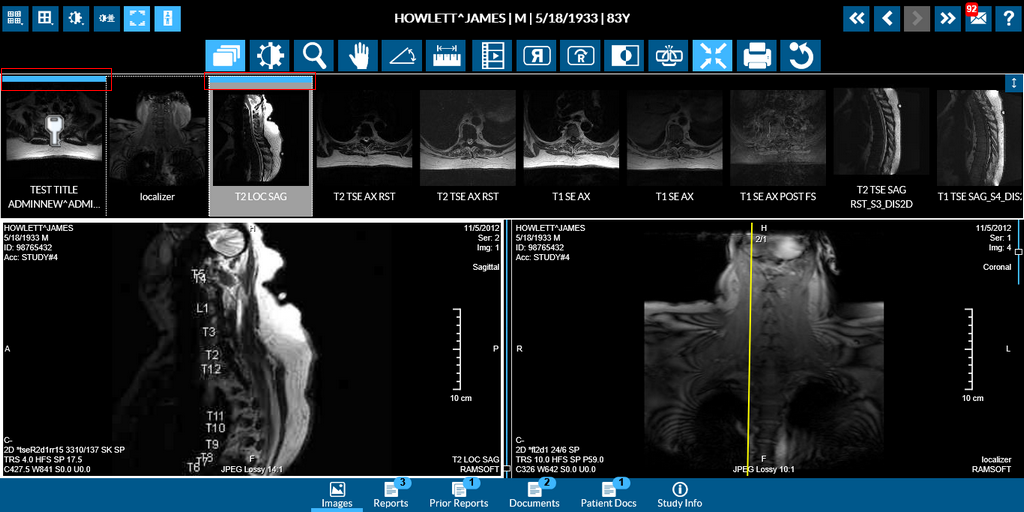
You can see in the following image that when you have completely viewed all the images in a series, the thumbnail pertaining to the series has a blue border on top of it.
This can help you in identifying the series which have been viewed completely.
The Scrolling function in Mouse mode is always enabled even when you are working with a different tool. You can also use the Next Frame  icon to move to the next image and use the Previous Frame
  icon to move to the previous image.
If you want to move through Framesets, you can click the  icon to move to the next Frameset and click the
  to move to the previous Frameset.
Scrolling can also be duplicated using the keyboard. Scrolling through individual images within a viewport is performed using the left and right arrow keys. The Page Up and Page Down keys can be used to jump between viewports.
Scrolling Between Framesets
In RapidResults, scrolling through Framesets is easy and can be accomplished by holding the left mouse button and dragging the mouse horizontally over a selected frameset. Doing this lets you scroll between framesets, one frameset at a time. If you continue to drag the mouse, you would keep scrolling to the previous or next frameset.
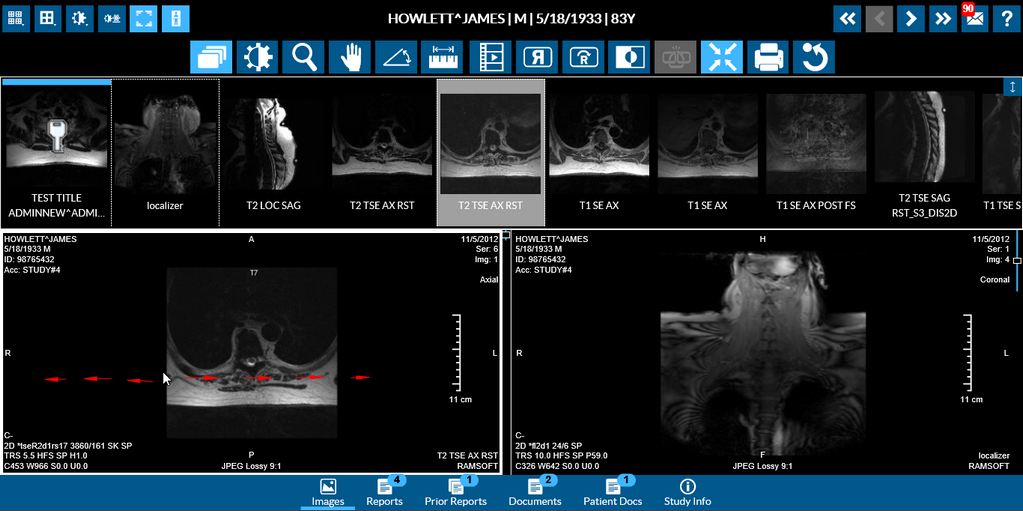
On the current frameset, dragging the mouse to the left navigates to the previous frameset and dragging the mouse to the right navigates to the next frameset.
Stylus/Touch screen Users
Touch the Scroll tool and place your finger over an image and move in the direction you would want to scroll.
Note: Moving the finger vertically upwards or downwards lets you scroll through the images. Moving the finger horizontally through a frameset scrolls through the next or previous framesets.

Related Topics:
- Adjusting Window Level
- Using the Zoom Tool
- Moving an Image in a Frame
- Using Measuring Tools
- Flip and Rotate Images
- Inverting Grayscale Values of an Image
- Linking Images in Different Series
- Toggling the Annotations on/off
- Viewing Localizer Lines Over Images
- Adjusting Window Settings using Clamp Mode
- Resetting Manipulated Images
- Working with Images and Series