Playing DICOM MP4 Videos
RapidResults supports playback of DICOM MP4 videos and treats a video like any other DICOM object and lets you play this video in the app viewer mode.
When you open a study with a video, the thumbnail image corresponding to the video has play icon overlay indicating that the thumbnail is a ready-to-play video.
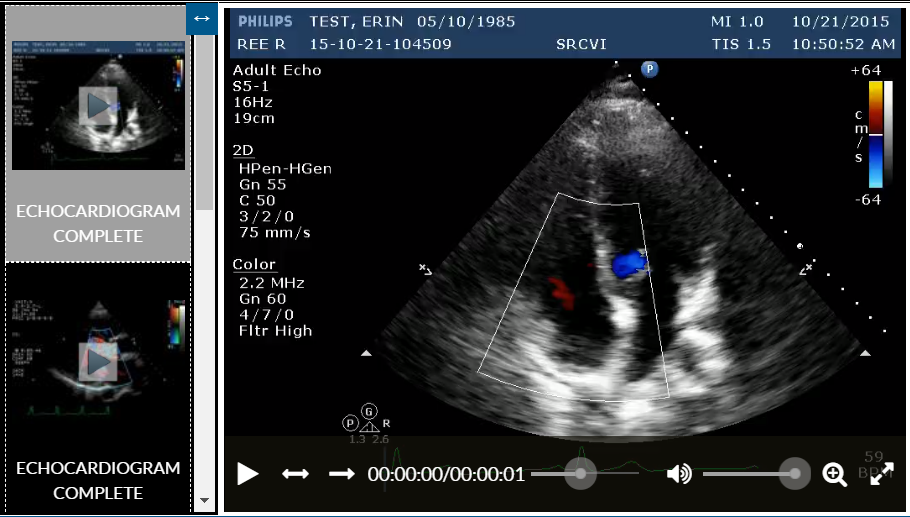
| Control | Description |
|---|---|
 / /  | Play/Pause - Click to play the video; click again to pause the video. Clicking on the video will also Play/Pause the video. |
 | Bounce On - Automatically plays video on a loop that goes forwards and backwards. |
 | Play Once On - Does not loop video: plays video once and stops. |
 | Timeline tracker - Displays current time frame of video versus total time. |
 | Timeline slider control - Drag the control to another point in the video. |
 | Volume control - Click the volume icon to toggle Mute/Unmute, or use the slider to adjust video volume. |
 | Zoom - Click to Zoom In and Out of the video. |
 | Full Screen - Displays video in full screen mode. |
Linked Videos
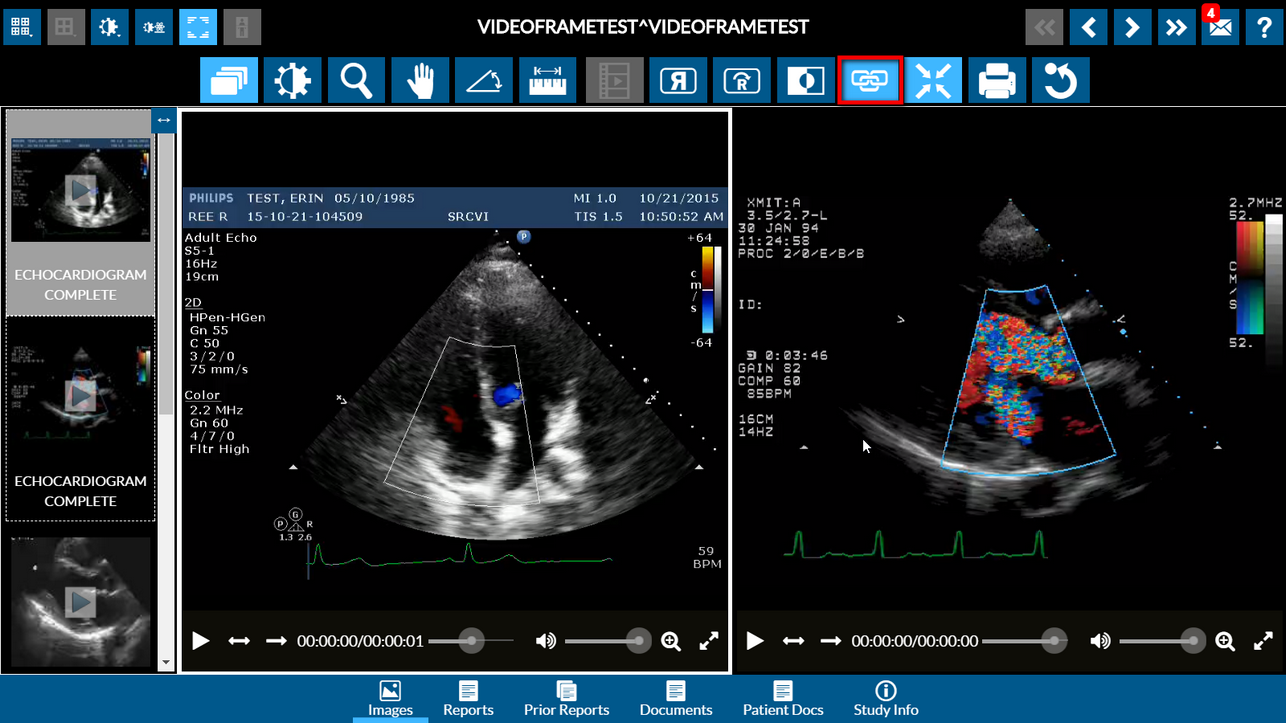
When the "Link" option is enabled, all opened DICOM videos can be played simultaneously. The current frame position is preserved such that users can manually sync frameset and then press Play.
Troubleshooting
If Cine series converted to MP4 do not display or play properly on Windows 7 workstations, try running RapidResults on the Chrome browser. When viewing the video, the "Open in Browser" button will open the video in Chrome. Alternatively, if you have PowerReader installed, set the DICOM Station List custom script command SetTranscodeToVideo(const ATranscodeToVideo: Boolean) to "false". For more information on Station List Custom Script commands, refer to the PowerServer RISPACS user manual.