Setting Up Layout Within a Viewport
You can select a specific Viewport and then setup the desired number of images to display in the Viewport by clicking the Setup Layout Within Viewport tool  . For example, in this case the user has a multiple viewport layout with a single image in each Viewport.
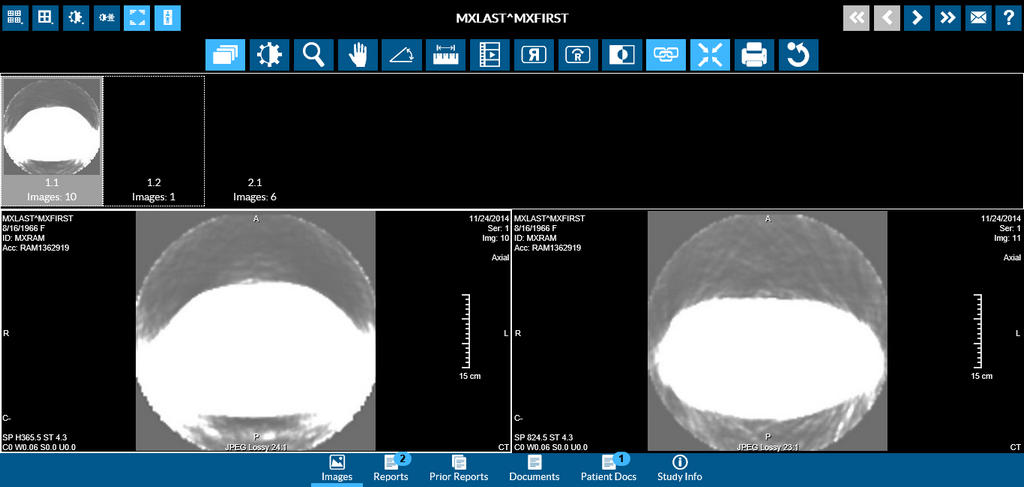
The user can select the desired number of views for a specific Viewport and change the layout within the Viewport.
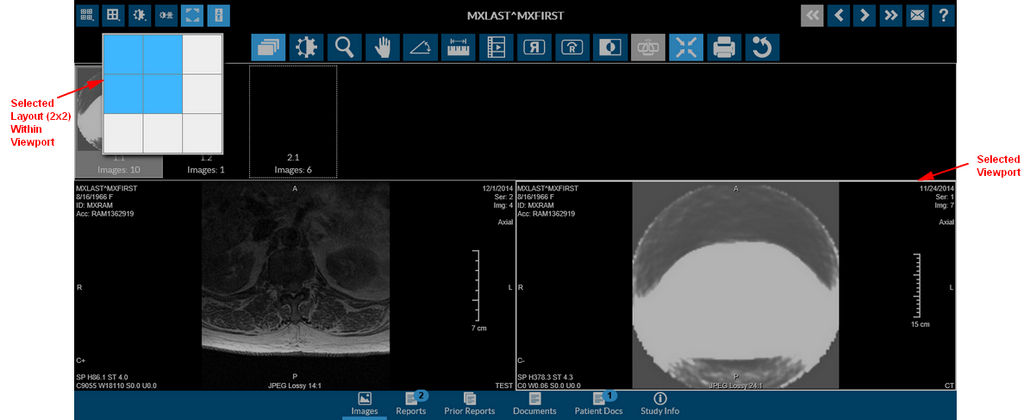
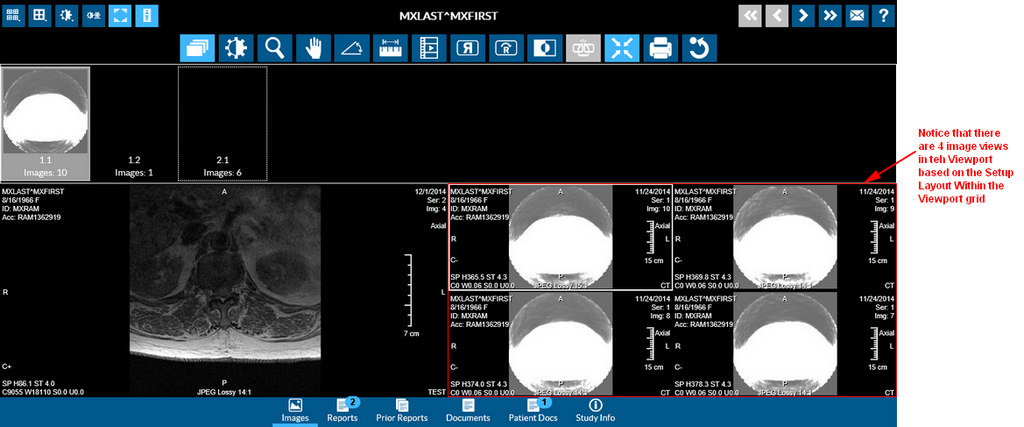
You can see that the number of image views for the specific Viewport selected have changed.
Note: The Setup Layout Within Viewport tool is not visible when you have a series with one image.
Stylus/Touch screen Users
Touch the desired layout on the grid by holding your thumb on one grid box and dragging your index finger to the desired box.
Related Topics:
- Scrolling Through The Images
- Adjusting Window Level
- Using the Zoom Tool
- Moving an Image in a Frame
- Using Measuring Tools
- Flip and Rotate Images
- Inverting Grayscale Values of an Image
- Linking Images in Different Series
- Toggling the Annotations on/off
- Viewing Localizer Lines Over Images
- Adjusting Window Settings using Clamp Mode
- Resetting Manipulated Images
- Setting Up Layout With Multiple Viewports
- Working with Images and Series