Flip and Rotate Images
Sometimes images might not be positioned properly. RapidResults provides two types of tools that can be used for the purpose of quality control of such images. These are the Flip and Rotate tools.
Flip 
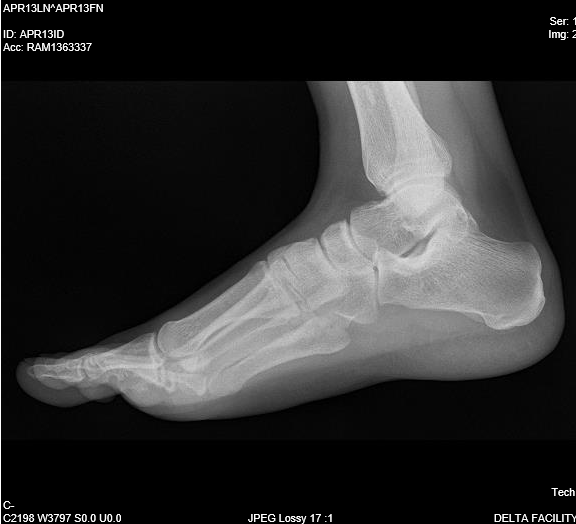
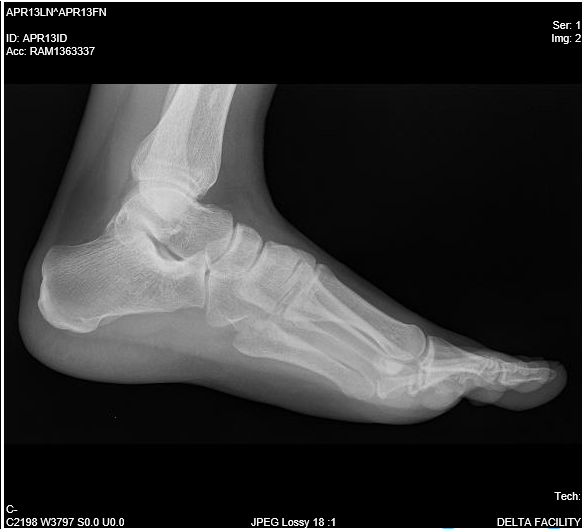
If the image displays backwards, you can flip the image to a preferred orientation by selecting the Flip tool.
When you flip an image horizontally, the image flips by 180°.
The following example illustrates an image before and after the Flip tool is applied.
| Before | After |
|---|---|
 |  |
Stylus/Touch screen Users
Touch the Flip icon to flip an image.
Rotate 
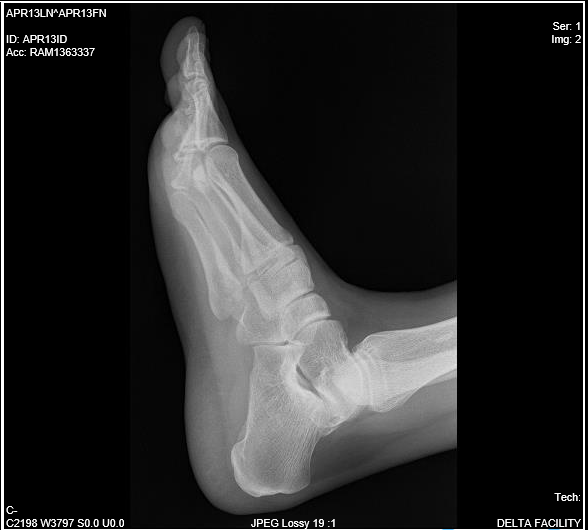
The Rotate tool will rotate an image 90 degrees to the right. The following example illustrates an image before and after the Rotate tool is applied.
| Before | After |
|---|---|
|  |
Stylus/Touch screen Users
Touch the Rotate icon to rotate an image by 90 degrees clockwise.
Related Topics:
- Scrolling Through The Images
- Adjusting Window Level
- Using the Zoom Tool
- Moving an Image in a Frame
- Using Measuring Tools
- Inverting Grayscale Values of an Image
- Linking Images in Different Series
- Toggling the Annotations on/off
- Viewing Localizer Lines Over Images
- Adjusting Window Settings using Clamp Mode
- Resetting Manipulated Images
- Working with Images and Series