Selecting Images
By using the Image Selection Box
The Image Selection Box in the image viewport controls the selection of images in a series or among multiple series. It helps you select images for viewing, printing or for performing other image manipulations.You can find the Image Selection Box at the top left corner of each image. Images can be selected or deselected by toggling the selection box.
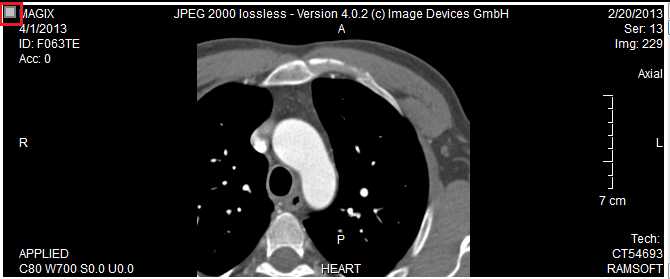
You can understand what your image selection status is by observing the color the image selection box is highlighted in. The Image Selection box at any time exhibits any of the following statuses based on the image selection criteria:
| If the image selection box is highlighted in... | In Stack / Tile Mode | When you click on the Image Selection Box | When you double-click (used for selecting or de-selecting all images) on the Image Selection box: |
|---|---|---|---|
Grey  | The current image is selected | Clicking the image selection box will de-select the current image (the image selection box turns to black) | Double-Clicking the image selection box will select all the images in the frameset (the image selection box is highlighted in Yellow for all the images) |
Black  | The current image has not been selected* | Clicking the image selection box will select the current image and: 1. the image selection box will change into Grey color for the current image, if any other images in the frameset too are not selected (or) 2. the image selection box will change into Yellow color for the current image, if all remaining images in the frameset are also selected. | Double-Clicking the image selection box will select all the images in the frameset (the image selection box is highlighted in Yellow for all the images) |
Yellow  | All images are selected in the frameset | Clicking the image selection box, will de-select the current image (the image selection box will be black) and the remaining images in the series will remain selected (the image selection box will be in gray color for these images) | Double-clicking the image selection box will de-select all the images (the image selection box for all images turns black) |
** When an active image is not selected and when the user performs an image manipulation, the image gets selected as indicated by the yellow color code in the Image selection box.
Note:
- If you are displaying multiple frames in Stack mode and you select images from two different frames using (SHIFT + Click), the images between the selected images also get selected.
By Clicking on the Image
You can select an image by clicking on the image directly.
- When you click on an image, you can see that the current image gets selected and the Image Selection Box turns Grey.
- If at any point of time, an image is selected and you click on the image, you can see that the image gets de-selected and the Image Selection Box turns Black.
- If more than one image is selected and you click on another image, the image that you clicked on gets selected and the previously selected images get de-selected. This is applicable both in the Stack and Tile modes.
By using the Edit Menu
You can select images in a Viewport using the Edit > Select > Select Viewport Images option. The Select Study Images option will select all the images for the selected study. The Select All Images option can be used to select all images for all the studies that are open currently.
You can deselect images in a Viewport using the Edit > Deselect > Deselect Viewport Images option. The Deselect Study Images option will deselect all the images for the selected study. The Deselect All Images option can be used to deselect all images for all the studies that are open currently.
Keyboard Shortcuts
The following table lists the default shortcuts available in the view box for selecting images:
| Shortcut | Function |
|---|---|
| Shift - Click | Click the first image and press the Shift key and click the last image. All visible images in between are included in the selection. This is useful when you are displaying multiple series in Stack mode and have to select images from two different series. |
| Ctrl - Click | If you want to select more than one image at a time, pressing the Ctrl key, keep selecting all the images that you want for selection. |