Sharpness
The Sharpness tool can be used to enhance the sharpness on blurry images or tone down an image that is too sharp to allow for a good analysis. The tool is activated by clicking the Enhance Sharpness icon in the toolbar.

The sharpness values are modified by clicking and dragging the tool vertically across the image. Moving the tool up sharpens the image. Moving the tool down decreases the sharpness. The current sharpness value can be seen in the image annotations found in the lower left hand corner of the image. Sharpness is denoted by the S value. The scale ranges from 0.0 to 1.0. 0.0 indicates no image sharpening, while 1.0 indicates maximum sharpness enhancement.
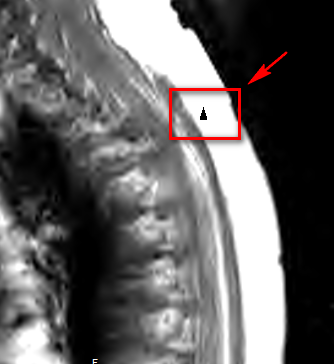
The unsharpness algorithm is very useful for reading x-ray images. The RamSoft software is the only PACS to offer an interactive Unsharp Mask tool (below).

In order to use the tool, click on an area of the image where you will like to adjust the visible tissues. This will create a square region of interest in that area. Dragging the mouse cursor up and down will modify the un-sharpness of the area. Once the desired level is achieved, releasing the mouse button will apply it to the entire image.
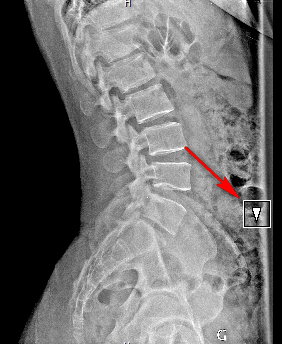
The Unsharp value is displayed in the annotations found in the lower left hand corner of the image. It is denoted by the letter U. The scale ranges from 0.0 to 1.0. 0.0 indicates that the algorithm has not been applied at all, while 1.0 indicates maximum enhancement.
To change the location of the ROI, right click in the location where the new ROI should be placed.
If the configuration entry Apply Unsharp Mask to Entire image is enabled, the Unsharp Mask tool will operate on the entire image. If the option is disabled, the Unsharp Mask tool will only operate on the central region of the image.
In the example above, the image on the left has the option selected while the image on the right does not.