Tracking Pending Print Letters
Pending Print Letters
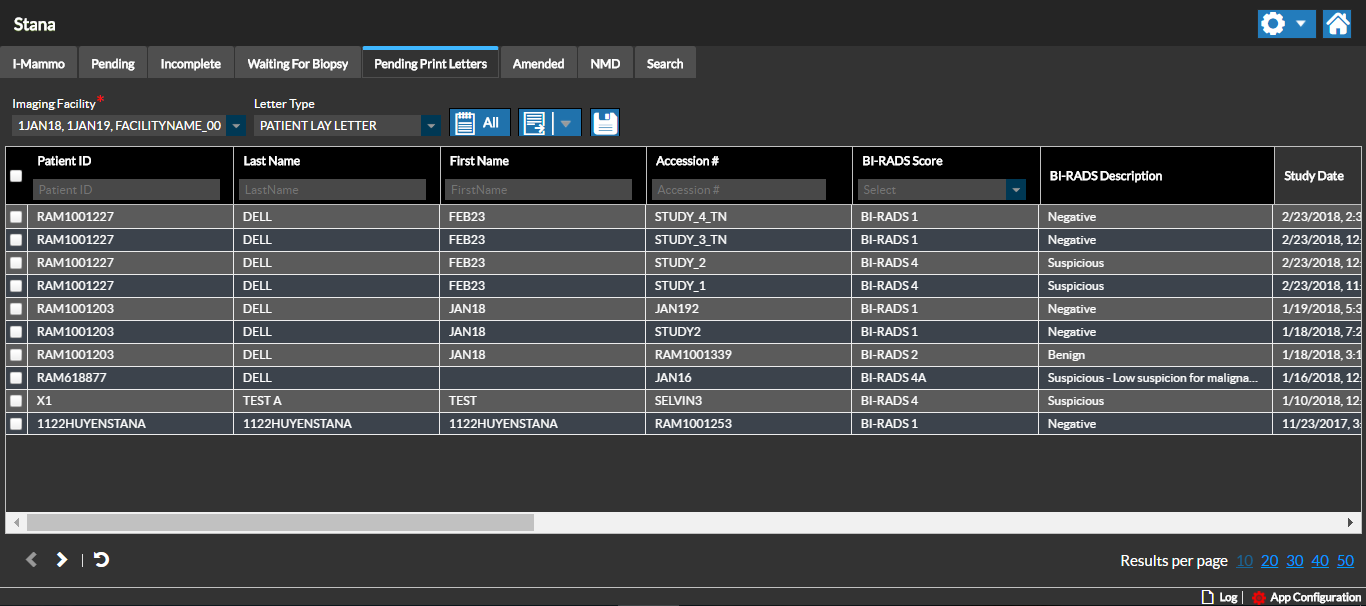
You can at any point in time check how many letters are pending based on the Letter Type for the selected Imaging Facility.
The Pending Print Letters screen shows how many Print Letters for a specific Letter Type are pending at a given point in time for the default Imaging Facility. Print letters can be tracked for any of the Letter Types.
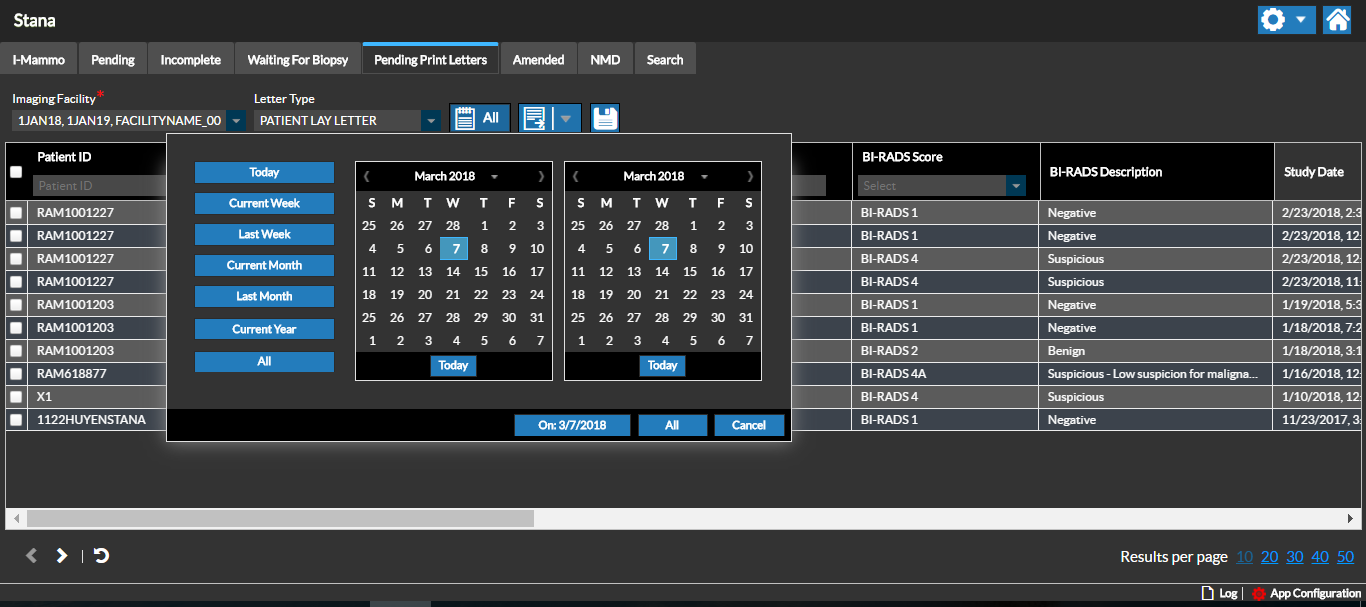
Note: you can change the time period using pre-defined time periods in the Calendar box or by selecting a date range from the From and To Calendars.
The Pending Patient Letters, Pending Referring Doctor Letters, Pending Patient Reminders and Pending Referring Doctor Reminders on the I-Mammo dashboard are all similar and point to the Pending Print Letters screen. The Worklist is filtered based on the gadget you select.
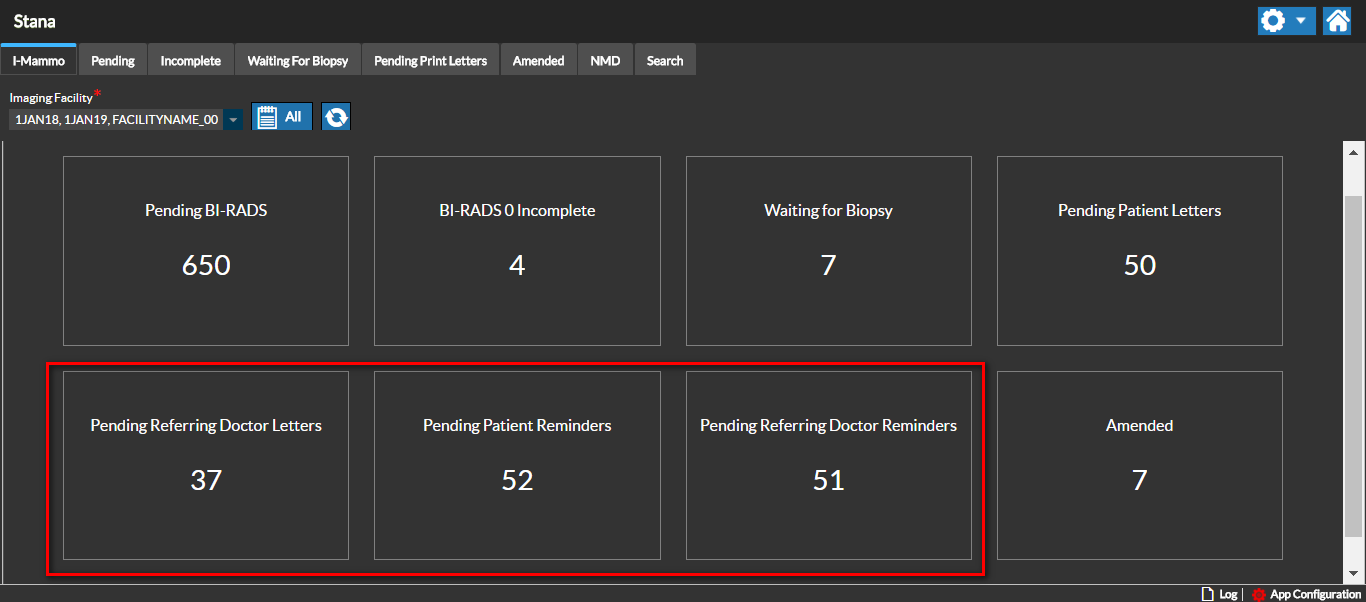
For example, if you select the Pending Referring Doctor Reminders gadget, it opens the Pending Print Letters screen filtered with the Referring Doctor Reminder Letter Type.
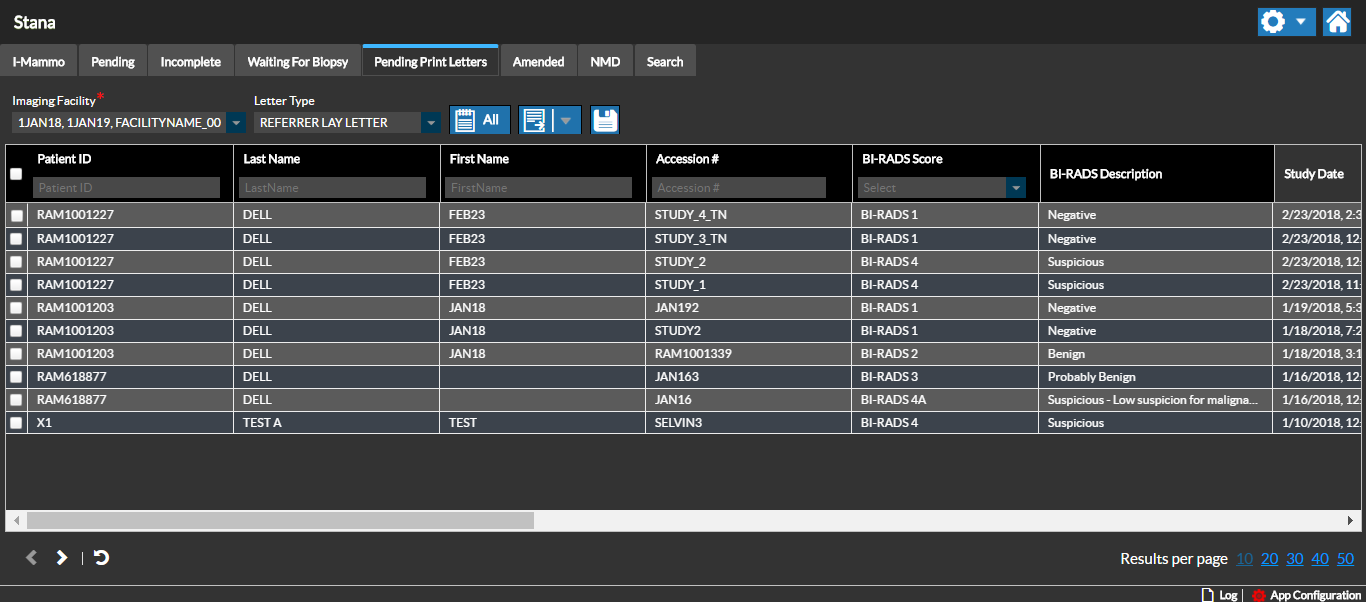
You can change the Letter Type to see if there are other letters pending. To change the Letter Type, select the desired Letter Type in the Letter Type field.
The grid displays any pending letters for the selected Letter Type.
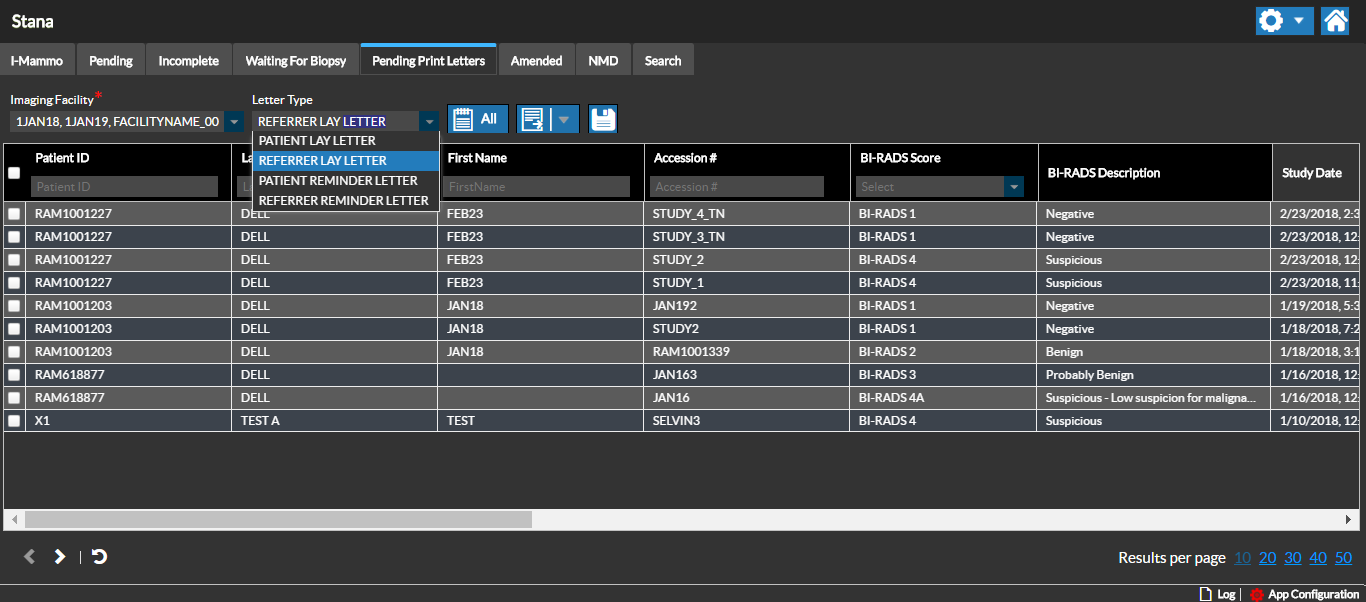
Once a letter for a Letter Type is printed, you will no longer be able to see this information for that specific Letter Type in the Pending Print Letters screen as the letter is no longer pending. The respective Letter type count is updated in the Worklist grid along with the Print Log.
Print Log
You can view the print log for a selected Study by clicking the Print Log button. The Print Log lists the letter types that have been printed for the selected Study (with a specific Accession number) along with the information on the number of letters printed and the name of the user who printed the letters. Whenever a letter gets printed for the specific Study, the Print Log gets updated.
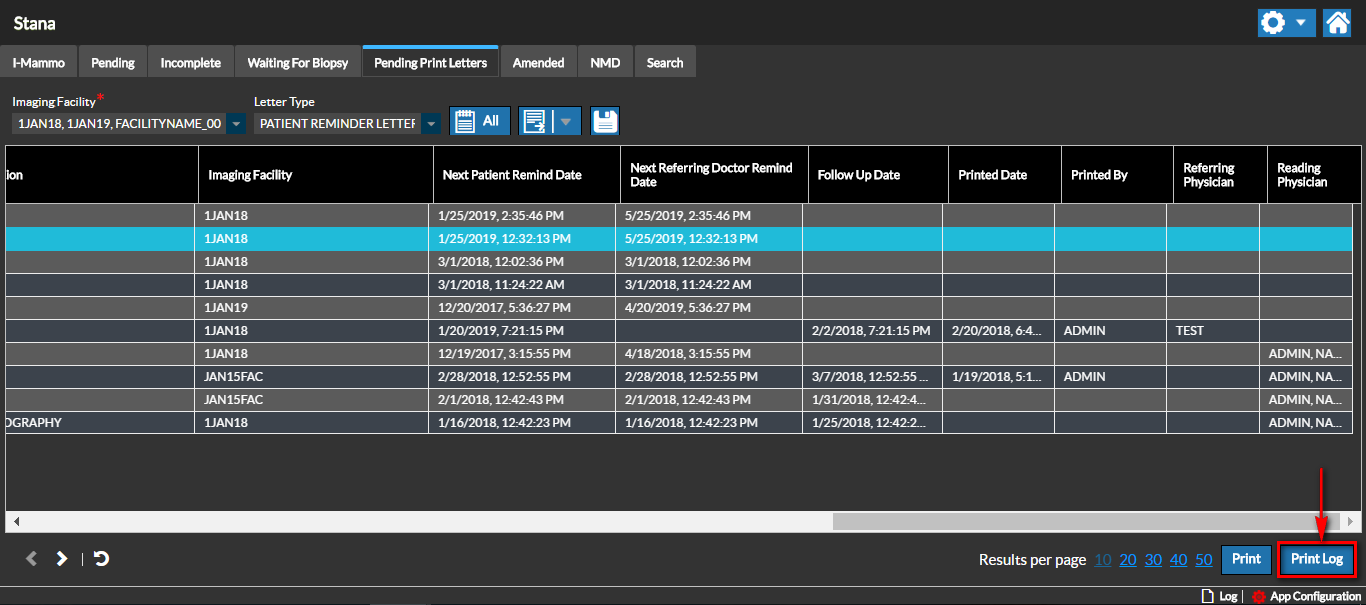
You can access the Print and Print Log buttons only when you select a study from the Worklist grid.
When you have selected a single study, the information listed in the Print Log is pertaining to the selected study. However, when you select multiple studies, the log lists consolidated log information for the selected studies.
RELATED TOPICS: