Configuring Clinical Decision Support
Clinical Decision support rules help physicians make clinical decisions. These rules are configured with conditional filters and can be configured with one or more conditions.
Once configured, the user is alerted by CDS Alert popup messages according to the privileges assigned to the user's role when conditions in the CDS rule configuration are met.
CDS alert messages can be edited for each rule at the time of configuration. Users who are assigned with a role can select one or more decision support interventions and review an attribute for clinical decision support resources.
Configuring Clinical Decision Support rules
- In PowerReader, click RIS Settings > Clinical Decision Support.
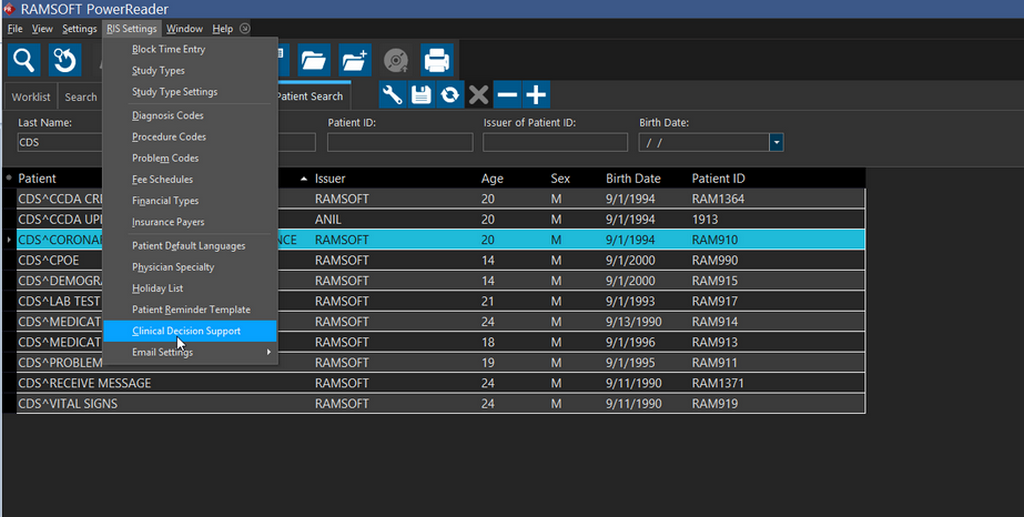
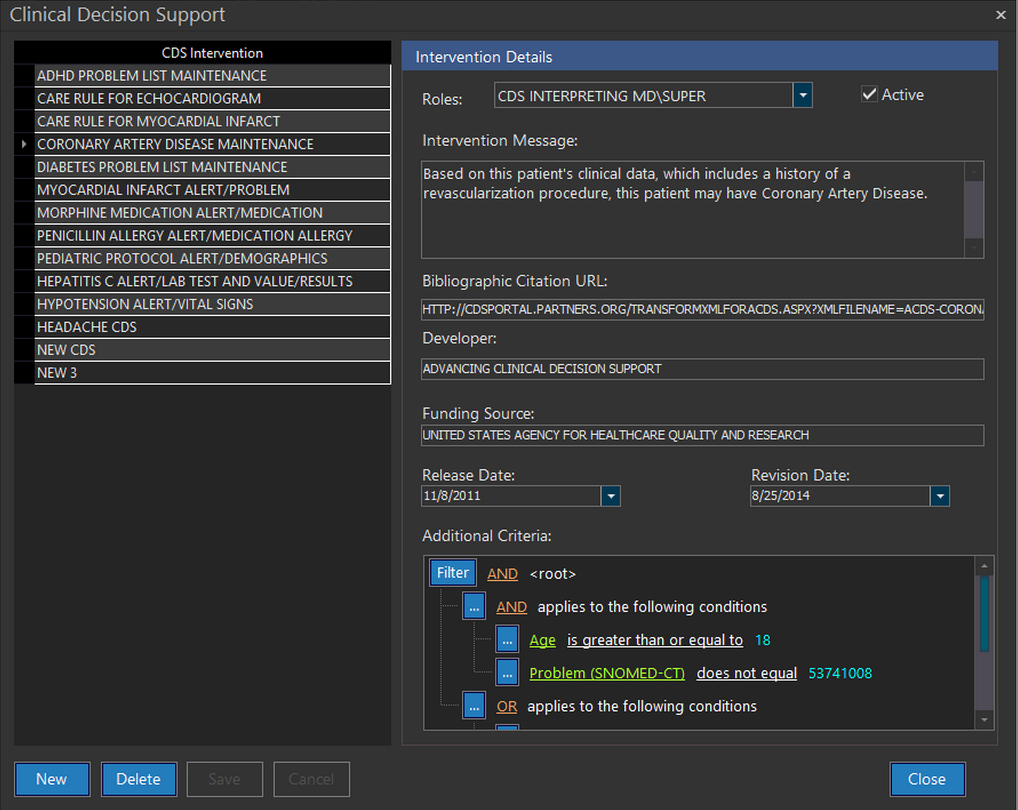
- Create a CDS Intervention rule or add new conditions to a filter for an existing rule. The following example is an existing CDS Intervention rule to understand its configuration. The "CORONARY ARTERY DISEASE MANAGEMENT" rule has been selected.
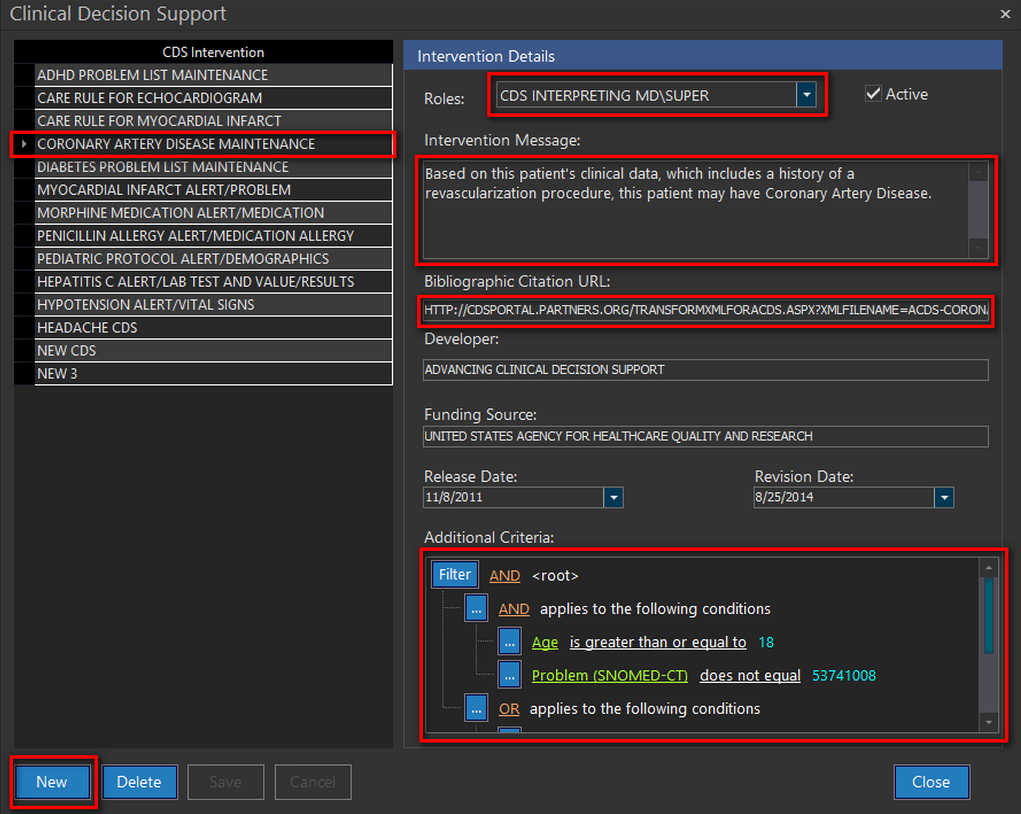
- The Roles is used to select a role for user(s). The user(s) assigned with this role(s) are alerted with this CDS Intervention message.
- The Intervention Message text box is used to edit a message that would display as an alert to a user when the user selects a patient with a history (health information, demographics, etc.) matching with the CDS Intervention rule conditions.
- The Bibliographic Citation URL field links to the clinical research/guidelines online resource based on the specific decision support rule.
- The Developer field points to the Developer of the Intervention rule.
- The Funding Source field allows entering the details on the source of funding for this citation/research.
- Release and Revision Dates are the dates the Intervention has been created or modified by a user.
- The Additional Criteria section allows adding filters to the rule. The conditions defined in the filter controls the intervention alert message being displayed for a specific patient.
A new CDS Intervention rule can be added by clicking the New button and entering the Intervention Details. Once you enter all the information, click Save to create the rule.
Once a CDS Intervention message is configured, ensure that the user has sufficient privileges to view or edit the CDS alert messages.
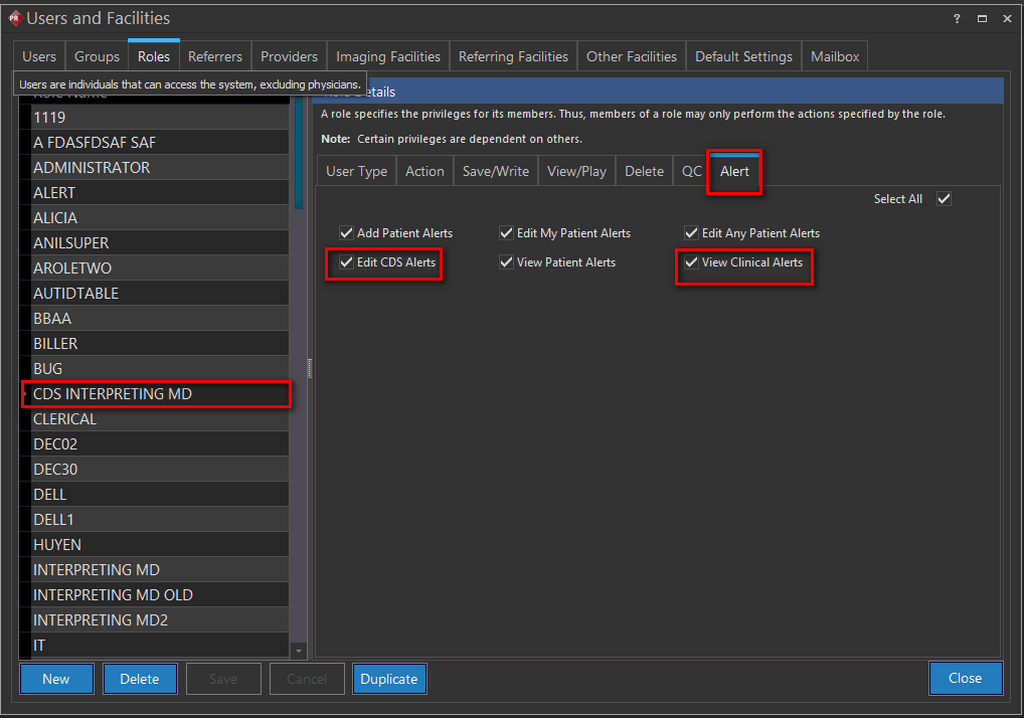
In the following example, the user with the Role Name CDS INTERPRETING MD has the following privileges in the Alert tab enabled under Settings > Users and Facilities screen:
- Edit CDS Alerts
- View Clinical Alerts
Clinical Decision Support Alerts
For a user with privileges to view clinical alerts, the alert can be seen when selecting a patient whose clinical history matches with a Clinical Decision Support (CDS) rule.
In this case, when the user clicks on the Patient Info  icon, a Patient Alert message pops up on the screen.
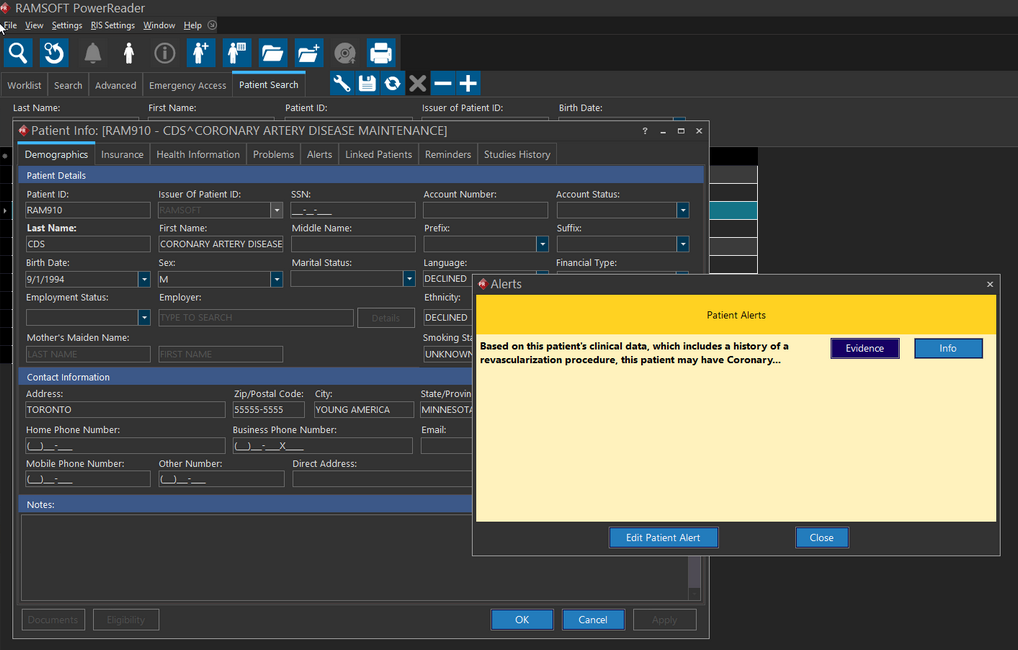
When clicking the Edit Patient Alert button, the following Patients Alerts screen is displayed:
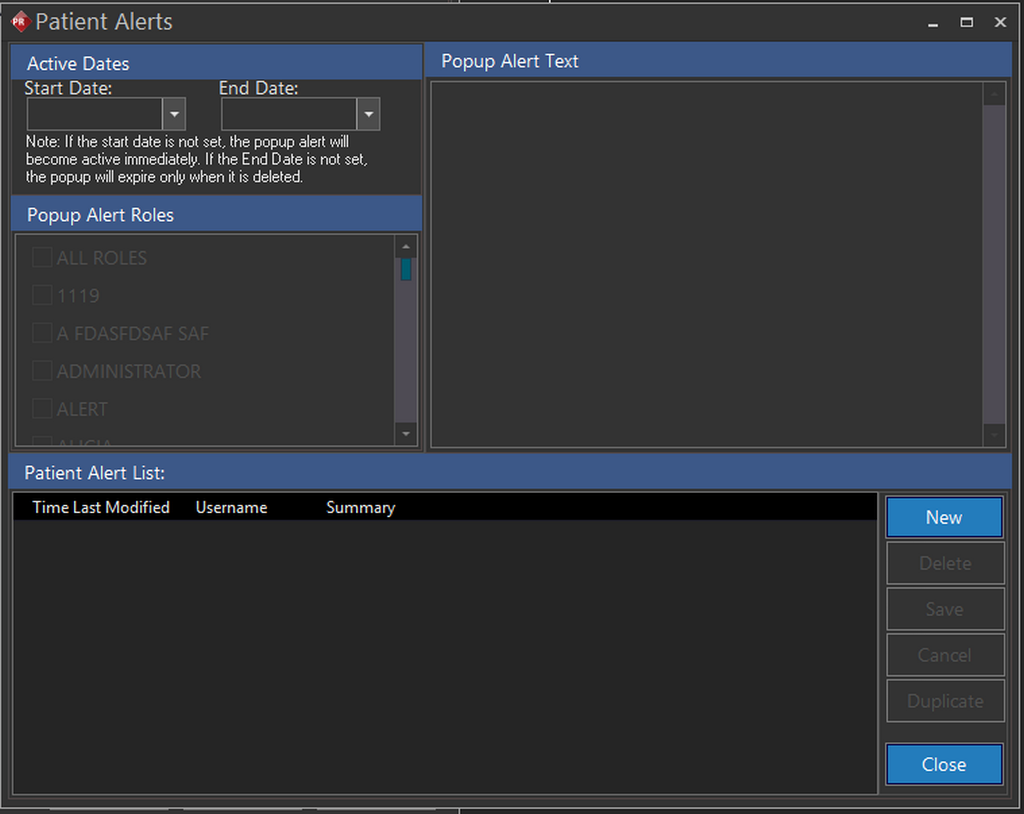
Select an Active Date period to display the alert message for a particular time period or select individual roles for which the alert is to be displayed.
The Popup Alert Text box allows adding the text message to be displayed in the alert.
Clinical Decision Support Resources
Any Clinical Decision Support rule includes an evidence - based decision support intervention and a linked referential decision support.
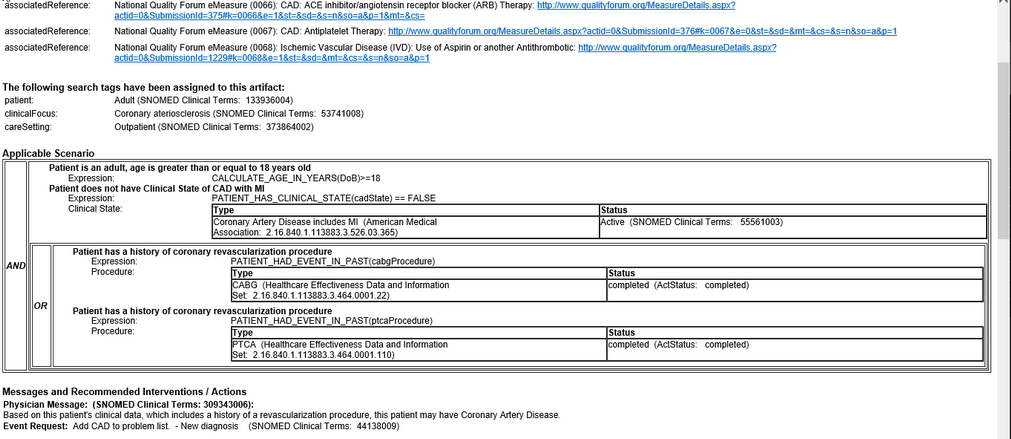
Hovering over the Evidence button on the Patient Alerts message box displays the Bibliographical citation information.

Click the Evidence Button to open the Biblical citation information specific to the clinical condition of the patient.
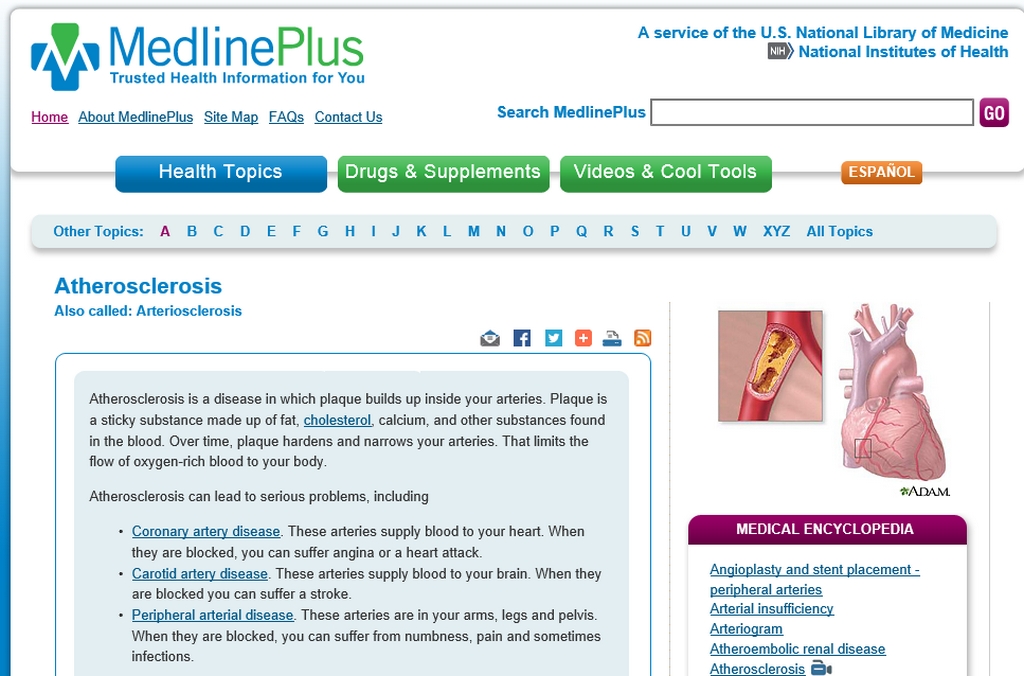
Click the Info button to view the online health resource for this specific clinical condition.