How Do I Create a List of Patients With Specific Criteria?
A list of patients can be generated that fulfills various criteria. The Patient List tab is accessed from the search screen via Advanced > Patient List tab. The patient list tab displays a list of patients previously searched for a specific date range.
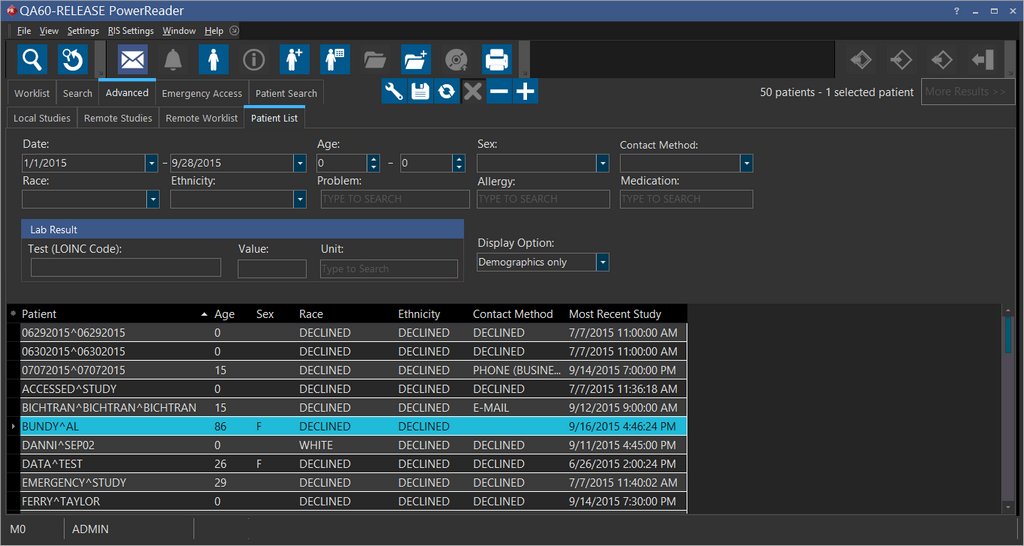
This form contains several criteria for searching patients. The Date field is used to search for patients with study dates between the dates specified.
The Age field is used to enter the age of the patient at the time of the study. It is chosen as (Study Date - Patient Date of Birth). For example, entering the range of age between 1 and 16 displays all patients between the age of one and sixteen at the time of the study. The other search criteria are from the Patient Info form i.e. Sex, Race, Ethnicity, Allergy, and Medication.

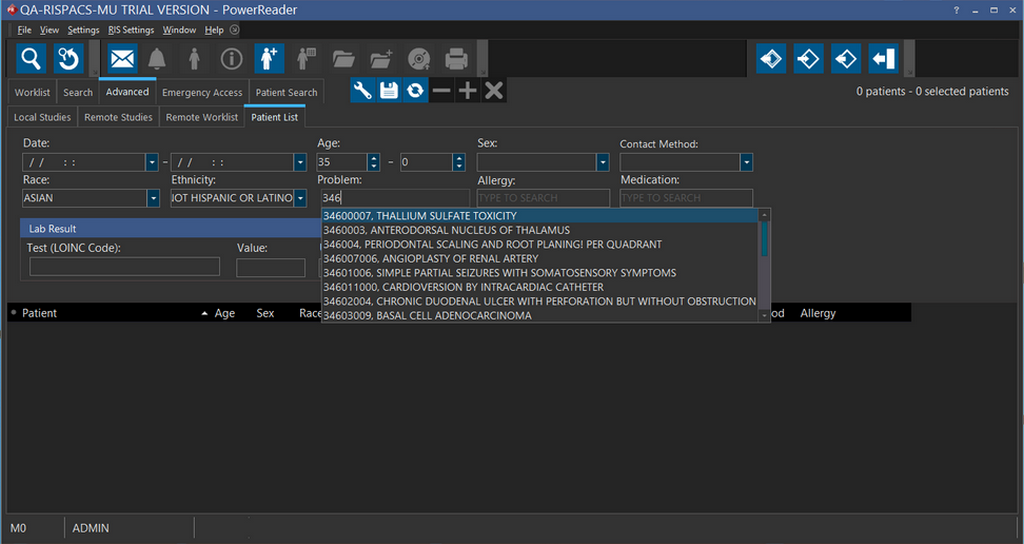
The Problem field is used enter the diagnosis code or the description of the diagnosis code. Entering a portion of the description opens a meta search list. The user can then select the desired diagnosis code.
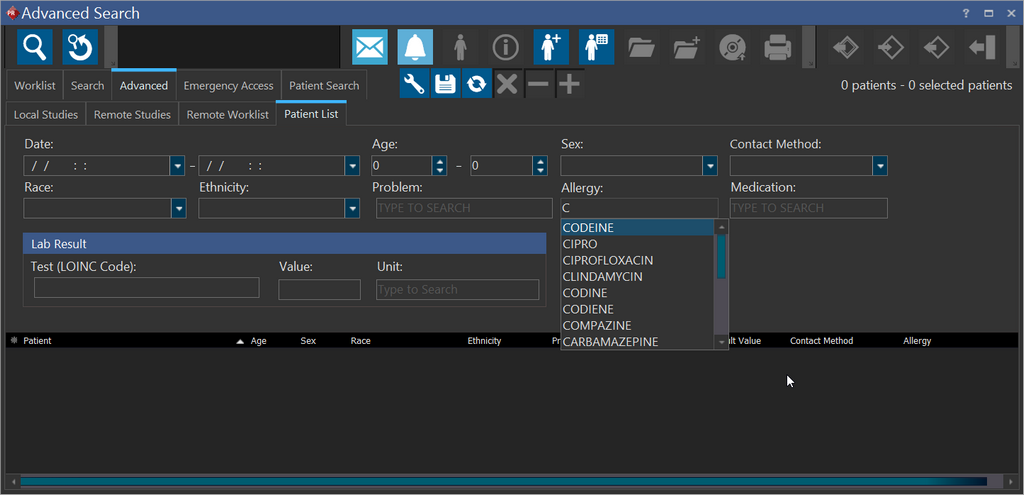
The Allergy field is used to type the Allergy name or a portion of it. Entering a portion of the Allergy name opens a meta search list. The user can then select the desired Allergy Name from the list matching the search.
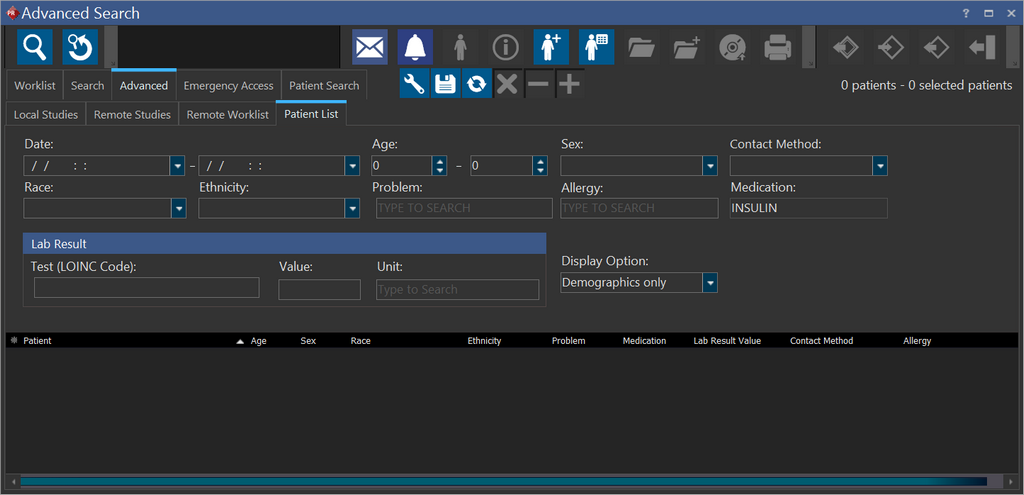
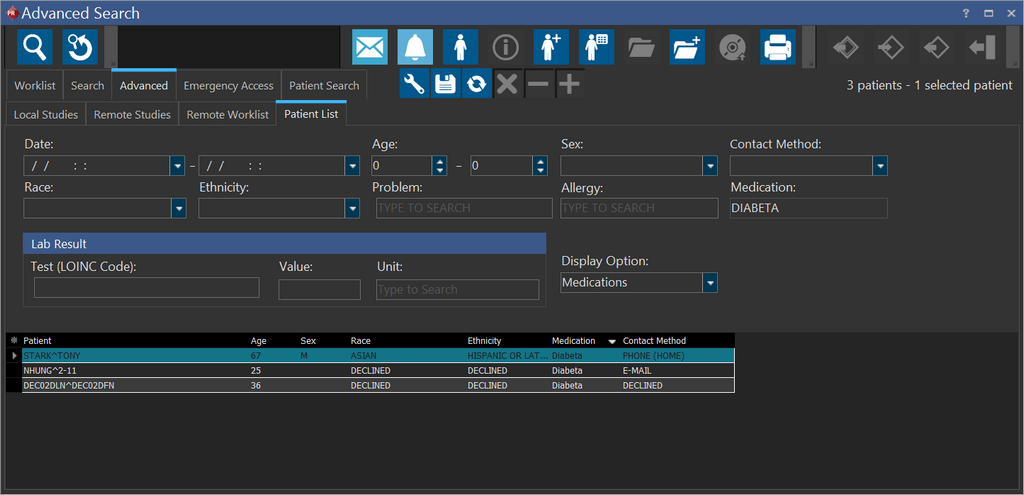
The Medication field is used to search for patients according to the medication prescribed. Although the medications are entered in NewCrop, the medications are also stored in the PowerServer database. Entering a specific medication will display all patients who have been prescribed that particular medicine.
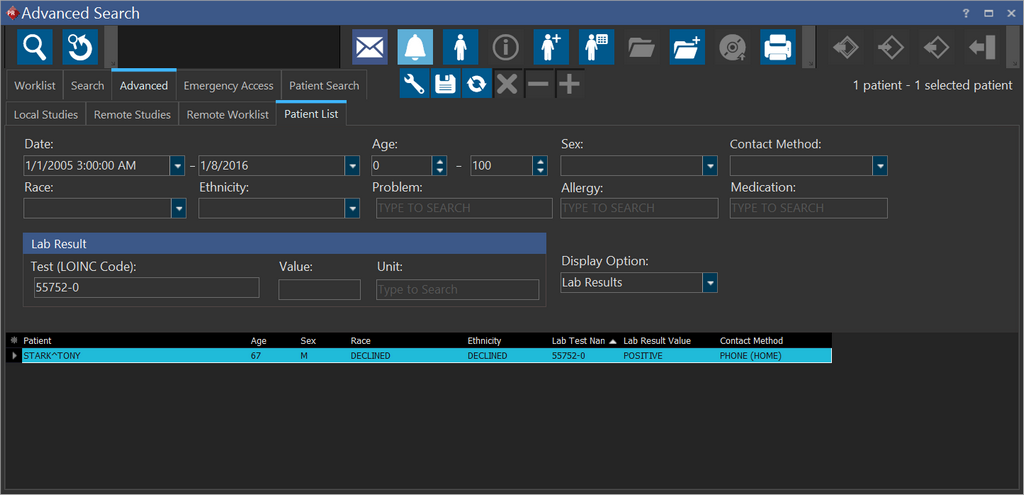
The Lab Results section is used to filter results according to a particular lab result. After entering the name of the lab result, you can enter the Value of the result, as well as the Unit of measurement. You can also enter the Notation to limit the result value i.e. greater than the result value, less than or equal to the value entered.
Note: By default, the Patient, Age, Sex, Race, Ethnicity and Contact Method columns are included in a report with any search criteria.
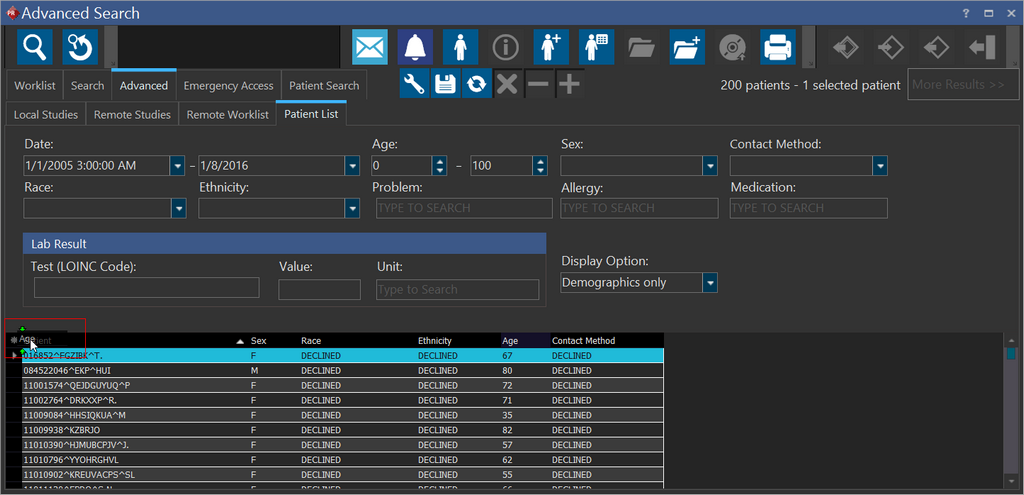
Group by column header by dragging and dropping the column header to group by that column. To group by a column header, perform the following:
- Select a column header and drag it by holding down the left button of the mouse to the area where you can see the instructions "Drag a column header here to group by that column" on the screen. In this case, we are grouping by Age.
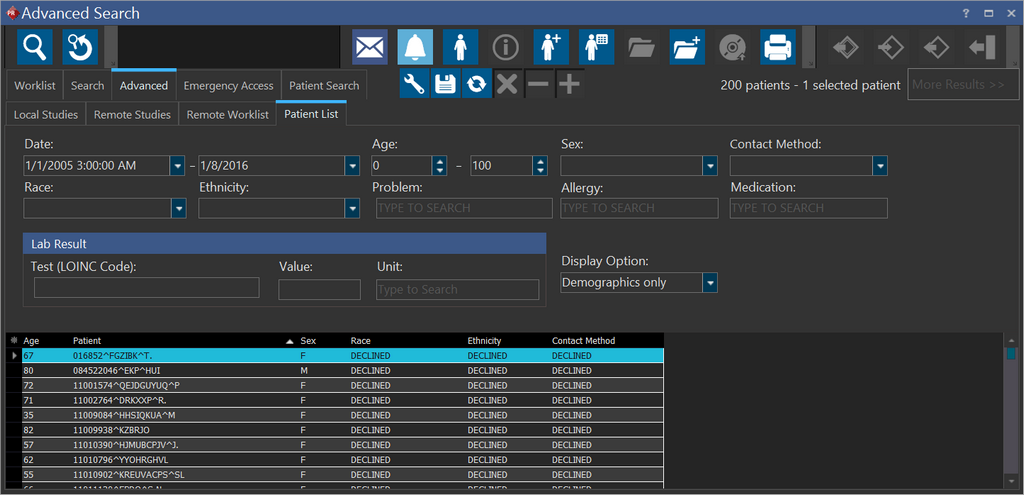
- Release the button of the mouse. The Search is now grouped by the column header Age.
Display Options Menu
The Display Options drop-down menu has four options i.e. Demographics only, Problems, Medications and Lab Results.
Selecting the Demographics only option displays results with just the demographic information.
Selecting the Problems option will display results with demographic information as well the Problems column. The problems column displays the diagnosis code as well as its description.
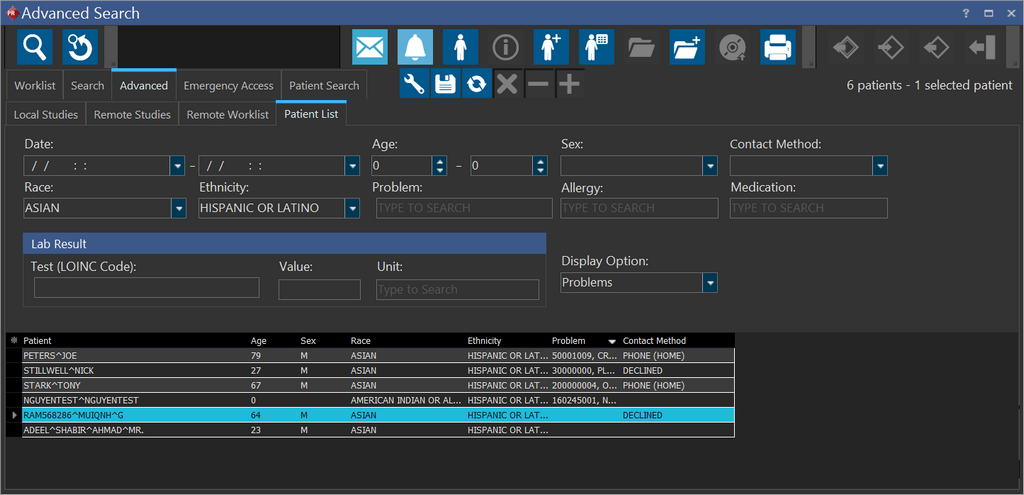
Selecting the Medications option displays the Medications column in the results. Although the medications are entered in NewCrop, they are also stored in the PowerServer database. Selecting the medications option displays the medication prescribed for the patients.
The Lab Results option in the Display Options drop-down menu displays the lab results in the patient list. This include the Lab Result Name and Lab Result value columns.
Note that the Display Options menu controls what gets displayed in the result. For example, when you want to retrieve the list of patients with a specific problem, you need to ensure that the Display option field is set to Problems. If this is not the case, the result displayed would be controlled by the existing display option selected.
If the Display Options is not set to the search criteria used to retrieve a list of patients, click the  icon to show more columns and add the column with the respective search criteria.
This Meaningful Use feature is only available for RamSoft PowerServer with Meaningful Use license.