Uploading Patient Information to Microsoft HealthVault
Microsoft HealthVault has been integrated with PowerServer. If the patient has consented to uploading of the medical records on their HealthVault profile, RamSoft uploads these documents to their HealthVault accounts. The patient can then access their Microsoft HealthVault profile and retrieve these records as needed.
Authorization-based access to HealthVault
- Whenever a report is signed, a connection event is triggered and PowerServer checks the following scenarios and takes the appropriate action:
| If... | Then... |
|---|---|
| There is a valid existing approval from the patients | The CCDA documents get uploaded to their HealthVault accounts. |
| If there is no prior connection (or) There was a prior approval but the approval period has expired, i.e., more than 90 days have elapsed from the approval date | An acknowledgment email with instructions on how to approve the connection is sent to the patients requesting them to authorize/approve. Note: If a patient does not have a Microsoft HealthVault account, follow the instructions in this mail to set up an HealthVault account. |
An approval from the patient is valid only for 90 days. After every 90 days, the patient has to approve a fresh connection request sent through an acknowledgment email.
- Once an approval is provided by a patient, a CCDA document is uploaded (triggered by a report getting signed) to a patient's account in HealthVault.
- Patients are notified through an email from HealthVault that a new CCDA document is available in their accounts.
- Patients can click on the link provided in the email to login to their HealthVault accounts to access the CCDA information to perform a view, download or transmit action.
If patients request that the CCDA documents be re-sent to their account, HealthVault accounts can be resent to the patients.
Before resending the CCDA documents, previous communication events and statuses can be checked by clicking the History icon  . After confirming any failed transfer, they can be resent by clicking the HealthVault button on the patient registration form.
Re-sending CCDA documents
If patients request that the CCDA documents be re-sent to their account, HealthVault accounts can be explicitly resent.
Ensure that the patient's email address is valid. There may be instances that a patient may not receive any notifications or approval requests due to an invalid email address.
-
Before re-sending the CCDA documents, click the History icon
to confirm if any previous attempts at sending CCDA documents have failed.
Note that there are two status messages that you can see based on the current status of the CCDA documents:- Acknowledgment email sent
- Summary exported
-
Confirm sending the CCDA documents by clicking the Microsoft HealthVault button.
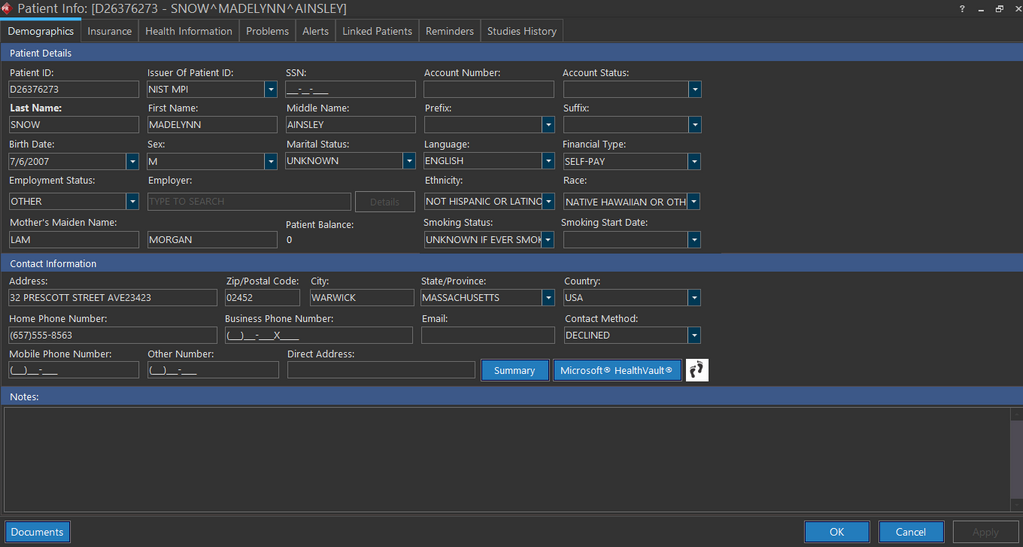
Any existing connections are deactivated when clicking the Microsoft HealthVault button.
The following message is displayed.

- The authorization-based access to HealthVault process is initiated again. Perform the steps to approve the access request. The CCDA documents are sent to HealthVault once the approval is provided by the patient.
Accessing CCDA documents in Microsoft HealthVault
This procedure guides the patients in logging into HealthVault and accessing their CCDA documents.
- Open the email marked with the Subject - "HealthVault Acknowledgment".
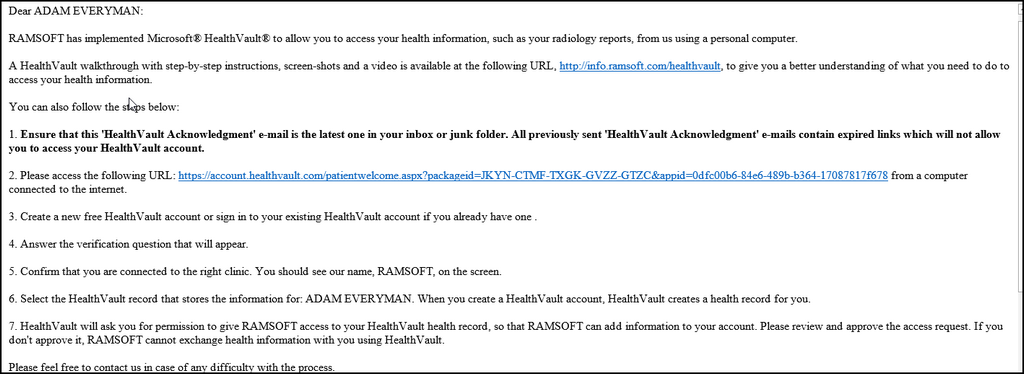
- Follow the instructions provided in the link http://info.ramsoft.com/healthvault to understand how to login and view your CCDA documents in HealthVault.
CCDA Upload Delay
The CCDA upload delay value is the number of days that PowerServer will wait before sending the CCDA documents to the patient's HealthVault account.
In the best interest of a Referring Physician, the upload of CCDA documents to a patient's HealthVault account can be delayed based on a configuration value. By default, the CCDA Upload Delay value is set to 12 hours (0.5 Days). This setting can be verified in System Configuration in PowerServer.
Verifying CCDA Upload Delay value in PowerServer
-
Click Settings > System Configuration.
-
On the left hand side menu, in the Configuration folders, select Integrations.
-
Scroll down to see the "HealthVault CCD upload Delay value". Notice that the Delay value is set to 12 hours.
Do not set this value for longer than 24 hours (1 Day).
This Meaningful Use feature is only available for RamSoft PowerServer with Meaningful Use license.