Electronic Copy of Health Information
In PowerReader, users are able to create an electronic copy of a patient's clinical information. A Continuity of Care Document (CCDA) is created in the Patient Info form and can be exported as an XML document and viewed as an XML/HTML document.
This document contains the results of any diagnostic tests performed on the patient, a list of patient's issues, medications prescribed for the patient and any allergies the patient might have.
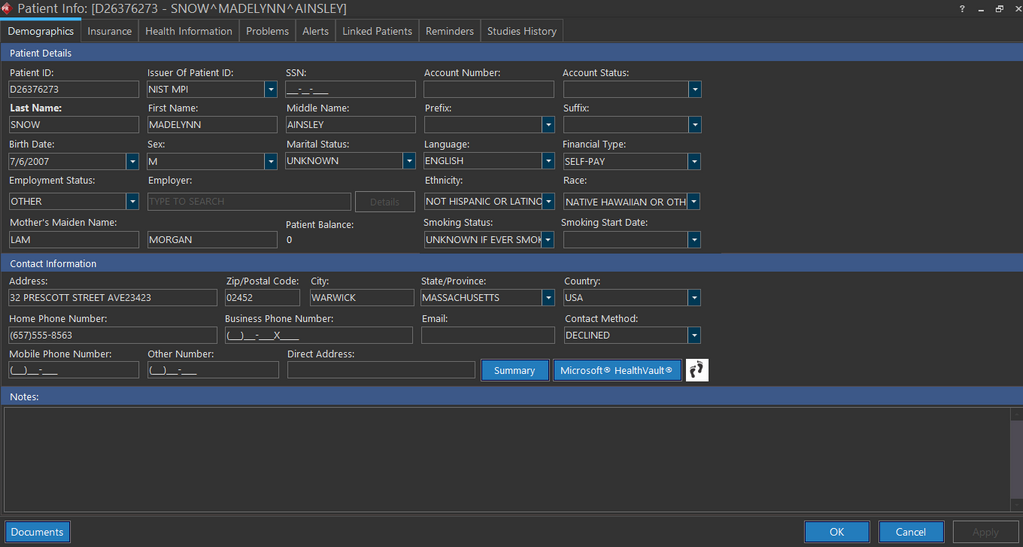
CCDA is exported through the Patient Registration form by clicking the Summary button.
Note: When attempting to access the CCDA document for a patient, there is the option to select the required elements from the following menu:
- Demographics
- Health Information
- Encounter
- Care Plan
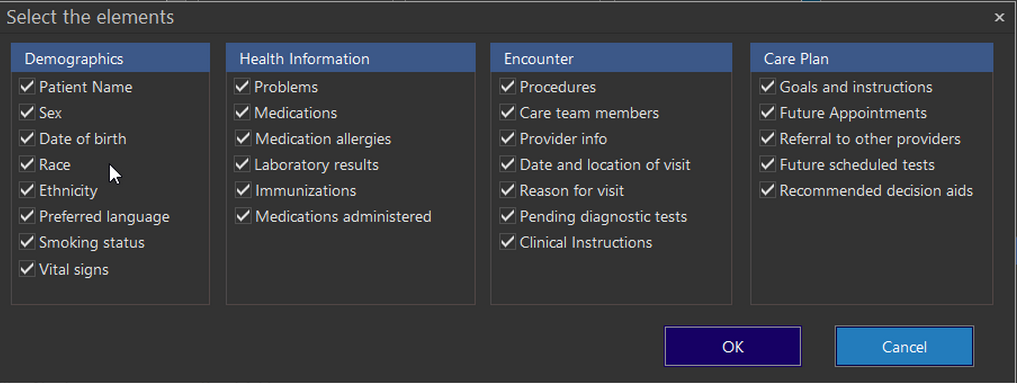
Choose to select or de-select the elements to be included in the Health Summary form. By default, all elements are selected.
The CCDA document contains information from various sources. Apart from the patient information, the document contains a list of current allergies of the patient. The status of the allergy as well as the description of the allergy is also displayed. The second section of the document contains the problems the patient is facing.
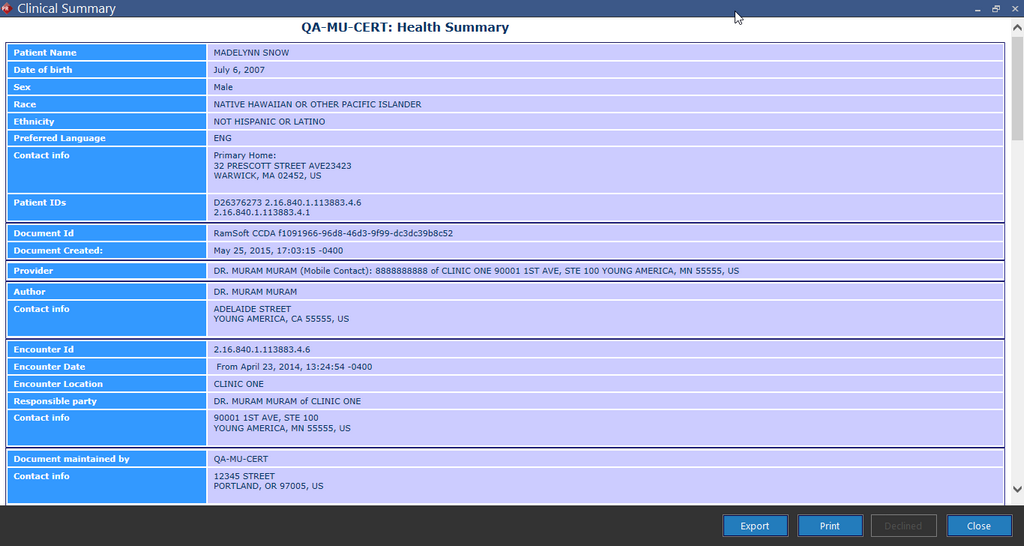
- The Medications section includes the current medications which have been prescribed to the patient.
- The Diagnosis Results section contains lab test results which have been entered in the Lab Results section of the Patient Info form.
- The Diagnostic Imaging reports in this section show the name of the physician who signed the report along with the date and time when the reports are signed. The timezone in which the study is created can be chosen by disabling the System Configuration entry "Report Use Study UTC Time" in Settings. By default, this entry is enabled.
The Lab Test Results section contains the name of the lab result and the results of the test.
The health Summary (CCDA) form can be printed or exported. The Declined button when clicked indicates that a patient has declined to accept the clinical summary form. Once the clinical summary has been printed or previously declined for the current visit or most recent visit, it cannot be declined again. By default, the CCDA document can be saved as an XML file.
Exporting a CCDA document
To export a CCDA document, perform the following:
-
Click the Export button on the Clinical Summary screen.
-
Choose the desired location to export the document. By default, it is exported as an XML file.
-
Click Save. An information message box confirming the export is displayed.

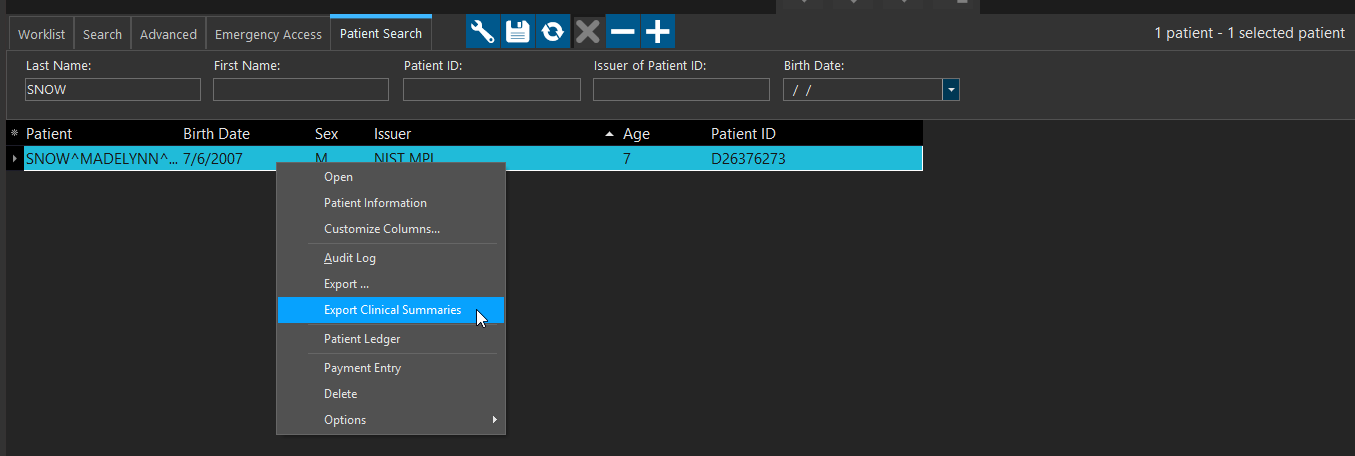
Note: CCDA document can also be exported by right-clicking on a Patient Search record and selecting Export Clinical Summaries.
This Meaningful Use feature is only available for RamSoft PowerServer with Meaningful Use license.