Structured Reports/Forms
Structured Reports/Forms primarily help you customize the content of each template based on each Category for a facility.
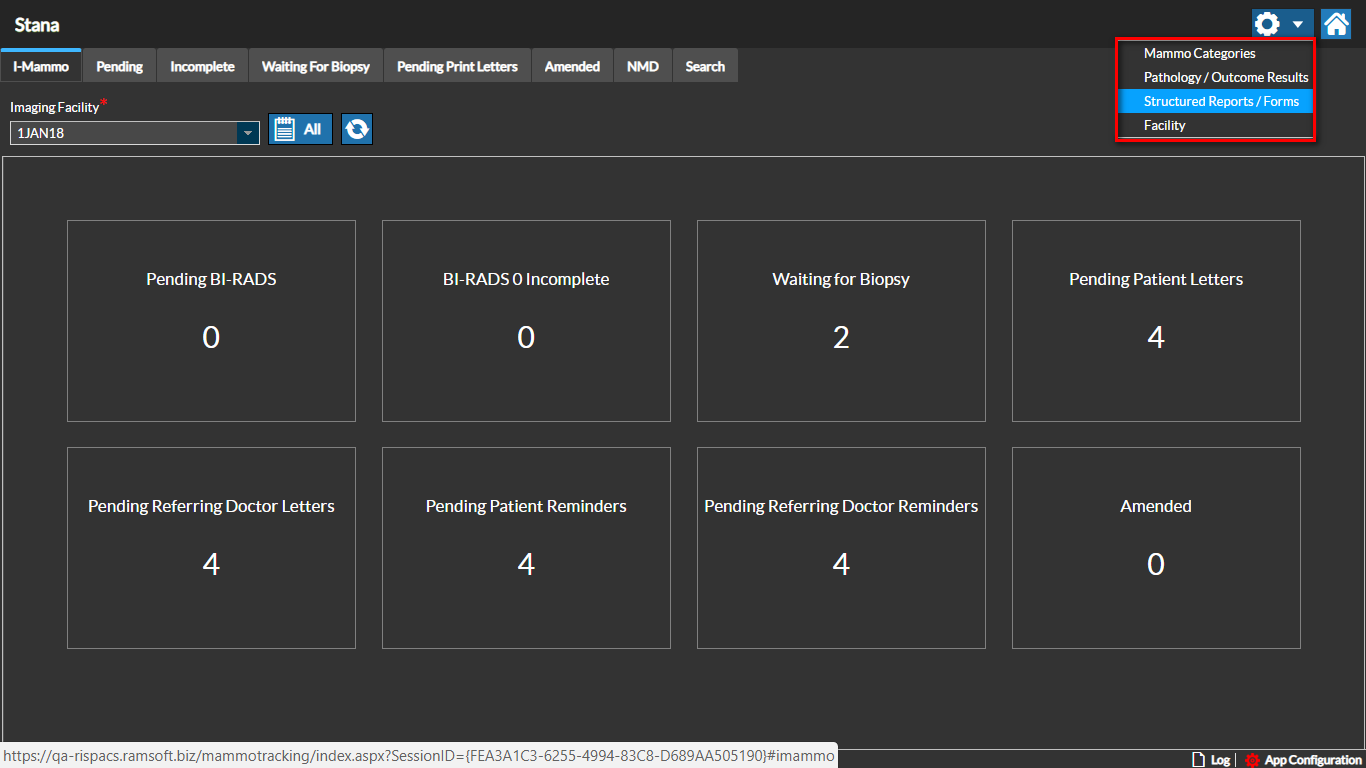
You can configure the Structured Reports/Forms by selecting the Structured Reports / Forms option from the Settings menu.
Report Objects
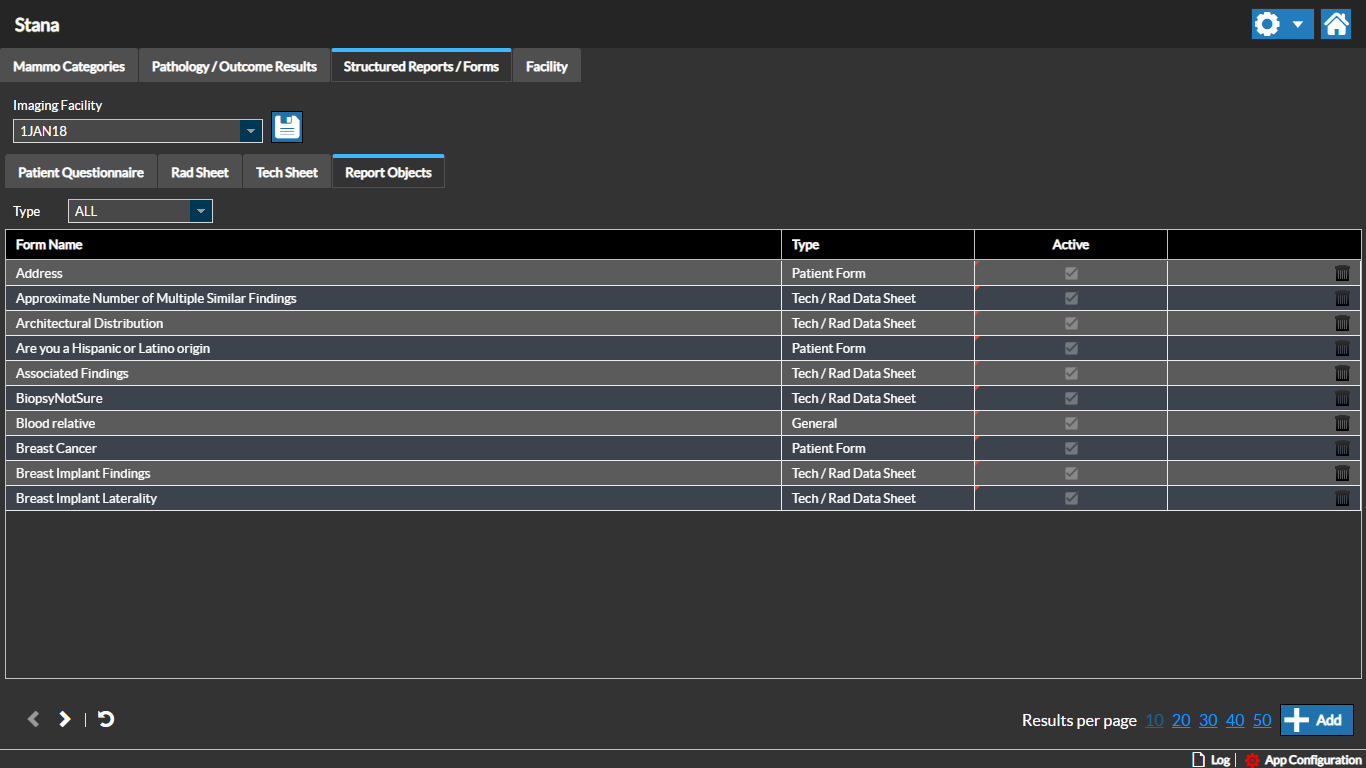
Click the Report Objects tab to view the list of Report Objects. By default, all types of Report Objects are listed.
You can choose a specific Report Object using the Type drop-down menu.
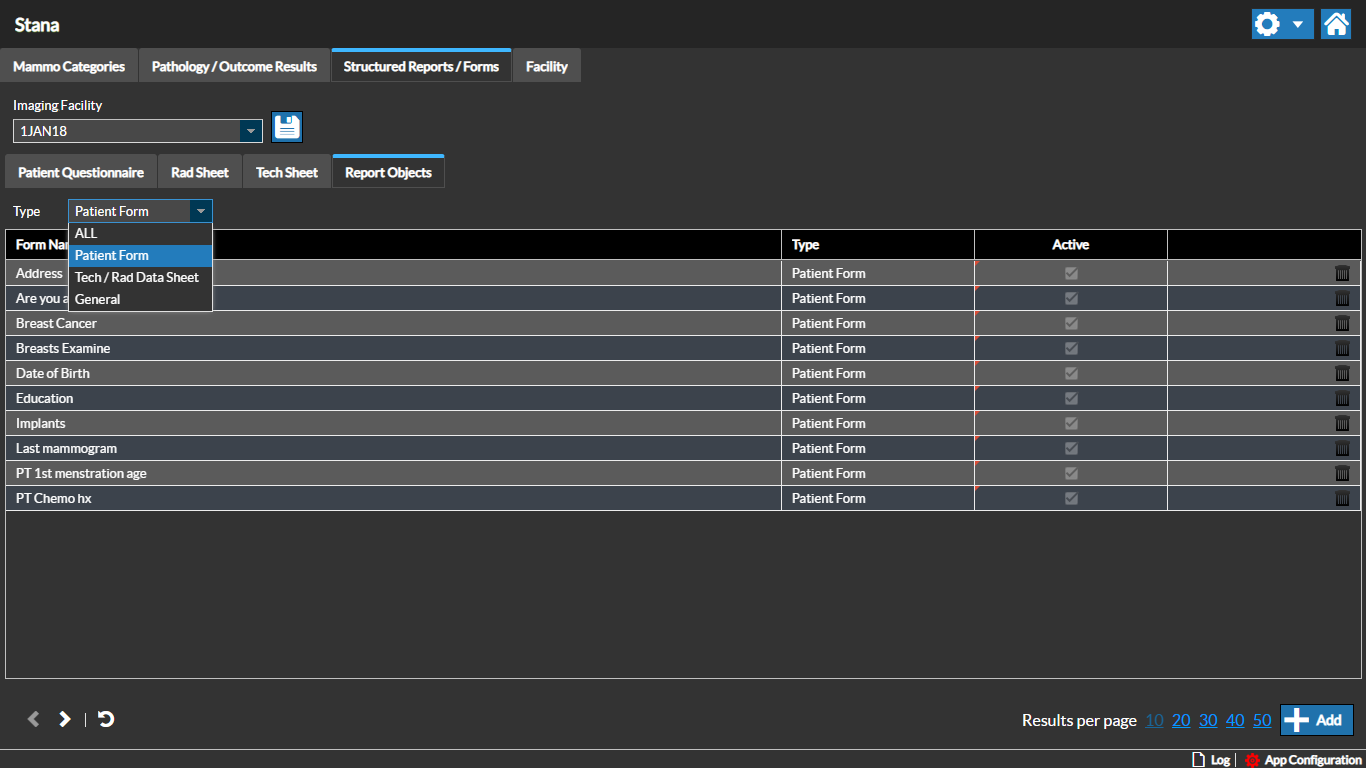
These categories or types of report objects help to organize their use when creating forms or using them as merge fields.
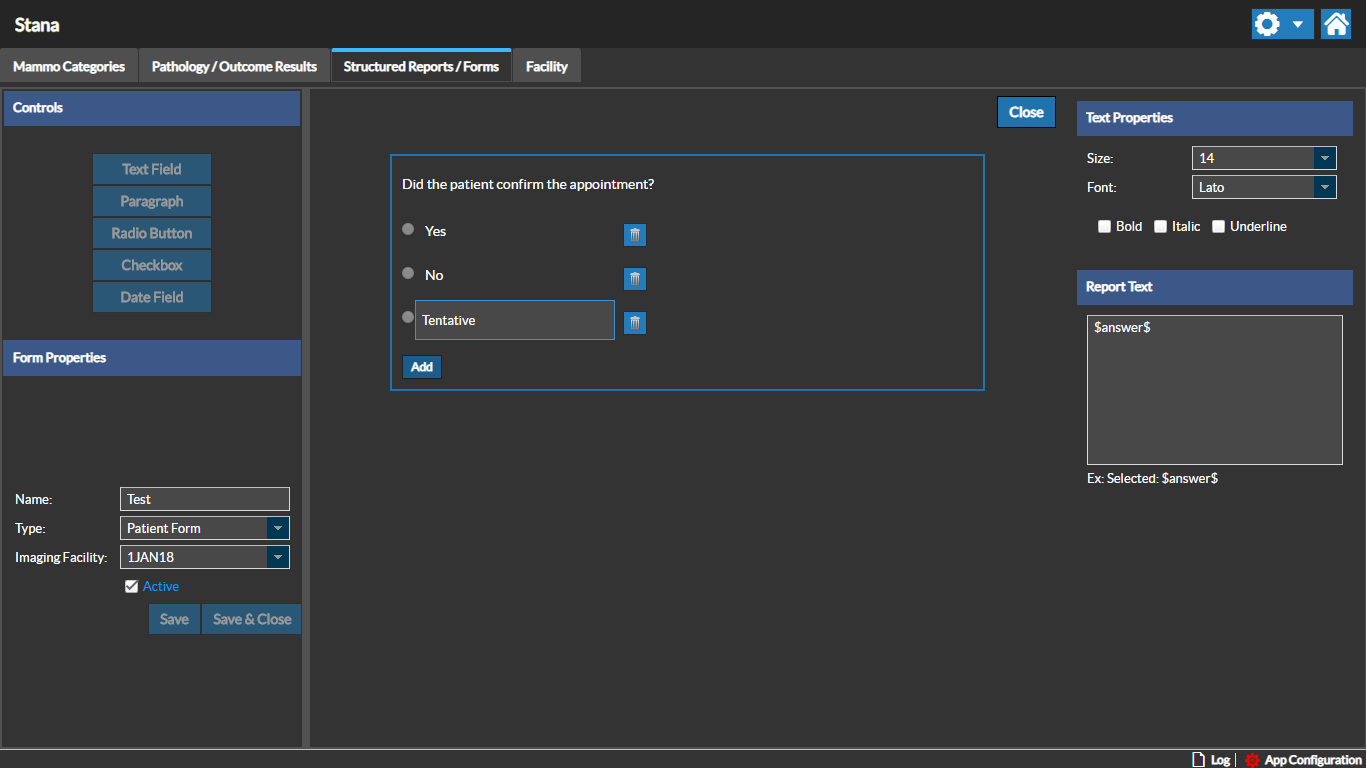
For example, when clicking on the Report Object "Last Mammogram" for the Patient Form type, the following screen is displayed with the Last Mammogram objects and the Controls associated with the object type.
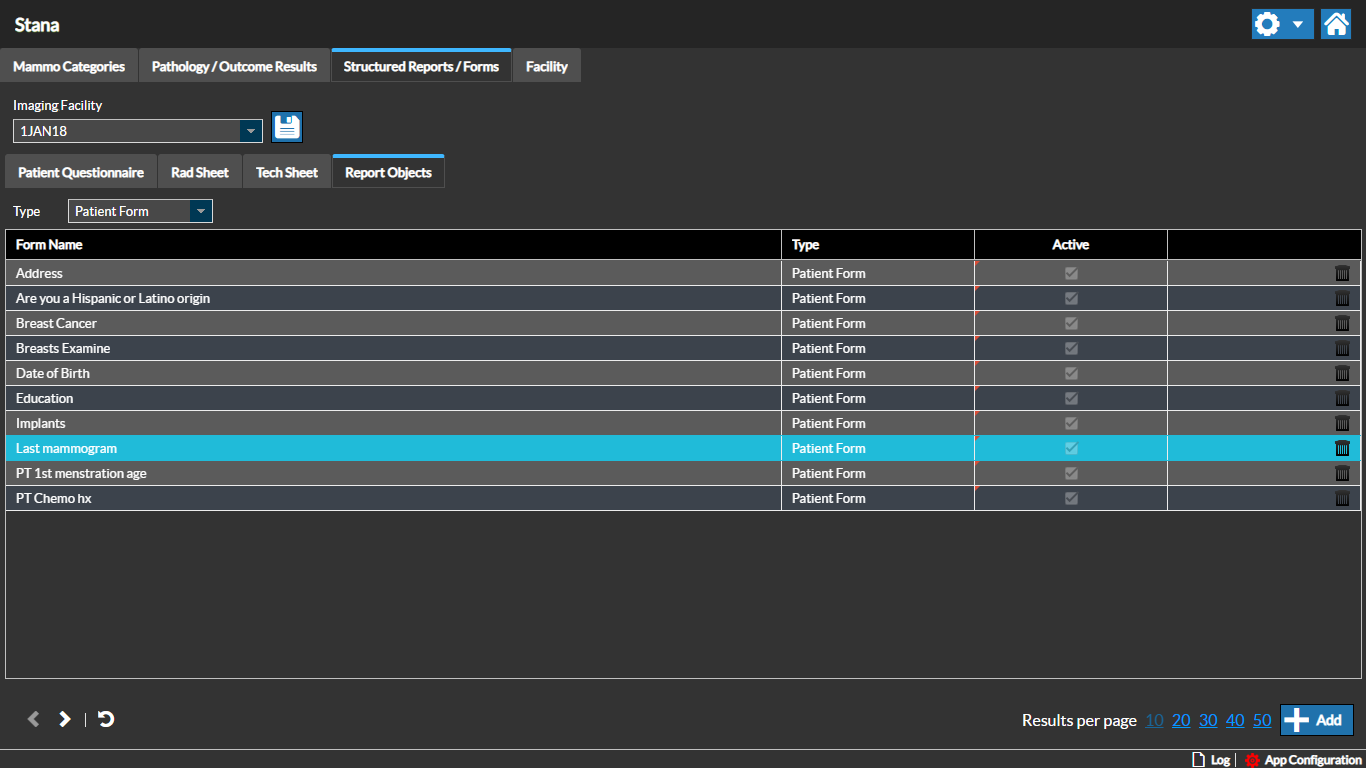
Each object can be considered as a pre-defined question for a specific Report Object Type. You can configure the type of data entry mechanism by using the Object Controls buttons.
The Form Properties section displays the following information:
- Name of the Report Object
- Type of the Report Object
- Associated Imaging facility
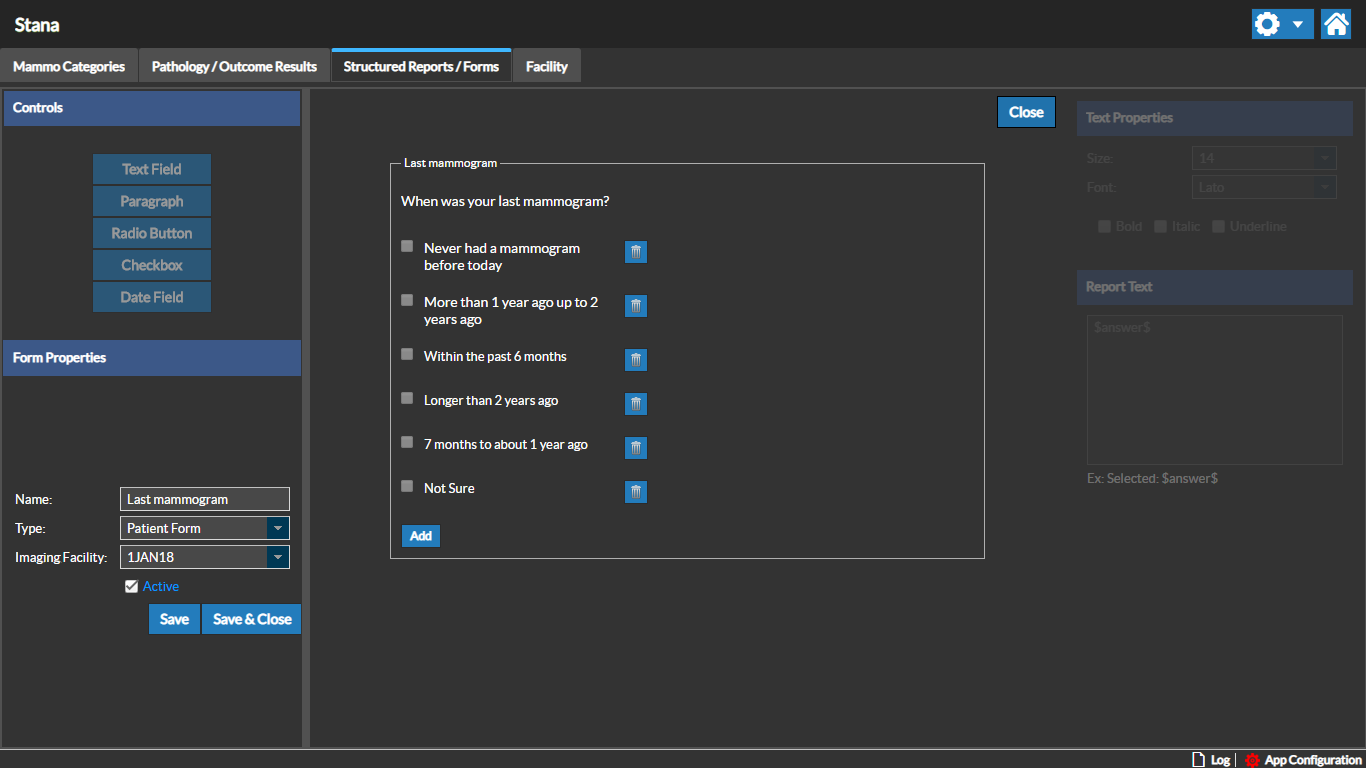
You can update the Report Object by adding any control to the report object.
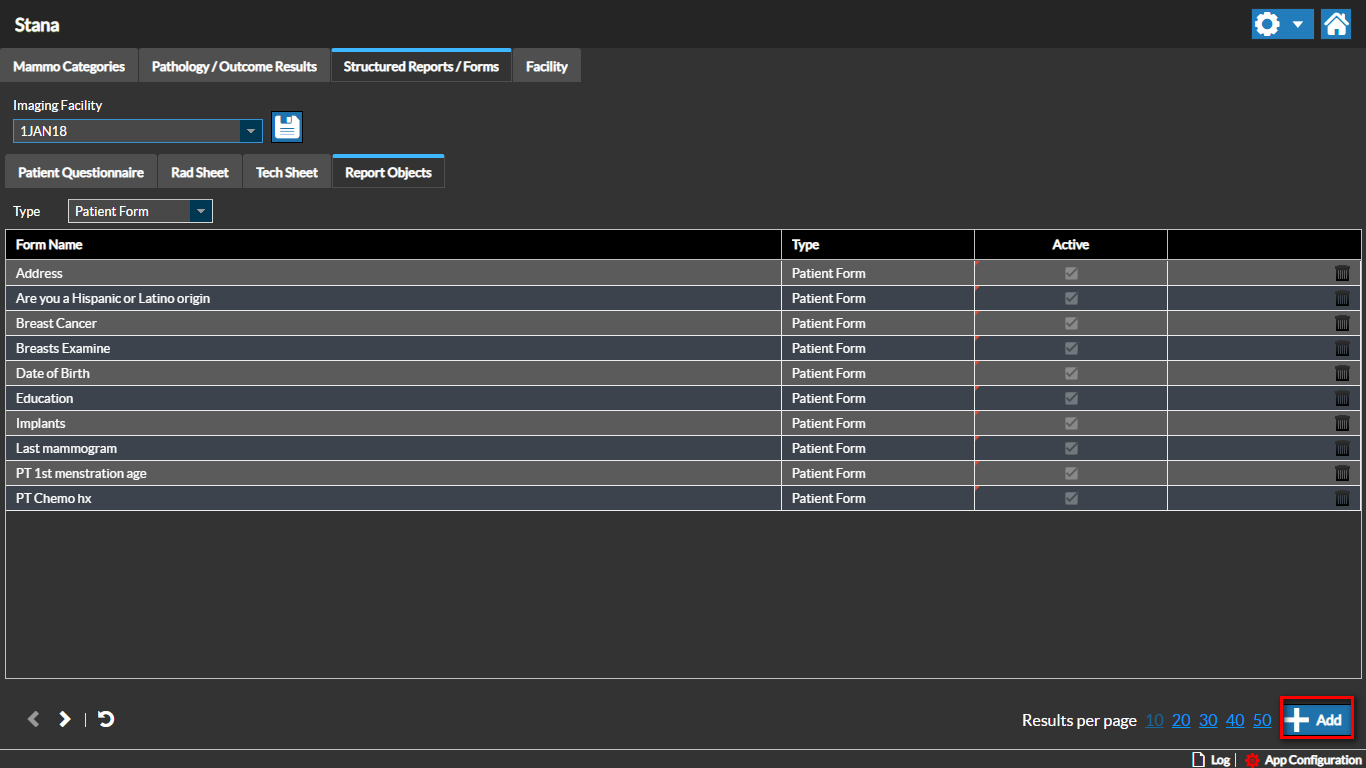
Adding a new Report Object
Click the Add button on the Report Objects tab screen.
Select the Control type of the new Report Object.
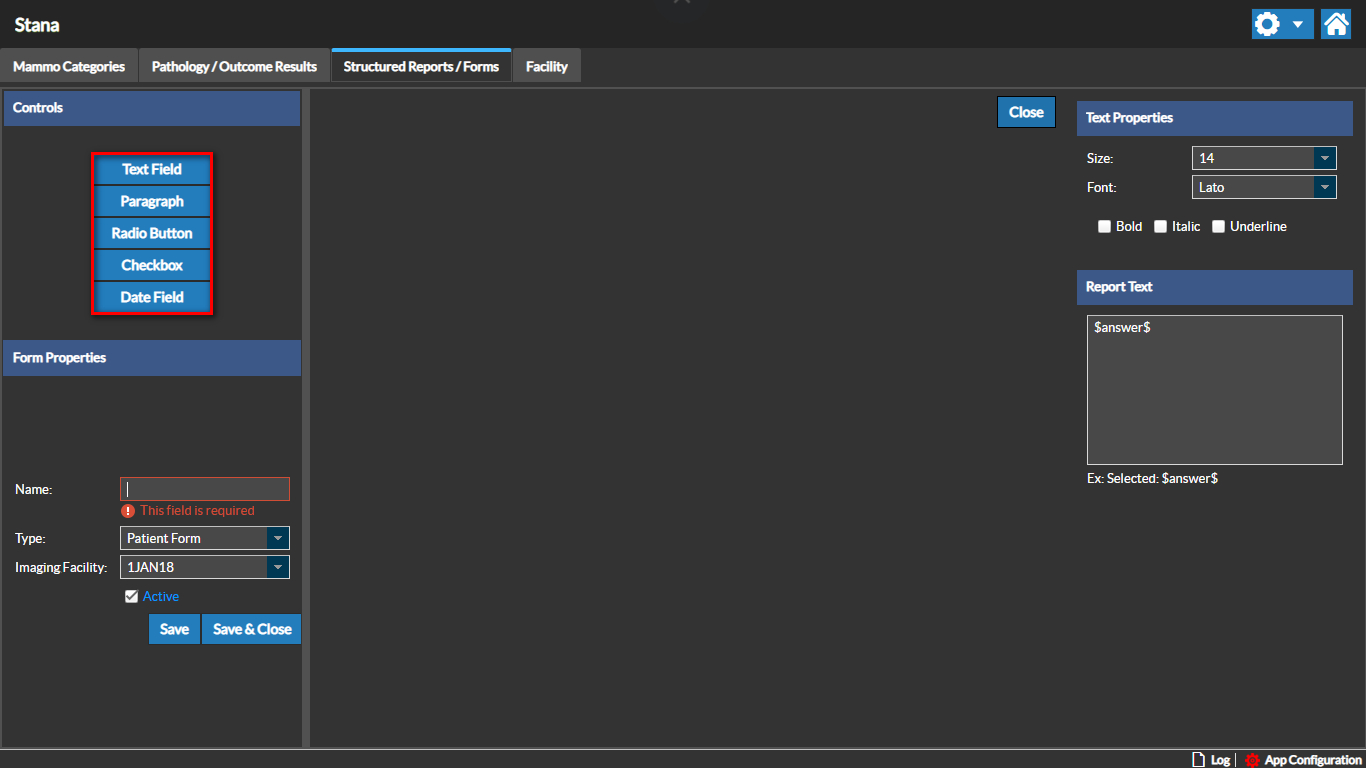
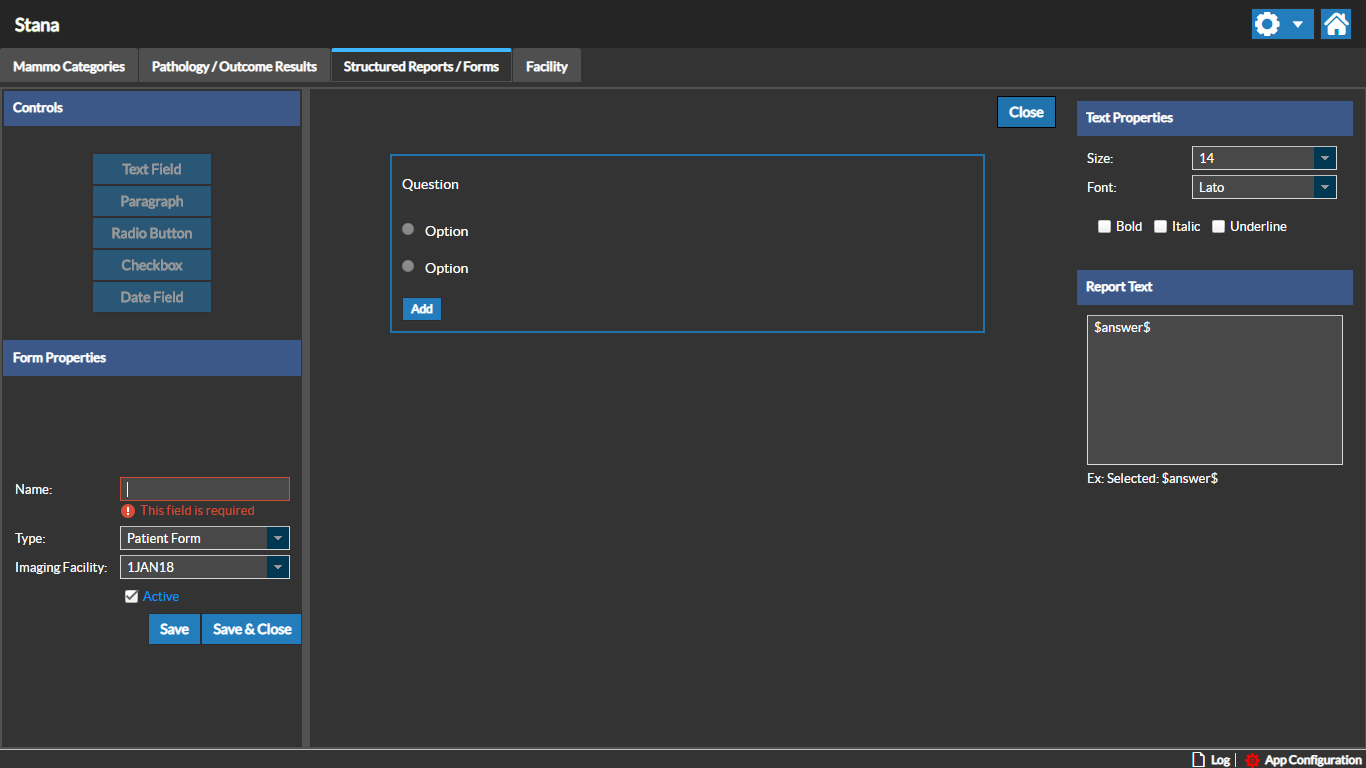
Select the Name of the Object and the Object Type from the Type drop-down menu. Select the associated Imaging Facility of the new report object.
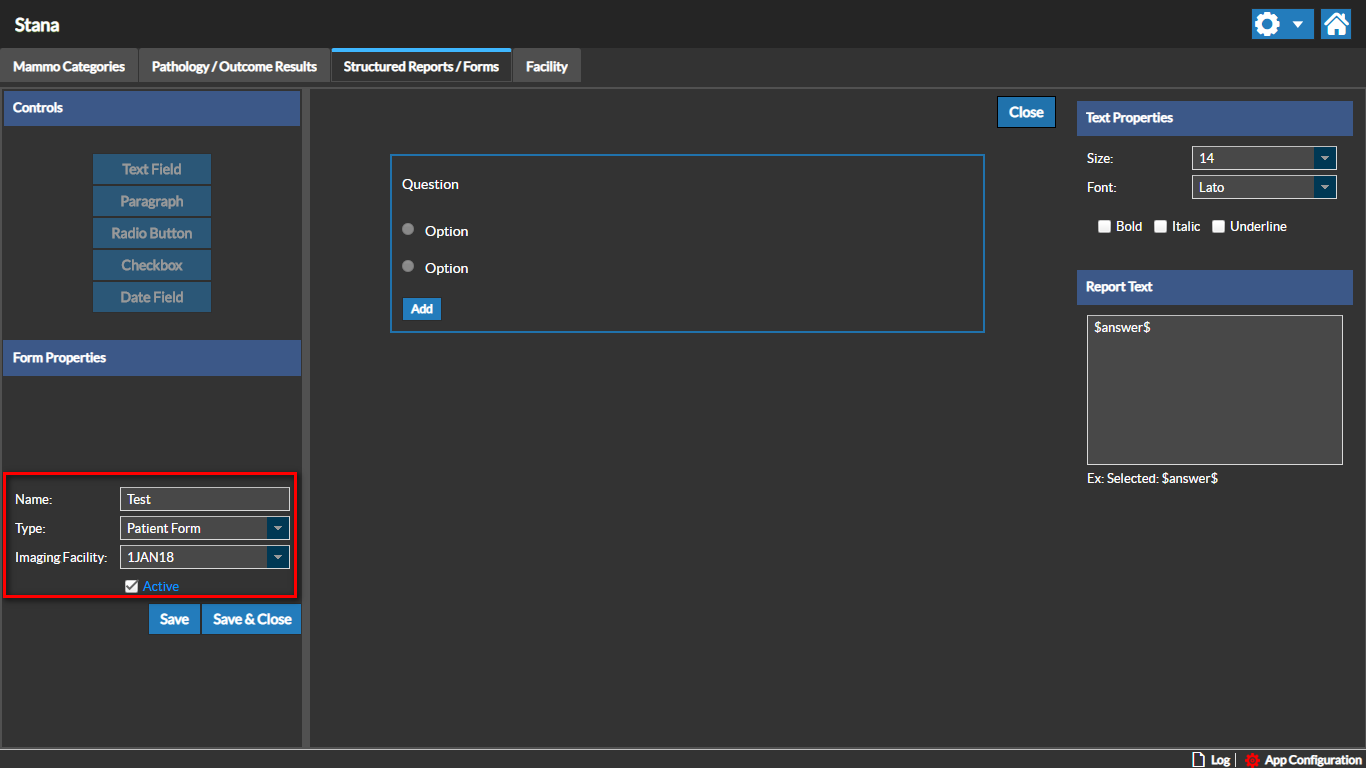
Enter the question that needs to be included in the template or form by double-clicking on the Question area
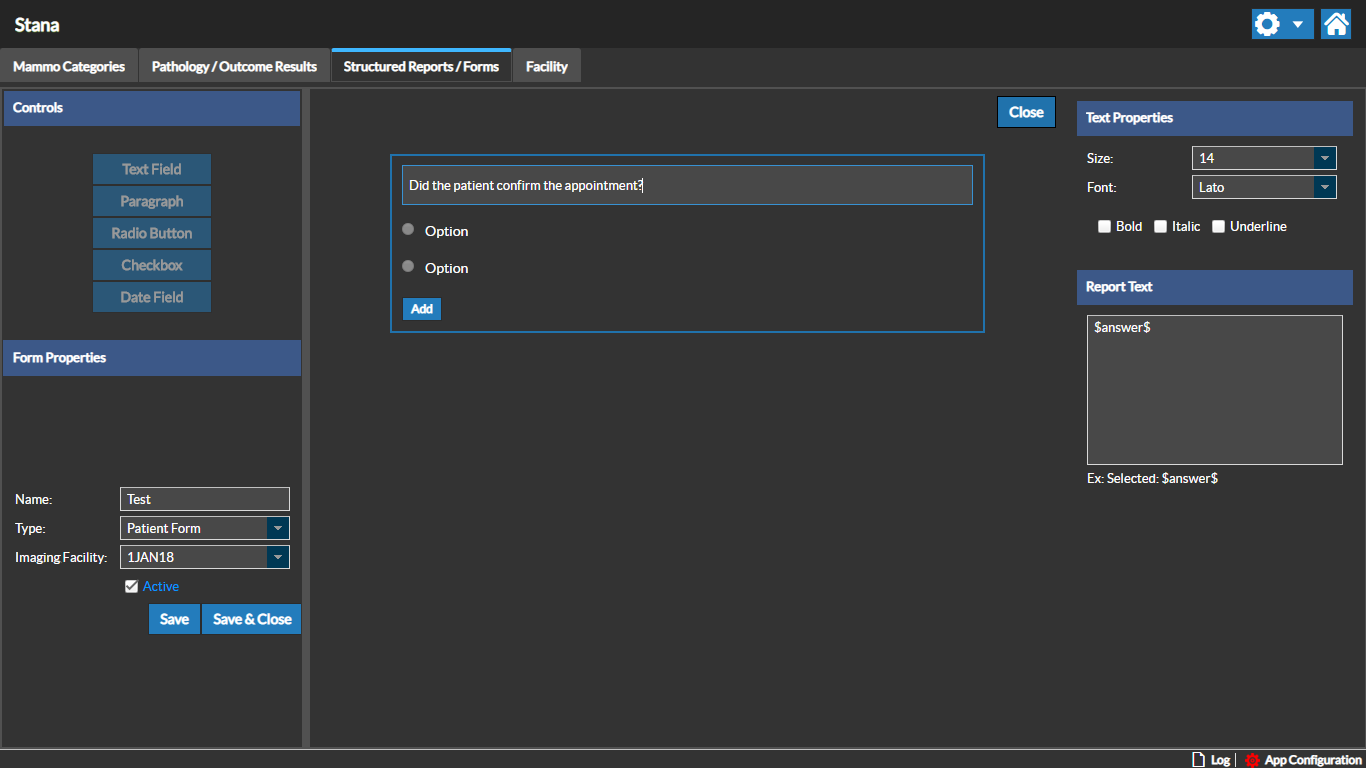
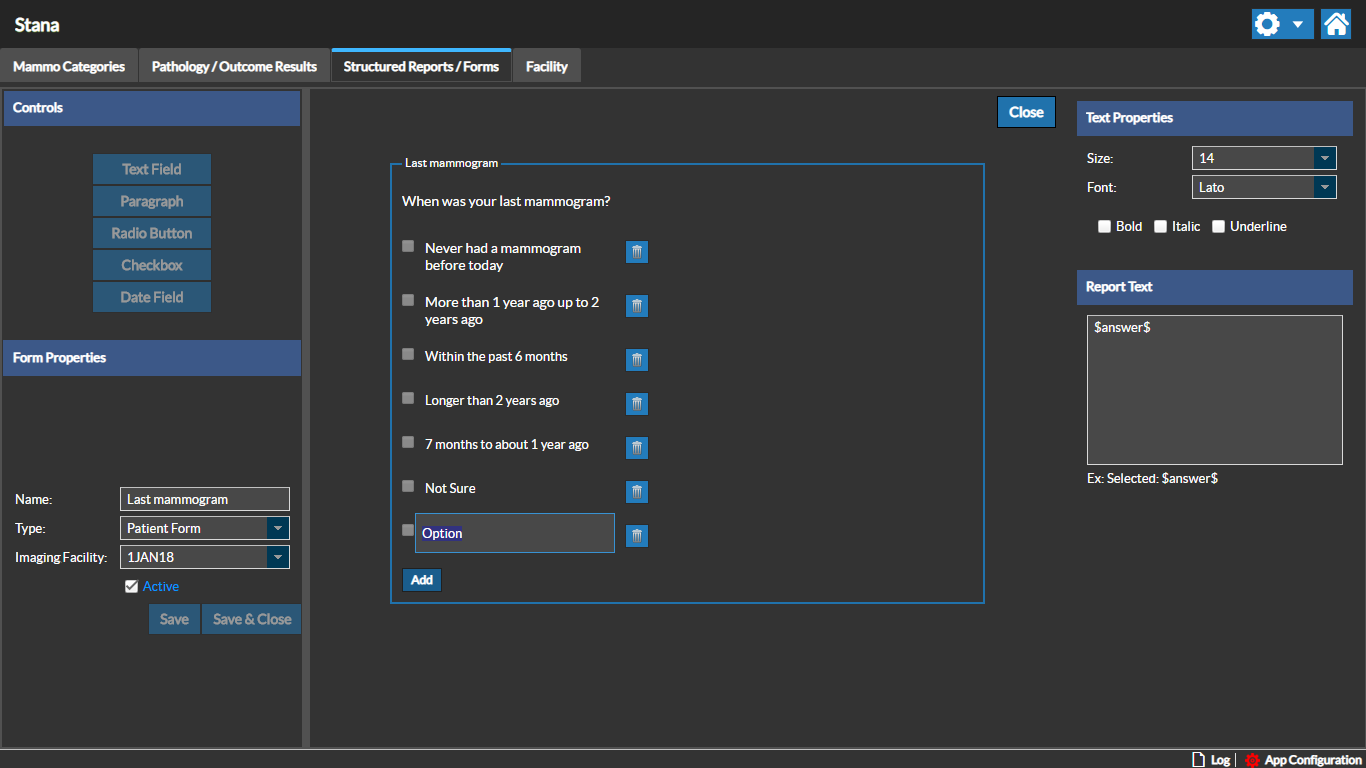
Enter the answer choices. You can add more answers and selections for the report object by clicking the Add button.
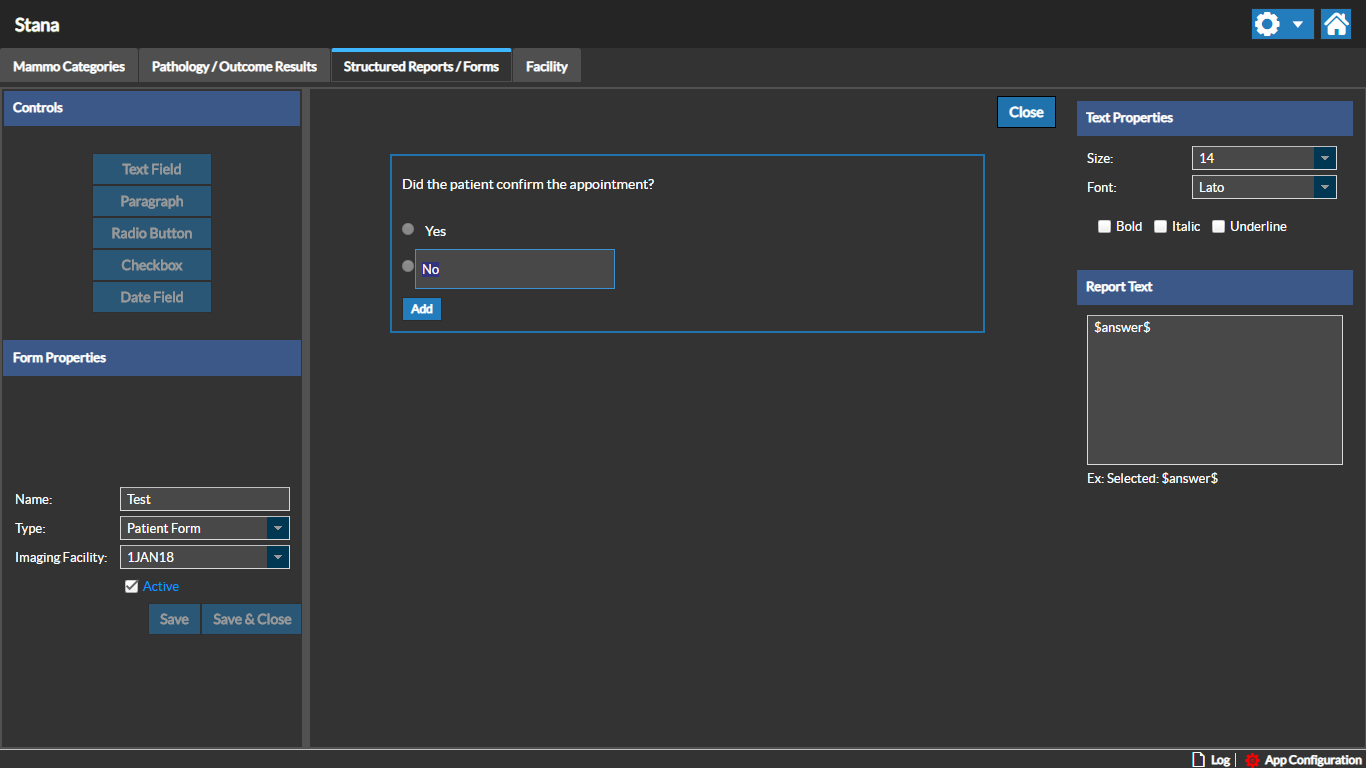
Add all desired text properties and click Save to save your changes.
Rad Data Sheets
You can view the list of Rad Sheet forms for an Imaging facility by clicking on the Rad Sheet tab. By default this tab is displayed when you click on the Structured Reports/Forms Worklist option.
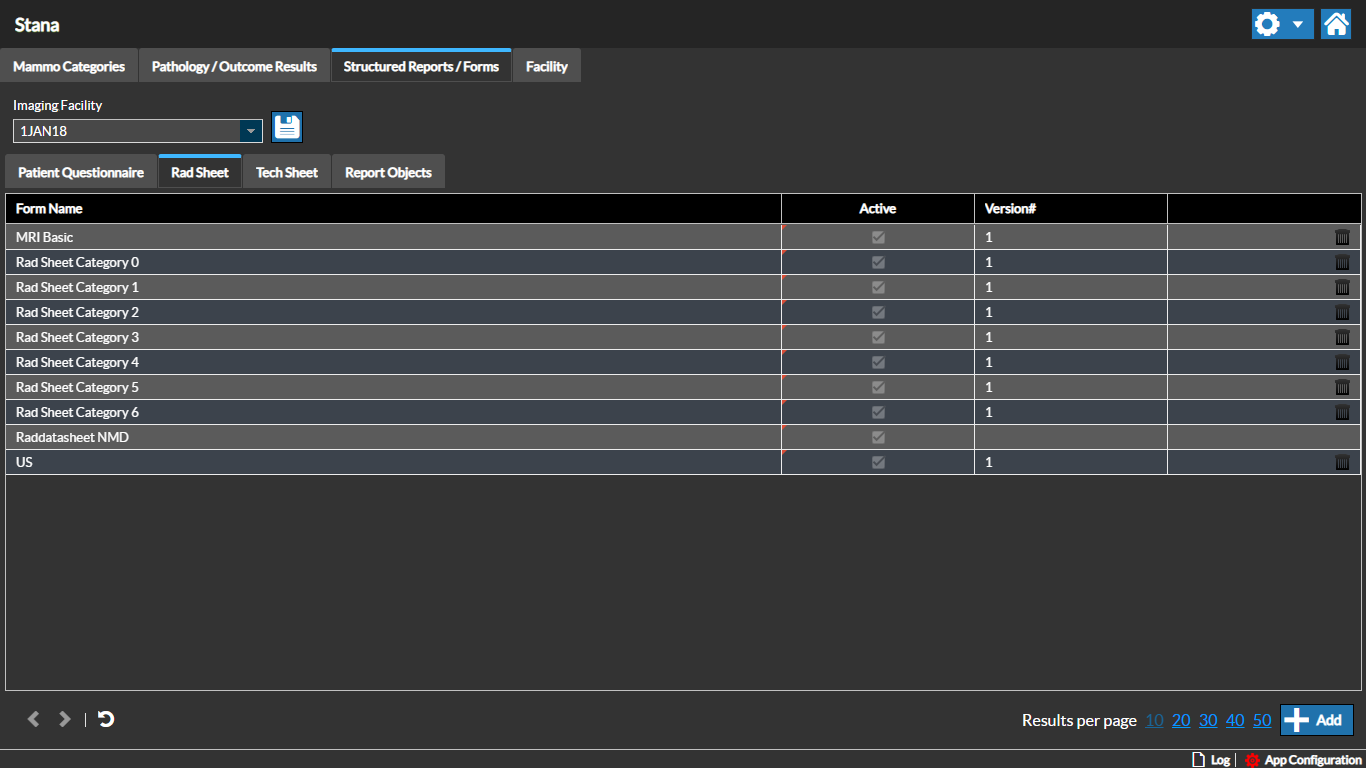
You can edit existing Rad Data Sheets. These are version controlled to ensure that historical data captures are not lost.
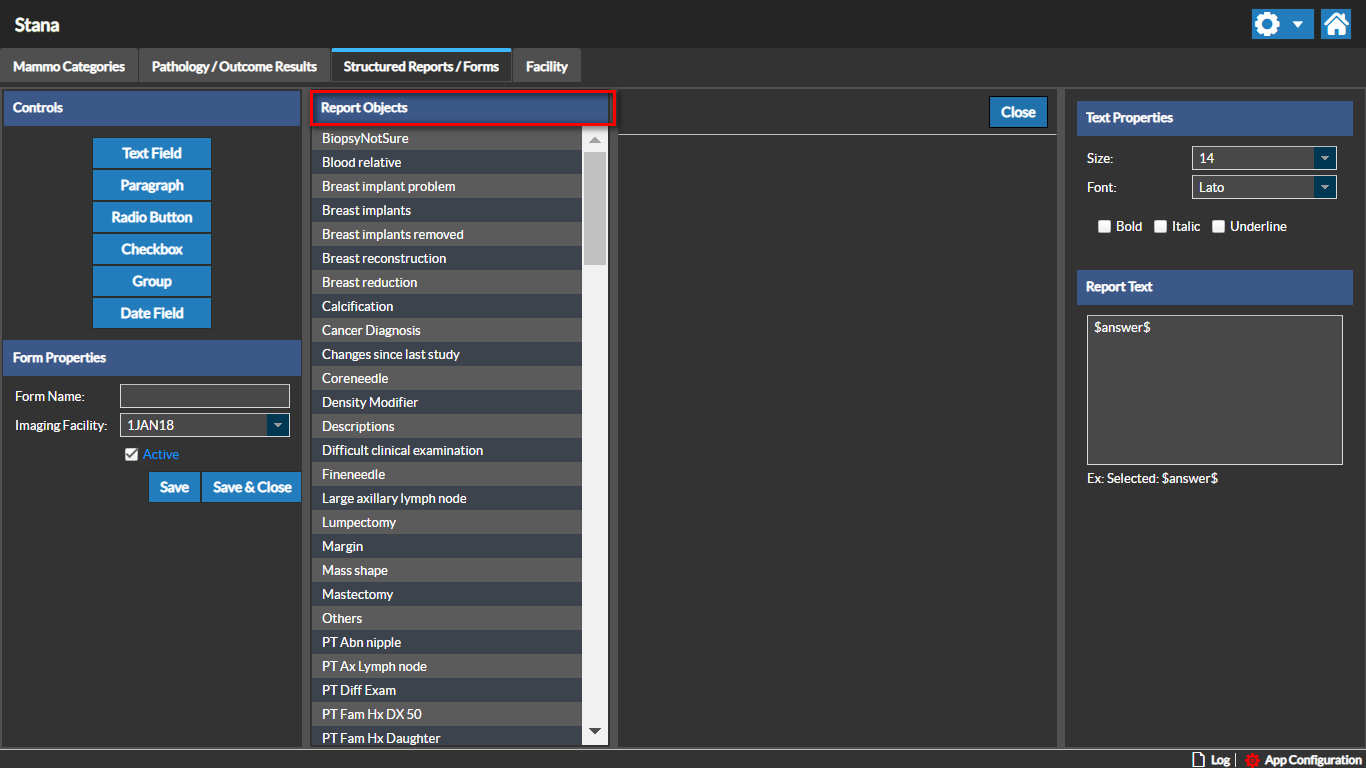
To add a new Rad Data Sheet, click the Add button.You can see the list of the existing Report Objects that are available for this Rad Data Sheet.
Double-click the desired objects to add them into the form. You can delete an object on the form by clicking the Delete icon on the Report object. You can dynamically add additional answers to an existing Report Object as described in the Adding a new Report Object section.
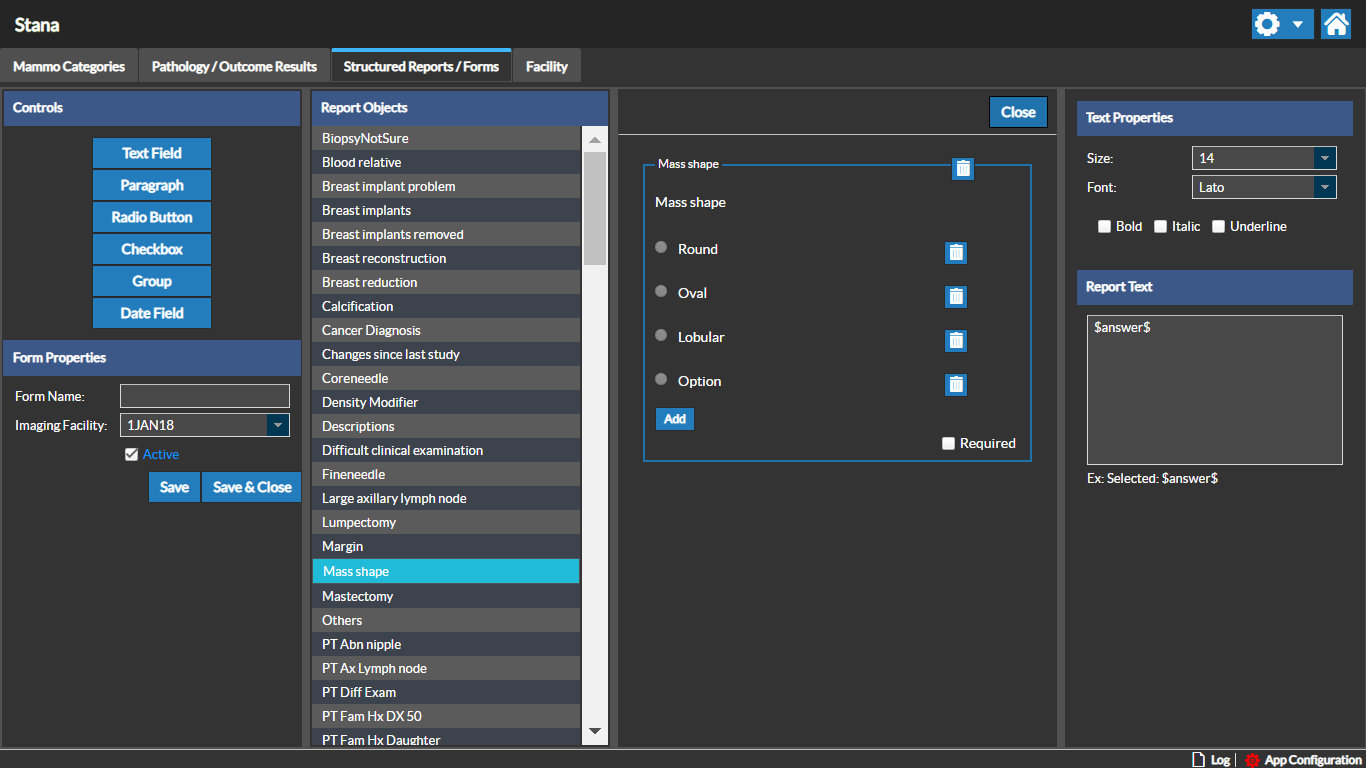
Enter the Form Name in the Form Name field and Click the Save button to save the changes to the Rad Data Sheet form/template.
Typically the report objects would be based on the Category, the Rad Data Sheet has been designed for.
Tech Data Sheets
You can edit existing Tech Data Sheets or create a new one by following the same steps as you followed to create the Rad Data Sheets. The Tech Data Sheets are also version controlled to minimize any data loss.
Patient Questionnaire
To add or edit a Patient Questionnaire, click the Patient Questionnaire tab on the Structured Reports/Forms for the selected facility.
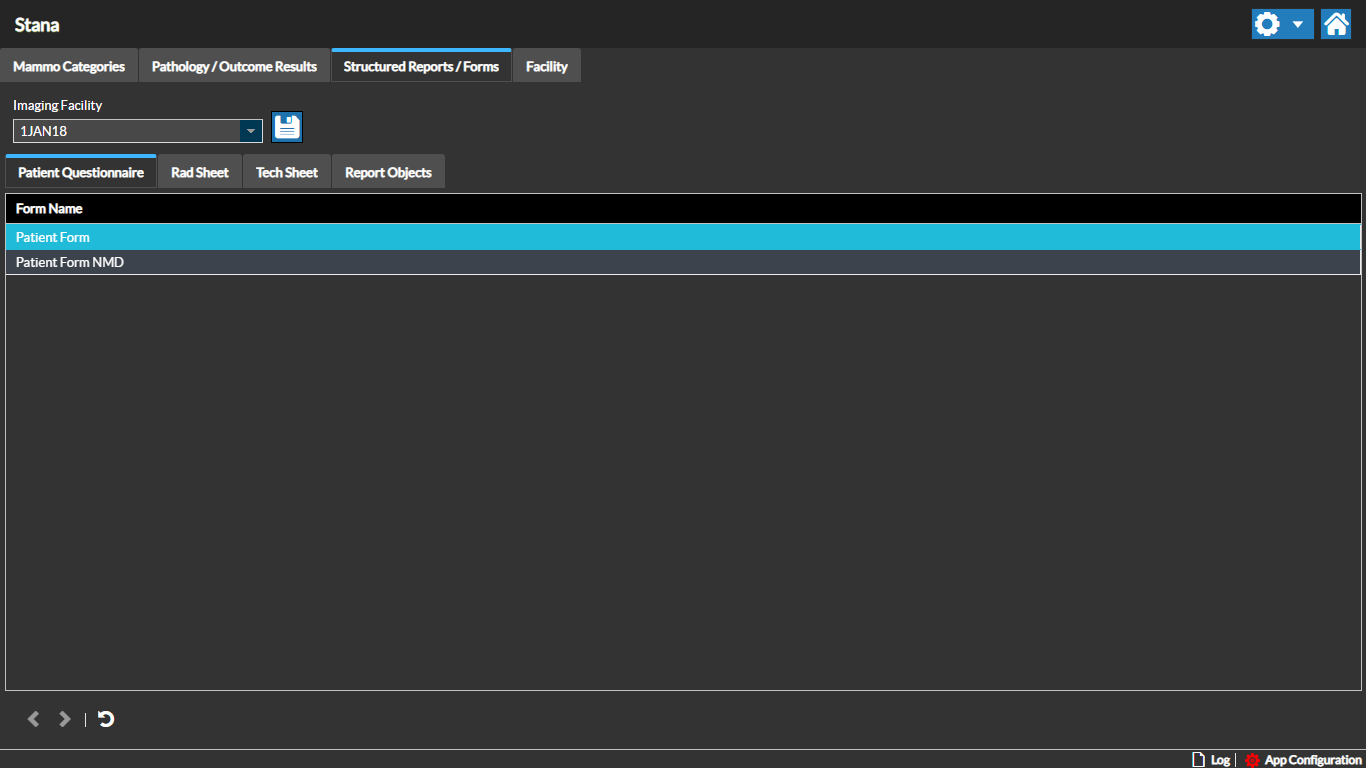
You can customize the content that need to be added to a Patient form for a specific facility using the Patient Questionnaire button in the Structured Reports/Forms screen based on the needs of your facility.
Once you add the relevant Report Objects, save the changes. The Patient Questionnaire for the specific facility would now contain the updated content data elements.
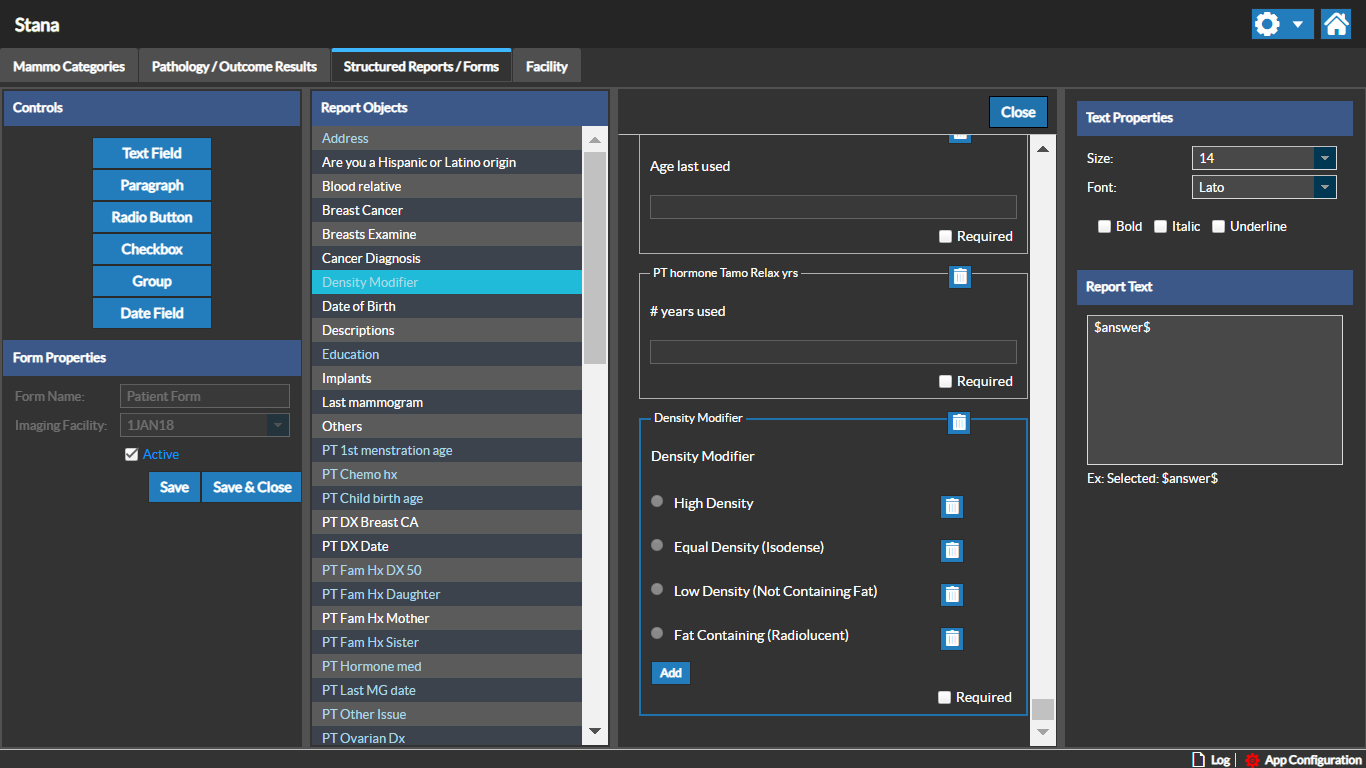
Once objects are added for a Patient Questionnaire, Tech Data Sheet or Rad Data Sheet, the existing objects that are added are highlighted in blue. Double-clicking on any object will navigate you to the corresponding question under that object.
RELATED TOPICS: