Diagnosis Codes
The Diagnosis Codes are used to group and identify diseases, disorders, symptoms, and medical signs.
- Click RIS Settings > Diagnosis Codes. This screen can be used to create, view or edit Diagnosis Codes.
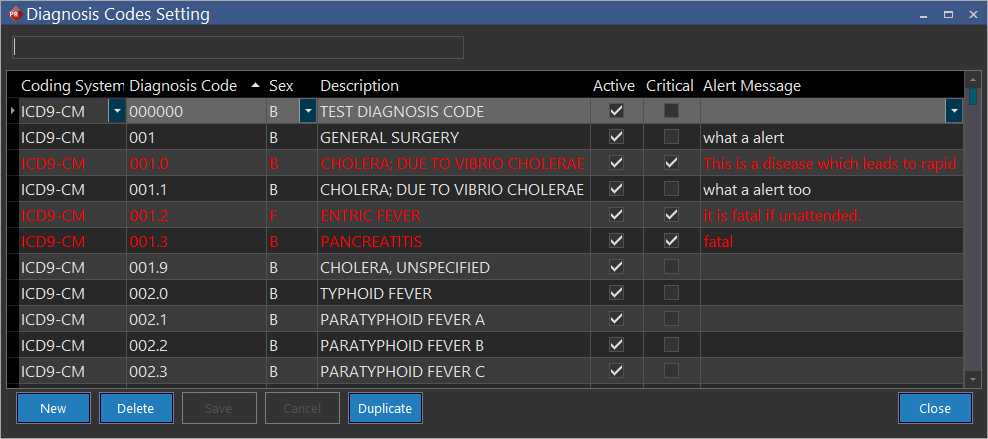
- Click New. A new row is added to the existing list.
- The ICD9-CM Diagnosis Coding System is displayed by default. Select an alternate Coding System if needed. The default coding system is set up on the basis of the default coding system's Start and End dates along with Study Date. The ICD9-CM Coding System is selected by default until September 30, 2015. From October 1, 2015, ICD10-CM is selected by default.
- Type the identification code in the Diagnosis Code text field.
- Enter the Sex.
- Type the name of the diagnosis in the Description text field.
- Ensure the Active checkbox is checked, denoting that the diagnosis code created remains active. By default, the Active checkbox is checked.
- Select the Critical checkbox if the diagnosis code is crucial.
- Click the Alert Message text field to enter a note on the criticality/complications section. Red indicates that the diagnosis code created holds top priority.
- Type a special note in the Alert Message text field. By default, this can be seen by all Reading Physicians, Performing Physicians, Performing Technologists and Transcriptionists.
- The Alert Message is displayed when the Critical Alert button is pressed in the Alerts toolbar. The message is also displayed when the Study Info form is opened by the user. The Alert Message is mandatory for Critical Diagnosis Codes.

- If a Diagnosis code is not critical, it is still possible to create an Alert Message in the diagnosis code screen. This non critical message will appear in black when the Study Info form is opened.

- It is possible to have more than one diagnosis code. Diagnosis codes are displayed in the alert popup when the critical alert button is pressed inside the study or when the study info form is opened. Alerts are displayed in numerical order. Critical alerts are displayed in red.
- Click Save to save the changes.
- The Procedure Codes can be duplicated and deleted with the Duplicate and the Delete buttons available at the bottom of the form.
Existing codes can be filtered by entering the description or the diagnosis code number in the search window.