New Order
The purpose of New Order is to create one or more studies. Studies can be created for an existing patient and for a new patient. The newly created Order is placed at the top of the Worklist; older/existing Orders are pushed down. All Orders remain visible on the Worklist.
Prerequisite:
To create a new Order for an existing or new patient, a referring facility and study types must exist.
Creating a New Order for a Existing Patient
- Click Create a New Order icon
 on the main toolbar. The New Order screen is displayed.
Fields such as Patient, Referring Physician, Referring Facility and Studies are mandatory. The remaining fields are optional and can be left blank.
-
Eligibility: Opens the Practice Suite web application associated with PowerReader. Displays the insurance details such as number of insurances held by patient, insured person name, family relationship, coverage amount, validity period etc.
-
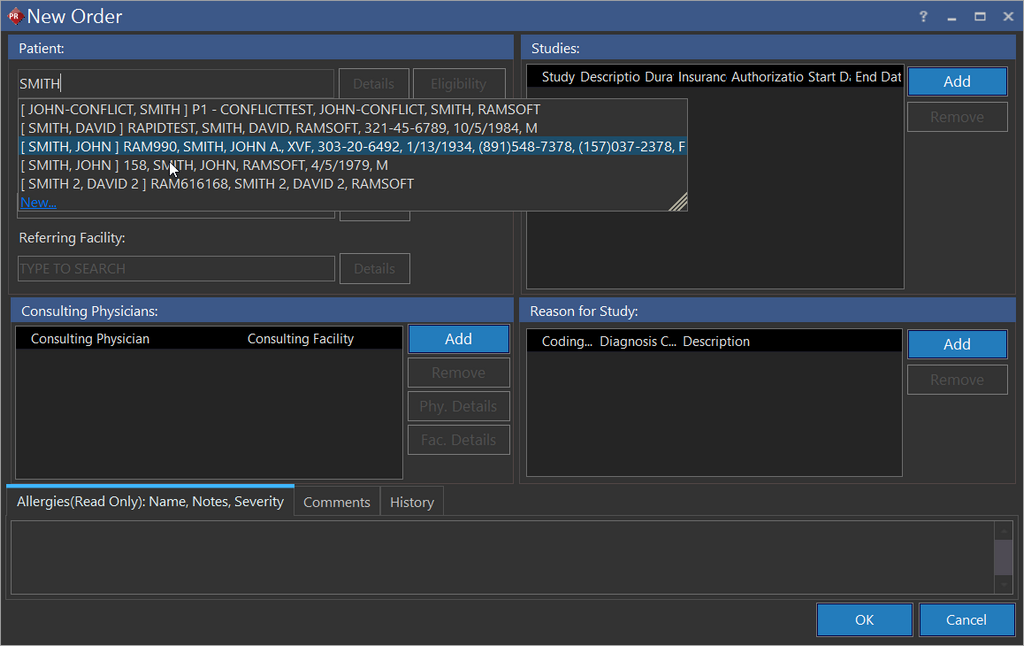
Type the existing patient name in the Patient text field. Typed text that matches with the database are filtered. The matched record can be found at the top of the grid. Once the patient is selected, the application displays the patient's allergic conditions, notes, and severity. The allergic information is displayed in red as read-only.
-
Select the patient name from the grid.
-
Select the priority and name of the imaging facility from the respective fields. The imaging facility field is not mandatory. If an imaging facility is selected for this new order, ensure the imaging facility exists. All fields in the Patient section support meta-search.
-
In the Facility field, type in the Facility name and based on the text being entered. All Facility names matching with or containing the entered text are available for selection.
-
Type or search the name of the physician who has referred the patient in the Referring Physician text field.
- A Referring Physician's name can be meta-searched either with the physician's Last Name, First Name or Middle Name, NPI number or a combination of these.
- Available values matching the values entered so far are displayed along with the address, city and state information of the matching names.
- If the Referring Physician cannot be found, click New to add a new referring physician. For more details, see the section Search by a Referring Physicians Name
-
Upon selecting the Referring Physician, the Referring Facility field is enabled.
-
Any associated Referring Facilities are auto populated in the drop-down menu.
-
Click Add under Studies and enter the type of study, a detailed description and the authorization number in the respective fields.
-
Click Add under Reason for Study and enter the diagnosis code and a note in the respective fields. If the Procedure Code or Diagnosis Code is critical, an alert message is displayed. Multiple Reasons can be added.

-
Click OK. The application displays a confirmation screen. Click Yes to save.
How to Create a New Order for a New Patient
-
Click New Order icon found in the toolbar. New Order screen appears as shown below.
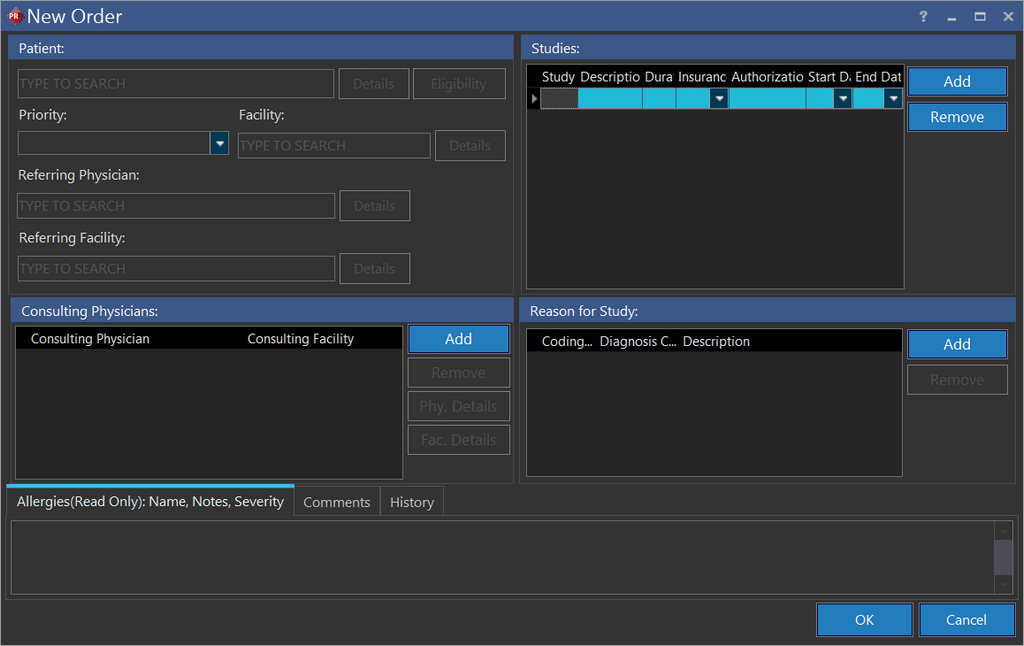
The fields such as Patient, Referring Facility and Studies are mandatory. The remaining fields are optional and can be left blank.
Eligibility: Opens Practice Suite web application which is associated with PowerReader. It displays the insurance details such as number of insurances held by patient, insured person name, family relationship, coverage amount, validity period etc.
- Enter the new patient name in the Patient text field. While you type the patient name, the typed text matches with patients name in the database. If the typed in patient name doesn't match, the application shows New below the patient name.
- Click New. Upon click, Patient Info screen appears.
- Refer Patient Registration (RIS) for the remaining steps.
The Details button located beside Patient, Imaging Facility, and Referring Facility text fields allows the viewing of additional information about the patient, imaging facility and referring facility.
The Studies field is used to determine the number of new studies to be ordered.
Search By a Referring Physician's Name
A Referring Physician's name can be meta-searched either with the physician's Last Name, First Name or Middle Name, NPI number or a combination of any of these. When typing the letters of the Referring Physician's name, the available values matching the values entered are displayed along with the address, city and state information of the matching names.
TIP: The physician can be searched with his/her username and the associated Last Name, First Name or Middle name.
Start by entering the Referring Physician's last name or First Name or Middle Name, NPI number, Address, City and State . As text are entered, the following options are displayed:
-
Entering LASTNAME, FIRSTNAME and MIDDLE NAME will enable all three fields for comparison using an "AND" condition.
-
Entering LASTNAME and FIRSTNAME will use these two fields for comparison using an "AND" condition.
The separators "^" and "," can be used to separate the Last Name, First Name or Middle Name when entering a name in the Referring Physician field.
If a name is entered followed by a separator, for example "SMITH^" or "SMITH," the system will ignore the separators and start searching for names starting with "SMITH".
- If entering only one name which can either be a LASTNAME or FIRSTNAME, the system would search using an "OR" condition. For example, entering "JOHN" in the Referring Physician field will include all users with either LASTNAME or FIRSTNAME being "JOHN". In addition, the system will search for all users with USERNAME being JOHN. If any are found, these users are added to the search results list.
- If entering a single letter, for example "P", the system will check for all the names that contain the letter P either in the LAST NAME, FIRSTNAME or the MIDDLE NAME of the Referring Physicians. In addition, the system would check for a USERNAME that contains the letter "P" and then display the associated Referring Physician's name.
Note : These rules apply not only for meta-searching Referring Physicians, but also to Reading Physicians, Performing Physicians, Transcriptionists and Performing Technologists.