Study Types (RIS)
Study Types are used to group multiple Procedure Codes. Studies that are a combination of multiple procedures are easier to order than individual studies. Study Types can be found by accessing RIS Settings > Study Types. Study Types screen appears as shown below.
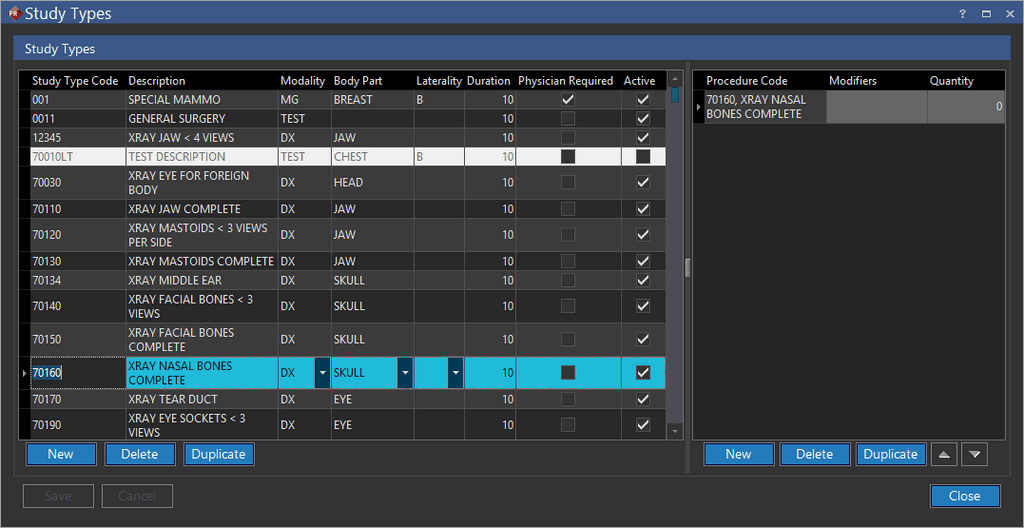
To create a new Study Type, click New at the bottom of the window should be pressed. Study Type Code and the Study Type's Description should be entered next for easy reference. The next step is to press New under procedures codes and to add at least one Procedure Code for the study.
As designed, each Study Type can have one or more procedures. A new procedure can be added by pressing the New button below the procedure list. The procedure code is a mandatory field while all other information is optional.
The following columns are available in RIS-only systems:
- Modality
- Body Part
- Laterality displays the laterality of the body part that the study was performed on.
- Duration is the amount of time required to complete this study. This is used to schedule studies for the appropriate length of time in the Scheduler. When a study is not scheduled, the duration for the study shows this duration by default. Once the study is scheduled, the Duration column for the study shows the appointment's duration.
- Physician Required indicates whether or not a physician is required to be present during this study. If a physician is not required this box should be left unchecked.
- Procedure Codes
The Active column can be used to de-activate or activate a Study Type. Once de-activated, the Study Type will not be available for selection.
The procedures here can be duplicated and deleted with the Duplicate and the Delete buttons available at the bottom of the form.
Click the Save button to save the changes.