Scrolling Through Frames
The following 4 ways can be used to scroll through frames:
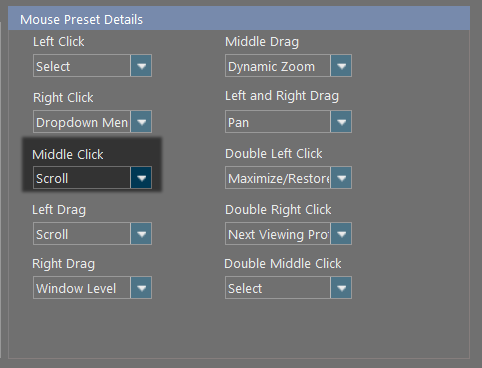
- Mouse default setting for scrolling through frames: the mouse can be configured to have a default action for scrolling through frames, i.e. Left Drag. The default functions of mouse actions is customizable and specified in Mouse Presets. Perform the scrolling operation by activating the mouse default setting for scroll, if set.
- Scroll Tool: select the scroll tool from the Image Tools toolbar and drag the mouse while holding down the Left Mouse button.
- Arrow keys on the keyboard: press the Up/Left or Down/Right arrow keys to scroll back and forward, respectively.
- Mouse Scroll Wheel: scroll the mouse wheel to scroll through frames.
To use the function, Middle Click must be set to "Scroll" in Mouse Presets.
Accelerated Scrolling
Accelerated scrolling allows a user to quickly scroll through a large series of images, or a large number of image slices / frames (in the case of Cine mode). Accelerated scrolling skips images during scrolling, which can be observed by the "Frame: #" or "Img: #" at the top-right skipping numbers as images are rapidly scrolled. Accelerated Scrolling can be applied by holding down the "Alt" key during scrolling with Methods 1, 2 and 3 (Mouse drag, Mouse scroll wheel and Keyboard Arrows).

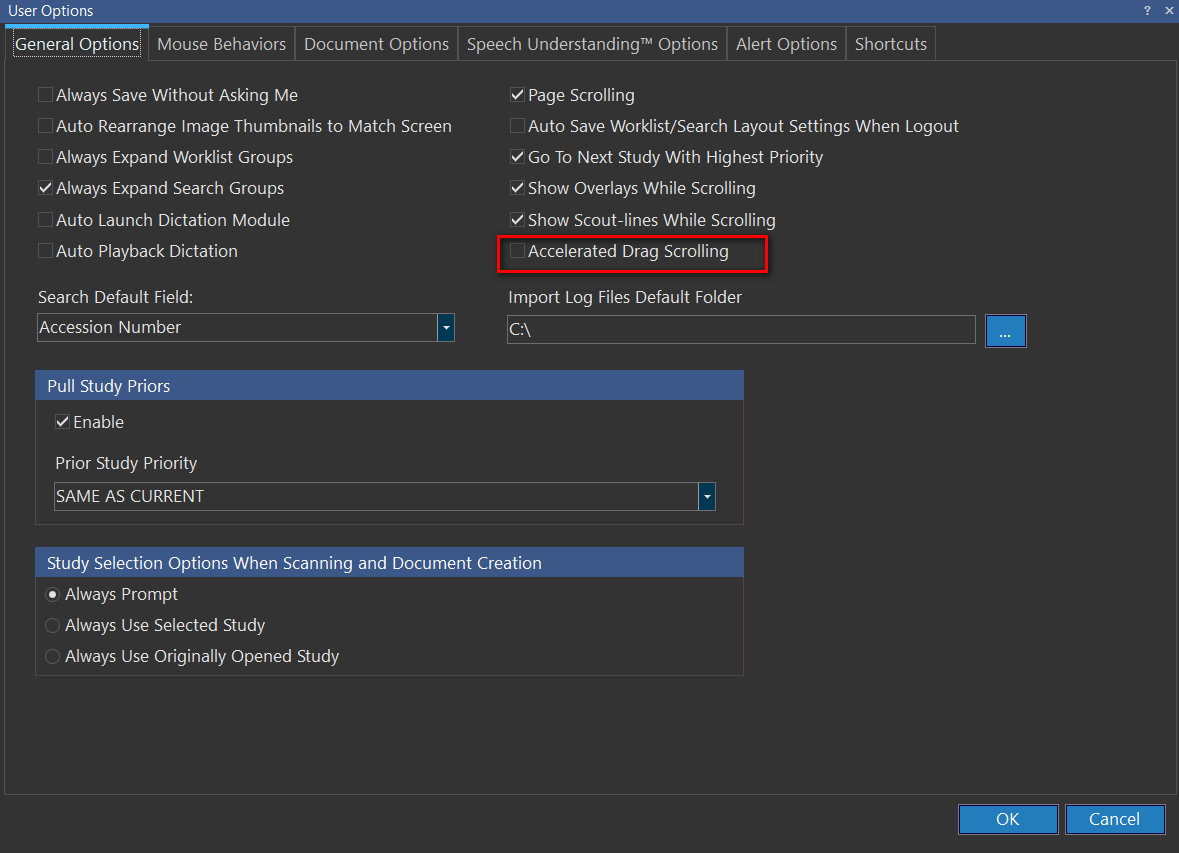
Accelerated scrolling via dragging the mouse can be set to default by checking the option in Settings: User Options: Accelerated Drag Scrolling. By checking this option, drag scrolling (scrolling by dragging the mouse with left click) is always accelerated.
The cursor moves back to its original position when it is moved beyond the view box to allow user infinite scrolling.
Note that accelerated scrolling has not been incorporated in RapidResults or when images are scrolled in Remote Rendering Mode; it is only a feature in PowerReader Local Rendering Mode.