Stana - Web
Stana Web gives a consolidated statistical dashboard view of the most common data needed for Mammo Tracking.
Stana Web is available only with the Stana license enabled. With the Stana license, you should be able to enable the following privileges:
- Admin Stana
- Access Stana
Launch Stana - Web from the PowerReader Login Portal by clicking on the Stana application icon.
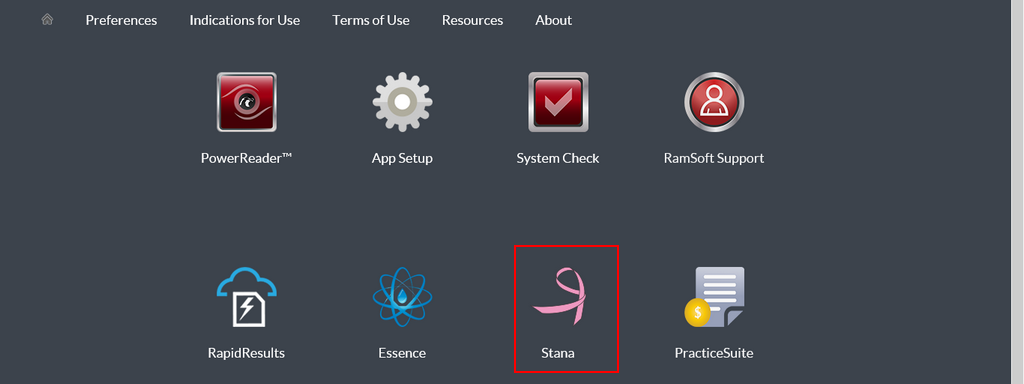
The Stana module I-Mammo Dashboard Home screen opens up in a webpage.
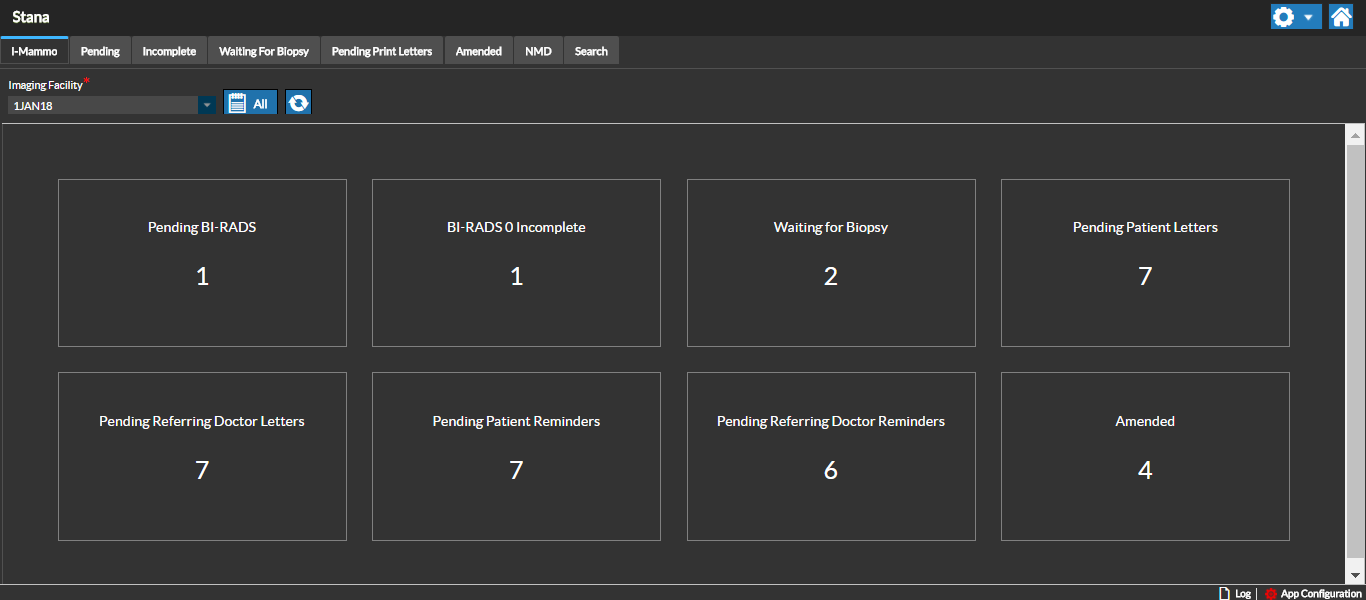
From the dashboard, you can see the number of studies requiring action from you, including printing letters, contacting patients for followups and scheduling studies for biopsy.
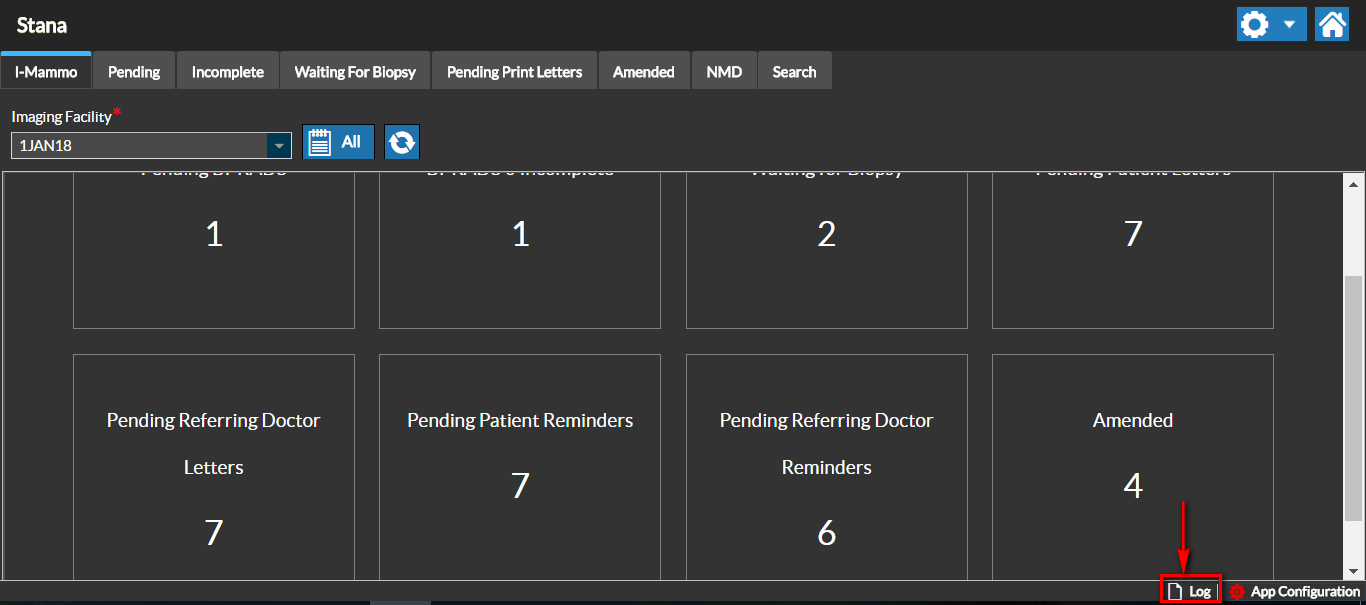
Each Gadget/Bin (live tiles) on the Home Screen (I - Mammo Dashboard) displays live information on the information pertaining to the tabs on the toolbar based on the refresh interval set up.
Pending items will be added to the Stana bins under the following criteria:
- PENDING PATIENT LETTERS – Immediately once the BI-RADS SCORE is assigned
- PENDING REFERRING DOCTOR LETTERS – Immediately once the BI-RADS SCORE is assigned
- PENDING PATIENT REMINDERS – BI-RADS SCORE must be assigned and Date Filter range covers the next patient remind date
- PENDING REFERRING DOCTOR REMINDERS – BI-RADS SCORE must be assigned and Date Filter range covers the next Referrer remind date
The following tabs are available from the toolbar:
- Pending
- Incomplete
- Waiting for Biopsy
- Pending Print Letters
- Amended
- NMD
- Search
In any of these screens you can always view the status of a study from the Study Status column.
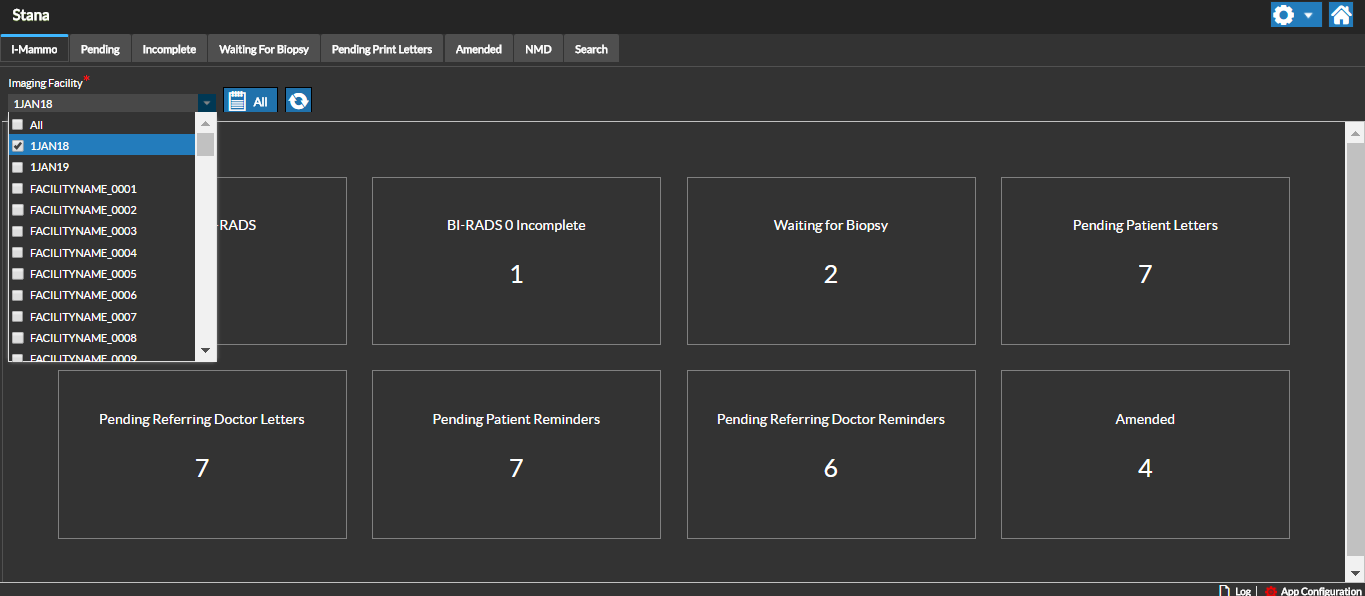
For a selected Imaging Facility you can get the latest study statistics by refreshing the dashboard screen without getting into a specific Worklist.
Change the Imaging Facility to view the current information for a specific Facility on the I-Mammo dashboard by selecting the required facility from the Imaging Facility field.
App Configuration Settings
You can access the App Configuration options by clicking the Gear Icon at the bottom of the I-Mammo dashboard screen.
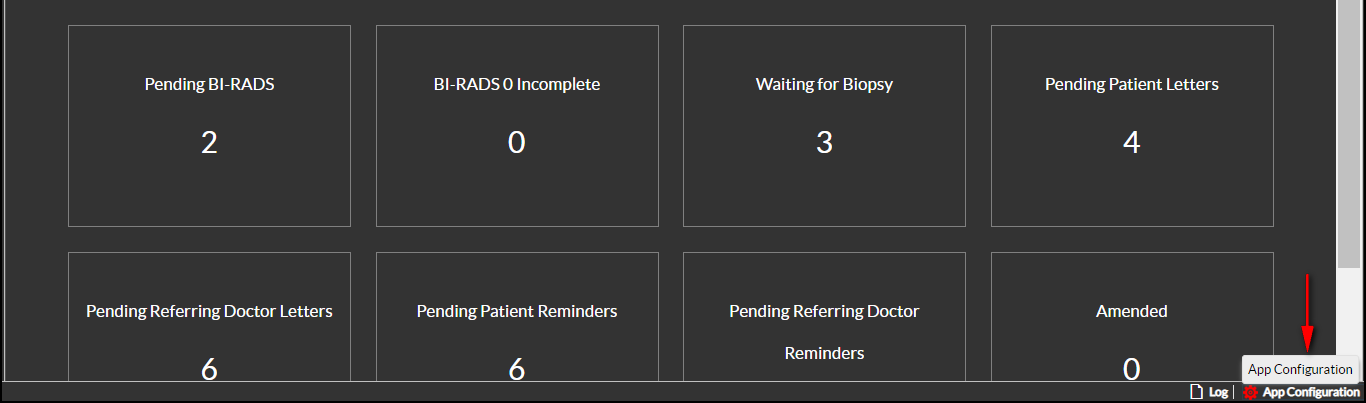
The App Settings dialog box appears. You might want to set up your primary facility information to appear on the I-Mammo dashboard by default. The Default Imaging Facility option lets you select the desired Facility from the list of Stana Facilities.
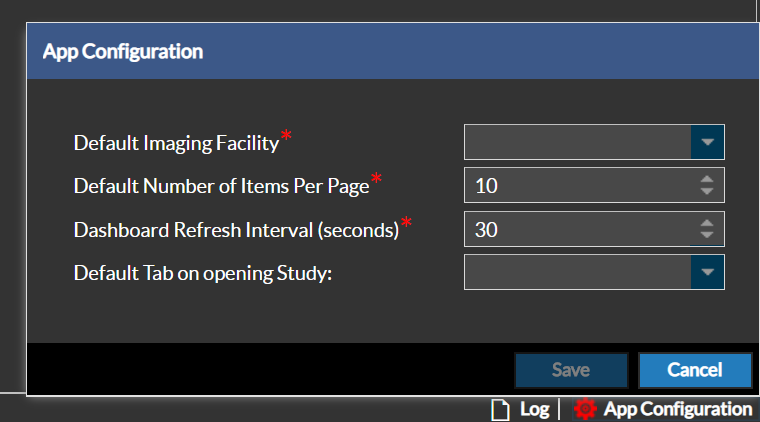
Once the changes are saved and Stana Web is opened, you can see that the I-Mammo dashboard displays data for the selected Facility by default.
Default Number of Items Per Page: lets you determine the number of studies/items displayed in a grid. By default it is set to 10. This change would reflect in all the grids.
Dashboard Refresh Interval (seconds): lets you set up the refresh interval (in Seconds). The dashboard screen is refreshed as per the refresh interval. You can set this as per the Study schedule in your facility.
Manually refresh the dashboard screen by clicking the Refresh icon near the Calendar button to reflect the changes.
Default Tab on opening Study: Lets you select which tab (Patient Questionnaire, Tech Data Sheet, Rad Data Sheet, or Outcome) you want to be opened in the Stana tab when you open a study for the first time. If none is selected the system will open a tab based on user's role settings:
| User Role Setting | Stana tab that will be opened by default |
|---|---|
| Reading Physician, Transcriptionist | Radiology Data Sheet |
| Performing Physician, or Performing Technologist | Tech Data Sheet |
| Reading Physician or Transcriptionist and Performing Physician or Performing Technologist | Radiology Data Sheet |
| None of the above | Patient Questionnaire |
Audit Logs
You can click the Log icon on the bottom right hand corner of the I-Mammo dashboard screen to view the system generated Stana Audit log.
The Audit Log screen appears listing the Screen names and the description of the user activity on that screen.
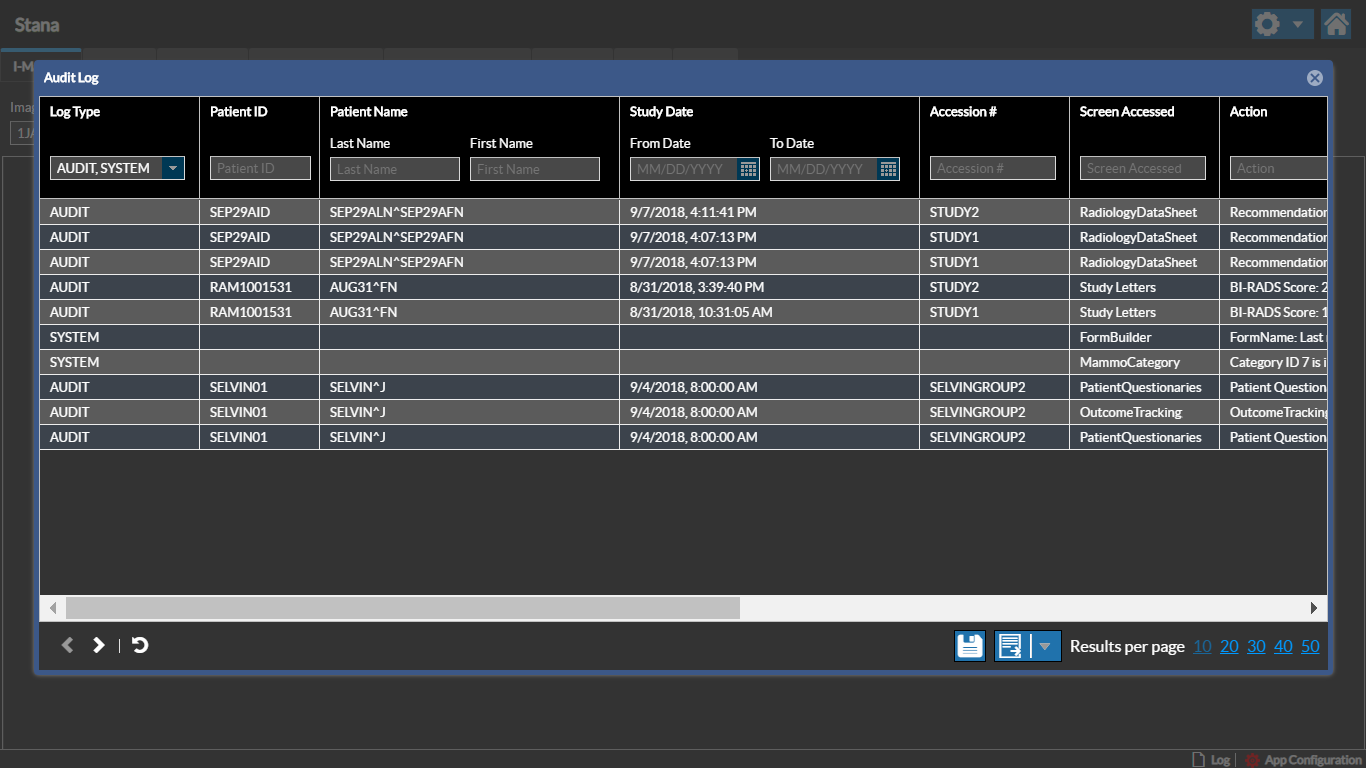
You can select the From Date and To Date in the Created Date field to select required date range. The audit log filters the log to display the user information within the selected time period. The total number of log pages along with the page navigation option is displayed on the bottom of the Audit Log screen.
Home Screen
The Home screen button can be accessed from any screen in Stana Web. Clicking the Home button on any screen navigates back to the I-Mammo dashboard screen.

RELATED TOPICS:
- Enabling a Facility With Stana
- Enabling Stana For a Study
- Patient Questionnaire
- Tech Data Sheet
- Radiology Data Sheet
- Study Grouping With Mammo Studies
- Scheduling a Biopsy and Assessing Outcome
- Editing a Study
- Pending Mammo Studies
- Tracking Pending Followups
- Tracking Pending Print Letters
- Printing Letters
- Searching Mammo Studies
- Configuration Settings
- Selecting an Active Data Range