Drug-Drug Interactions
It is possible that a drug-drug interaction might occur while prescribing medicines. In that case, the NewCrop interface displays a warning. These warnings can be turned off if desired.
- Click View Patient Information
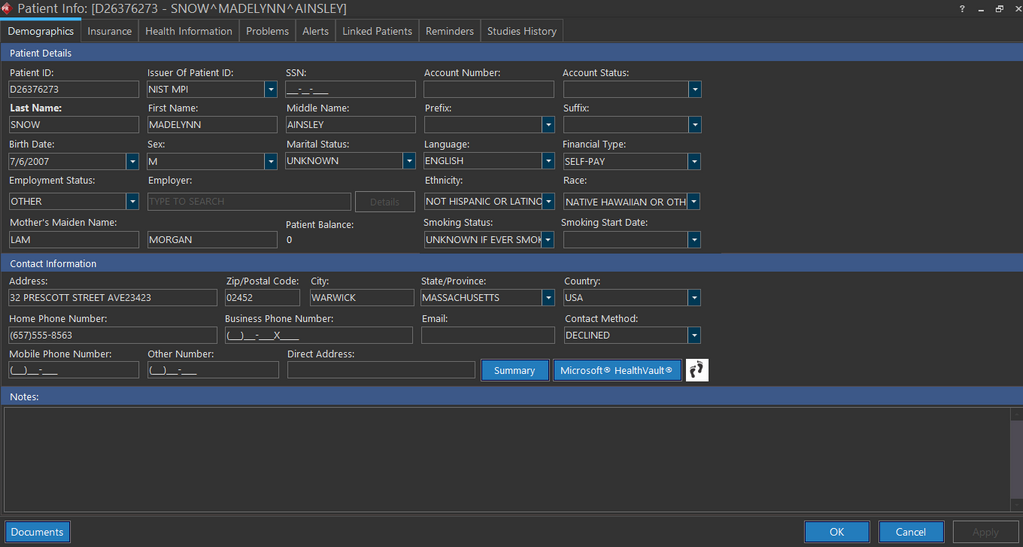
 icon. Demographics tab of Patient Info screen appears as shown below.
-
Enter the patient's details whichever is mandatory under Demographics tab.
-
Click Health Information tab. Health Information tab of Patient Info screen appears as shown below.
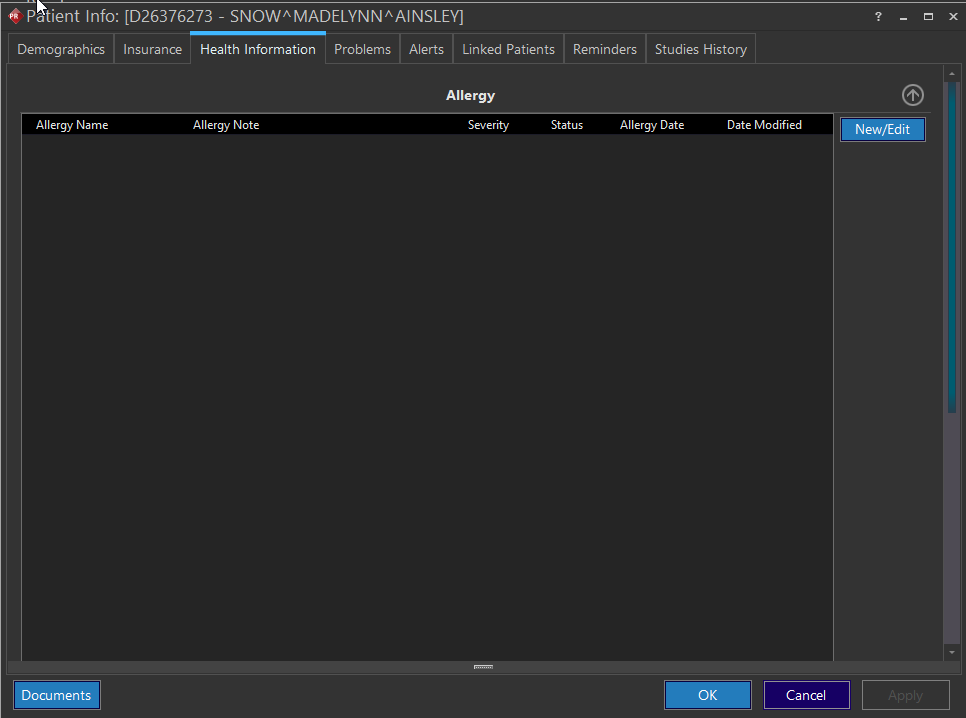
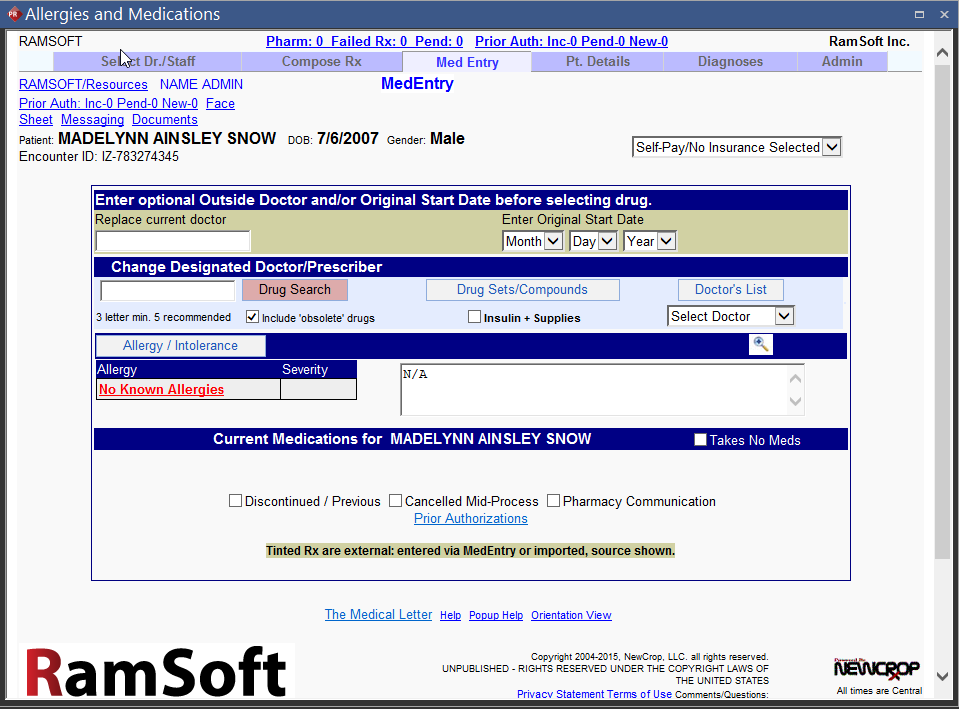
- Click New/Edit button. Upon click, the application launches NewCrop interface. The Allergies and Medications screen of NewCrop interface appears as shown below. By default, the interface displays Med Entry tab.
- Click Compose Rx tab. The NewCrop interface displays Compose Rx tab screen as shown below.
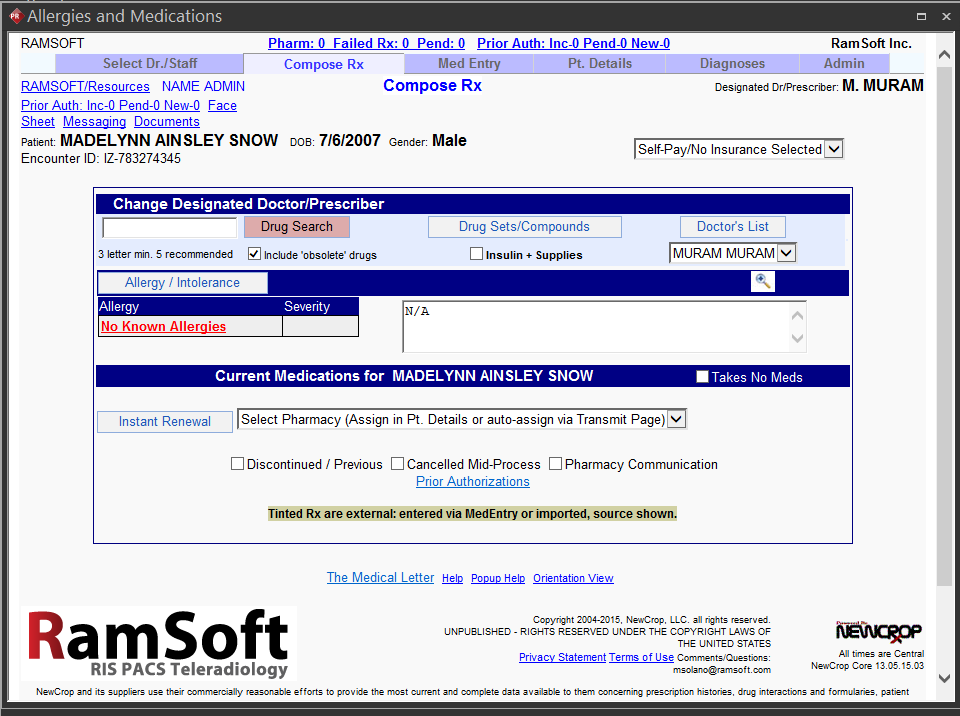
Before you prescribe a medicine, you could search it by typing the name of the medicine in the text field besides Drug Search button. In addition to search, you could also select the drug from the searched list.
- Type the first three characters/letters of the medicine you wish to prescribe and click the Drug Search button which is highlighted in red as shown below.

For example, let us consider "Dia" as first three characters/letters of the medicine. Type "Dia" in the text field and click the Drug Search button. All the drug names starting with "Dia" are shown as below:
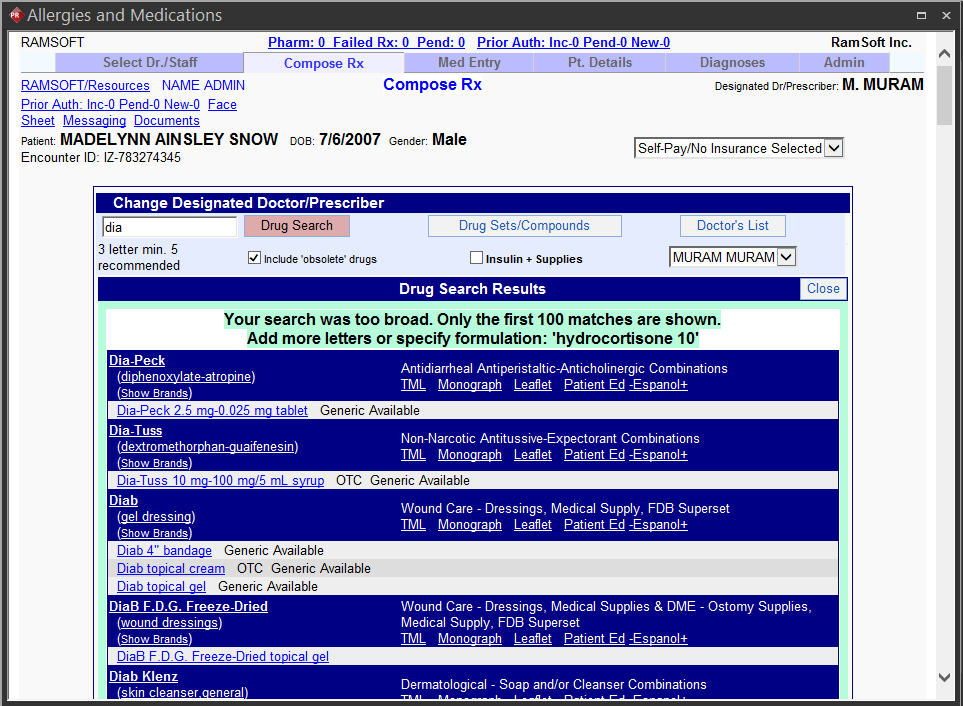
- Select the drug from the list. The Pending Rx screen is displayed. This screen facilitates you in administrating the dosage of the drug.
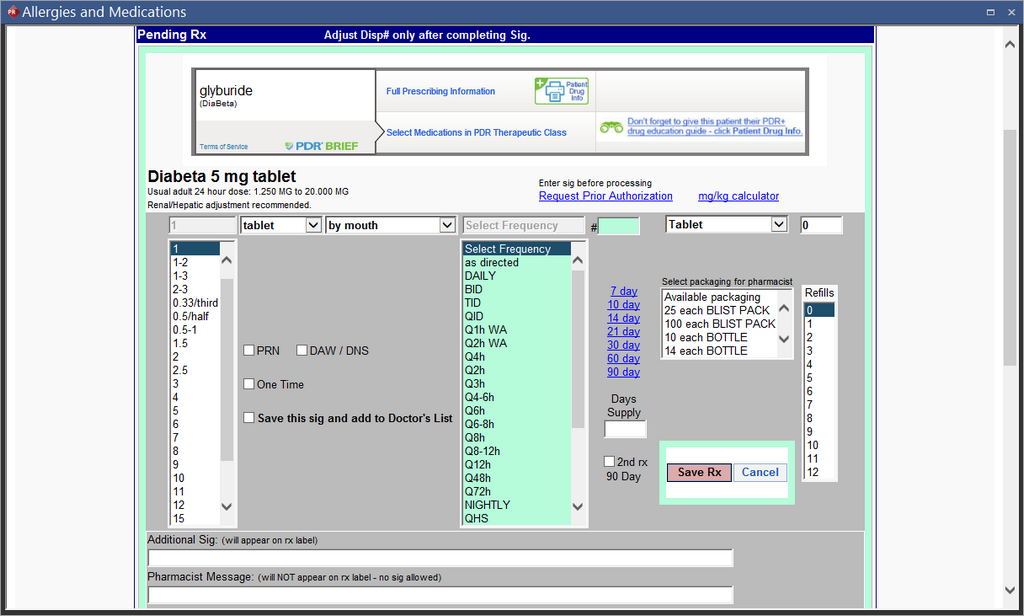
-
Complete the dosage administration fields, click Save Rx button.
-
Repeat steps 6 - 8 as many times you wish to add medicines to the prescription. Upon completion, click Take Complete Rx to Review Page button. This will check whether the selected prescription has any contra indication such as drug-drug interactions. If the NewCrop interface doesn't prompt with alert/warning, it means that the medicines have no contra indications with the selected drug(s).
For example, if the patient is prescribed Lasix and Lenoxin, see how the interface displays a warning displaying the Drug-Drug interaction.
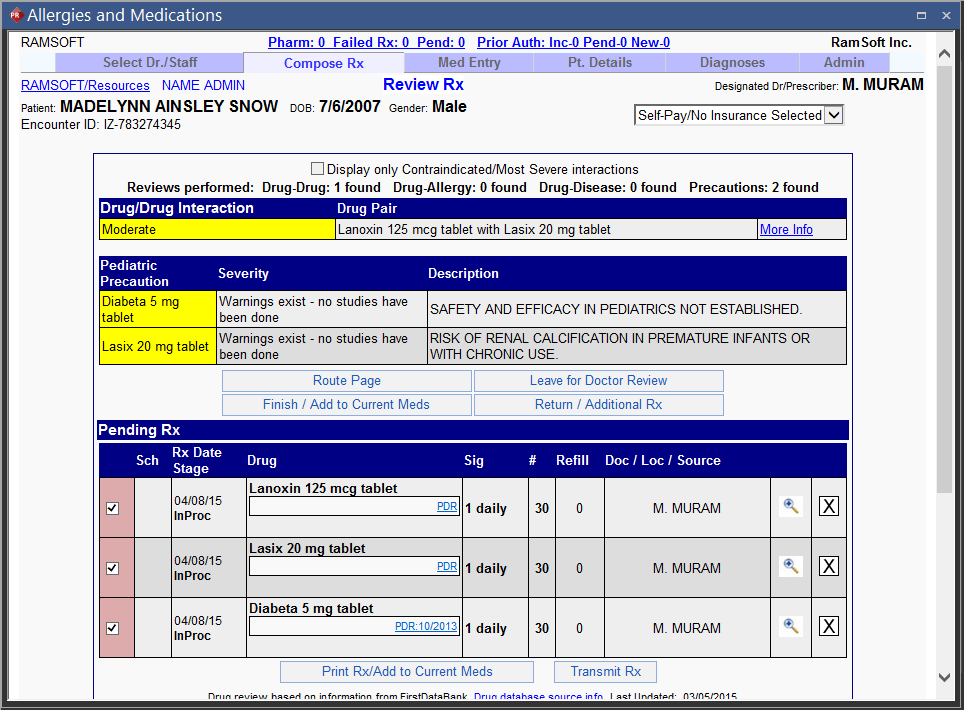
Note: You can choose not to highlight the interaction for any pair of drugs by setting up the display property for the interaction under the Admin Tab.
You can do this by performing the following:
- Click the Adjust Individual Drug and Allergy Interaction Display link.
- Enter the pair of drugs you do not want to highlight the interaction for.
You can see that the pair of drugs that we chose are listed in the Drug Interactions That Will Not Be Highlighted table.
- Click Finish / Add to Current Meds to complete the process of prescribing the medicine.
This Meaningful Use feature is available in RamSoft PowerServer only with Meaningful Use license.