Modality Fee Schedule
The modality fee schedule allows you to define various modalities and its charges based on the usage of the modality in a facility.
- The section on the left creates an individual modality fee schedule or a group of modalities fee schedule as per business requirement. A group is a collection of more than one modality fee schedule.
- The section on the right lists various modalities and defines the charges that could be levied from the patient.
- Both sections has their own control buttons including New, Delete, and Duplicate. The buttons Save, Cancel, and Close are shared by both sections.
How to create a Modality Fee Schedule
- Click RIS Settings > Fee Schedules.
- Click the Modality Fee Schedule tab.
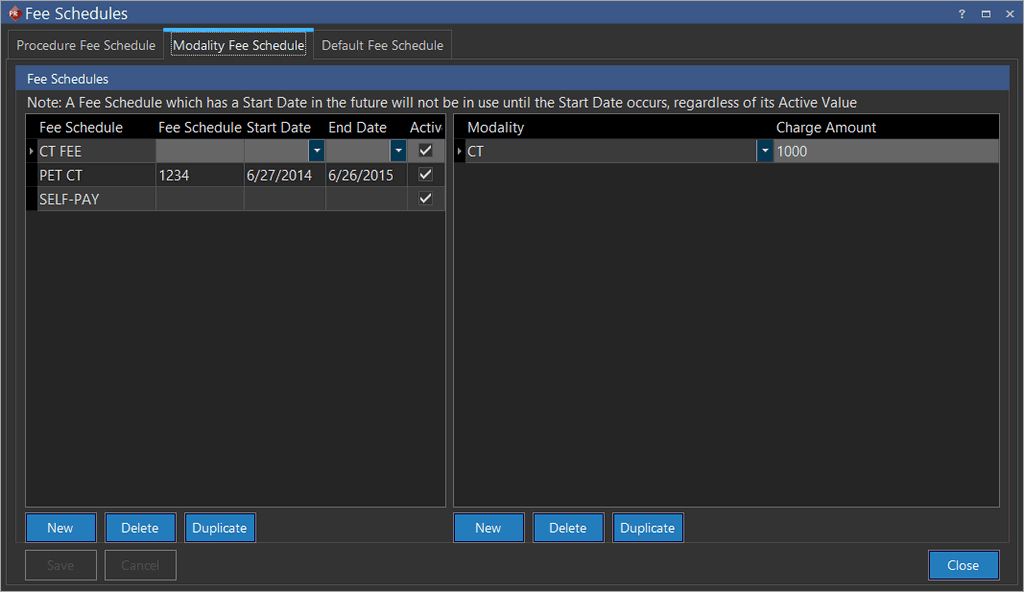
How to create an individual/group Modality Fee Schedule
- Click New.
- Type in the name of the new group in the Fee Schedule column.
- Type an unique identification code in the Fee Schedule ID column.
- Click the Start Date dropdown and select the start date of the individual/group validity period.
- Click the End Date dropdown and select the end date of the individual/group validity period.
- Ensure the Active checkbox is checked.
- Click Save.
How to define a Modality Fee Schedule
Prerequisite: At least one group: a procedure can be created only under a group.
Limitation: A procedure can be created only for an active group.
Validation: A group remains active only for the configured period. To add a new procedure under an inactive group, modify the validity period of the group accordingly.
- Click New.
- Click the Modality drop-down menu and select the appropriate code from the predefined list.
- Type in the amount that could be levied as fees from the patient in the Charge Amount column.
- Click Save.
How to duplicate a Modality Fee Schedule
- Click RIS Settings > Fee Schedules. Fee Schedules screen appears. By default, Procedure Fee Schedule tab appears.
- Click the Modality Free Schedule tab.
- Select the fee schedule to be duplicated and click the Duplicate button. The selected original fee schedule is replicated at the bottom.
- Rename the duplicate fee schedule name and its ID.
- Click the Start Date drop-down and select the start date of the validity period.
- Click the End Date drop-down and select the end date of the validity period.
- Ensure the Active checkbox is checked (Active should be checked by default).
- Click the New button.
- Query and select a Procedure Code.
- Type in the amount covered by insurance for the procedure in the Allowed Amount column.
- Type in the total amount that could be levied as fees from the patient in the Charge Amount column.
- Click Save.
How to delete a Modality Fee Schedule
Limitation: A modality fee schedule can be deleted only if it is not associated with any of the facilities.
- Click RIS Settings > Fee Schedules. Switch to the Modality Free Schedule tab.
- Select the fee schedule to be deleted and click the Delete button on the left. The following alert message is displayed:
warning
Are you sure you want to delete this Fee Schedule and its associated Modalities?
- Click Yes to delete.
- Click Save.