Procedure Fee Schedule
The procedure fee schedule tab defines various procedures and the charges associated with their facility. The Procedure Codes and the modifiers must match in Study Info in order for charge amounts to be sent to the RamSoft Essence module. The Procedure Fee Schedule tab screen has two sections.
- Left section: creates an individual or a group of procedure fee schedule as per business requirement.
- Right section: lists various procedures and defines potential patient levied charges in which the fee schedule belongs.
Both sections has their own control buttons: New, Delete, and Duplicate at the bottom. Lower buttons at the bottom (Save, Cancel, and Close) are shared by both sections.
Prerequisite:
- At least one group exist: a procedure can be created only under a group.
- At least one procedure code must exist.
How to create a Procedure Fee Schedule
- Click RIS Settings > Fee Schedules. The Fee Schedules screen is displayed as below. By default, the Procedure Fee Schedule tab is displayed.
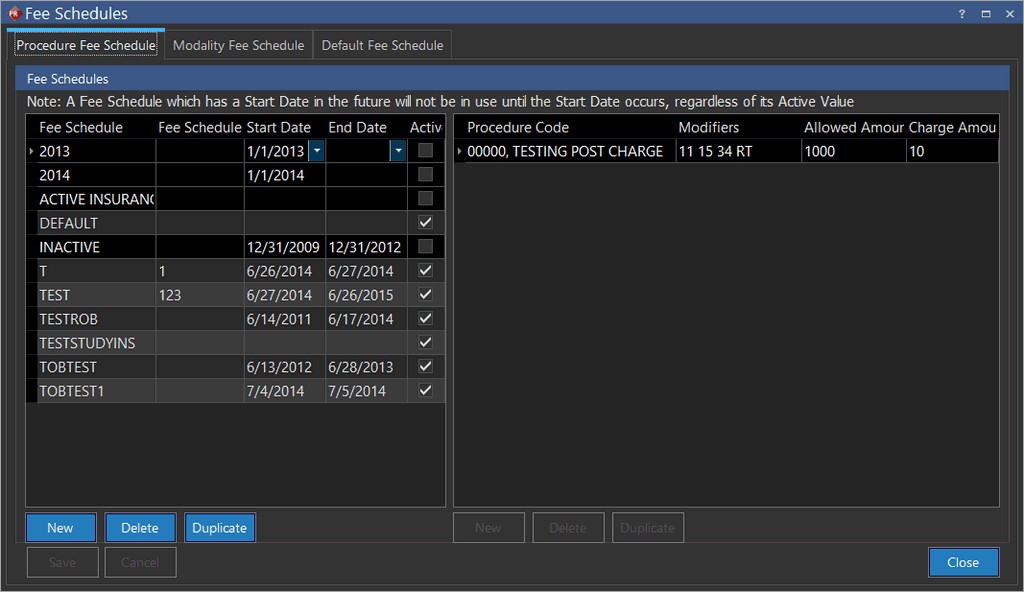
How to create an individual or group Procedure Fee Schedule:
- Click New. The application adds an empty row at the bottom of the predefined groups.
- Type in the name of the new group in the Fee Schedule column.
- Type in an unique identification code in the Fee Schedule ID column.
If the fee schedule start date is in the future, the row is displayed in blue and remains inactive the start date becomes the current date. If the end date of a fee schedule has elapsed, it becomes inactive. A fee schedule outside of its start and end date is inactive when posting charges.
- Click the Start Date drop-down menu and select the start date from which the validity period of the individual/group procedure need to commence.
- Click the End Date drop-down menu and select the end date till which the validity period of the individual/group need to be valid.
- By default, the Active checkbox is checked. It indicates that the individual/group procedure fee schedule you are creating will be active. Ensure the checkbox is checked.
If a fee schedule is deactivated, it is not displayed in the Facility Override or Facility Override Self-Pay Fee Schedule.
If a fee schedule is made inactive after being associated with a facility, it is displayed in the Facility Override or Facility Override Self-Pay Fee Schedule
- Click Save.
How to define a Procedure Fee Schedule
Limitation: A procedure can be created only for an active group.
Validation: A group remains active only for the said period. To add a new procedure under an inactive group, modify the validity period of the group.
- Click New.
- Search and select a Procedure Code by typing the query in the Procedure Code column.
- Type an unique Modifier in the Modifiers column.
- Type the amount covered by insurance for the procedure in the Allowed Amount column.
- Type the total amount that could be levied as fees from the patient in the Charge Amount column.
- Click Save.
How to duplicate a Procedure Fee Schedule
- Click RIS Settings > Fee Schedules. The Fee Schedules screen is displayed with the Procedure Fee Schedule tab opened by default.
- Select the fee schedule to be duplicated and click the Duplicate button. The selected original fee schedule is replicated at the bottom.
- Rename the duplicate fee schedule name and its ID.
- Click the Start Date drop-down and select the start date of the validity period.
- Click the End Date drop-down and select the end date of the validity period.
- Ensure the Active checkbox is checked (Active should be checked by default).
- Click the New button.
- Query and select a Procedure Code.
- Type in the amount covered by insurance for the procedure in the Allowed Amount column.
- Type in the total amount that could be levied as fees from the patient in the Charge Amount column.
- Click Save.
How to delete a Procedure Fee Schedule
Limitation: A procedure fee schedule can only be deleted if it is not associated with any facilities.
- Click RIS Settings > Fee Schedules.
- Select the fee schedule to be deleted and click the Delete button on the left. The following alert message is displayed:
Are you sure you want to delete this Fee Schedule and its associated Procedure Codes?
- Click Yes to delete.
- Click Save.