Lab Result
The Lab Result group is used to document information regarding laboratory test result of the patient. This group can be expanded/collapsed by clicking the header (name) i.e., Lab result.
- Click File > New Patient > Health Information > Lab Result group. The Lab Result screen appears as shown below.
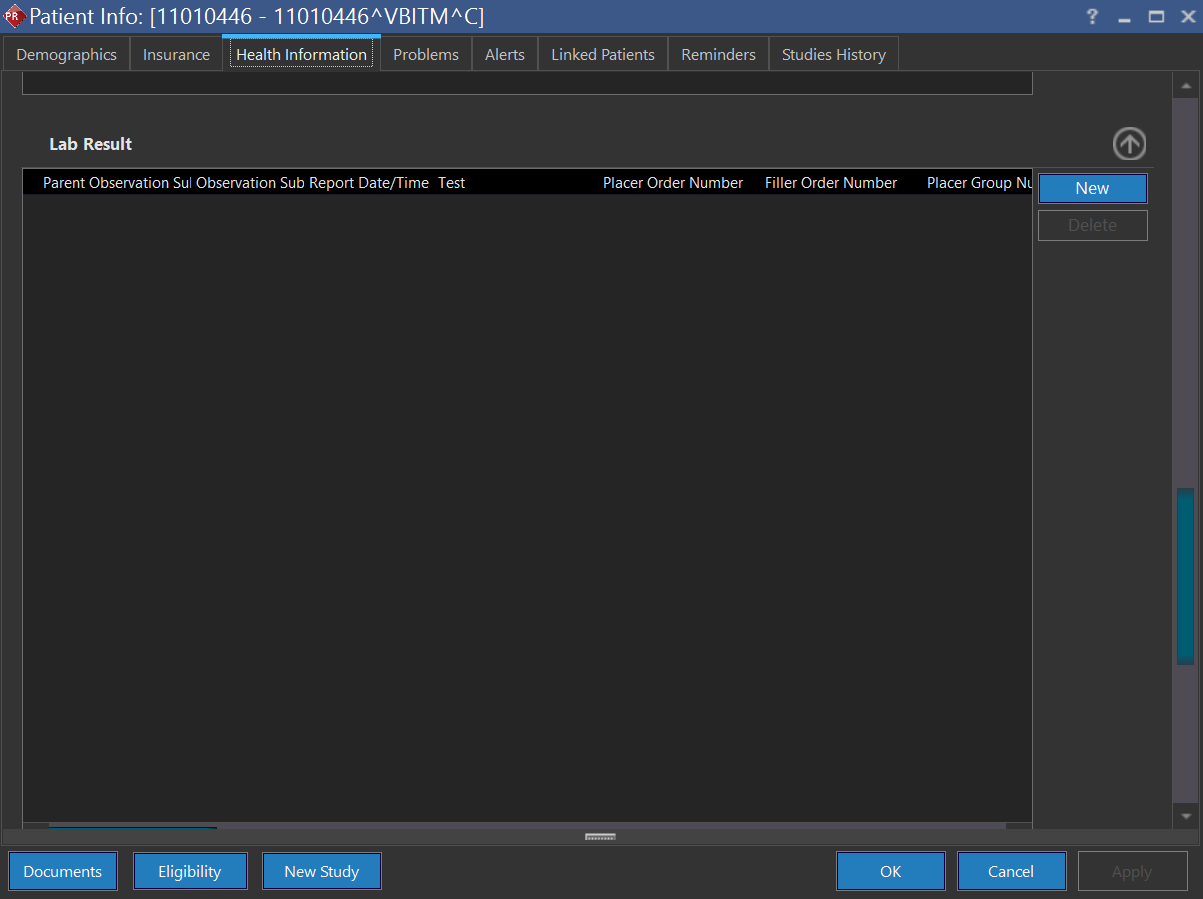
The following are the laboratory test result related fields that you could type in the appropriate data. Fields cannot contain negative values.
| FIELD | DESCRIPTION |
|---|---|
| Parent Observation Sub ID | Click the drop-down menu and select the appointment time to conduct lab test. By default, the application display the system date and time. This can be altered by clicking the drop-down menu |
| Observation Sub ID | Type in the name of the test. While you type in the test name, the typed text matches with the database and gets filtered. As a result, you could find a list of test names. |
| Report date/Time | Click the drop-down menu and select the date and time to complete the study |
| Test | Type the name of the test |
| Placer Order Number | Type in the placer order number |
| Filler Order Number | Type in the filler order number |
| Placer Group Number | Type in the placer group number |
| Observation Date/Time | Click the drop-down menu and select the date and time to complete the study |
| Observation | Type the observation you noticed in the process. |
| Result | Type in the laboratory test result. The result might be "Positive"/"Negative"/a statement revealing the condition |
| Unit | Type in the unit of measurement. For e.g. MG/DL, U/L etc |
| Range | Type in the normal lower and upper limits. If the test result doesn't fall between the normal lower and upper limits, then it is considered as "Abnormal" |
| Abnormal flag | Click the drop-down menu and select the appropriate condition based on the lab test result. In other words, it is an indication to be set based on the result value |
| Status | Click the drop-down menu and select the appropriate condition of the test result |
| Result Status Modified Time | By default, the application display the system date and time. This can be altered by clicking the down arrow. Type in the time at which the status of the result been modified |
| Analysis Date/Time | Click the drop-down menu and select the date and time to complete the test |
| Comment | Click the drop-down menu and type in the note about the lab test result |
| Performing Organization | Type in the name of the laboratory |
| Organization Address | Type in the address of the laboratory |
| Medical Director | Type in the name of the medical director |
| Specimen Type | Type in the type of sample received as specimen for test |
| Specimen Collection Date/Time | By default, the application display the system date and time. This can be altered by clicking the down arrow and select the date and time on which the specimen was collected for lab test |
| Specimen Source | Type in from where you have collected the specimen for lab test |
| Specimen Reject Reason | Click the drop-down menu and select the appropriate reason to reject the sample |
| Specimen Condition | Click the drop-down menu and select the appropriate state of viability of the sample |
| Relevant Clinical Information | Type in the relevant clinical information of the patient and click OK. |
| Specimen Action | Click the drop-down menu and select the appropriate specimen related activity |
| Ordering Physician | Type in the name of the referring physician |
| Copy To | Type in the name of the person (other physician) to whom a copy of the lab test result to be shared |
| Result Handling | Click the drop-down arrow and select the appropriate method to handle the lab test result |
| Parent Test | Type in the name of the basic test to be performed |
| Parent Placer Order Number | Type in the parent placer order number |
| Parent Filler Order Number | Type in the parent filler order number |
| Start Date/Time | Click the drop-down menu and select the start time of the test/study |
| End Date/Time | Click the drop-down menu and select the end time of the test/study |
| Resource | Upon click, the application launches a webpage where you could find additional information regarding the specific laboratory test. |
| Upon click, the application sends lab test result to the patient by an email provided the patient's email address is entered in Demographics tab. |