Insurance Tab
The Insurance tab is used to add insurance information for the patient.
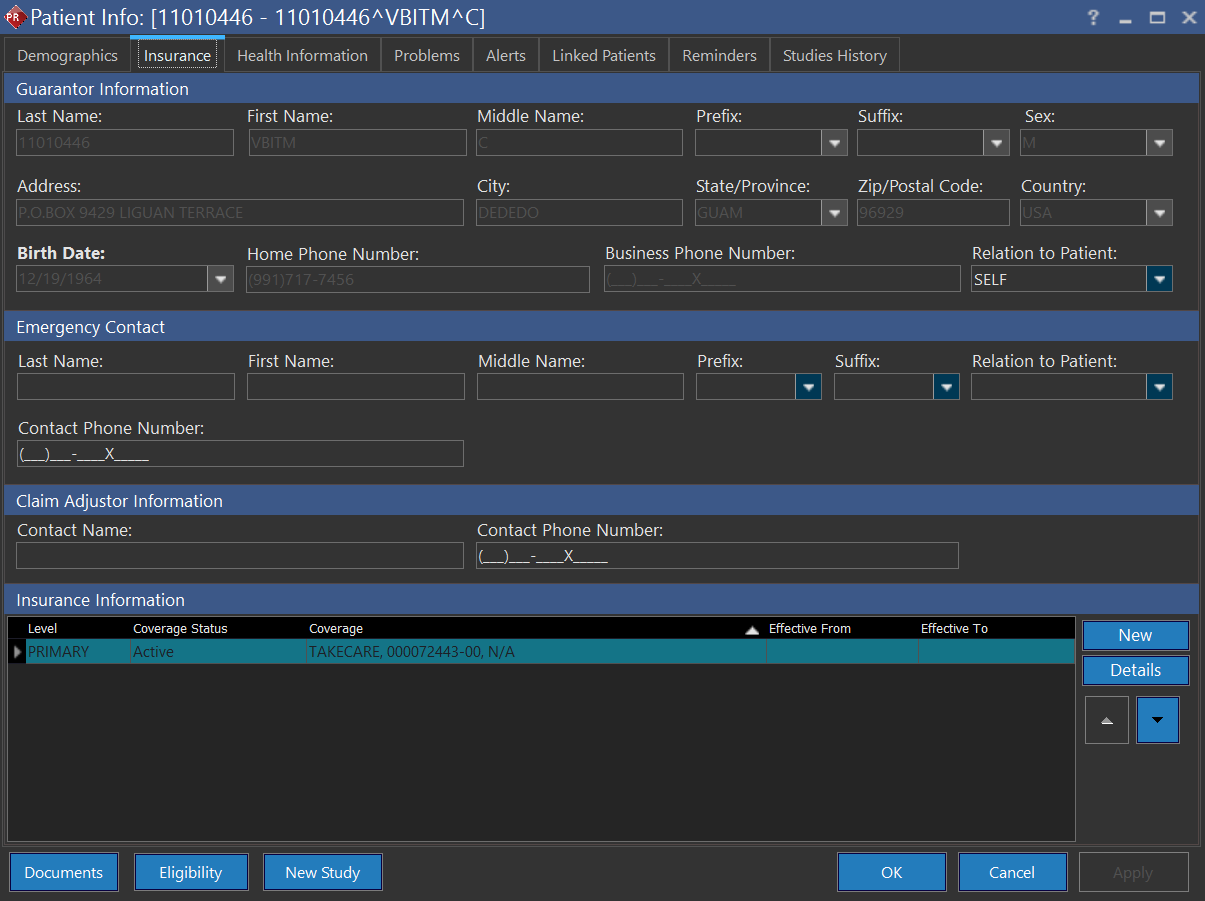
Fields and Descriptions
| FIELD | DESCRIPTION |
|---|---|
| Address | The Guarantor Information section contains all the information related to the insurance policy holder. You will need to type in the last name, first name, middle name, prefix, suffix, sex, address. city, state/province, zip/postal code, country, date of birth, home phone number, business phone number and relation with the guarantor. |
| Emergency Contact | The Emergency Contact section contains all the information related to the insurance policy holder. You will need to type in the last name, first name, middle name, prefix, suffix, and contact phone number. |
| Claim Adjustor Information | The claims adjustment information from the insurance company. |
| Tertiary | The tertiary insurance (if applicable) of the patient. This can be added by pressing the Add button. The tertiary insurance is always displayed at the top of the list of insurances. The other information displayed is the Coverage Status of the insurance (active/ inactive), the Name of the insurance provider, the Insure's ID and the Group Number. The Effective From and Effective To dates are the dates in which the insurance policy is valid. |
| Inactive | The Inactive insurance of the patient. An inactive insurance will be grayed out. When an insurance is rendered inactive by the user, the system provides the option of changing the level of any other insurance to the inactive one. In the above example, if the Secondary insurance has been rendered inactive by the user, the system will prompt the user to change the existing Tertiary insurance into Secondary. The user can opt to convert the tertiary insurance into secondary or to add a new secondary insurance. |
| Secondary | The secondary insurance (if applicable) of the patient. Only one insurance level is allowed for a patient (a patient can have only one primary, one secondary and one tertiary insurance). |
| Primary | The primary insurance of the patient. It is possible to only have secondary or tertiary insurance. In this case, the system prompts the user to convert the Secondary insurance into Primary. The user can opt to convert the secondary insurance into the primary or to leave the primary insurance blank. |
| New | The New button allows a new insurance to be added. Pressing this button opens the Insured's Coverage Information form described below. |
| Details | The Details button which displays the selected insurance in detail. This section is described in detail below. |
| Move Coverage Level | The Move Coverage Level buttons which are used to change the coverage level of a selected insurance. An insurance level can be changed to another if the desired insurance level does not exist. For example, the system does not allow two primary, secondary or tertiary insurances. |
The behavior of the Move Coverage Level buttons are described below:
| Initial Coverage Level | Final Coverage Level | Action Allowed |
|---|---|---|
| Primary | Secondary |  |
| Secondary | Primary or Tertiary |  or or |
| Tertiary | Secondary | |
In the Insurance tab, the patient's Emergency Contact information can be filled out.
By default, the Relation to Patient drop-down menu is set to SELF. The Guarantor information fields are populated with relevant patient information when the Relation to Patient drop-down menu is set to SELF and all the fields are disabled.
If this is changed to any other option other than SELF, all fields in the Guarantor information section are enabled and users can enter the associated guarantor information. When creating a new insurance instance, the insured party's relevant relationship and information is auto-populated from the guarantor's relationship and information, if they are available.
Insurance coverage information (such as the insurance provider the patient is under) can be saved in the Insurance Information form. The Insurance Information of the Patient can be accessed by pressing Details to open the Insured's Coverage Information window.
To add an insurance for the patient, press the New button.
Adding the insurance company information
The Insured's Coverage Information form contains the insurance details of the patient. The mandatory fields are in bold.
| FIELD | DESCRIPTION |
|---|---|
| Effective From | The Effective From: and Effective To: dates of the insurance. If the Effective To: date has passed, the insurance will become Expired. If the user selects an insurance coverage with an Effective To date which is in the past while the Active Coverage option is selected, then system simply sets the Insurance Coverage Status as Expired. If Effective From date has been set to future to system date and 'Active Coverage' option is unchecked, the Insurance Coverage Status is set to Terminated. If Effective From date has been set to future to system date and 'Active Coverage' option is checked off, the Insurance Coverage Status is set to Future. If Effective From date is current or past to system date and Effective To date is current or future to system date and 'Active Coverage' option is checked off then Insurance Coverage Status is set to Active. In any case if 'Active Coverage' option is unchecked the Insurance Coverage Status is set to Terminated. |
| Insured's ID | The ID of the Insured person. |
| Insurance Company | The name of the insurance company. When you start typing in the letters of the Insurance Company name, the available values matching the values entered are displayed along with the address, city and state information of the matching Insurance companies. Note that only the first 16 characters of Address, first 16 characters of City and first 16 characters of State are displayed in the search results. |
| Details | The Details button leads to Insurance Company Information form (see below). |
| Website Address | The small icon denotes the website of the insurance company. If the Insurance Company has a website, the icon beside the Insurance Company's name turns blue. If the blue icon is clicked, an internet browser to the Insurance Company's website is launched automatically. |
| Financial Type | The option is used to select the financial type (various payment options) available to patient. Please refer to the Financial Types section for further details. |
| Group Number | The group insurance number. |
| Co-Pay Amount | The Co-pay amount can be either a $ amount or a percentage. |
| Patient Relationship to Insured | The relation of the patient to the Insured person. If the insured person and the patient are same, the Self option should be selected. If the Patient Relationship to Insured is not Self (e.g. spouse), the Last Name, First Name, Sex, and Date of Birth fields are mandatory. |
| Coverage Level | The Coverage Level of the insurance which can be Primary, Secondary, or Tertiary. It is possible to only enter secondary or tertiary insurance without entering a Primary insurance. In such a case, a warning message is displayed notifying the user that they should enter the primary insurance of the patient. At that point, the user can then either enter a primary insurance or leave it blank. |
| Active Coverage | If the current coverage is active, then the Active Coverage check mark should be checked. Unchecking Active Coverage will display the coverage as grey in the Insurance Information portion of the Insurance tab. |
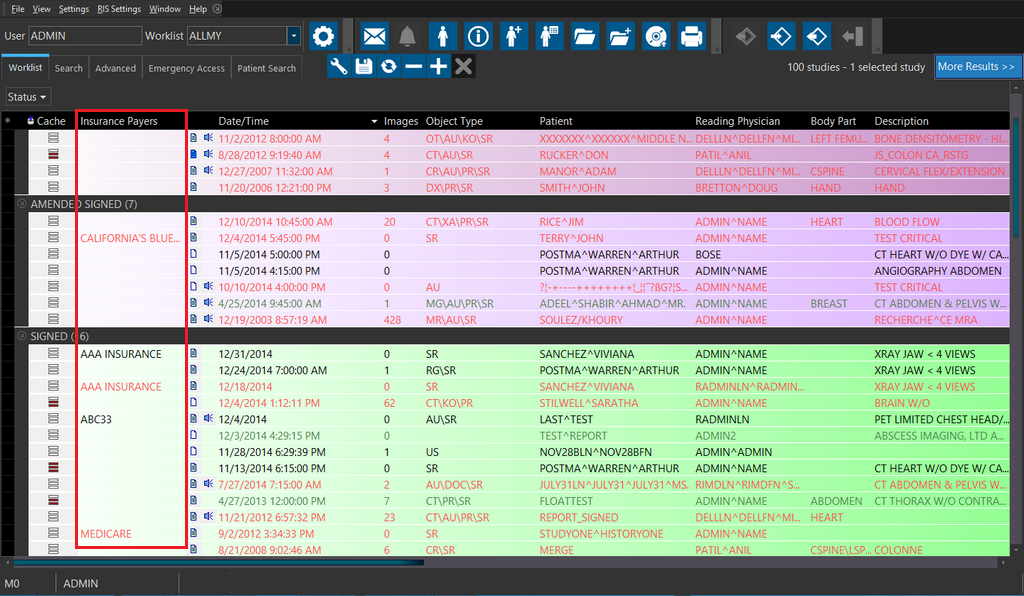
Worklist and search screens display the Insurance payer only if study date falls in between Effective From and Effective To date of the Insurance and insurance is active.
Creating a new Insurance Company
The user must first input Insurance Payer's information by clicking on Details to open the Insurance Company Information window which should contain the Payer Name, Payer ID, Carrier ID and a Contact Name.
| Field | Description |
|---|---|
| Payer Name | The Payer Name field contains the name of the insurance company |
| Payer ID | Payer ID is used by CMS1500 (USA only) to identify the payer/insurance companies for electronic claim remittances. |
| Fee Schedules | Various fee schedules used to assign specific charge amounts for different procedures and modalities. Refer to the Fee Schedules section for further information |
| Carrier ID | The Carrier ID is utilized to identify the insurance payer within your organization. It can also be utilized for field mappings when submitting data via HL7 protocol to a billing software. |
| Financial Types | The option is used to select the financial type (various payment options) available to patient. Please refer to the Financial Types section for further details. |