Creating Patient Alerts
Alerts are accessible by clicking on the Alerts tab in the Patient Info form. The tab is only visible to a user with privileges.
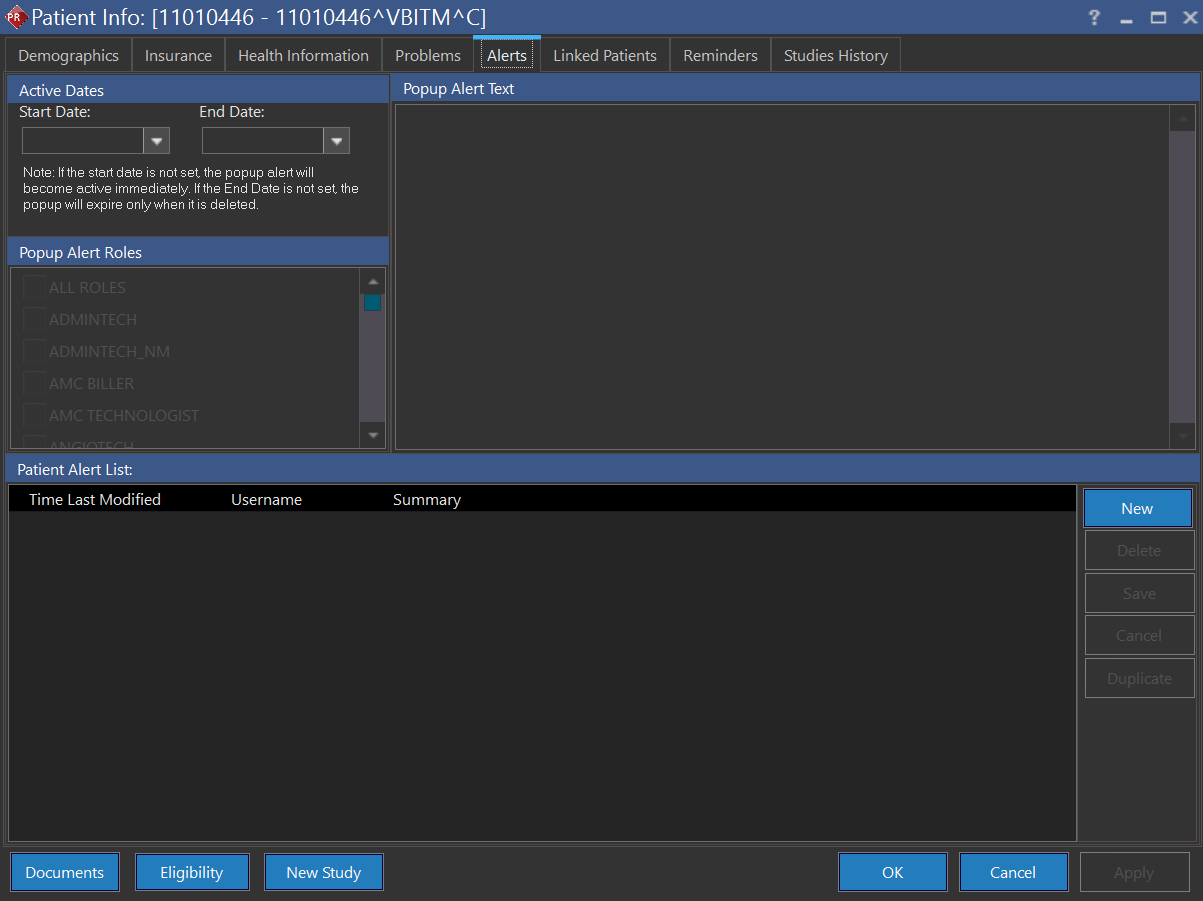
Creating an Alert
The patient must be registered in the database before an alert could be created. Press New to create an alert.
The Start Date and End Date for the alert are decided by the user. If the start date is left blank, the alert will be activated immediately. If the end date is not chosen, the alert will expire only when it is deleted.
The user can choose which users the alert is intended for by going through the list of roles available in the Popup Alert Roles section. The ALL ROLES displays the alert to all users. Once an alert has been created for a certain role, the role will not be deleted from the system when an alert is associated with it. However, the role can be made inactive if desired.
The popup Alert Text section is used to type the alert text. The alert can have a maximum of five hundred (500) characters.
Press the Save button to save the alert. Multiple alerts can be created by repeating the procedure. Any alerts created by other users are also visible in the Patient Alerts form. Clicking these alerts will display them in detail. If the user closes the Patient Alerts form without saving the new alert, a warning message is displayed prompting the user to Save (Yes), Close without Saving (No) or Cancel.

Appearance of a Patient Alert
When the user opens a study with an alert, the alert button is highlighted in the toolbar to notify the user.

Clicking the  button opens the Alerts popup.
Whenever the Study Info or Patient Info form is opened, the Alerts popup is displayed.

The Alerts popup contains the following information:
- Date and Time of when the alert was created.
- The username of the creator of the alert.
- The message of the alert.
- A pencil button next to the close button (in some themes of MS Windows 7 and MS Windows XP, this icon might not be visible).
The size of the popup message is adjustable and will appear with the same size specified by user. When the study is re-opened, the alert popup will appear in the center of the monitor where the mouse is. If the patient has multiple alert messages, the popup message will contain the latest message only.
Alerts form
Clicking the pencil button in the top-right corner will open up the Alerts Form. The Edit Alert button also opens the Alerts Form. If the user has the privilege to edit or delete the alerts, can edit the alert inside the Alerts form. If the user does not have that privilege, the options in the Alerts form are disabled. The user can read all the Alerts (current and previous) according to their role but cannot edit them.
If the Alerts form contains multiple alerts, they are visible at the bottom section of the form. Clicking these alerts will display them in detail in the Popup Alert Text section. The most recent alert is at the top of list.
The expired patient alerts are automatically deleted once the End Date has passed. The alerts are refreshed periodically based on the System configuration entry "Alert Refresh Interval(s)".